Attributes are labels you can assign to an Account, a Contact, or a Driver to tag and categorize records. This guide explains how to manage attribute assignments and, where applicable, define active date ranges.
Where to find the Attributes page
| Element | Navigation path |
|---|---|
| Account | Back-office → Accounts → open an account → Attributes tab |
| Contact (back-office) | Back-office → Accounts → open an account → Address Book → open a contact → Attributes section |
| Contact (self-serve) | Self-Serve → Contacts → open a contact → Attributes section |
| Driver | Back-office → Drivers → open a driver → Attributes tab |
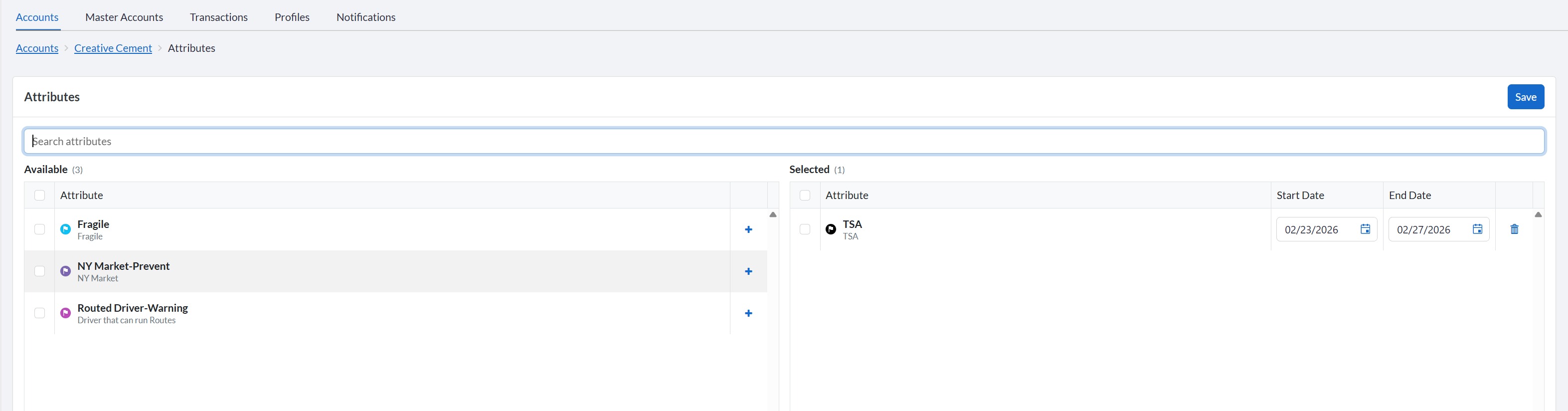 The two columns
The page is divided into two side-by-side lists:
- Available Attributes (left) — attributes that exist in the system but are not yet assigned to this record.
- Selected Attributes (right) — attributes currently assigned to this record.
Both lists are sorted alphabetically and paginated. If a name is too long to display, it is truncated with "…" — hover over it to read the full name.
Searching
Use the Search attributes bar at the top to filter both columns at the same time. Type any part of an attribute name — results update as you type. Clear the field to restore the full lists.
Adding an attribute
Removing an attribute
Start and end dates (Accounts & Contacts only)
Each selected attribute on an Account or Contact can have an optional Start Date and/or End Date to define the period during which it is considered active. This feature is not available for Drivers.
| Field | Meaning |
|---|---|
| Start Date | The attribute is active from this date onward. |
| End Date | The attribute stops being active after this date. |
- Both fields are optional — leave one or both blank if no date limit is needed.
- If both are filled in, the Start Date must be earlier than the End Date.
Saving your changes
Changes are not saved automatically. When you are done, click the Save button for your context:
- Account Attributes page → Save button on that page.
- Contact edit form → the main Save button of the form.
- Driver Attributes page → Save button on that page.
Quick reference
| Situation | What to do |
|---|---|
| An attribute I need isn't in the Available list | It may already be in the Selected list, it may be archived, or it may not be configured for this element type — check with your administrator. |
| I removed an archived attribute by mistake | It cannot be re-added from this page. Contact your administrator to re-assign it. |
| The Save button is blocked | Look for rows highlighted in red — a Start/End date combination is invalid. |
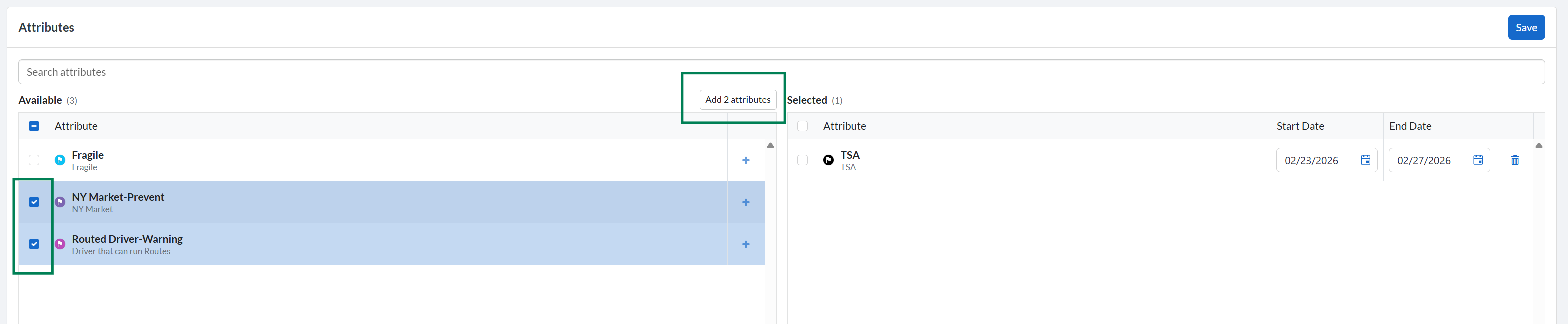
| Individual Add buttons disappeared | Checkboxes are ticked — use Add Selected, or uncheck all rows to restore individual buttons. |
| No attributes are showing | All available attributes may already be selected, none may be configured for this element type, or none have been created — check with your administrator. |
Was this article helpful?
That’s Great!
Thank you for your feedback
Sorry! We couldn't be helpful
Thank you for your feedback
Feedback sent
We appreciate your effort and will try to fix the article