Copy Account
An account can be duplicated directly from the Account Details screen or from a Master Account. When duplicated from a Master Account, the new account will be linked to that master account.
In a Master Account, a new account can be created and linked using the Master Account information.
Copy an Account
- You can start from the account or from the master account:
- Starting from an Account:
- Open the account you want to copy in Back Office (Accounts→ Accounts list → click the account name).
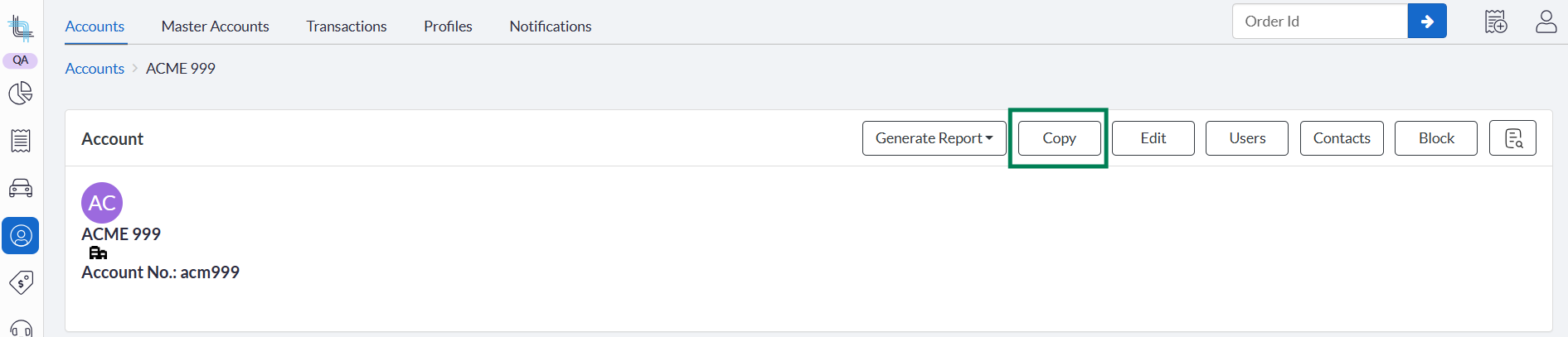
- Click on the Copy button in the account header area and continue to the section:
- Starting from a Master Account:
- Open the master account (Accounts→ Master Accounts → Master Account list → click the master account name).
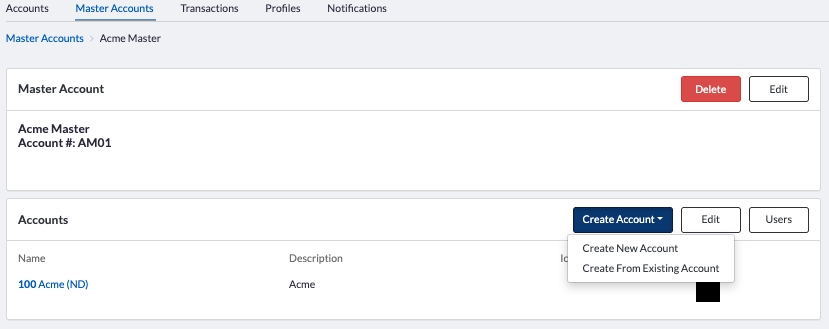
- Click Create Account → Create From Existing Account.
- A Create From Existing Account dialog box appears. Search by account name or number and select the account to copy. A minimum of 3 characters is needed to start the search.
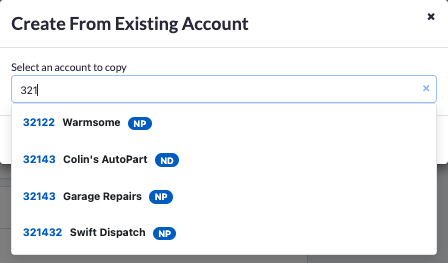
- Click on Select.
- Starting from an Account:
- A Copy Account form opens, pre-filled from the source account :
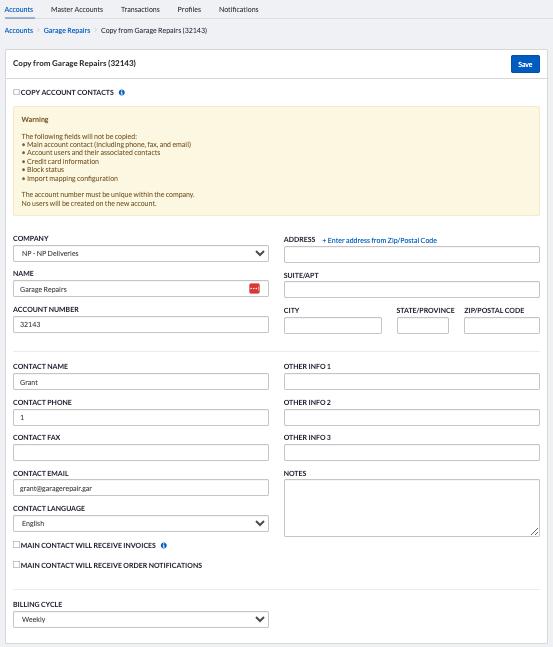
- Since the account number must be unique in the same Company, make sure to change the account number if using the same company or if you only have 1 company.
- No main user or contact will be created from the account contact name when creating a new account from an existing account. This means you can use the same contact information as the original account.
- If you wish to copy the contacts from the original account, check the Copy Account Contacts.
Note: the attributes assigned to the contacts are not copied. - Make all additional changes and click on Save.
- The new account will be created with all information except the ones indicated. Account contacts will be copied if checked.
- If the account was copied from the Account details, the page refreshes to show the new account.
- If the account was copied from the Master account, the new account is linked to the master account, and the page refreshes to show the list of linked account. Click on the name of the account to open it.
- In the new account, add the users and make any additional changes from the original account.
Copying contacts
Using the Copy Account Contacts checkbox (off by default).
- When checked: Only Account Contacts are copied. The copy contacts runs as a background service after the account is saved.
- While the background copy is running, a note appears on the new account page to indicate the operation is in progress.
- User contacts are never copied.
Information copied
| Item | Copied? |
|---|---|
| Pricing | ✅ Yes |
| Billing options | ✅ Yes |
| Attributes | ✅ Yes |
| Sales commissions | ✅ Yes |
| Profiles (order, self-serve, etc.) | ✅ Yes |
| Order options | ✅ Yes |
| Account field information (UDFs) | ✅ Yes |
| Overridable driver options | ✅ Yes |
| Account Contacts | ⚙️ Optional — via Copy Account Contacts checkbox |
| Main account contact user (primary contact) | ❌ Not copied and not created |
| Account users and user contacts | ❌ Not copied |
| Credit card information | ❌ Not copied |
| Block status | ❌ Not copied — new account is always active |
| Import mapping | ❌ Not copied |
| Historical orders and transactions | ❌ Not copied |
Validation and error messages
All standard new-account validation rules apply to copied accounts:
- Account Number must be unique within the company. The form is pre-filled with the source number — always change it before saving.
- If you try to save without changing the account number, the following error is shown: "Account Number must be unique. Please provide a different number."
- All other required fields must be filled in (same rules as new account creation).
- The Company field is editable during copying.
Was this article helpful?
That’s Great!
Thank you for your feedback
Sorry! We couldn't be helpful
Thank you for your feedback
Feedback sent
We appreciate your effort and will try to fix the article