Copying an Extra Fee Schedule creates a new schedule that already contains the Extra Fees of an existing one, with the same rates and settings. Use it to build a new rate card from a schedule that is already close to what you need, instead of adding every Extra Fee again manually.
Table of Contents
- Configure Who Can Copy an Extra Fee Schedule
- Blockers and Preconditions for Copying a Schedule
- Copy an Extra Fee Schedule
- What the Copy Includes
- After You Confirm the Copy
- Impact of Copying an Extra Fee Schedule
Configure Who Can Copy an Extra Fee Schedule
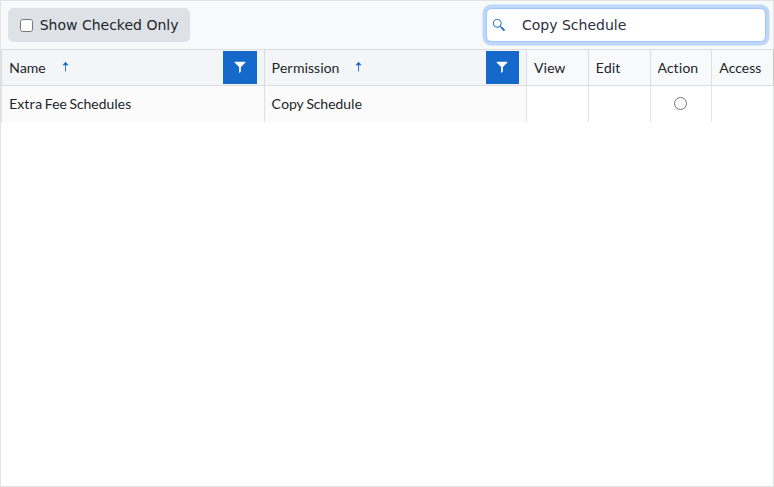
Copying is governed by the Copy Schedule permission, listed in the Permission column of an Extra Fee Schedules row of a role. A role also needs Extra Fee Schedules Edit, because the Copy button is only offered on the editable screen of a schedule. Copy Schedule has its own selector in the Action column, so you can select or clear it without changing View or Edit.
Roles and role templates that already had Extra Fee Schedules Edit received Copy Schedule automatically, so they can copy a schedule with no permission change.
Give a role the right to copy a schedule as follows:
- Go to Settings > Configurations > System > Roles:
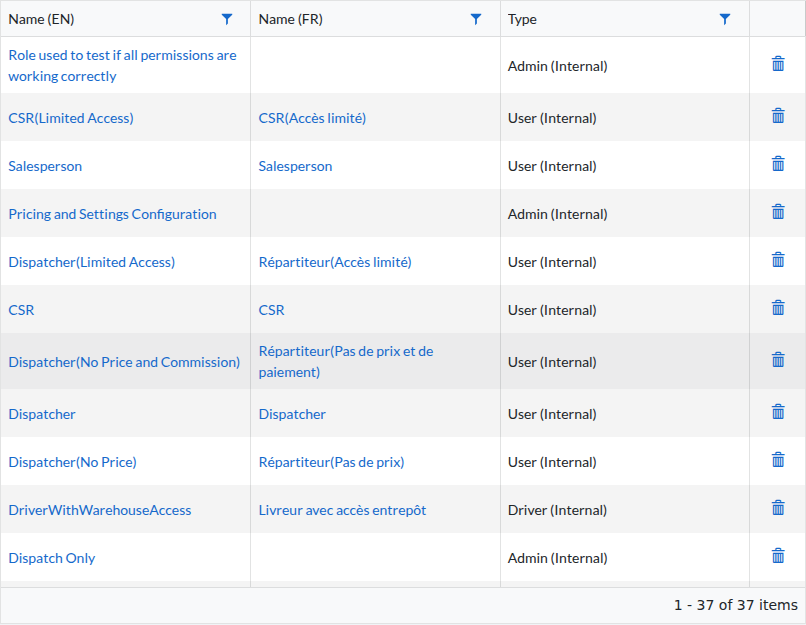
- Click the role you want to change.
- In the Permissions grid, find the Extra Fee Schedules row whose Permission column reads Copy Schedule.
- Select the option in the Actioncolumn of that row:
- Click Save.
Blockers and Preconditions for Copying a Schedule
The Copy button is offered on the editable screen of a schedule, and only when all of the following are true:
- Your role has the Copy Schedule permission. See Configure Who Can Copy an Extra Fee Schedule.
- Your role also has Extra Fee Schedules Edit, which is what opens the editable screen.
- The schedule you have open is not itself a copy that is still being prepared or that failed. No Copy button is offered on those two states, even with the permission.
If you don't see the Copy option after selecting the permission, contact support.
Reaching Extra Fee Schedules at all requires access to the Back Office plus either View or Edit on Extra Fee Schedules. Without one of them, the Extra Fee Schedules entry is not shown in the menu. A user who has View but not Edit opens a schedule on a read-only version of the schedule screen, where the name is plain text and Save, Copy and Add Extra Fee are not offered. Reading stays fully possible there: the schedule and its Extra Fees are displayed as usual, and Show Archived Extra Fees stays available.
The copy needs a name before you confirm it. Name of the copy comes prefilled, but if you clear it and click Copy, no schedule is created: the dialog box stays open and the message "The field Name is required" appears under the field:
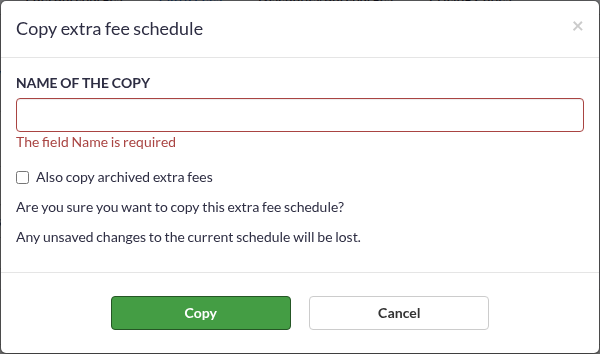
The name does not have to be unique. Dispatch Science accepts a name that another schedule already uses, so pick one you can tell apart from the source schedule.
Copy an Extra Fee Schedule
Copying creates the new schedule as soon as you confirm it, then Dispatch Science duplicates the Extra Fees in the background, so you do not have to wait on the screen.
- Go to Pricing > Extra Fees > Extra Fee Schedules:
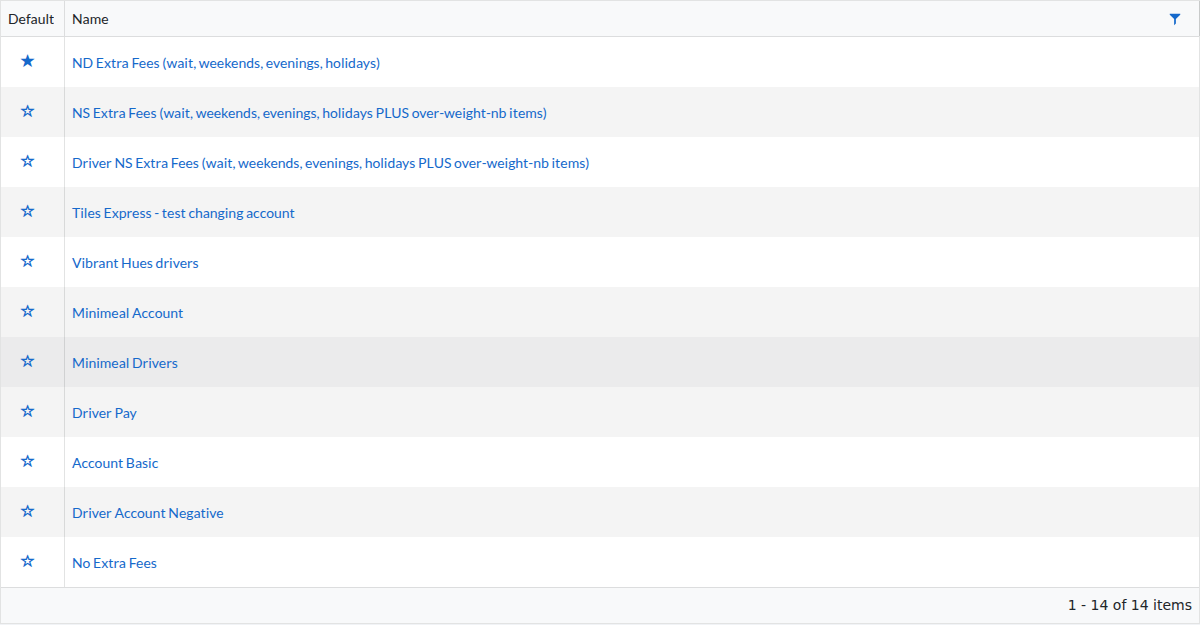
- Click the name of the schedule you want to duplicate. Its schedule screen opens, with Copy beside Save:
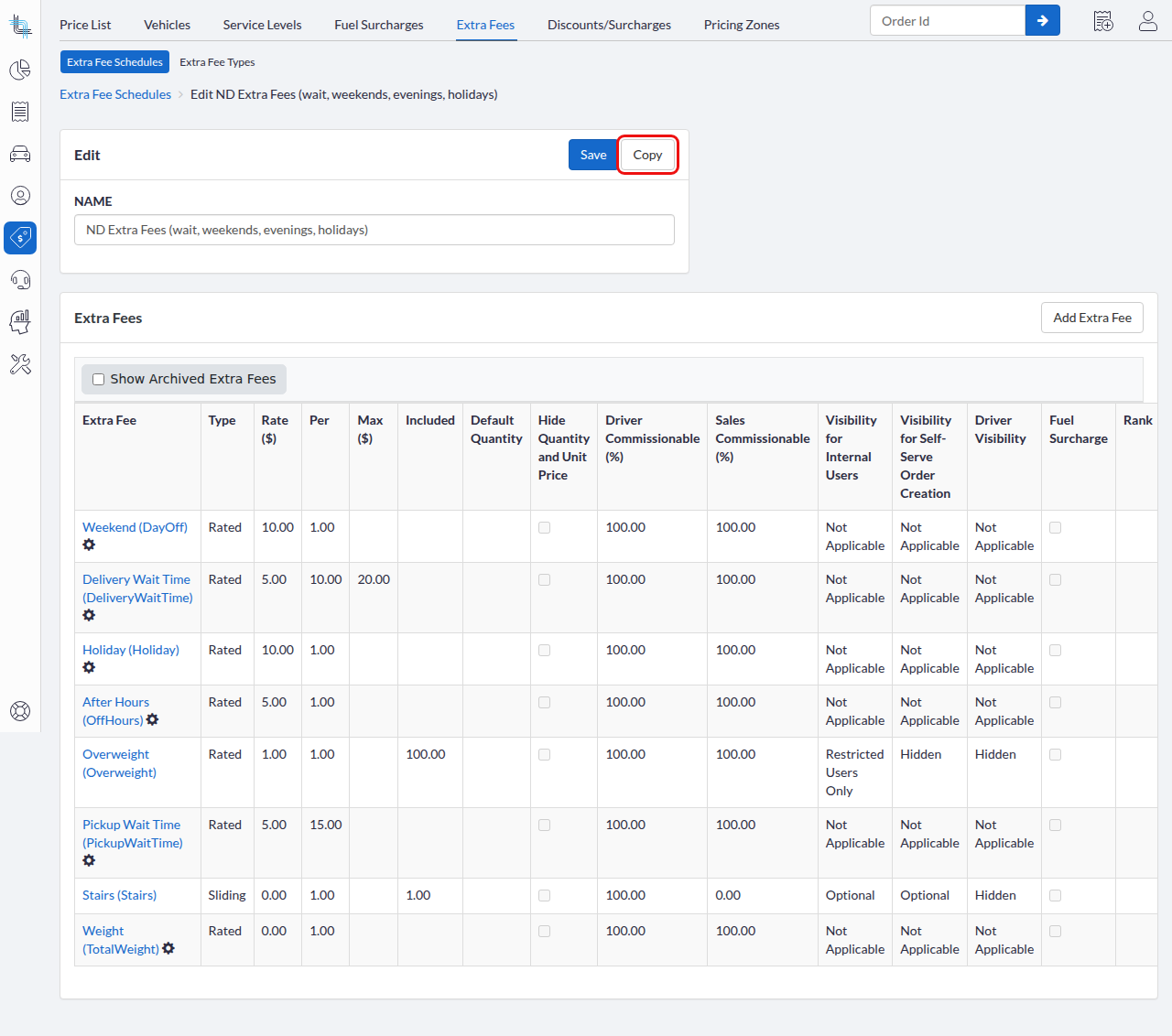
- Click Copy. The Copy extra fee scheduledialog box opens:
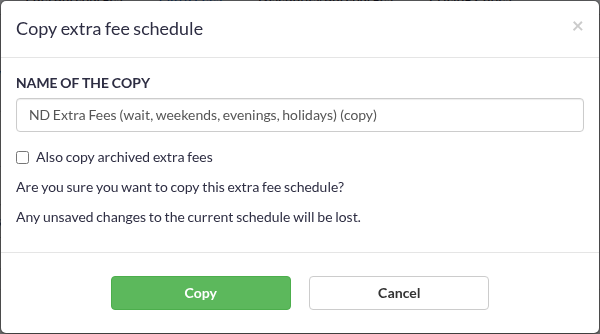
- Keep or change the required Name of the copy. It is prefilled with the name of the source schedule followed by
(copy), soStandard 2025becomesStandard 2025 (copy). - Check the box for the optional Also copy archived extra fees if the archived Extra Fees must be duplicated too. The box is cleared every time the dialog box opens, so archived Extra Fees stay out of the copy unless you check it.
- Click Copy to confirm. The list of Extra Fee Schedules opens with a confirmation message.
To close the dialog box without copying, click Cancel or the close button in its header. Nothing is created: no schedule, no background copy and no email.
The copy then runs in the background. See After You Confirm the Copy for what to expect while it is being prepared.
What the Copy Includes
The new schedule is a faithful duplicate of the Extra Fees of the source schedule, so only what changed has to be adjusted afterwards.
| Item | Copied? |
|---|---|
| Extra Fees of the source schedule, with their Rate, Per, Max, Included, Default Quantity and Rank | ✅ Yes |
| Driver Commissionable and Sales Commissionable settings | ✅ Yes |
| Visibility for Internal Users, Visibility for Self-Serve Order Creation and Driver Visibility | ✅ Yes |
| Hide Quantity and Unit Price, read-only quantity and the two hide-for-zero-value settings | ✅ Yes |
| Accounting code, calculation type, factor calculation method and the selected pricing script | ✅ Yes |
| Fuel Surcharge setting and the separate-sheet-per-vehicle-type setting | ✅ Yes |
| Sliding price grid (upper quantity limit, upper distance limit, unit price, vehicle type) and the uploaded sliding rate file | ✅ Yes |
| Script sheet values and the uploaded script file | ✅ Yes |
| Archived or active state of each copied Extra Fee | ✅ Yes, each copied Extra Fee keeps the state it has on the source schedule |
| Archived Extra Fees of the source schedule | Only when Also copy archived extra fees is checked |
| Default schedule status | ❌ Not copied. Copying does not change which schedule is applied by default |
After You Confirm the Copy
Confirming a copy queues the duplication of the Extra Fees. The new schedule exists immediately, but it only becomes usable once that duplication finishes.
While the Copy Is Being Prepared
The new schedule is listed as soon as you confirm the copy, and it stays read-only until the copy finishes. Opening it shows the message "This schedule is still being prepared. It will become available once the copy finishes." at the top of the screen.
In that state, Save, Copy and Add Extra Fee are not offered, the schedule name is shown as plain text instead of an input field, and the Extra Fees already copied are listed as plain text instead of links, so you cannot open them. Show Archived Extra Fees stays available.
When the Copy Is Ready
You receive an email with the subject "Your extra fee schedule copy is ready", naming the new schedule and the source schedule. It goes only to you, at the email address of your user account and in your contact language, so no other administrator is notified. If your user account has no email address, no notification is sent and the schedule screen is where you see the outcome. An email that fails to reach you does not affect the copy: the new schedule is usable either way.
- Open the "Your extra fee schedule copy is ready" email.
- Click Open the new schedule.
- Adjust the copied Extra Fees on the new schedule.
The message at the top of the screen is gone and the schedule is editable, with nothing else to do to release it.
If the Copy Fails
A copy can fail for technical reasons that are outside your control. The new schedule then stays read-only and shows the message "The copy of this schedule failed. Delete it and try copying again." at the top of the screen.
The schedule keeps whatever was already duplicated when the copy stopped, so it can hold part of the Extra Fees of the source schedule. It cannot be edited or repaired, its Extra Fee rows cannot be opened, and no retry action is offered on it.
You also receive an email with the subject "Your extra fee schedule copy failed", asking you to delete the incomplete schedule and try copying again. That email names no schedule and carries no link, so you have to find the schedule yourself in Pricing > Extra Fees > Extra Fee Schedules.
The message on the screen and the email both ask you to delete the incomplete schedule. Contact Dispatch Science Support to have it removed, then start the copy again from the source schedule.
Impact of Copying an Extra Fee Schedule
The Extra Fee Schedules List
The new schedule appears in Pricing > Extra Fees > Extra Fee Schedules as soon as you confirm the copy, while it is still being prepared. No column of the list shows that state.
Other Users Opening a Pending or Failed Copy
Any user who can reach the Extra Fee Schedules can open the new schedule while it is being prepared or after its copy failed, and reads the same message at the top of the screen as you do. A user who has View but not Edit opens it on the read-only screen described in Blockers and Preconditions for Copying a Schedule.
Uploaded Sliding and Script Files
Each uploaded sliding rate file and script file is duplicated for the new schedule. Sliding and scripted Extra Fees are therefore priced in the copy straight away, and their files can be downloaded or replaced from the new schedule without uploading them again.
Archived Extra Fees in the Copy
Archived Extra Fees that you chose to include arrive archived in the copy. Click Show Archived Extra Fees on the new schedule to display them. They can be made available again later, like any archived Extra Fee.
Was this article helpful?
That’s Great!
Thank you for your feedback
Sorry! We couldn't be helpful
Thank you for your feedback
Feedback sent
We appreciate your effort and will try to fix the article