These features are available on your Test site on the morning of June 3 and released to your Production site on the evening of June 10.
⚠️ Important Things to Know About This Release
- Filters on dispatch grids relocated — Grid filters have moved out of the grid tab's gear menu and are now available directly above the list in each view, bringing card and grid boards into a consistent experience. Existing configurations are migrated automatically. Full rollout to all tenants may take several weeks post-release. (see details)
- Notifications & Chat Messages icons have moved — The chat and notifications features are no longer limited to the Route screen and Map boards. It is now accessible as a redesigned side menu from all screens in the dispatch module. Dispatchers who relied on navigating to a specific screen to check messages will find this feature in a new, persistent location in the interface. (see details)
- Script Rules have moved — Script Rules are no longer under Settings > System. They have been relocated to the Automation section alongside other automation features. (see details)
- Multi-segment order profile: previous automation checkbox replaced — The Update segments status automatically on last segment status update checkbox has been removed and replaced with a new, granular configuration system. Existing tenant configurations are migrated automatically; however, due to the complexity of the migration, it may take several days after the release before the feature is fully enabled for all tenants (see details)
New Features in This Release
- Inline spreadsheet editor for price lists
- Order notification and new chat message notifications now accessible from all dispatch screens
- Granular control over segment status and Ready At time propagation in multi-segment order profiles
- Archiving of extra fee types
- Contact attributes copied when copying an account
- Support for negative driver commission and settlement values
- Barcode tracking on the public tracking page
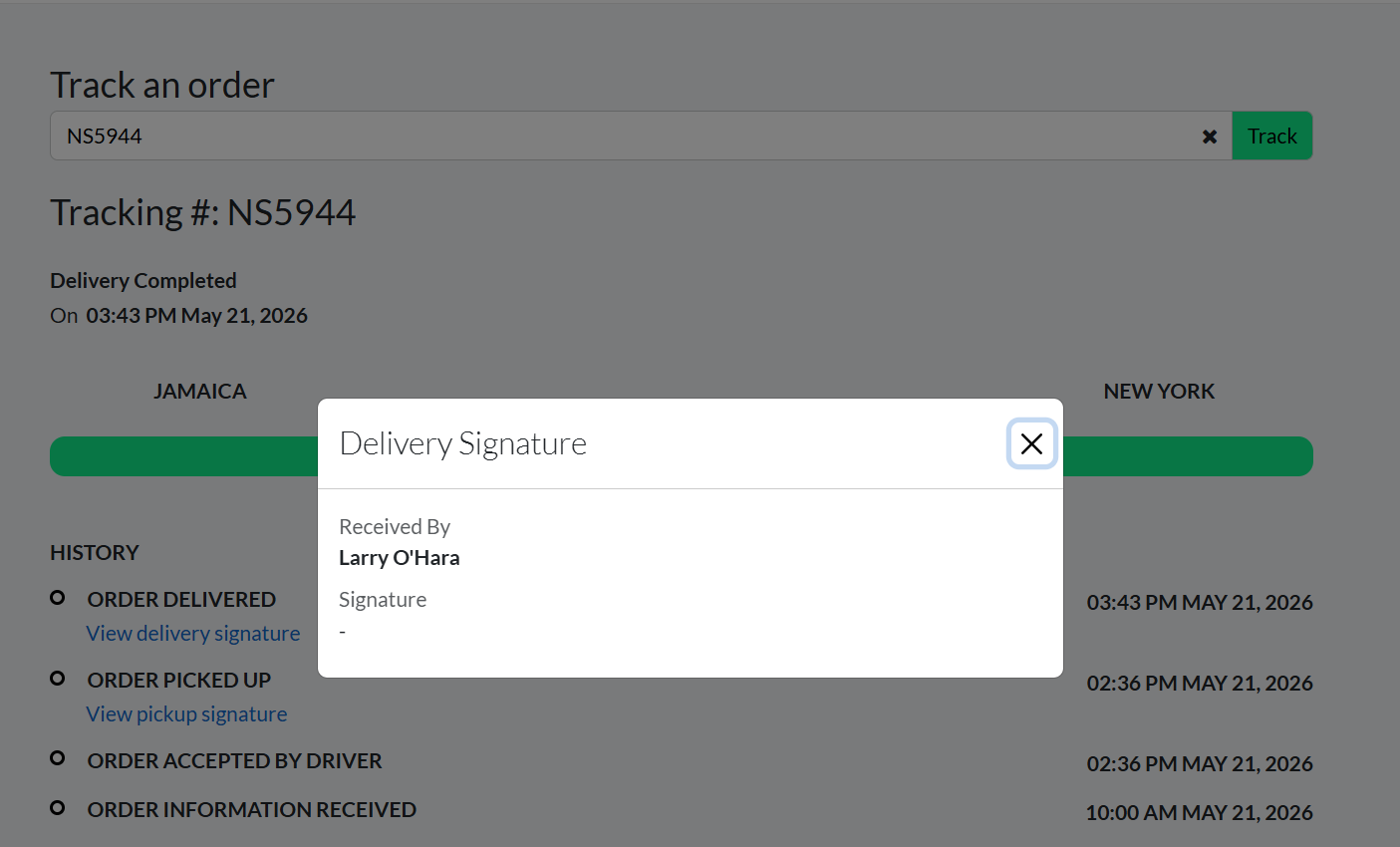
- Signature name and drawing available on the public tracking page
Several terms used throughout these release notes refer to specific areas of the Dispatch Science platform. You can consult their definitions below:
Definitions — click to expand
- Back Office
- Where Customer Service Representatives (CSR) create and edit orders, create accounts, review drivers, etc.
- Dispatch Board
- Where Dispatchers assign orders to drivers, get notifications for invalid orders, etc.
- Auto-Dispatch
- This section refers to the automated order assignment setup and its process.
- Administration
- This section is in the Back Office but refers to sections only an administrator will use like Settings and Pricing.
- Self-Serve Portal
- Where account users log in to create orders, view their order history, enter a credit card, etc.
- Public Tracking Page
- Where customers enter a tracking number like the order ID or a reference number to view the status of their order.
- Tenant API
- API provided to you to create orders for your accounts, retrieve invoices and change invoice status. For documentation, see api.dispatchscience.com.
Table of Contents
- BackOffice — Orders & Invoicing
- BackOffice — Drivers
- BackOffice — Administration
- Dispatch Board
- Self-Serve Portal
- Public Tracking Page
- Tenant API
BackOffice — Orders & Invoicing
Inline Spreadsheet Editor for Price Lists
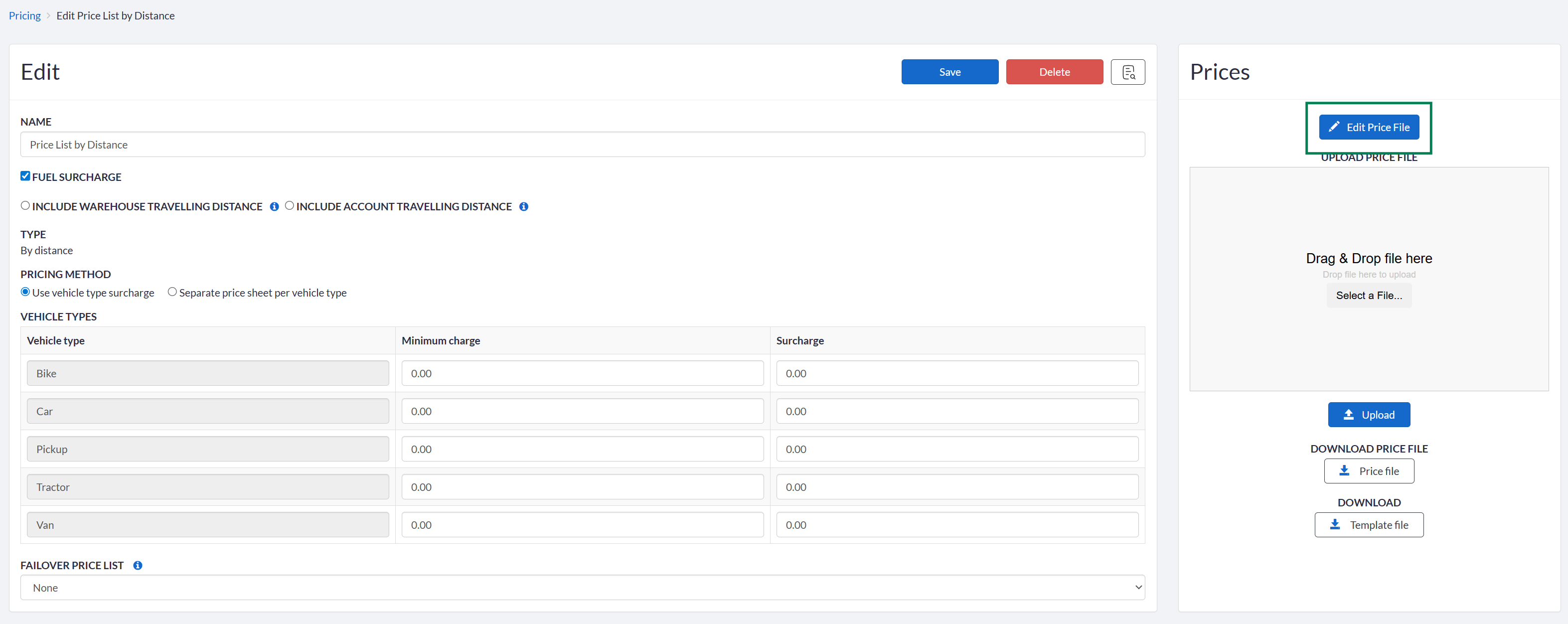
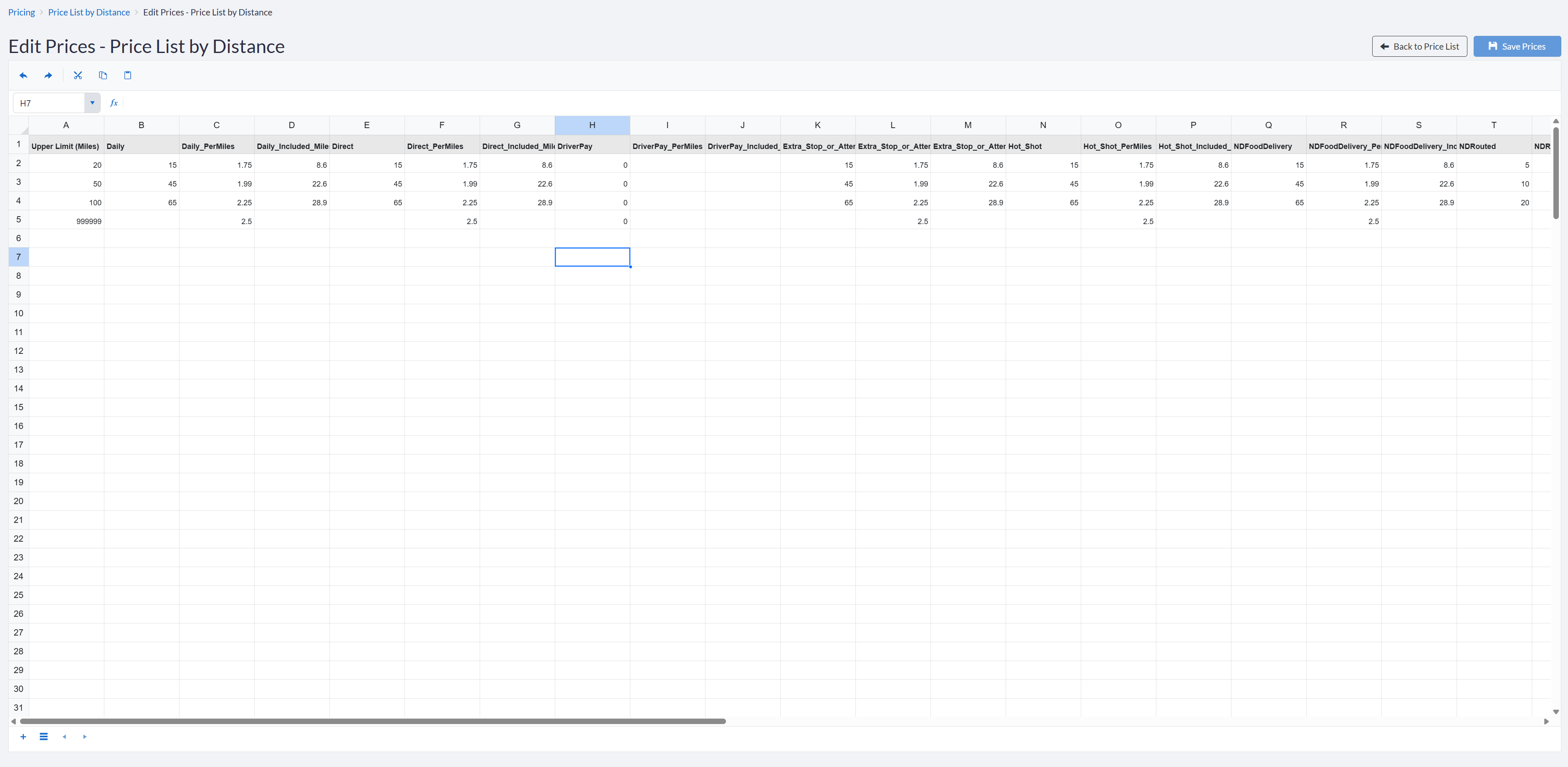
Price lists can now be viewed and edited directly in the browser using an inline spreadsheet interface. Previously, making pricing changes required downloading an Excel file, editing it offline, and re-uploading it. The new editor allows quick updates without leaving the application. The existing Excel import/export workflow remains available for users who prefer it.
To access the inline editor:
- Go to BackOffice > Administration > Price Lists.
- Open an existing price list.
- Click Edit Price File to open the inline spreadsheet view.
- Make changes directly in the grid and click Save Prices.
Enhanced Control Over Segment Status and Ready At Propagation
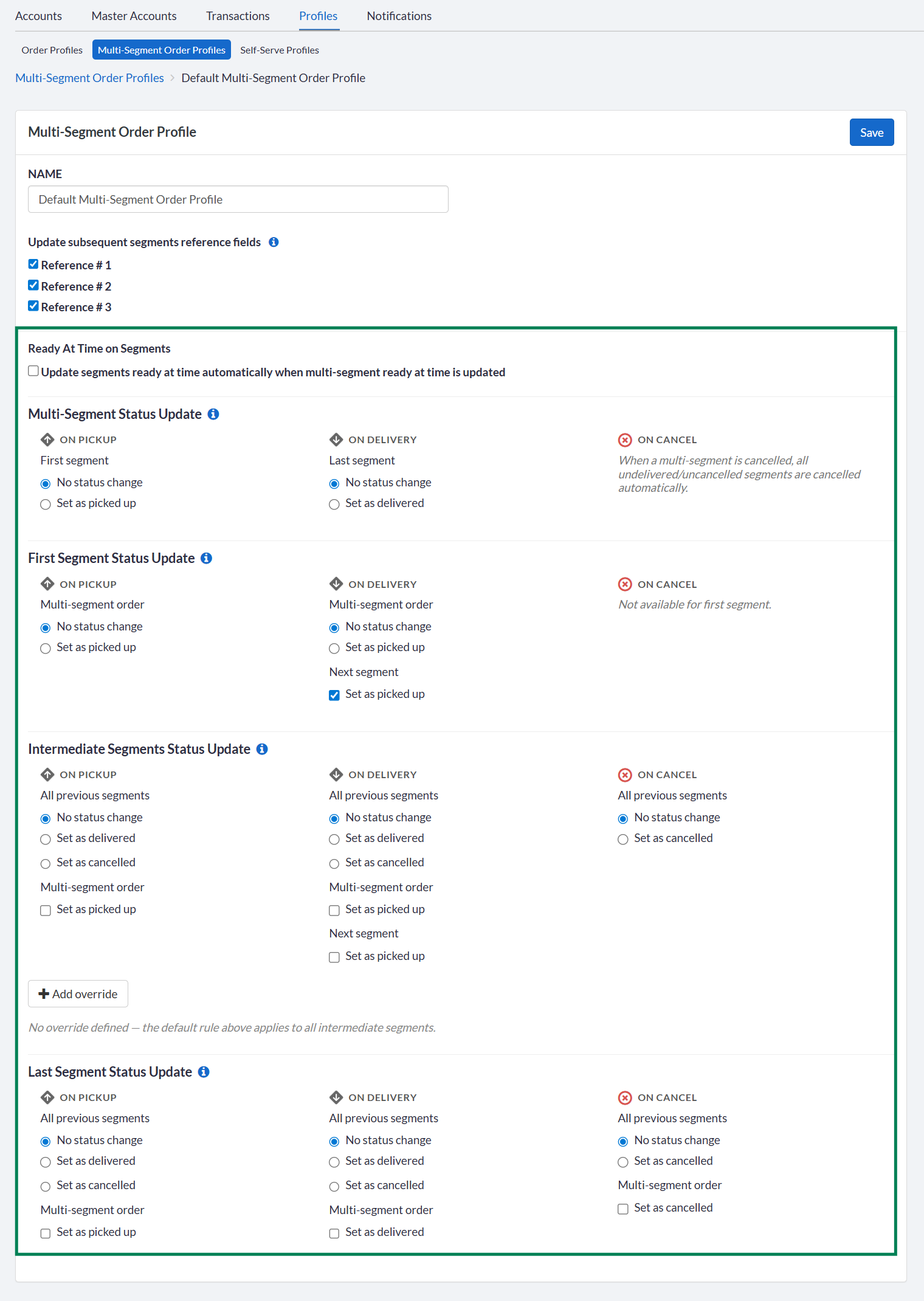
The multi-segment order profile now provides detailed, configurable control over how status updates and Ready At times are propagated across segments. The previous Update segments status automatically on last segment status update checkbox has been removed and replaced with a dedicated configuration section.
This enhancement provides greater flexibility in managing multi-segment workflows by allowing status propagation behavior to be fully configurable between segments and multi-segment orders. In addition, updating the Ready At on a multi-segment can now automatically update all associated segments, reducing manual updates and helping maintain scheduling consistency.
Archiving Extra Fee Types
Administrators can now archive unused or mistakenly created extra fee types so they no longer appear in the list of available types when configuring extra fee schedules. This works similarly to the existing service level archiving feature:
- Archiving an extra fee type hides it in all current extra fee schedules
- Archived types can be unarchived if needed.
- A filter allows showing or hiding archived types in the list.
- System extra fee types cannot be archived.
This enhancement helps keep extra fee type lists clean and easier to manage. Removing archived types from schedules reduces clutter, minimizes configuration errors and make it easier for users to select the correct fee types. The ability to unarchive types preserves flexibility while maintaining a more organized configuration experience.
For more details, consult https://support.dispatchscience.com/a/solutions/articles/36000223163#archive-user-defined
Hide Scripted Extra Fees at $0
When creating or editing a scripted extra fee in an extra fee schedule, two new options are available under the Visibility section:
- Hidden for Internal Users — hides the extra fee from internal users when the calculated total is $0.
- Hidden for Self-Serve Users — hides the extra fee from self-serve portal users when its calculated total is $0.
This enhancement improves the user experience by reducing unnecessary visibility of extra fees that do not apply to an order while still adding the extra fee automatically if needed. Automatically hiding scripted extra fees with a calculated total of $0 helps keep the order details cleaner, minimizes confusion for both internal and self-serve users and allows users to focus only on relevant charges and information.
For more details, consult https://support.dispatchscience.com/support/solutions/articles/36000223163/edit#create-schedule
Memo Column in Transactions List
A Memo column has been added to the Transactions tab on order records, displaying the memo information directly in the list without requiring users to open each transaction individually.
To view:
- Open an order in BackOffice > Account >Transactions tab.
- The Memo column is now visible in the transaction list.

This enhancement improves efficiency by giving users immediate visibility into transaction memo details directly from the Transaction list. By eliminating the need to open each transaction individually to view memo information, users can review, search and validate transaction details more quickly, reducing clicks and speeding up transaction investigations.
Total Amount Summary in Generate Invoices and Driver Settlements
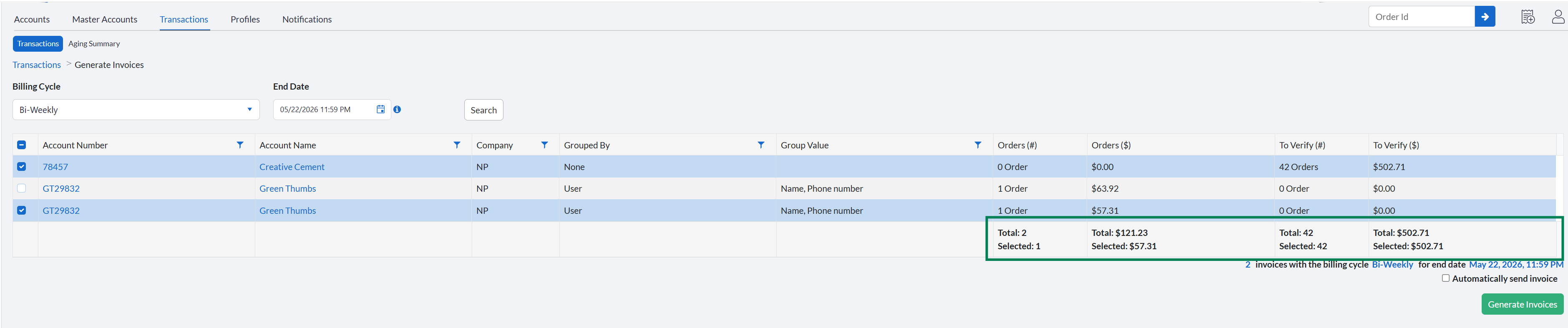
The Generate Invoices screen now displays a running total of order amounts across all entries and for the current selection, shown as a footer row. The same summary has been added to the Driver Settlements screen for its last three columns.
This enhancement improves visibility and validation during invoice and settlement processing by providing immediate access to total amounts directly within the grid. Users can quickly confirm batch totals, compare selected entries and identify discrepancies without performing manual calculations. This streamlines the financial review workflows and reduces errors.
BackOffice — Drivers
Negative Driver Commission and Settlement Values
A new setting allows driver commission and settlement amounts to be displayed and recorded as negative values when the calculated total is below $0. Previously, these amounts were always capped at $0.
This setting is off by default for all tenants after deployment. When enabled:
- Negative amounts can be entered manually when using flat rate or commission % on orders and order templates.
- Negative values can also result from extra fee calculations.
- Driver settlements are now allowed to result in a negative balance when deductions exceed total earnings, instead of being capped at $0.
- On driver settlements with a negative total commission, percentage deductions appear as positive and percentage additions as negative.
This enhancement improves accuracy and flexibility in driver compensation calculations. By allowing negative commissions and settlement values, the system can correctly represent scenarios such as adjustments, corrections or fee-driven deductions that previously could have been incorrectly set to $0.
BackOffice — Administration
Contact Attributes Copied When Copying an Account
When copying an account — either from an account or from a master account — contact attributes are now also copied to the new account's contacts when the "copy contact" option is selected. Previously, only account-level attributes were copied.
Contact attributes are copied as they are, including start/end dates (even if they are in the past) as well as archived attributes.
Script Rules Moved to Automation Section
The Script Rules section has been relocated from Settings > System to the new dedicated section Settings > Configuration > Automation section. Stay tuned for other new features to be available under that section in future releases.
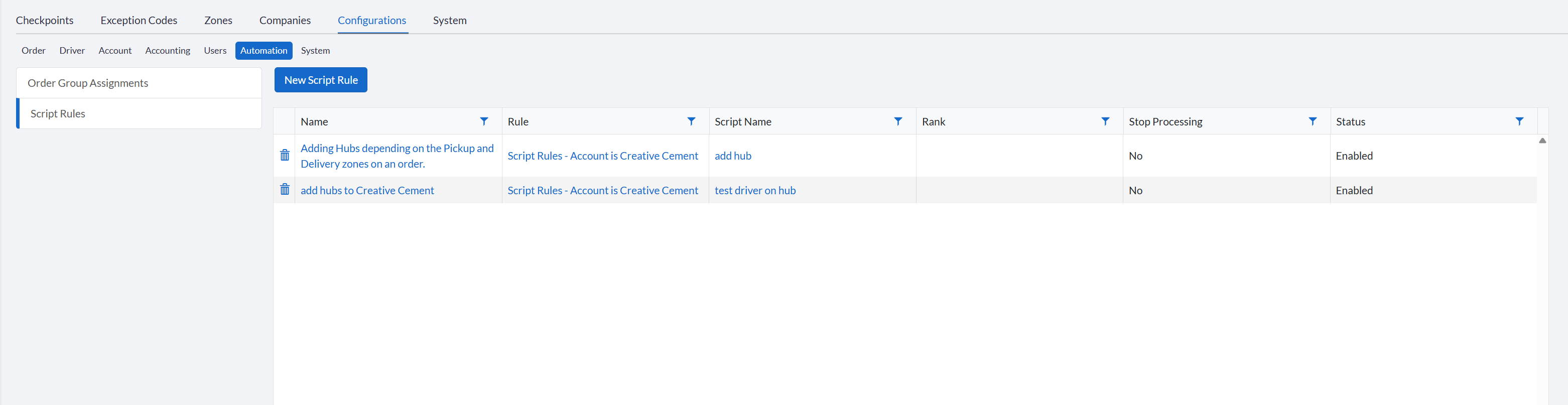
Script Rules have also been updated to use Order Rules instead of being limited to Company and Account field condition, allowing for more flexible and powerful rule configuration. A new Tenant Company filter has also been added to value-based order rules — presented as a searchable dropdown listing all companies by short name and full name.
Improved Attribute UI for Large Attribute Sets
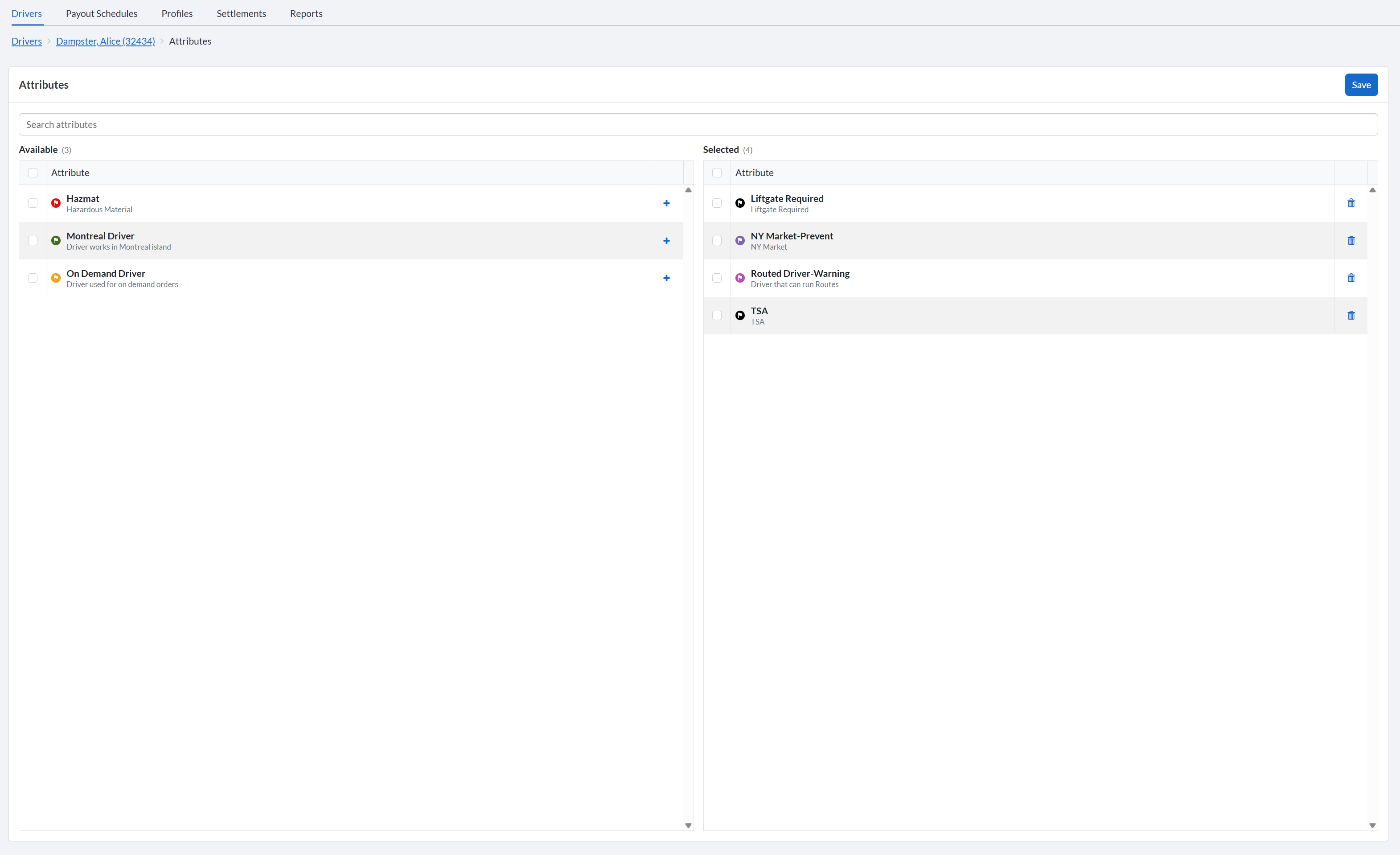
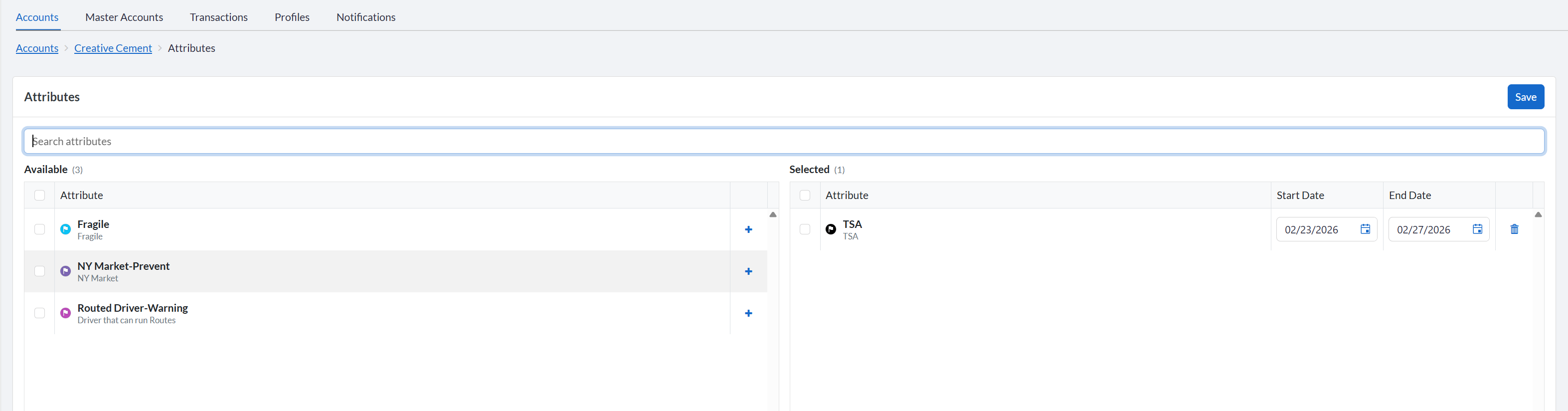
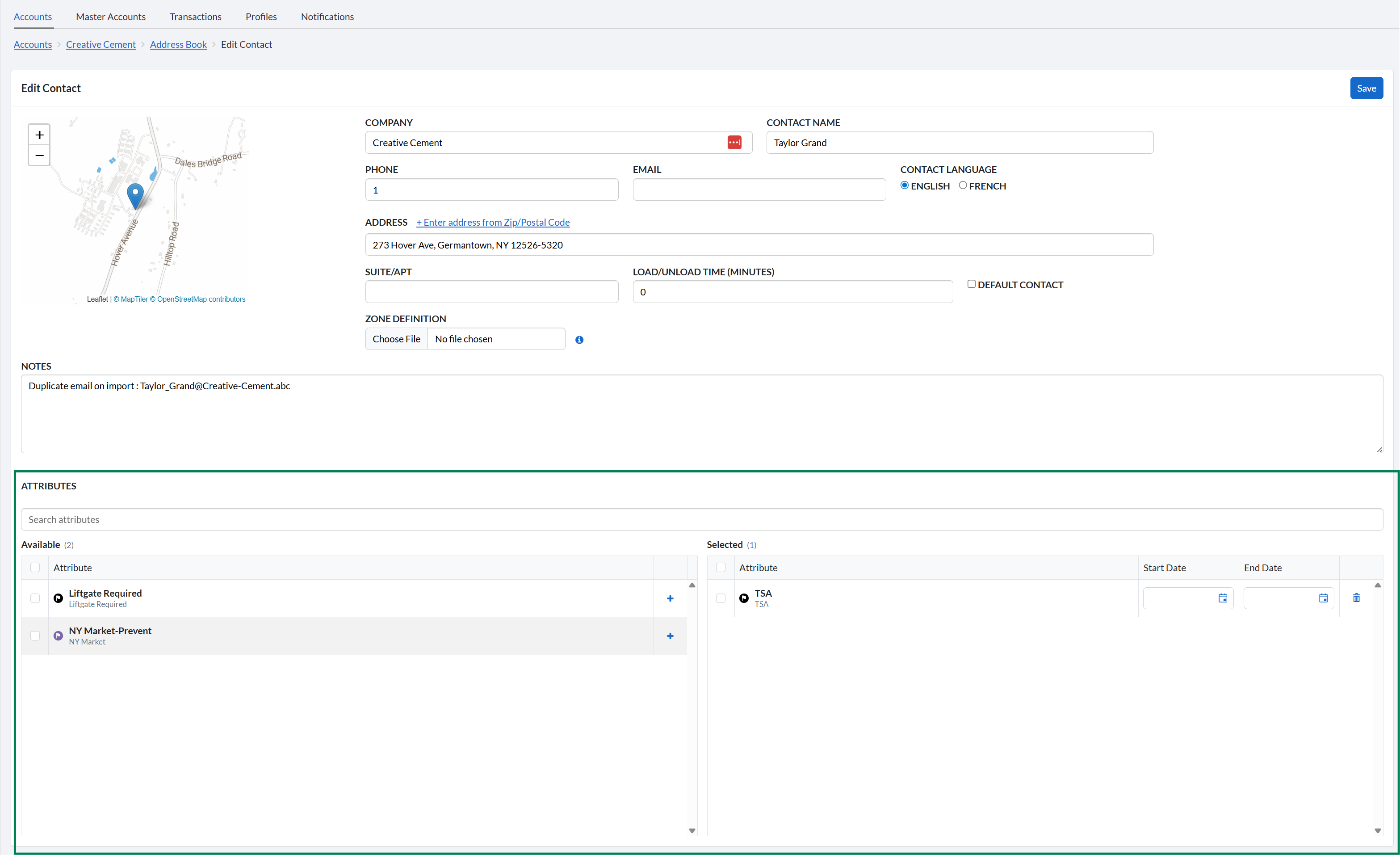
The attribute editing interface on Accounts, Contacts, and Drivers has been redesigned to handle tenants with a large number of attributes (100+) more comfortably. Key improvements:
- A search field now applies to both available and selected attributes.
- Selected attributes are displayed separately from available attributes for a clearer overview.
- The layout is consistent across Accounts, Contacts, and Drivers.
This enhancement improves usability and performance when managing large attribute sets. By adding search across both available and selected attributes, users can quickly find and manage specific attributes without scrolling through long lists. Separating selected attributes into their own section provides a clearer overview of what is currently applied, reducing confusion and configuration errors.
Refer to https://dispatchscience.freshdesk.com/a/solutions/articles/36000610163 for more information about managing attributes on Accounts and Contacts.
Example for Drivers:
Example for Accounts:
Example for Contacts:
Configurable Maximum Load Time
The maximum permitted load time for orders has been increased. Previously limited to 120 minutes, administrators can now set it up to 480 minutes. This applies across all areas where load time is entered: contact, hub, and global address creation and updates, as well as order profiles and self-serve order profiles.
This increases flexibility and supports a wider range of operational scenarios, particularly useful for extended service workflows, complex scheduling requirements or situations where loading may be delayed due to operational constraints
New Permissions for Better Control
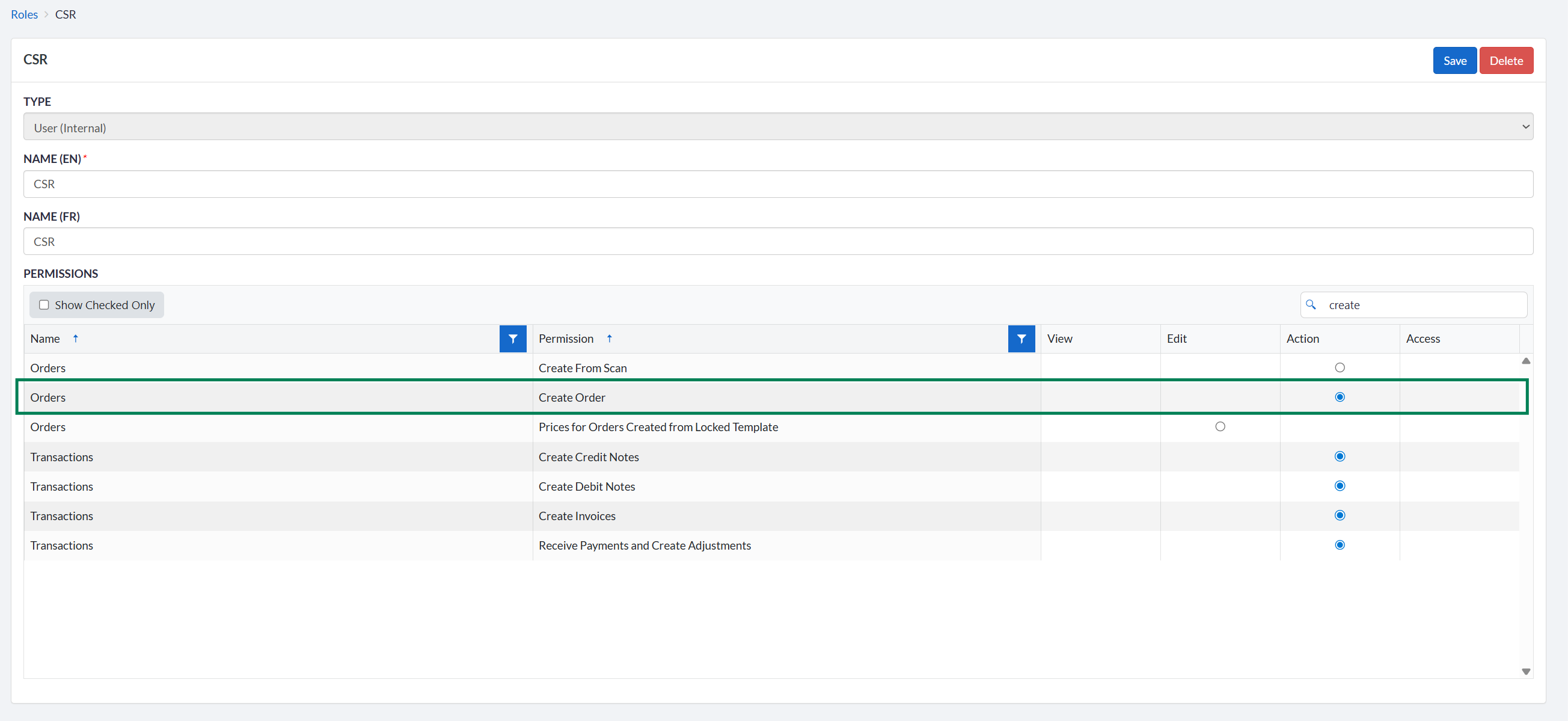
Permission to Restrict Order Creation
A new Create Order action permission is now available on both internal and self-serve roles. When this permission is not granted, the Create Order button is hidden from BackOffice and the self-serve portal for users with that role. Users without this permission can still view and edit existing orders, provided they are granted the existing Order View/Edit permission.
This enhancement allows to separate order creation from order management, ensuring only authorized users can create new orders while still allowing broader access to view and update existing ones.
To configure:
- Go to BackOffice > Administration > Roles.
- Open an internal or self-serve role.
- Under Orders, locate Create Order and configure the permission.
Permission to Edit Ready At and Pickup/Delivery Windows
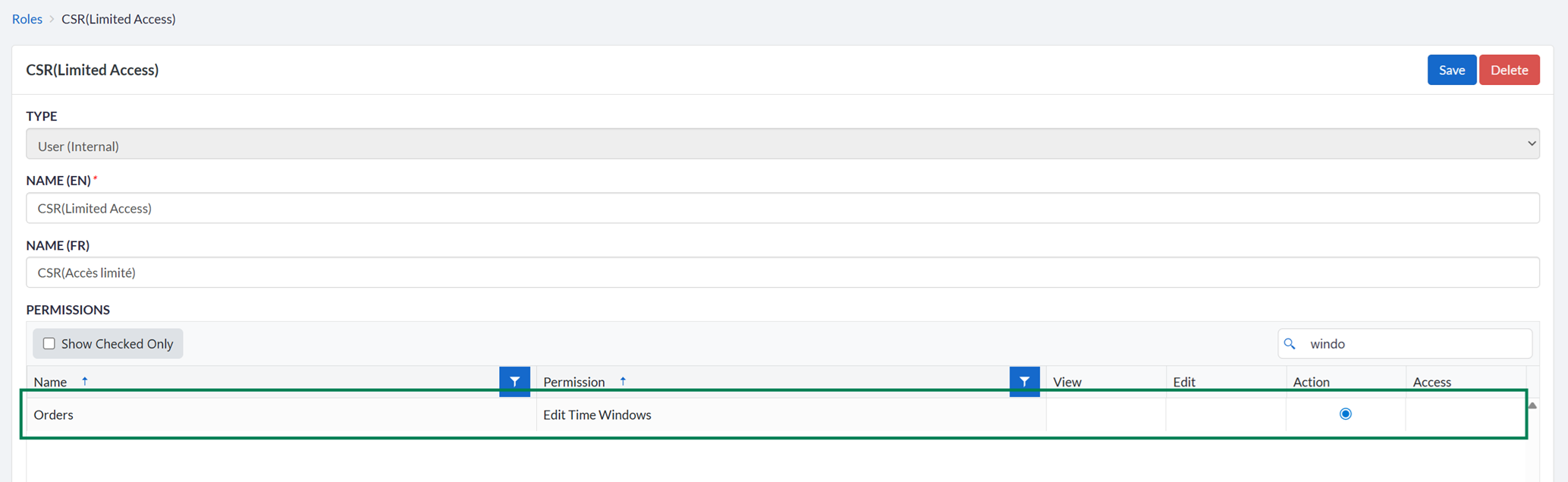
A new permission is now available on internal roles to control whether users can edit the Ready At, Pickup window, and Delivery window fields on an order when they have edit access. When not checked, the fields remain visible but cannot be modified. The permission is enforced on the corresponding API endpoints as well.
To configure:
- Go to Settings > Configuration > System > Roles.
- Open an internal role.
- Under Orders, locate Edit Time Windows and check the Action radio button to allow edition.
Permission to Add, Edit & Delete Item Attachments on Orders for Self-Serve Users
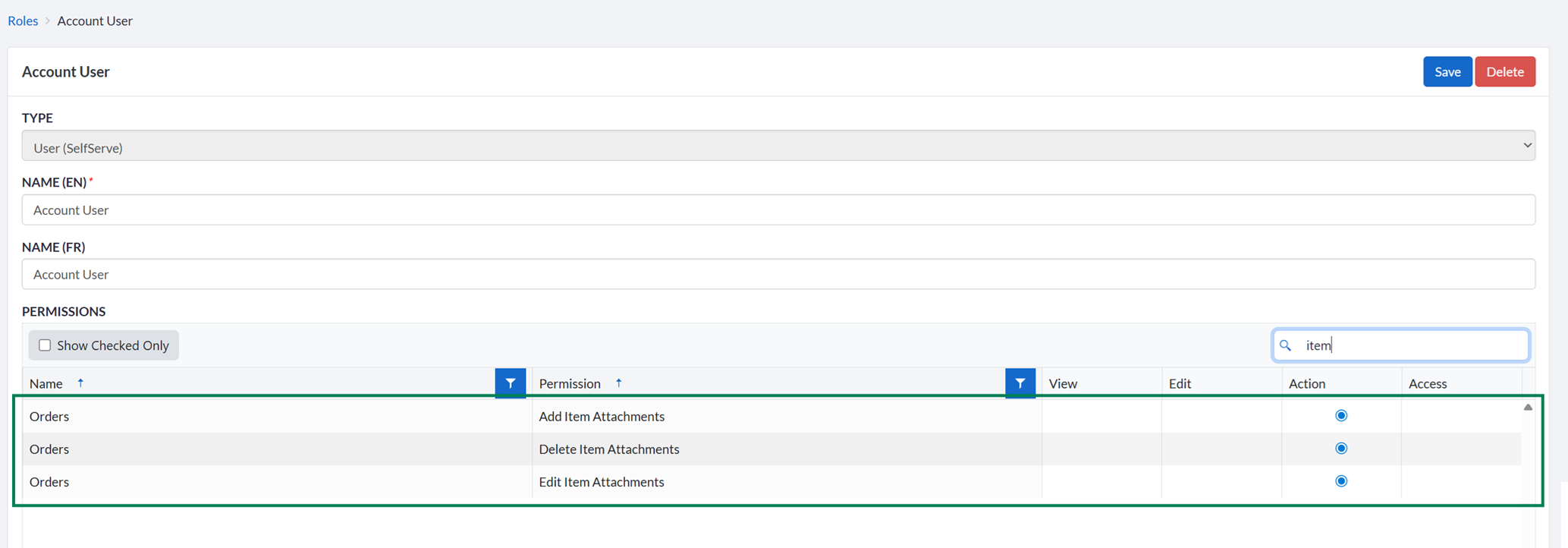
Three new action permissions are now available on self-serve roles to control attachment management at the order item level, independently of the existing order-level attachment permissions:
| Permission | Location | Default |
|---|---|---|
| Orders › Add Item Attachments | Settings › Configurations › System › Roles → Actions | Off |
| Orders › Delete Item Attachments | Settings › Configurations › System › Roles → Actions | Off |
| Orders › Edit Item Attachments | Settings › Configurations › System › Roles → Actions | Off |
- Go to Settings › Configurations > System > Roles and open the role to update.
- Under Orders, enable Add Item Attachments and/or Delete Item Attachments and/or Edit Item Attachments.
- Save.
Dispatch Board
Grid Board Enhancements
The grid boards have been enhanced. Many changes are completely transparent to users. Notable updates are:
Filters on dispatch grids relocated — Grid filters have moved out of the grid tab's gear menu and are now available directly above the list in each view, bringing grid and map boards into a consistent experience. Existing configurations are migrated automatically. Full rollout to all tenants may take several weeks post-release.
Board type conversion — Grid and map boards can now be switched from one type to the other after creation.
Refer to https://support.dispatchscience.com/support/solutions/articles/36000571584-dispatch-board for more details on grid boards.
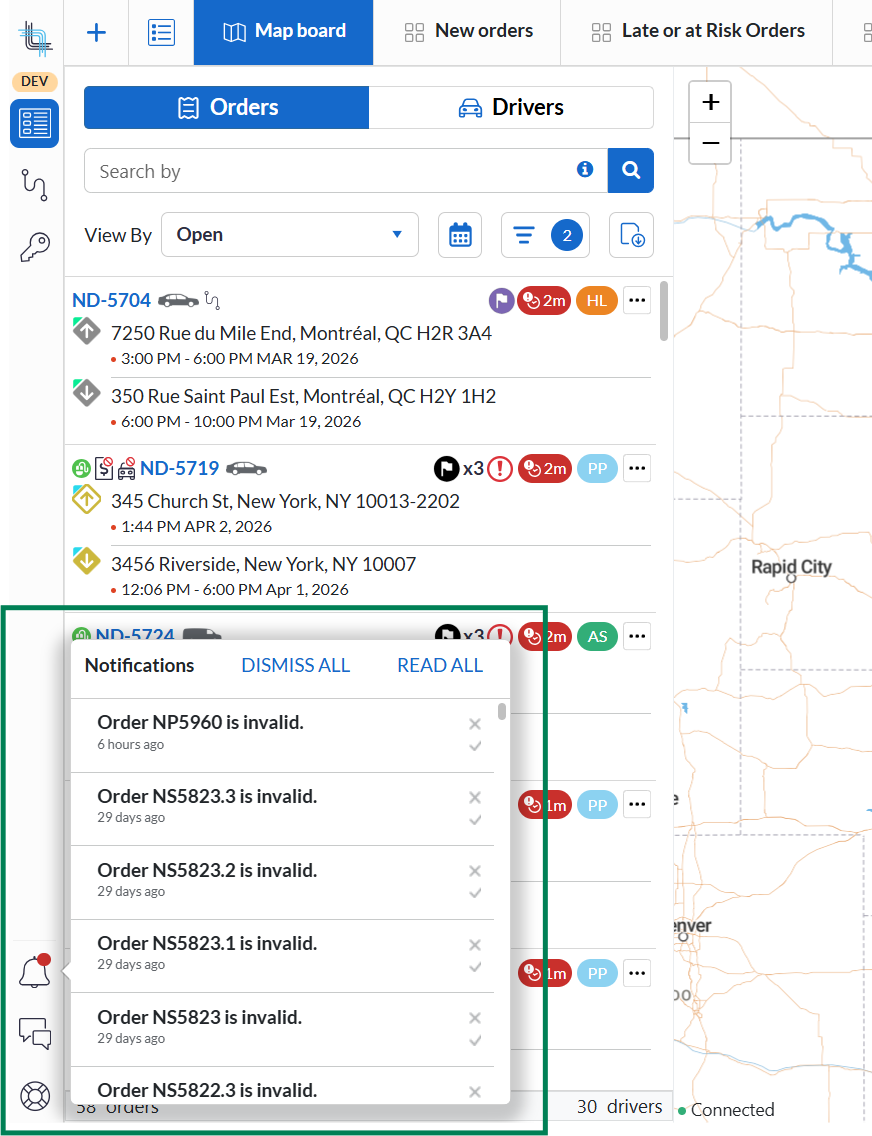
Redesigned Notifications & Messages Side Menu
The notifications and messages panel has been redesigned and is now accessible from all screens under Dispatch in the application — Route screens and all board types (Grid, Map, and Driver boards). Previously, dispatchers had to navigate to the Route screen to view notifications, and to the Route screen or a Map board to access chat messages.
The updated panel is accessible as a persistent side menu. Note that unread message counts and message previews are not displayed in this release.
Enhanced Attribute Display on Boards
Attribute display in board quick view and sliding panels has been improved for readability when a large number of attributes are present. Attributes are now shown in a single column using the full available width, and the list is contained in a scrollable box when it exceeds a set height — consistent with how notes are handled in the same pop-ups.
This improves readability and usability by making attributes easier to scan and compare without visual clutter or cramped formatting.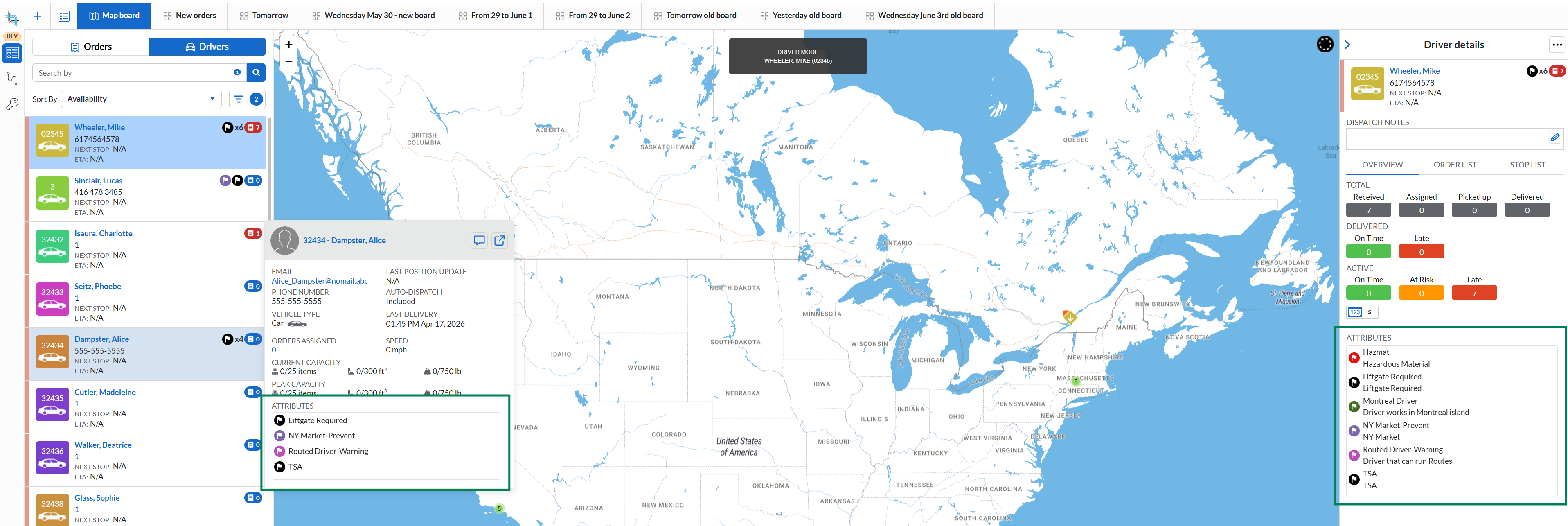
Auto-Dispatch Suggestions Automatic Display
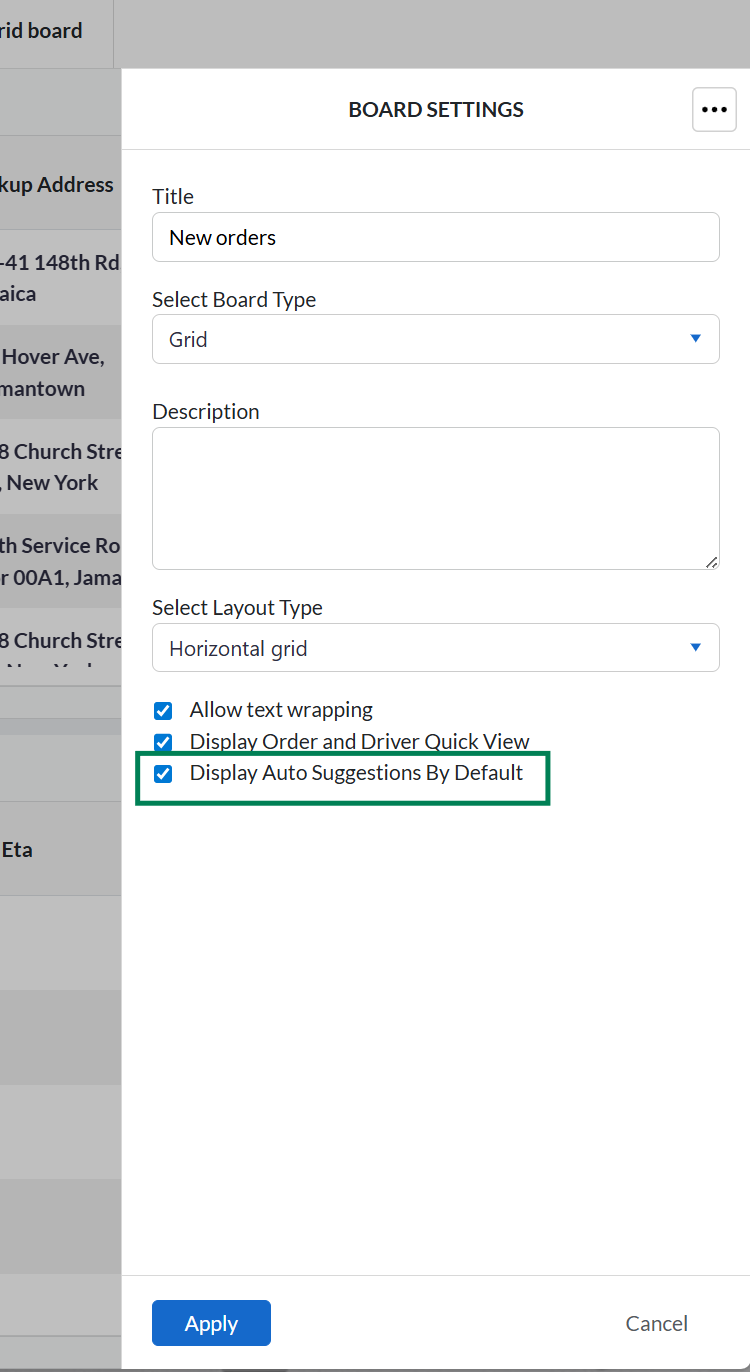
A new option is now available in the Map and Grid boards to automatically view the Auto-Dispatch suggestions by default whenever suggestions are available for a driver.
Managing dispatch decisions quickly and efficiently is critical in high-volume operations. With this enhancement to the Map and Grid boards, dispatchers can now act faster on optimized route recommendations generated by Auto-Dispatch, reducing manual clicks and helping teams respond more efficiently during busy periods.
Turn On Automatic Display
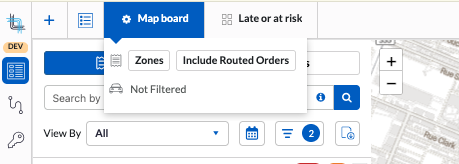
- Open a board settings by hovering over the board type icon (
 or
or  ) and clicking on its setting icon (
 )
)
- In the board setting, check the Display Auto Suggestions By Default checkbox and click on Apply button.
Driver Board Performance Improvements
The performance of driver boards has been improved. Order data retrieval has been optimized to reduce load times, particularly for tenants with high order volumes.
Self-Serve Portal
Self-serve users can add and delete attachments on item orders
Self-serve users can add and delete attachments on item orders when the corresponding role permissions are enabled.
This feature empowers users to maintain accurate and complete order records on their own, improving control, transparency, and overall satisfaction.
To learn how self-serve users can use those new features, please review https://support.dispatchscience.com/support/solutions/articles/36000132337#Managing-Attachments.
Public Tracking Page
Signature Image and Name on the Tracking Page
The public tracking page can now display the signature image and name captured at pickup or delivery, giving end customers digital proof of pickup or delivery directly on the page. The feature is configured per self-serve profile and is recommended to be gated by a 1FA verification step (pickup/delivery zip code).
This enhancement improves transparency and customer confidence by providing direct proof of pickup or delivery on the public tracking, allowing them to easily verify that the service was completed without needing to contact support or request additional confirmation. Using the 1FA verification step helps ensure that sensitive information is only accessible to the intended recipients, maintaining a balance between visibility and security.
To enable:
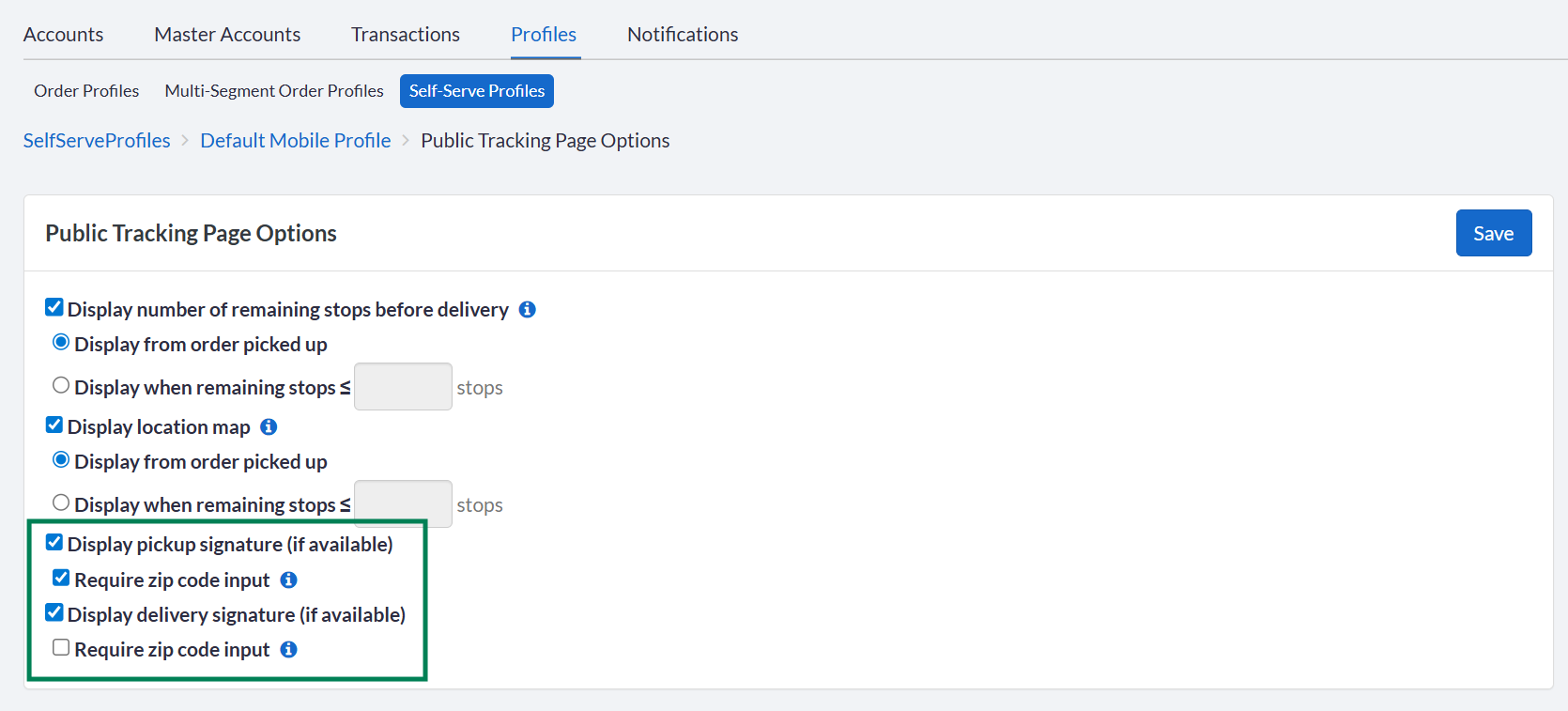
- Go to BackOffice › Accounts › Profiles › Self-Serve Profiles and open the relevant profile.
- Click Edit in the Public Tracking Page Options section.
- Enable Display pickup signature (if available) and/or Display delivery signature (if available).
- Choose if the 1FA verification step is required (recommended).
- Save.
In the following example, the delivery signer didn't obtain a digital signature. Only a name was provided.
Refer to https://support.dispatchscience.com/a/solutions/articles/36000603335 for more information on the tracking page.
Support for barcode on the Tracking Page
The public tracking page now supports item barcode as a search parameter, in addition to order IDs and Reference numbers. Users can look up tracking information for a specific item by entering or scanning its barcode, without needing to know the order identifier. This is especially useful in barcode-driven workflows where end customers or recipients handle items individually.
Tenant API
IsLastSegment Property on Order Detail Endpoints
The GET /api/v1/orders/{orderId} and GET /api/v1/orders/{orderIds} endpoints now return a new IsLastSegment property. This property is only present when the order is a segment order, and is true when the order is the last segment in the chain.
COD/COP Collected Amounts on Order Endpoints
The following nullable fields are now returned by the GET /api/v1/orders and GET /api/v1/orders/{orderId} endpoints in both the Tenant and Integration API:
CODCollectedCODAmountCollectedCOPCollectedCOPAmountCollected
Note: search endpoints are out of scope for this change.
New Workflow and Workflow Step Endpoints
New endpoints are now available in the Tenant API to create and manage Workflows and Workflow Steps programmatically.
| Method | Endpoint | Action |
|---|---|---|
GET | /api/v1/order-profiles | Get the Order Profiles |
GET | /api/v1/order-profiles/{profileId}/workflows/pickup | Get the Pickup Workflow |
GET | /api/v1/order-profiles/{profileId}/workflows/delivery | Get the Delivery Workflow |
GET | /api/v1/order-profiles/{profileId}/workflows/add-item | Get the AddItem Workflow |
POST | /api/v1/order-profiles/{profileId}/workflows/pickup/steps | Create a Pickup Workflow step |
POST | /api/v1/order-profiles/{profileId}/workflows/delivery/steps | Create a Delivery Workflow step |
POST | /api/v1/order-profiles/{profileId}/workflows/add-item/steps | Create an AddItem Workflow step |
DELETE | /api/v1/order-profiles/{profileId}/workflows/pickup/steps/{stepId} | Delete the Pickup Workflow step |
DELETE | /api/v1/order-profiles/{profileId}/workflows/delivery/steps/{stepId} | Delete the Delivery Workflow step |
DELETE | /api/v1/order-profiles/{profileId}/workflows/add-item/steps/{stepId} | Delete the AddItem Workflow step |
Settlement Metadata Support
The various metadata endpoints (/api/v1/metadata) already supported attaching arbitrary key-value metadata to certain entity types — Orders, Accounts, Drivers, etc. — using a MetadataContextType parameter to specify which entity type you're targeting. Settlement was added as a valid value in the MetadataContextType enum, and the underlying repository logic was updated to recognize settlement IDs as valid entities.
Was this article helpful?
That’s Great!
Thank you for your feedback
Sorry! We couldn't be helpful
Thank you for your feedback
Feedback sent
We appreciate your effort and will try to fix the article