Notifications
Notification templates are by company and the template is associated to an account.
The template notification is copied to the order when the order is created. Notifications will be sent according to the template selection when the order status changes.
Notification Language, Email and Phone
A language field is available for internal users, account users and contacts. The language selected in the field will be set to English on upgrade. This can be updated by opening the internal users, the account users and contacts.
The language field determines the notification language for both email and SMS.
The Phone number is used to send SMS notification as setup in the notification template for specified order status change. Please use format +19999999999
The email is used to send email notification as setup in the notification template for specified order status change.
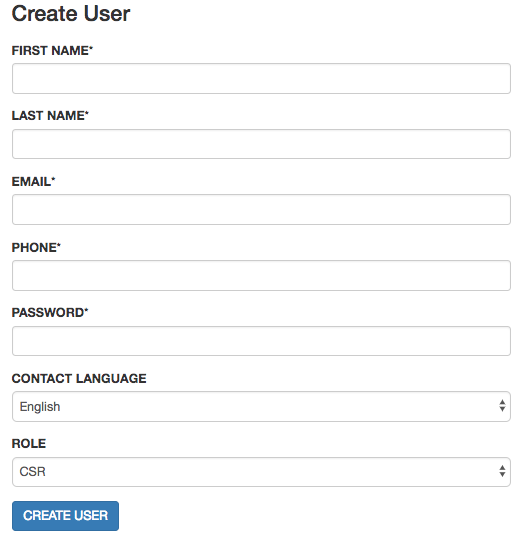
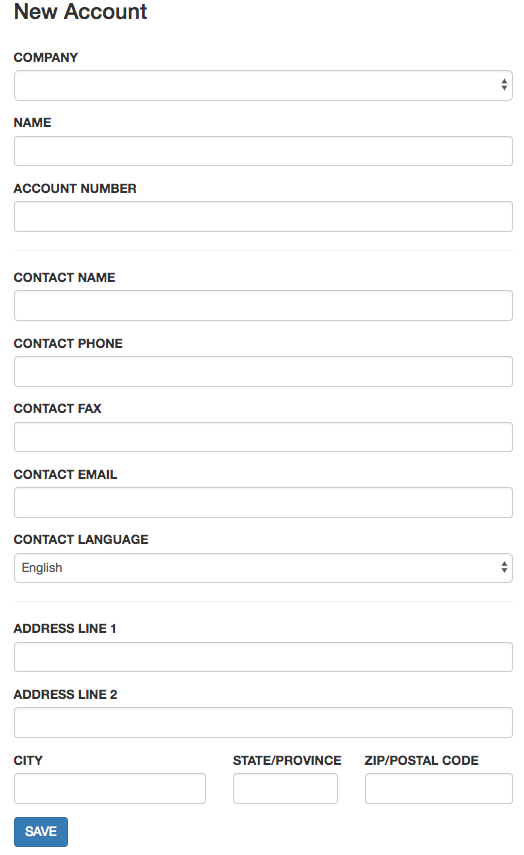
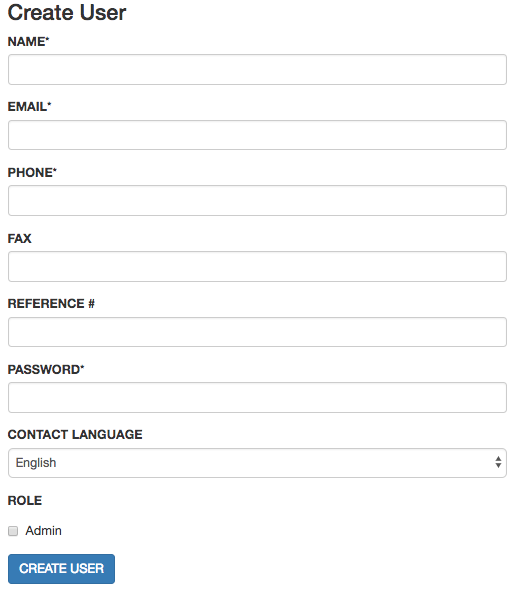
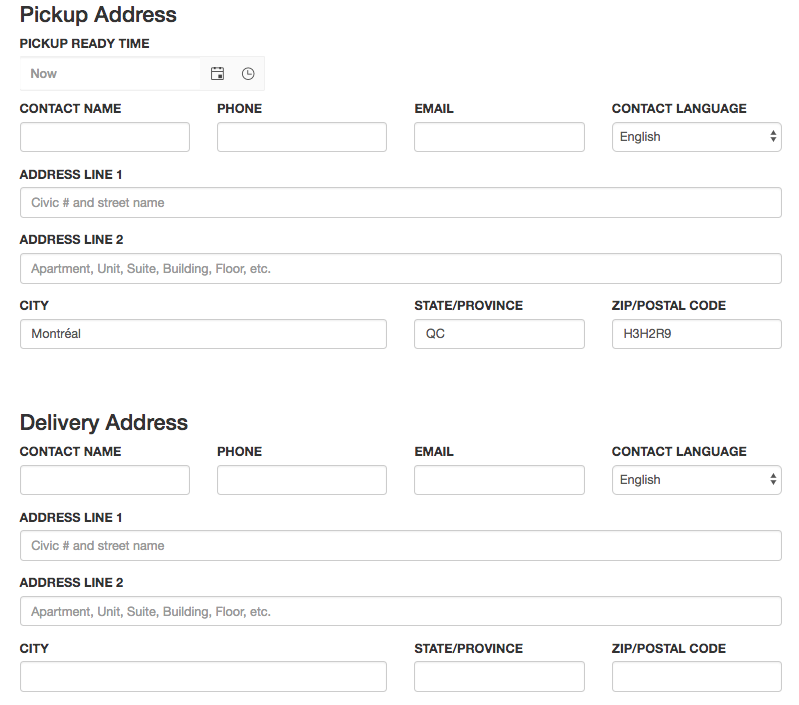
The notification language, phone and email are also available for the pickup and delivery contact when creating and editing an order in the Back Office.
Notification Templates
Notification templates are available in the Accounts section under Notifications. This will allow you to create different templates to meet yours and your accounts' notification needs.
Upon upgrade, default notification templates are already created in Dispatch Science. The default templates are created by Company and are already associated to the the accounts. The default templates will have no email nor SMS notifications setup. The default templates can either be edited or new templates created to meet your different accounts' needs.
Edit or create a notification template
Open Account section and navigate to Notifications. There will be one notification template per company and these will be setup as default for each company.

To edit a notification template, simply click on its name. to create a new template, click on New template.
The company will be read-only when editing an existing template. You must select a company when creating a new template.
The name is editable for existing templates and must be filled in for new template.
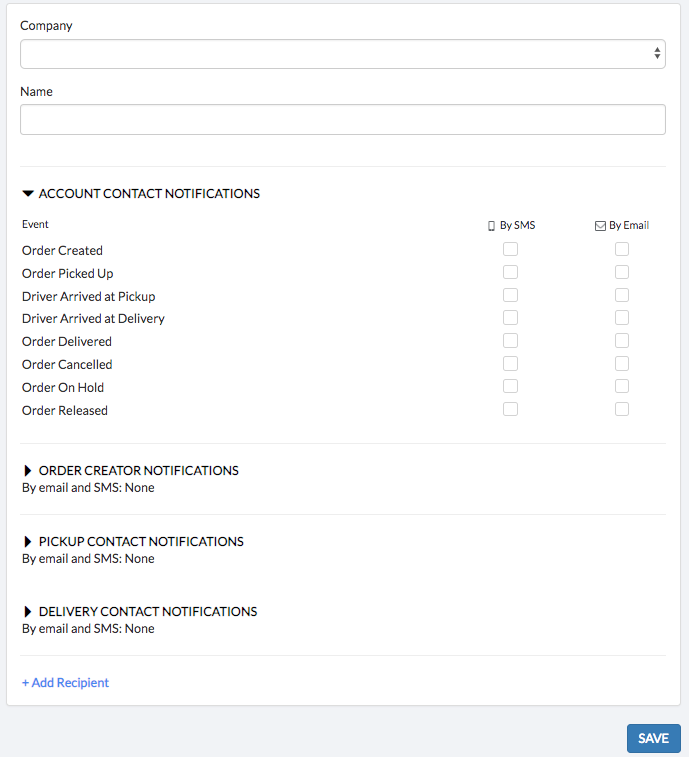
There are 5 sections available and when editing/creating a template, the first section will be expanded. For each section, you will be able to setup how and when a user will receive the order status change notification:
When order is created, when driver arrived at location, once driver picked up the package, once driver arrived at delivery location, once driver delivered the package, if an order is cancelled, put on hold or released from hold.
A combination of emails and SMS can be used to send the notifications to the contacts on the order by checking the checkboxes for each status under By SMS or By Email in each contact section.
The users who can receive the notifications are:
Account contact: User setup on the account
Order creator: either the contact user who created the order in the customer portal or the user selected by CSR when order is created
Pickup contact: contact selected or entered for pickup
Delivery contact: contact selected or entered for delivery
Add Recipient: Other people can be added to the notification by clicking on Add Recipient. This will open a section where you can enter the recipient name, email, phone number, language notification and notification selections. To add additional recipients, simply click on the Add Recipient.
Once the template is setup, click on Save.
Associate a notification template to an account
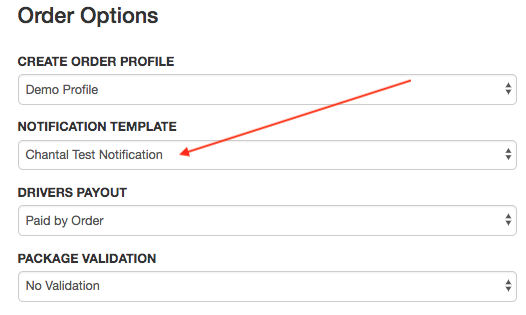
Open an account and edit the Order Options.
Select the desired Notification Template and save.
Create an order
When an order is created, the notification template associated to the account is also associated to the order. The order specific contacts' email addresses and phone numbers are used to send the notifications and the added recipients are sent the notifications that were setup in the template.
Ability to Resend Time Based Event Notifications
Time-Based Event Notifications are sent once to prevent spamming contacts on orders but were previously re-sent if an order was cancelled and reactivated. A new option will now allow you to resend those time-based Notifications in case the order is put on Hold and then later Released.
Set Resend Option on Time Based Notification:
1) Open Accounts then open Notifications
2) Open the Notification template to adjust.
3) Scroll down to the Time Based Event section on the section you wish to setup and click on Resend:

4) Save.
Setting events such as Before or After Pickup Start or End and Before or After Delivery Start or End could send negative values if the time windows are in the past.
Only set the resend on  ETA events, Pickup and Delivery
Was this article helpful?
That’s Great!
Thank you for your feedback
Sorry! We couldn't be helpful
Thank you for your feedback
Feedback sent
We appreciate your effort and will try to fix the article