A Billing Account lets one account be invoiced for orders that other accounts place. The account being invoiced supplies the pricing, parcels and addresses used on the order, and the account that actually placed the order is recorded on it as the ordering account.
Table of Contents
- How 'Bill To' Works
- Configure Who Can Manage Billing Accounts and Create 'Bill To' Orders
- Open the Billing Accounts List
- Create a Billing Account
- Review a Billing Account's Details
- Add or Remove Associated Accounts
- Delete a Billing Account
- Archive or Change the Credit Card of a Billing Account
- Create a 'Bill To' Order in the Back Office
- Create a 'Bill To' Order in the Customer Portal
- Find 'Bill To' Orders in Your Order Lists
- Invoice 'Bill To' Orders
- Order Rules and Scripts on 'Bill To' Orders
How 'Bill To' Works
A Billing Account is an existing account that you designate as the one to be invoiced. You then add one or more associated accounts to it. Those are the accounts allowed to place orders billed to it. On a given order, the associated account that placed it is called the ordering account.
Two configuration rules shape how you set this up:
- An account can be the invoiced account of at most one Billing Account.
- An account can be an associated account of several Billing Accounts at the same time.
Access is given at account level. Every user of an associated account can place orders billed to the Billing Account, including users created afterwards, with no per-user setup. Each user still needs the Create "Billed To" Orders permission on their role.
How 'Bill To' Differs From Master Accounts
A reader who knows Master Accounts will recognize the shape of Bill To, but the two features answer different needs.
- Cardinality. An account belongs to at most one Master Account. An account can be an associated account of several Billing Accounts, and the invoiced account of at most one.
- What the order records. A Bill To order carries an explicit ordering account, displayed as Ordered by on the order and in the Ordering Account columns of the order lists. An order placed through a Master Account simply belongs to the account chosen, and carries no second account.
- How access is given. With Bill To there is no user-level record at all. Any user of an associated account, now or later, can place orders billed to the Billing Account.
- The two coexist, and they are independent. Both entries are displayed side by side in the Accounts menu, and neither hides the other. In the Customer Portal, the accounts a Master Account gives a user widen the accounts that user may order on behalf of. They do not decide which Billing Accounts the user may bill to: the Associated Accounts list of each Billing Account does that on its own. A Master Account is not required to use Bill To.
Configure Who Can Manage Billing Accounts and Create 'Bill To' Orders
Two permissions govern Bill To. Both are set on the role, under Settings > Configurations > System > Roles.
| What you need | What it unlocks | Without it |
|---|---|---|
| Billing Accounts permission, View level | Opens the Billing Accounts section read-only: the menu entry, the list and the details of each Billing Account. | The Billing Accounts menu entry is hidden and the pages are prevented from opening. |
| Billing Accounts permission, Edit level | Adds the ability to create a Billing Account, change its associated accounts and delete it. | The New Billing Account button, the Edit button of the Associated Accounts card and the Delete button are hidden, and the corresponding requests are prevented. A View user sees everything and changes nothing. |
| Create "Billed To" Orders permission, Action level | Allows billing an order to another account, in the Back Office and in the Customer Portal alike, including duplicating or continuing an existing Bill To order. | The Back Office toggle and the Customer Portal New Order for a Billing Account entries are hidden, and creating any order that carries an ordering account is prevented. |
The Billing Accounts row is offered on Back Office roles only. Create "Billed To" Orders is offered on Back Office and Customer Portal roles alike.
The three levels are already selected for the Back Office Administrator role. Every other role, Customer Portal roles included, has to be given them.
Select the Permissions on a Role
- Navigate to Settings > Configurations > System > Roles.
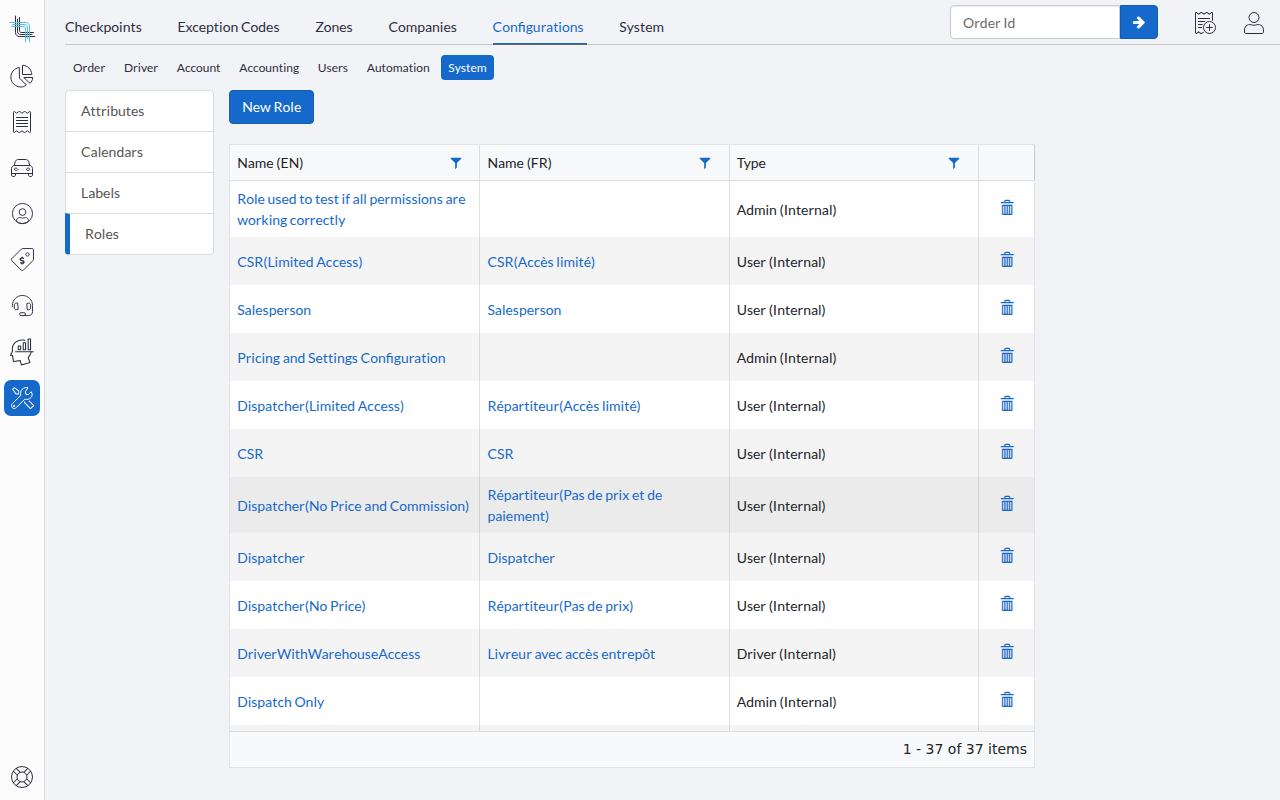
- Click the role you want to change, or create a new role.
- In the Permissions grid, find the Billing Accounts row and select View or Edit.
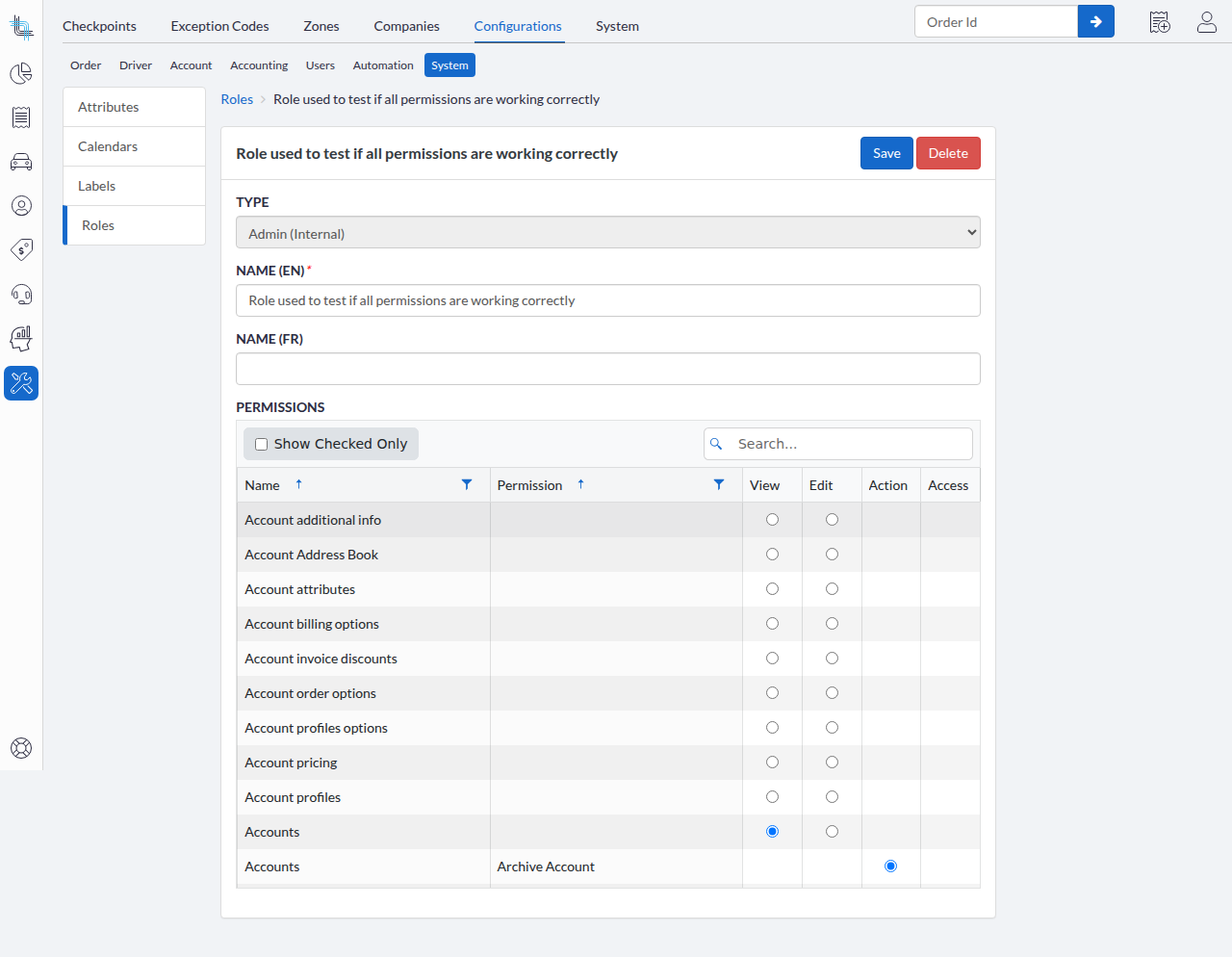
- In the Orders rows, find Create "Billed To" Orders and select its Action level.
- Click Save.
Open the Billing Accounts List
The Billing Accounts list is where you review every Billing Account configured for your tenant and open one.
- Open the Accounts section in the Back Office.
- Click Billing Accountsin the submenu.
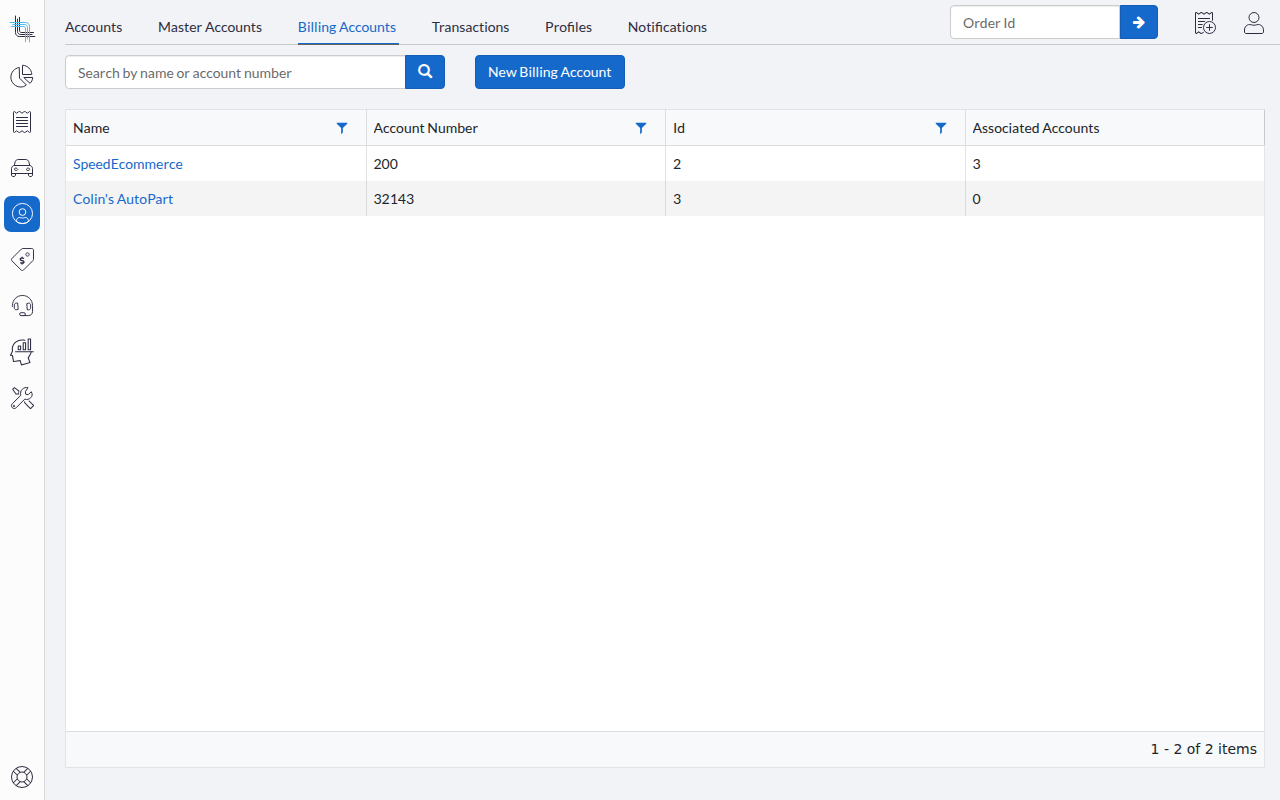
Each row is one Billing Account, with four columns:
- Name, the name of the account being invoiced. The cell links to the Billing Account details.
- Account Number.
- Id.
- Associated Accounts, the number of accounts allowed to place orders billed to it. This column cannot be sorted or filtered on.
Type in Search by name or account number to narrow the list on the invoiced account's name or number. Click Clear All Filters to go back to the full list. Click a row to open a Billing Account.
The New Billing Account button is displayed only when the Billing Accounts permission is set to Edit for your role.
Create a Billing Account
Creating a Billing Account designates an existing account as the one to be invoiced. The Billing Accounts permission must be set to Edit for your role.
- Open the Billing Accounts list and click New Billing Account.
- In Account to be invoiced, type at least two characters of an account name or number, then click the account you want to be invoiced. Archived accounts are not offered.
- Click Save.
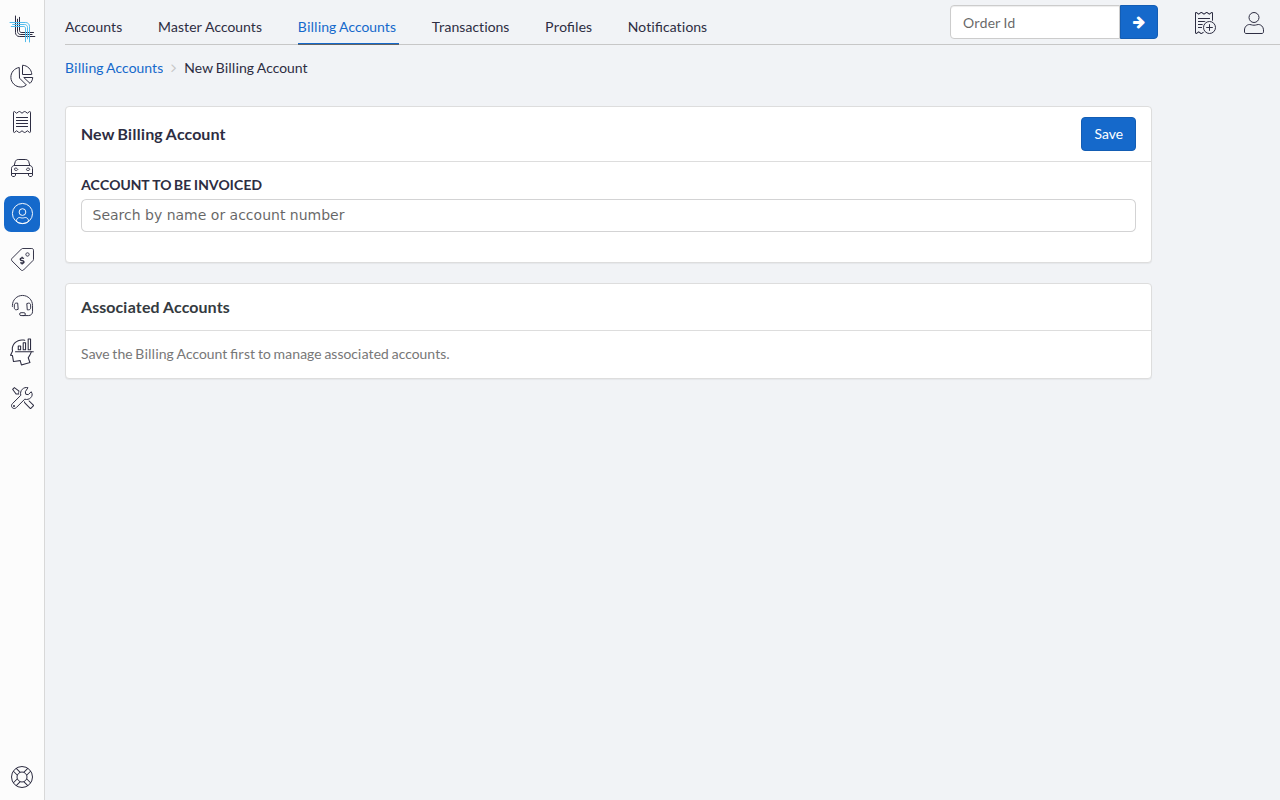
The Billing Account details page opens. Associated accounts are added there, after the save: on the creation screen the Associated Accounts panel is inert and shows Save the Billing Account first to manage associated accounts.
When the Account Cannot Be Used
Accounts that already are the invoiced account of another Billing Account are still offered in the suggestions. The duplicate is caught when you save, not filtered out of the list. Three situations prevent the save, each displayed as a message under the account field.
| Message | What it means | How to resolve |
|---|---|---|
| This account was already selected as the account to be billed in an existing Billing Account. Each account can only be selected once. | The account is already the invoiced account of another Billing Account. The message does not name that Billing Account. | Search the Billing Accounts list for the account, or choose a different account to invoice. |
| This account has a credit card setup by user. Billing accounts must be setup by account. | The account's Credit Card Setup is By User. | Set the account's Credit Card Setup to By Account on its Billing Options, then create the Billing Account. |
| An unexpected error occurred | The account no longer exists, or it has been archived since you picked it. | Pick an active account. |
Once the Billing Account exists, the credit card setup of the invoiced account stays locked. See Archive or Change the Credit Card of a Billing Account.
Review a Billing Account's Details
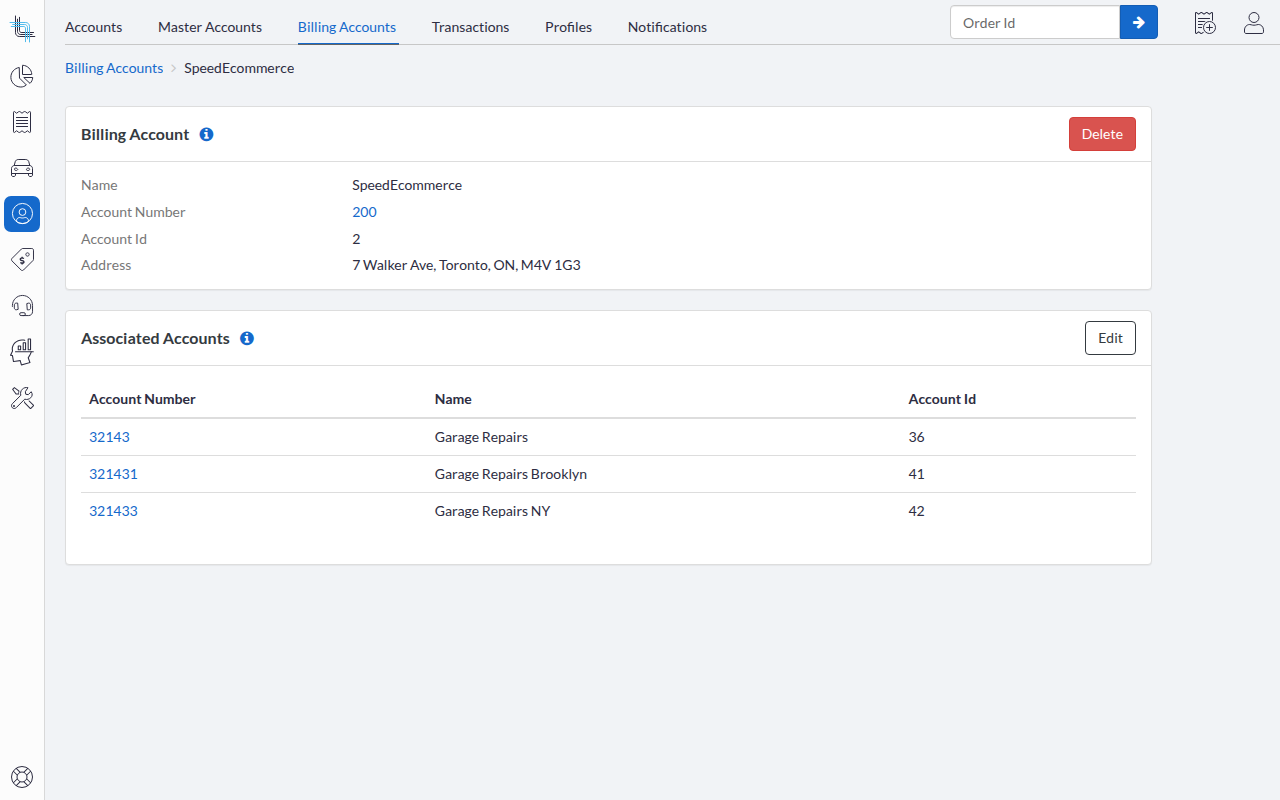
The details page of a Billing Account shows what it bills and which accounts are allowed to bill to it. It has two cards.
Billing Account carries the invoiced account's Name, Account Number, Account Id and Address. The account number links to the account page, which opens in a new tab. The info icon beside the heading explains that the invoiced account cannot be changed. A Delete button is displayed when the Billing Accounts permission is set to Edit for your role.
Associated Accounts lists every account allowed to place orders billed to this Billing Account, with its Account Number (also linked to the account page), Name and Account Id. When the Billing Account has none, the card shows No associated accounts. An Edit button is displayed with the Edit permission, and the info icon beside the heading explains what associated accounts are.
Add or Remove Associated Accounts
Associated accounts decide which accounts may place orders billed to this Billing Account. Adding and removing them is the everyday maintenance of a Billing Account, and it takes effect immediately.
- Open the Billing Account.
- Click Edit on the Associated Accounts card.
- Move accounts between the two lists of the selector. Each account is displayed with its name and account number. Only active accounts are offered, and the invoiced account itself is never offered.
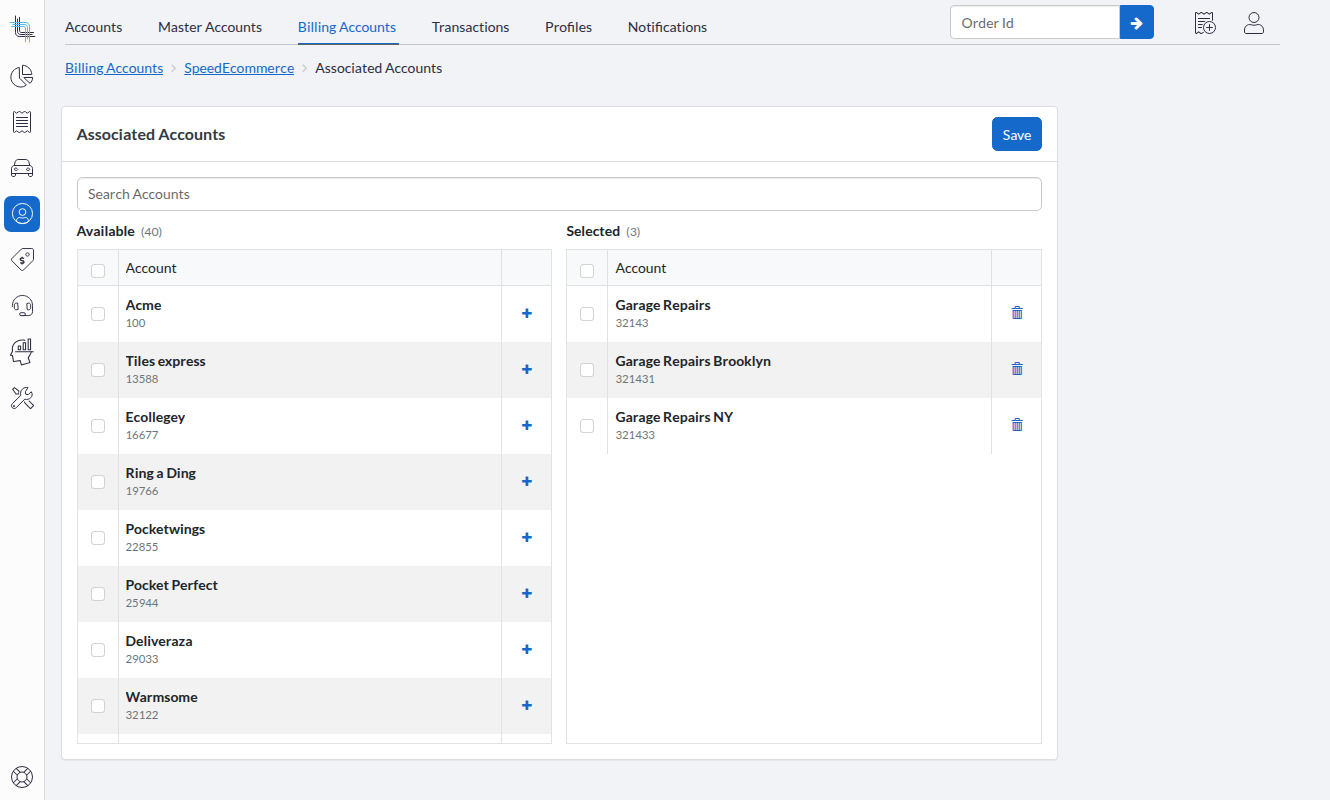
- Click Save.
The Billing Account reopens with the confirmation Associated accounts successfully saved.
| Action | Effect |
|---|---|
| You add an account | Every user of that account can place orders billed to this Billing Account, provided the Create "Billed To" Orders permission is selected for their role. Users added to that account later are given access automatically. |
| You remove an account | Its users immediately lose access to this Billing Account, so they can no longer place new orders billed to it. Orders already placed are not affected: they keep their ordering account and can still be completed and invoiced. |
Delete a Billing Account
Deleting a Billing Account removes it and all of its associations. No new order can then be billed to that account. It is also the only way to change which account a Billing Account invoices: delete it, then create a new one on the right account.
- Open the Billing Account.
- Click Delete. A confirmation dialog states how many associated accounts lose access to this Billing Account, that existing orders are not affected, and that the deletion cannot be undone.
- Click Delete in the dialog.
The Billing Accounts list reopens with the confirmation Billing Account deleted.
Orders already billed to the account keep their ordering account and can still be completed and invoiced. The account itself stays active, and it can be archived once it is no longer a Billing Account.
Archive or Change the Credit Card of a Billing Account
While an account is the invoiced account of a Billing Account, two operations on that account are prevented.
Archiving is prevented. The archive attempt is rejected, the account stays active, and the account page shows a red message toast: The account can't be archived for the following reasons:, followed by It is a billing account and Please make the proper adjustments and try again. Being a Billing Account is one entry of that reason list, alongside the existing archive blockers. Delete the Billing Account first if the account really must be archived.
The credit card setup is locked to By Account. On the account's Billing Options, the Credit Card Setup field is disabled and shows This account is used as a billing account. Its credit card setup must remain "By Account" and cannot be changed. The same rule works the other way round at creation time: an account whose credit card setup is By User cannot become a Billing Account.
Being an associated account carries no such restriction. An account that only places orders on behalf of a Billing Account can still be archived, after which it is no longer offered as an ordering account.
Create a 'Bill To' Order in the Back Office
A Back Office user can bill any order to another account. The Create "Billed To" Orders permission must be selected for your role, and the option is offered only when you are creating a real order: it is not displayed while you are editing an order or creating an order template.
- Click New Order in the Back Office.
- Turn on Bill this order to another account. The toggle is off by default, so ordinary order creation is unchanged.
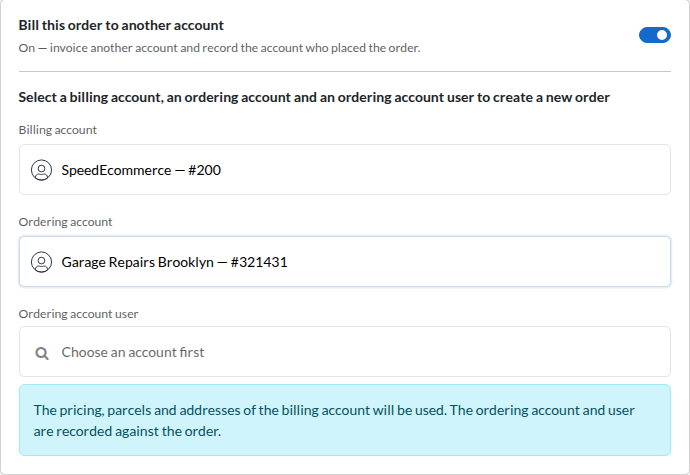
- In Billing Account, type at least three characters of a name or number, then click the Billing Account to invoice. Suggestions are displayed shortly after you stop typing, best match first, up to 50 at a time. A Back Office user may bill to any Billing Account of the tenant.
- In Ordering Account, type at least three characters of a name or number, then click the account that is placing the order. The field stays disabled until a Billing Account is picked, and only the accounts associated with that Billing Account are offered.
- In Ordering Account User, click the user placing the order. The list contains the users of the ordering account, and can end with an option to add a new user to that account.
- Complete the order and submit it.
The order is created for the Billing Account. Its pricing, parcels and addresses are used, and the ordering account and its user are recorded on the order. Each segment of a multi-segment order is billed the same way, so every segment carries the same ordering account.
Order templates belong to the account you are logged into, not to the Billing Account, so they are not part of this flow. While the toggle is on, the create-from-template options are not offered, and Create Template is not offered on the resulting order.
Billed To and Ordered By on the Order Form
The Account card of an order that carries an ordering account offers a Billed to / Ordered by switch.
- Billed to shows the Billing Account's contact information.
- Ordered by shows the ordering account's name, account number, contact name, email, phone, address and notes. The account number links to the account page.
The billing account and the ordering account of an existing Bill To order are fixed. Change Order Account is not offered on such an order, and the change is prevented on the server as well.
Start a New Order From an Existing 'Bill To' Order
Duplicate, return, continuation, Create order with same accounts, same pickup and same delivery all carry the same billing account and ordering account forward. The new order opens with Bill this order to another account already on and both accounts already set, so you have nothing to pick again.
On a Bill To order, the row action of the order list is labelled Create order with same accounts, in the plural, instead of Create order with same account.
Create a 'Bill To' Order in the Customer Portal
You can place an order billed to a Billing Account directly from the Customer Portal. The entry is displayed when the Create "Billed To" Orders permission is selected for your role, and at least one Billing Account lists one of the accounts you can order for among its associated accounts. You need neither access to the Billing Account itself nor a Master Account. If nothing is available to bill to, the entry is not displayed at all rather than opening an empty selection.
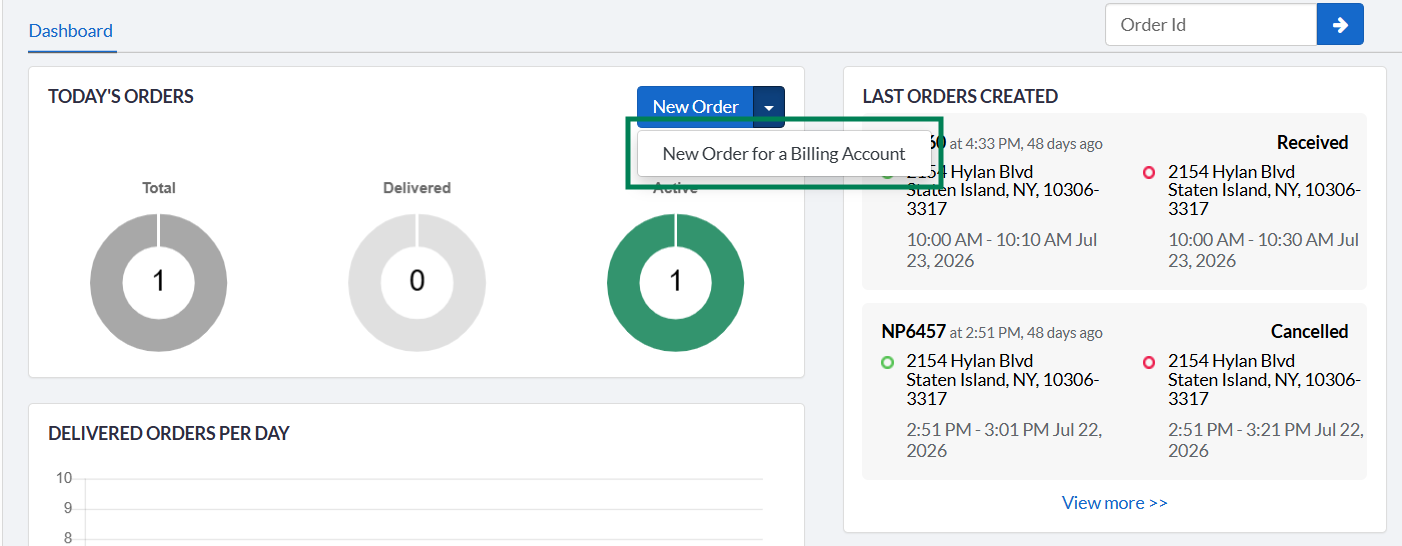
New Order for a Billing Account is displayed in three places:
- in the dropdown under the New Order button of your order list;
- in the dropdown under the New Order button of your dashboard;
- under the new-order icon in the top menu bar
- Click New Order for a Billing Account.
- In Billing Account, type at least three characters of a name or number, then click the Billing Account to invoice. When only one Billing Account is available to you, it is filled in and read-only.
- In Ordering Account, type at least three characters of a name or number, then click the account that is placing the order. When that Billing Account associates only one account you can reach, it is filled in and read-only.
- Complete the order and submit it.
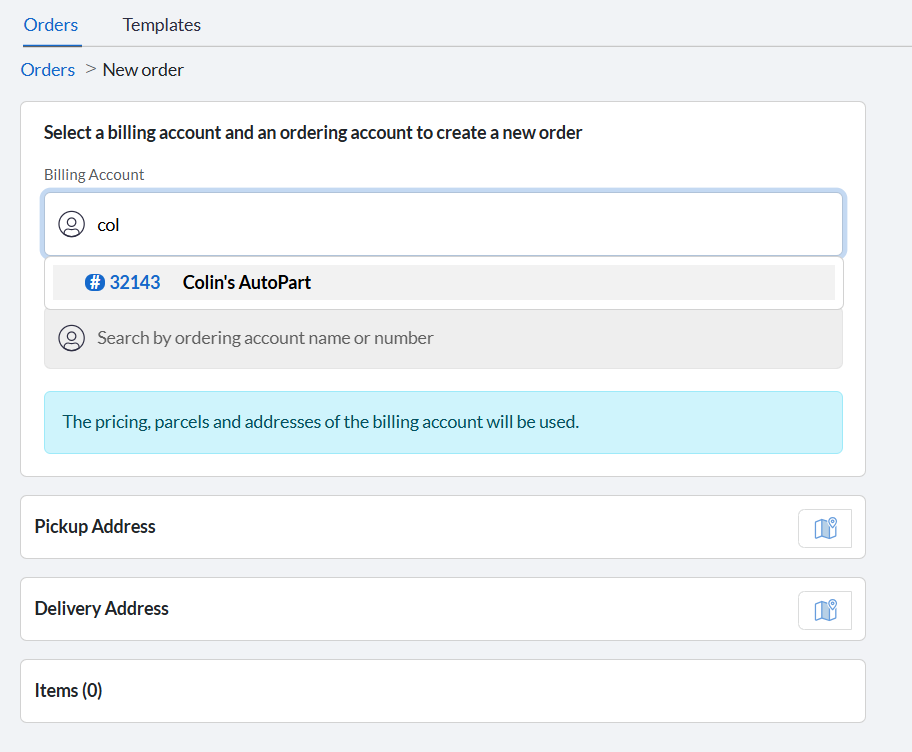
A banner on the selection step states: The pricing, parcels and addresses of the billing account will be used. When both fields have a single possible value, you choose nothing and the order is populated straight away. If the creation does not go through, the selection step stays on screen and accepts another selection.
Which Billing Accounts You Can Bill To
What you can bill to is decided by the associated accounts lists, not by the accounts you have access to. You can bill an order to a Billing Account as soon as one of the accounts you can order for appears on that Billing Account's Associated Accounts list. You do not have to be a user of the Billing Account, and you do not need access to it in any other way. Being placed on that list is the authorization: an internal user put your account there so that it could bill to that Billing Account.
The accounts you can order for are your own account, plus the accounts a Master Account gives you when you have one. A Master Account is not required. A user with a single account that appears on a Billing Account's associated accounts list is offered the flow and can place the order.
The selection step never displays what is not yours to bill to. Billing Account only suggests the Billing Accounts that associate one of your accounts, and once one is picked, Ordering Account only offers the accounts of its list that you can order for.
| What you try to do | Outcome | Why |
|---|---|---|
| Bill an order to a Billing Account whose associated accounts list contains one of your accounts | Allowed | The association is the authorization, whether or not the Billing Account is one of yours. |
| Bill an order to a Billing Account whose associated accounts list contains none of your accounts | Refused | The Billing Account is not suggested in the field, and the creation is prevented on the server as well. |
| Order on behalf of one of your accounts that is not on the selected Billing Account's list | Refused | Only the associated accounts of that Billing Account are offered as ordering accounts. |
Once the order exists, you can open it from the Billing Account and from the ordering account alike. See Who Sees a 'Bill To' Order in the Customer Portal.
Find 'Bill To' Orders in Your Order Lists
The ordering account is available as a column in both order lists, so you can tell at a glance which account placed which order. The columns are blank on orders that were not billed to another account.
Back Office Order List
- Open the order list.
- Open the column chooser.
- Add Ordering Account Name and Ordering Account Number
- Sort, filter or export the list on them.
Both columns can be sorted and filtered on. Both are hidden by default, and both are part of the Excel export. Searching an ordering account name or number works as searching a regular account does.
Renaming an account also updates the ordering account name and number displayed on the orders that account placed on behalf of a Billing Account.
The row menu of a Bill To order offers Create order with same accounts. See Start a New Order From an Existing Bill To Order.
Customer Portal Order List
The Customer Portal list offers a single Ordering Account column instead of the name and number pair, and there is no Ordering Account Number column. It is hidden by default, and you add it the same way, from the list's column chooser.
The ordering account name is resolved after the query on this list, so the column can be filtered on and included in the Excel export, but it cannot be sorted on.
Who Sees a 'Bill To' Order in the Customer Portal
A Bill To order is displayed in your Customer Portal order list when either of its two accounts is one of yours: the Billing Account being invoiced, or the ordering account that placed it. The account being invoiced sees what is being charged to it, the account that ordered keeps sight of what it ordered, and neither loses the order because the other side is out of its reach.
The list and the order details agree. An order displayed in your list can always be opened, and an order you can open is never missing from your list. The filters and the Excel export follow the same rule. It also holds whichever of your accounts you are currently working in: an order placed for one of your other accounts stays visible and can still be opened.
Seeing a Bill To order grants nothing else. An order billed to an account that is not yours gives you no access to that account's configuration, price list, users or other orders.
Two limits still apply on top:
- A role restricted to the orders its own user created displays only those, Bill To orders included.
- Back Office users are not scoped this way at all. They see Bill To orders under their usual permissions and company scope.
Invoice 'Bill To' Orders
A Bill To order belongs to the Billing Account. It is therefore invoiced with the Billing Account's own orders, and it is not on the invoice of the account that placed it. Billing otherwise works the way it always has.
Separate Invoices by Ordering Account
Instead of a single combined invoice, a Billing Account can be invoiced once per ordering account.
- Open the account's Billing Options.
- Set Invoice Separated By to Ordering Account.
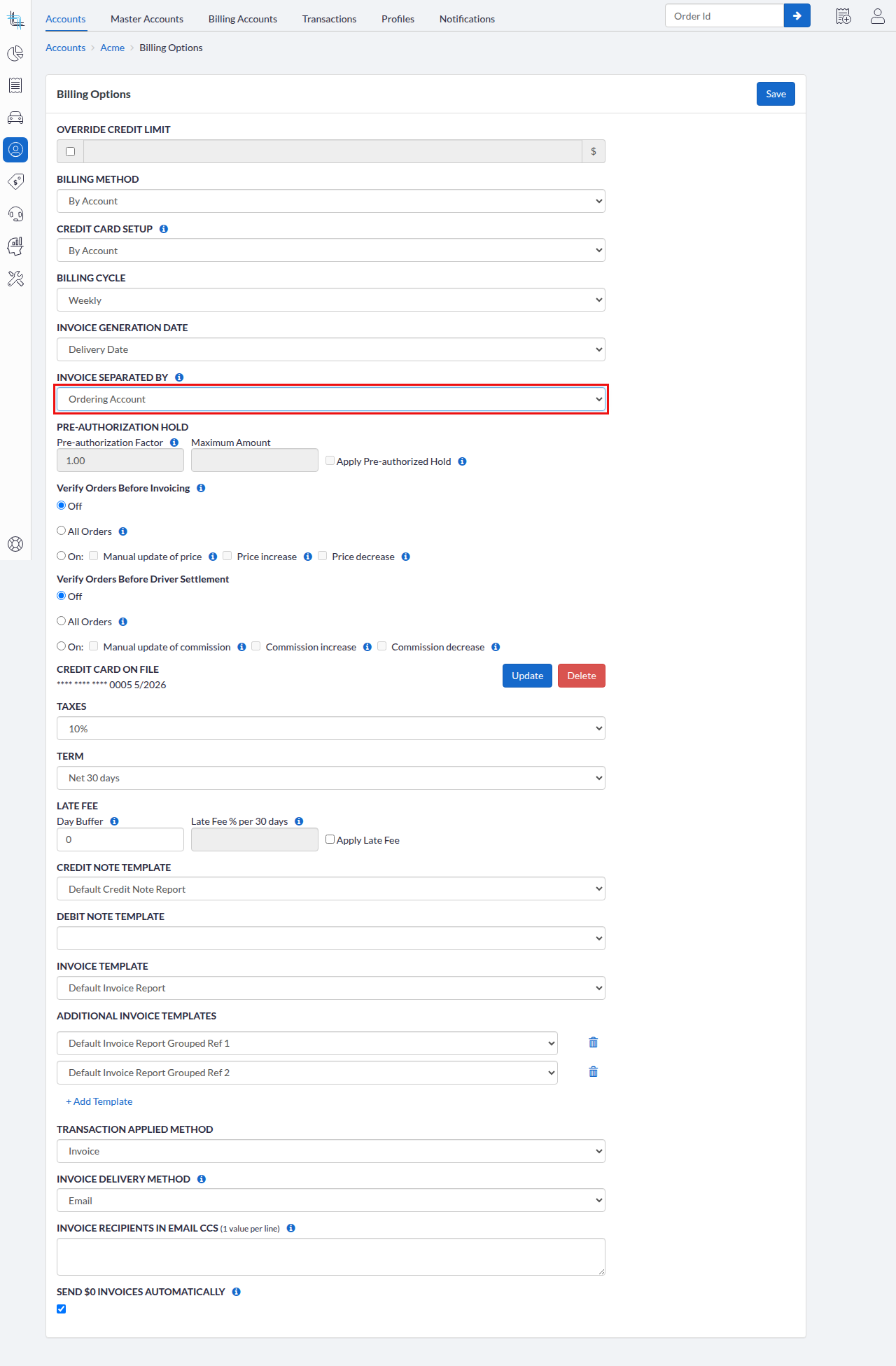
- Click Save.
- Open Generate Invoices for the billing cycle.
- Read one row per ordering account under Grouped By and Group Value, then generate the invoices.
Grouped By shows Ordering Account for these groups, and Group Value shows the ordering account's name followed by its account number. Orders that were not billed to another account are grouped together and end up on a single invoice of their own, separate from each ordering account's invoice.
Ordering Account is offered in the Invoice Separated By list of any account, not only of a Billing Account, as long as the account's other billing options allow it.
Order Rules and Scripts on 'Bill To' Orders
On a Bill To order, the order's account is the Billing Account. The Account field of an Order Rule matches on the order's own account, so it matches on the Billing Account and not on the account that placed the order. Everything such a rule gates follows the same logic, including the scripts and the order profiles it applies. Rules that exist for billing purposes therefore follow the account being invoiced, which is usually what you want.
To build a rule on the account that placed the order instead, use the Ordering Account field. It is offered in the same field list as Account, with the same Is equal to and Is not equal to operators and the same account selector, and it works everywhere Order Rules do: Order Update script rules, Extra Fee script rules, notifications, order groups, order templates and order subscriptions.
- On a Bill To order, Ordering Account resolves to the account the order was placed on behalf of.
- On a regular order there is no ordering account, so a rule built on this field never matches one.
- Account keeps meaning the account being invoiced. Rules that already exist are unaffected, on Bill To orders and regular orders alike.
Use Account for automation that follows the invoice, and Ordering Account for operational automation that has to follow the account that actually placed the order, such as adding hubs or creating segments.
A script gated by a rule can also read the ordering account itself, along with that account's own record, so a script can recognize a Bill To order and act differently on it. What a script reads by default is still the account being invoiced, so scripts already in production behave exactly as before.
Was this article helpful?
That’s Great!
Thank you for your feedback
Sorry! We couldn't be helpful
Thank you for your feedback
Feedback sent
We appreciate your effort and will try to fix the article