Archiving an account sets it aside when it is no longer in use: the account leaves the default account list and no new orders can be created for it. Archiving is reversible — you can unarchive an account at any time to make it active again.
Table of Contents
- Configure Who Can Archive or Unarchive Accounts
- Archive an Account
- What Prevents an Account from Being Archived
- Find Archived Accounts
- Unarchive an Account
- Impact of Account Archiving
Configure Who Can Archive or Unarchive Accounts
A single permission, Archive account, controls both archiving and unarchiving. Users whose role is assigned this permission see the Archive and Unarchive buttons on the account details screen; users without it do not see the buttons and cannot perform either action.
Assign the permission in the standard Back Office roles and permissions editor: open the role you want to update and select the Archive account permission for it. The same permission covers both archiving and unarchiving, so there is nothing else to assign for unarchiving.
Archive an Account
Archive an account once it is no longer in use. Once archived, the account leaves the default account list and no new orders can be created for it. The account is not deleted: you can find it again and unarchive it at any time. For everything that changes once an account is archived, see Impact of Account Archiving.
- Navigate to Accounts.
- Click the account name to open its details.
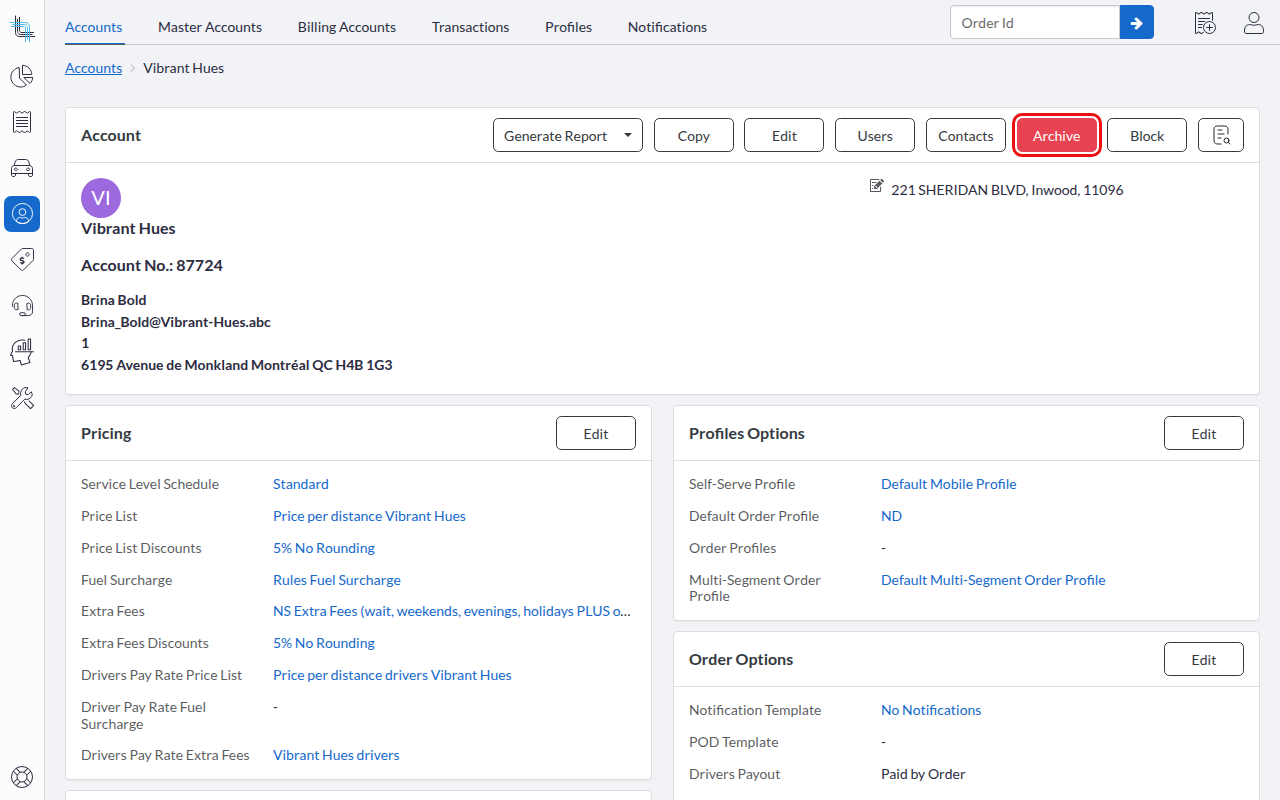
- Click Archive.
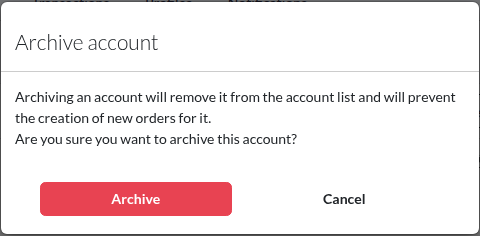
- Confirm in the Archive account dialog by clicking Archive.
What Prevents an Account from Being Archived
An account can be archived only when it is not tied to records that still depend on it. If any of the conditions below apply, the archive is refused, the account stays active, and the details screen returns with a message listing the specific records that are blocking the action. Resolve the blockers and try again.
- Recurring order templates. The account has recurring order templates used by an order or route recurrence. Delete those recurring order templates first.
- Route plans. The account is present in one or more route plans. Remove the account from those route plans first.
- Master account. The account is included in a master account. Remove the account from the master account first.
Find Archived Accounts
The account list shows only active accounts by default, so archived accounts are hidden until you ask for them.
- Navigate to Accounts.
- Check the box for Show Archived Accounts.
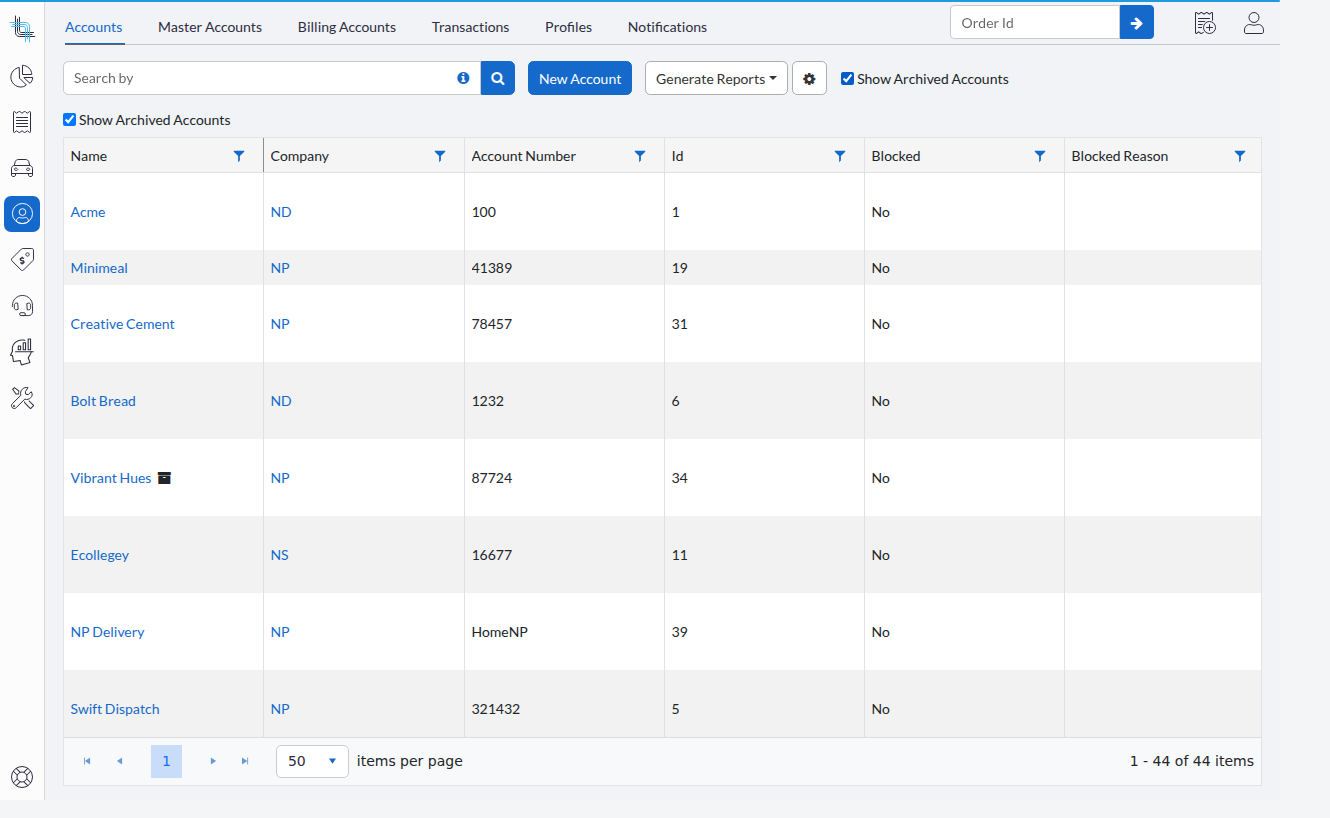
Archived accounts then appear in the list with an Archived icon next to the account name.
Unarchive an Account
Unarchive an account to make it active again. Once unarchived, the account reappears in the default account list and in searches, and new orders can be created for it again. Unarchiving requires the same Archive account permission as archiving.
- Find the archived account — see Find Archived Accounts.
- Click the account name to open its details.
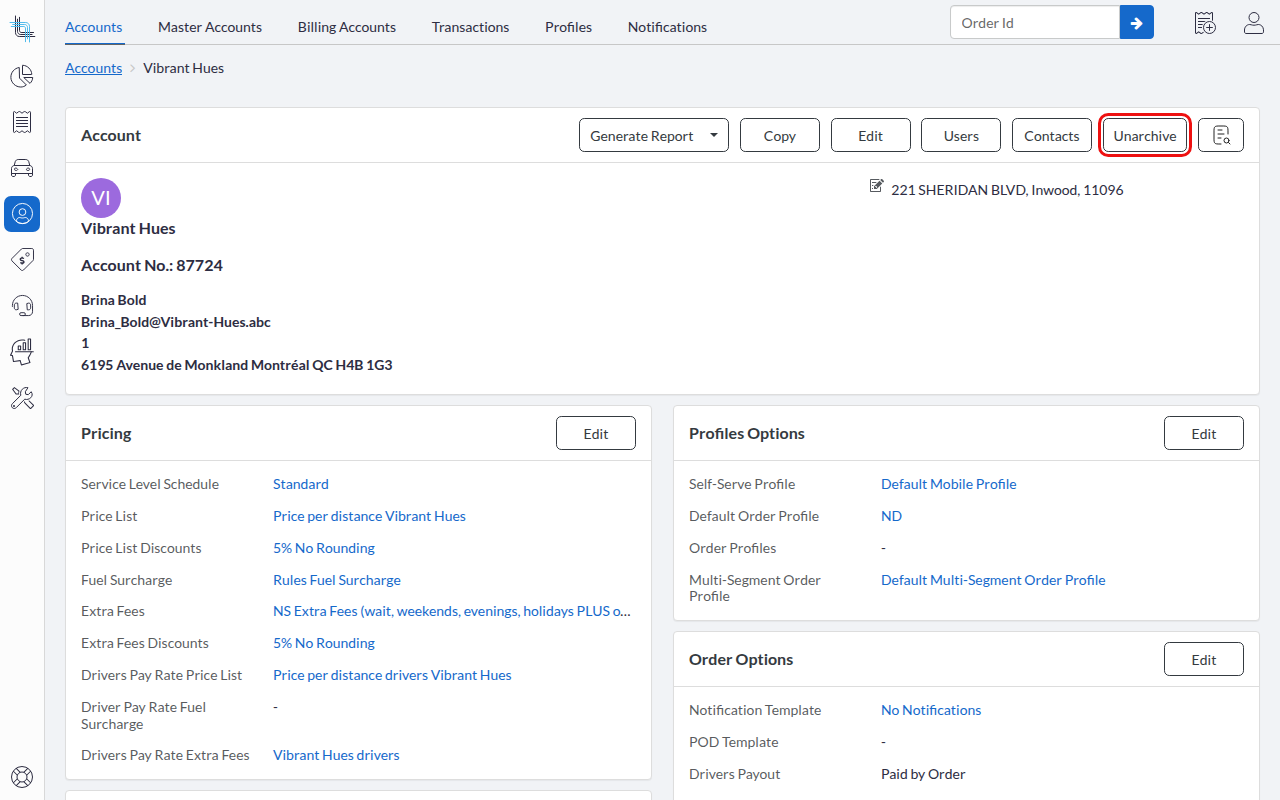
- Click Unarchive.
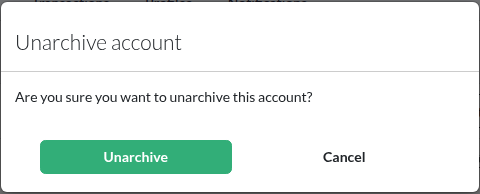
- Confirm in the Unarchive account dialog by clicking Unarchive.
Impact of Account Archiving
Archiving an account changes how it behaves across Dispatch Science. The effects below all take hold once the account is archived, and are reversed when it is unarchived.
Sign-In and Portal Access
Archiving an account immediately signs out everyone who belongs to it, and they can no longer sign in afterwards. This blocks their access to the self-serve portal and to self-serve integrations that sign in on the account's behalf.
Creating Orders and Order Templates
- New orders cannot be created for an archived account.
- Order templates cannot be created for an archived account.
- Orders for an archived account cannot be converted to multi-segment orders.
- In the order screens, the Create... options and the convert-to-multi-segment action are no longer shown for an archived account, in both the order details and the order search list.
- The archived account no longer appears in the order-creation account search.
- Existing order templates that belong to an archived account are left out of template search results.
Finding Accounts and Lists
Archived accounts are excluded by default from the account list and from account searches, including the order-creation account search. To see them in the account list, use Find Archived Accounts. On the account list and on the order search list, an Archived icon appears next to the account so you can recognize it.
Master Accounts and Route Plans
An archived account cannot be added to a master account: it is left out of the master account's list of available accounts, and adding it is rejected. An archived account also cannot be added to a route plan.
The Account Details Screen
On an archived account's details screen, the Block button is no longer shown, and the Archive button is replaced by Unarchive. The other actions on the screen stay available.
Was this article helpful?
That’s Great!
Thank you for your feedback
Sorry! We couldn't be helpful
Thank you for your feedback
Feedback sent
We appreciate your effort and will try to fix the article