TABLE OF CONTENTS
- Introduction
- Extra Fee Types
- Extra Fee Schedules
- Rate Types with Examples
- Extra Fee Visibility Options
- Rounding Options on Extra Fees
- Improved Controls upon Changing the Account on an Order
Introduction
Extra Fees are used to apply additional accessorial charges to an order, such as off-hours service, waiting time, weight-based fees, and similar surcharges.
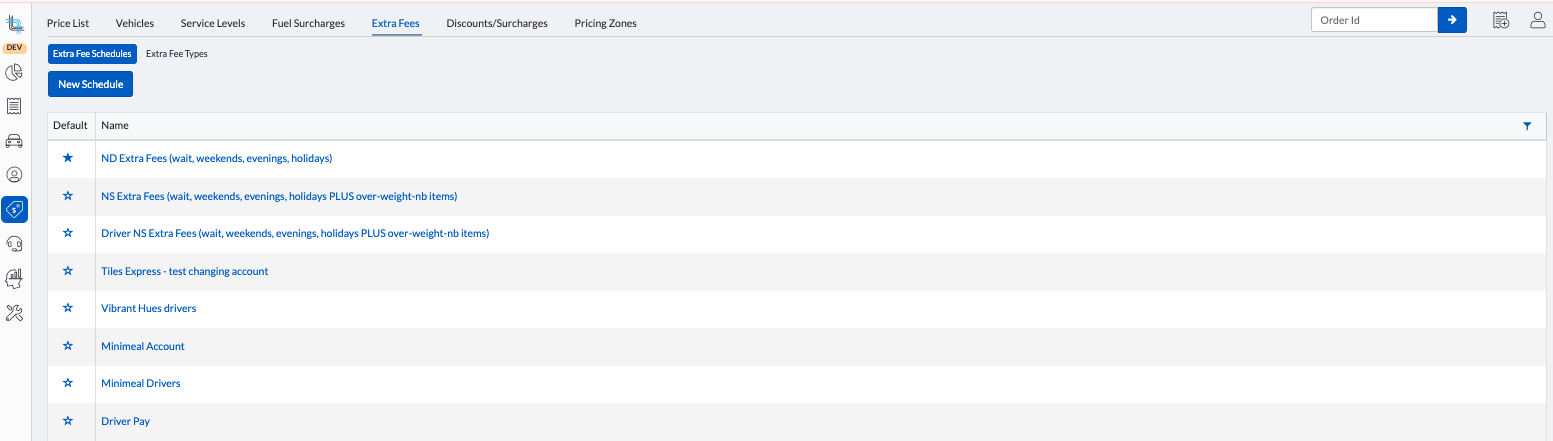
Extra Fees are located under the Pricing left-hand side menu:
Extra Fee Types
There are two types of extra fees in Dispatch Science:
| Type | Description | Behavior / Restrictions |
|---|---|---|
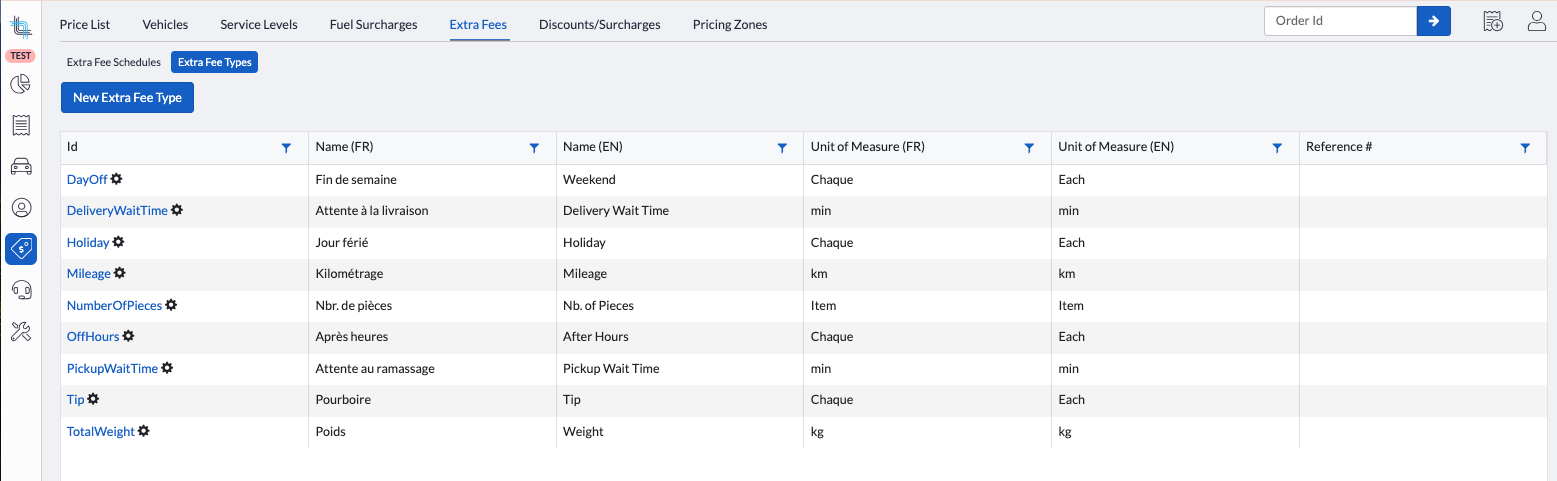
| System- Defined | Preconfigured extra fees provided by the system | Identified by an icon next to their ID. The Name, Unit of Measure, and ID cannot be modified. The Description can be updated. |
| User- Defined | Custom extra fees created by users | Fully configurable. Name, Unit of Measure, ID, and behavior (rated, sliding, scripted) can all be defined. |
System-Defined Extra Fees
| Fee Name | Id | Trigger / Condition | How it Works | Notes / Requirements |
|---|---|---|---|---|
| Off Hours | OffHours | Order scheduled outside normal operating hours | Automatically added when the service level allows off-hour booking. If both Off Hours and Holidays are true, only Holiday will be added to the order. | Service level must have Off Hour Booking = Allowed |
| Holiday | Holiday | Order scheduled on a configured holiday | Automatically added when the service level allows holiday booking. If both Off Hours and Holidays are true, only Holiday will be added to the order. | Requires holiday calendar setup and Holiday Booking = Allowed |
| Weekend | DayOff | Not Applicable | Not automatically applied | Not linked to functionality; workaround: configure weekend as off-hours |
| Delivery Wait Time | DeliveryWaitTime | Driver enters the delivery location radius | Wait time starts counting and the fee is applied | Driver profile must have Update Wait Time Extra Fee = Yes |
| Pickup Wait Time | PickupWaitTime | Driver enters pickup location radius | Wait time starts counting and fee is applied | Driver profile must have Update Wait Time Extra Fee = Yes |
| Mileage | Mileage | Distance between pickup and delivery | Quantity = total mileage | Calculated automatically by the system |
| Nb. of Pieces | NumberOfPieces | Based on parcels in the order | Quantity = sum of (parcel × unit factor) | Parcel type must have Total Unit Factor > 0 |
| Weight | TotalWeight | Based on total parcel weight | Uses actual, minimum, or dimensional weight (whichever is higher) | Requires parcel weight configuration |
| Tip | Tip | Triggered via workflow step | Customer enters tip (flat or %) on driver's device | Workflow must include Tip step |
User-Defined Extra Fees
| Fee Name | Id | Trigger / Condition | How it Works | Notes / Requirements |
|---|---|---|---|---|
| User- Defined | Custom | Manual or configured logic | Can be rated, sliding, or scripted | Not linked to system functionality |
Create a User-Defined Extra Fee
- Open Pricing > Extra Fees > Extra Fee Types and click the New Extra Fee Type button.
- Fill in the New Extra Fee Type form:
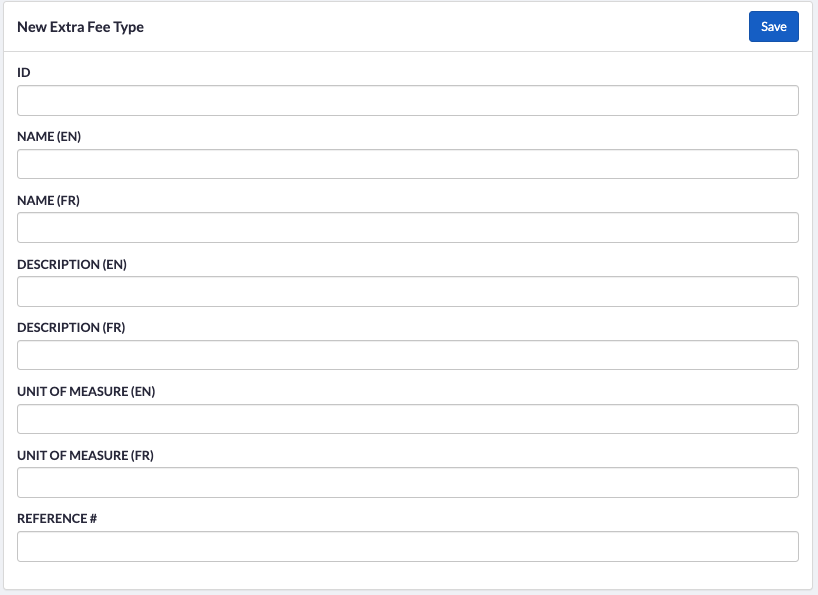
- Enter a required Id. Id consists of letters, numbers,
-,_only. - Enter a required name in the primary language and an optional name in the secondary language.
- Enter an optional description in the primary language and in the secondary language.
- Enter a required unit of measure in the primary language and an optional unit of measure in the secondary language.
- Enter an optional reference.
- Enter a required Id. Id consists of letters, numbers,
- Click Save.
Display on the Order
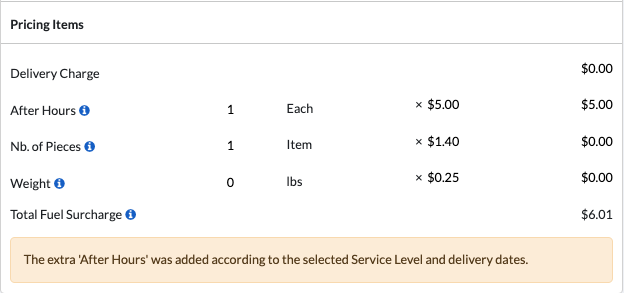
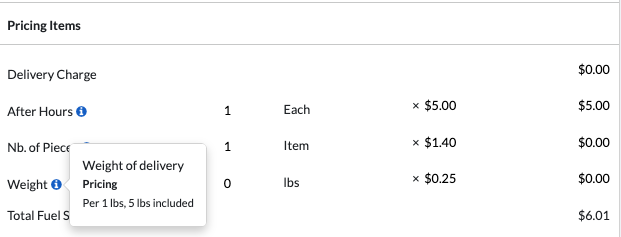
The name will show on the order. The description appears as an info icon beside the fee name. The unit of measure is displayed beside the quantity:
Archiving an Extra Fee
Users can archive unused or mistakenly created extra fee types so they no longer appear in the list of available types when configuring extra fee schedules.
- Archiving an extra fee type removes it from all current extra fee schedules
- Archived types can be unarchived if needed.
- A filter allows showing or hiding archived types in the list.
- System extra fee types cannot be archived.
To archive an extra fee type:
- Open Pricing > Extra Fees > Extra Fee Types and open the Extra Fee Type you wish to archive.
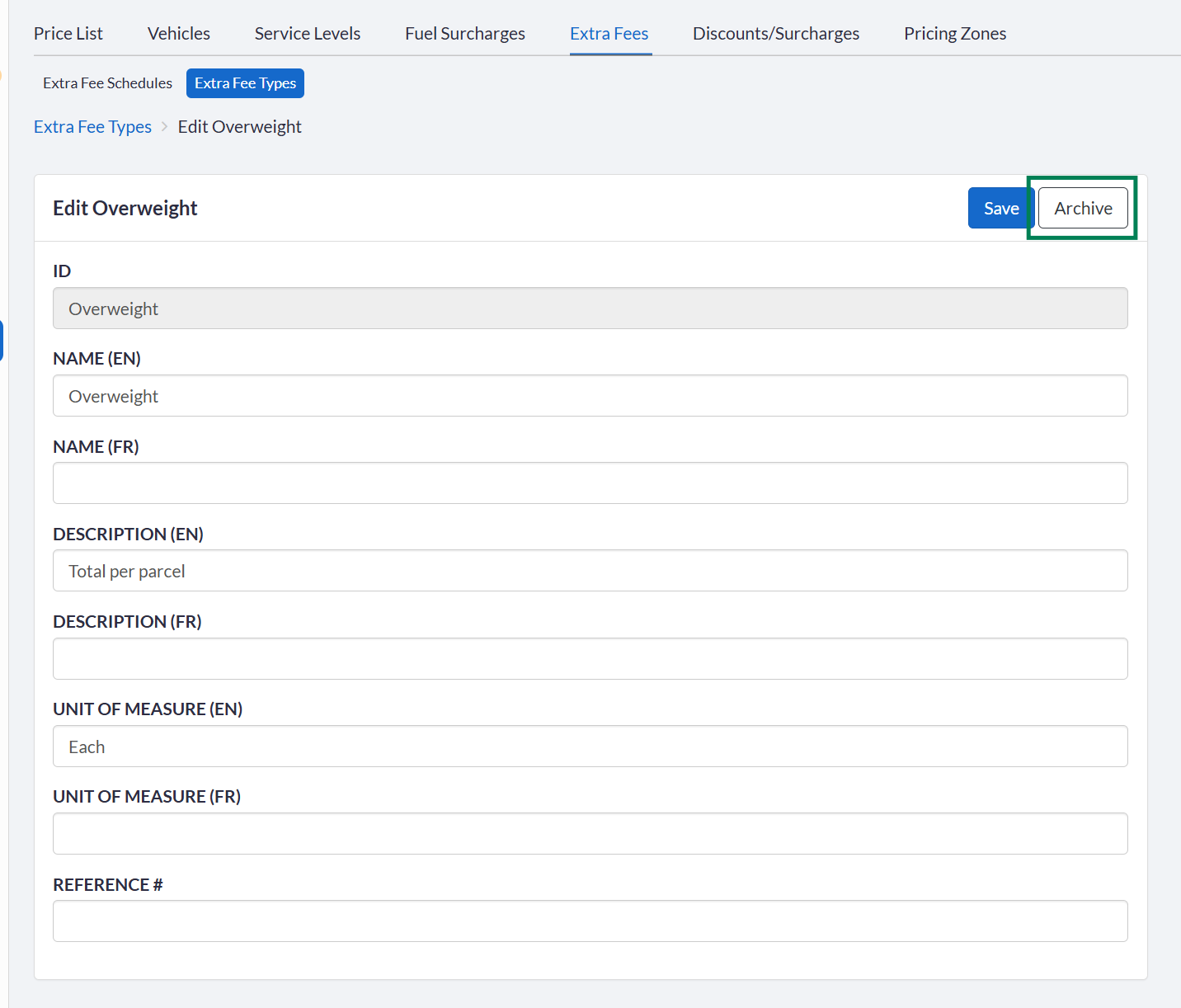
- Click on the Archive button:
- Confirm the action.
Extra Fee Schedules
Extra Fee Schedules are used to group multiple extra fees together and associate them with an account.
When adding extra fees to a schedule, each fee can be configured with its appropriate:
- Rating method
- Pricing structure
- Applicable options
This allows you to standardize and apply a consistent set of accessorial charges across accounts.
Create an Extra Fee Schedule
- Open Pricing > Extra Fees — you will land on the Extra Fee Schedules list.
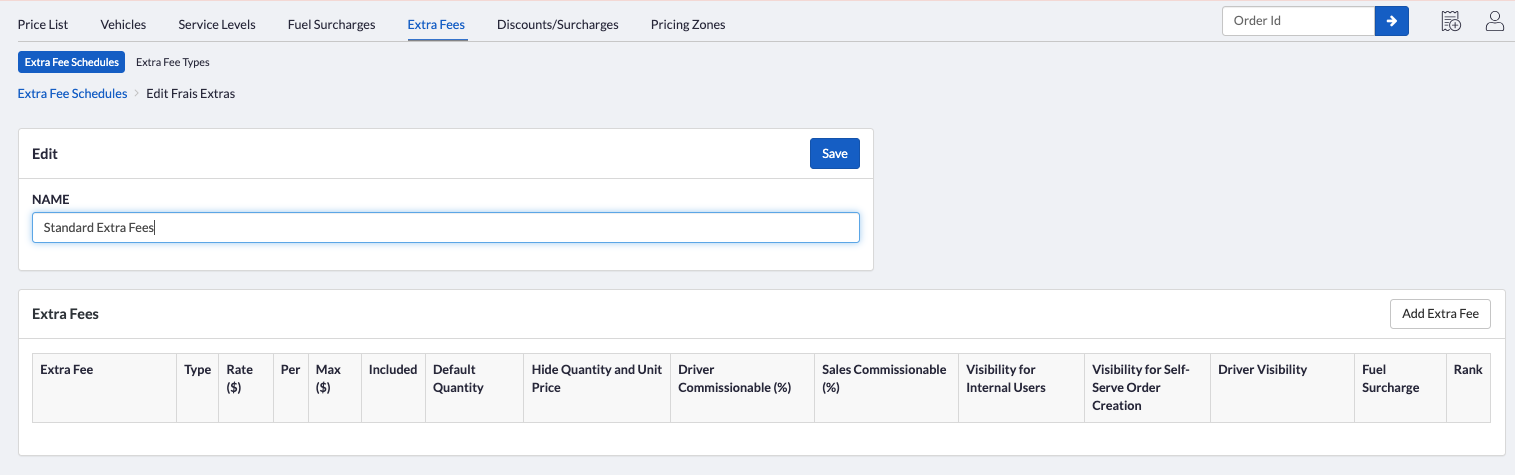
- Click New Schedule, enter the name of the schedule, then click Save:

- Above the list of extra fees, click the Add Extra Fee button:
- Select an extra fee from the drop-down and click Save:

- Fill in the Configuration section:
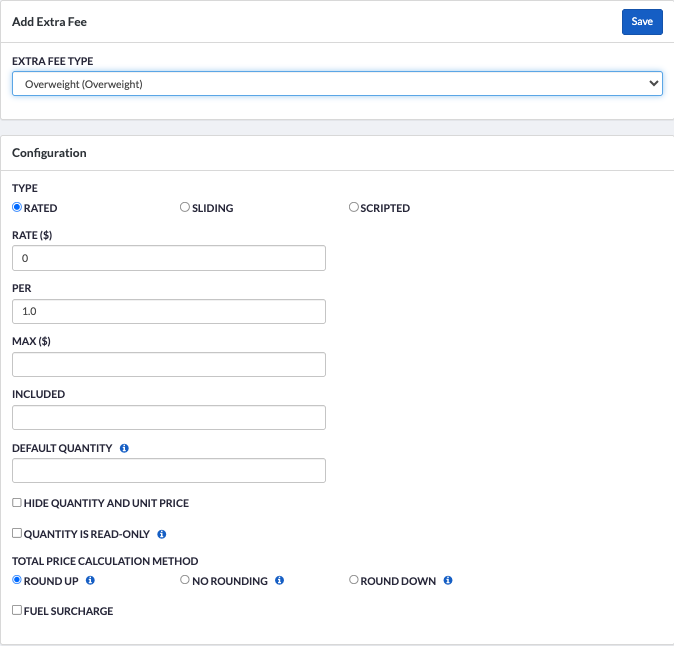
- Set the calculation type: Rated, Sliding, or Scripted. See Rate Types below for details.
- Depending on the type selected:
- Rated: Fill in the rate, per, max ($) if needed, Included if needed, default quantity if needed.
- Sliding: Download and fill in the template and import the file. Enter the per, max ($) if needed, Included if needed, default quantity if needed.
- Scripted: Select the script, download the template if available. Fill in the file and import it. Enter the per, max ($) if needed, Included if needed.
- Check Hide quantity and unit price if you only want to see the total. This will prevent a user from updating the quantity.
- Check Quantity is read-only if you wish users not to be able to update the quantity. Quantity is set as read-only for scripted fees but this can be unchecked if needed.
- Select the total price calculation method. See Rounding Options below.
- Check Fuel Surcharge if it should be calculated on the extra fee. Fuel surcharge will only be calculated if set as a percentage — if set as distance, it will not be calculated on the extra fee.
- Fill in the Commission section. The sales commission will be based on the percentage of the extra fee total entered here:
- Enter the maximum percentage in Driver Commissionable.
- Enter the maximum percentage in Sales Commissionable.
- Fill in the Visibility section. Depending on the fee type (system or user-defined), the available fields will differ.
- User-defined extra fee:
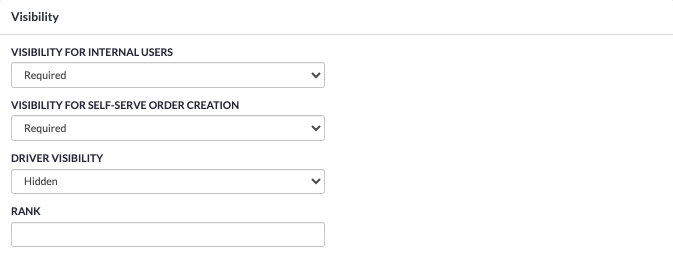 For more information, see Visibility Options below.
 - If the calculation type is Scripted, you also need to set Visibility for $0 total for both internal and self-serve users. If checked to be hidden, $0 total for that extra fee will not be displayed for those types of users.
- Rank (common to both types): Enter the sort order for how extra fees are displayed on the order. This is not required.
- User-defined extra fee:
- Click Save. The extra fee will appear on the Extra Fee Schedule.
Rate Types with Examples
There are three types of rate configurations available for extra fees:
| Rate Type | Description | How It Works | Notes |
|---|---|---|---|
| Rated | Linear pricing model | Quantity is divided by the Per value, optionally rounded (up, down, or none), then multiplied by the rate | Simple and predictable calculation |
| Sliding | Multi-dimensional pricing model | Quantity is divided by the Per value, optionally rounded. The result, along with distance and vehicle type (if configured), is used to determine a rate from a matrix (Excel). The final result is multiplied by that rate. | Supports complex pricing grids |
| Scripted | Fully customizable pricing | Uses a C# script to calculate the total price based on various order fields. Can also leverage spreadsheet data for rate lookup. | Requires Growth plan (with Developer Toolkit) or Enterprise plan |
Rated Fee
Formula: (Quantity ÷ Per) → Rounded (optional) → × Rate
Rounding options: Up, Down, None
Quantity = 51 · Per = 10 · Rate = $2 · Rounding = None
51 ÷ 10 = 5.1 → no rounding → 5.1 × $2 = $10.20
Quantity = 53 · Per = 10 · Rate = $2 · Rounding = Up
53 ÷ 10 = 5.3 → rounded up = 6 → 6 × $2 = $12.00
Sliding Fee
Formula: (Quantity ÷ Per) → Rounded (optional) → Rate lookup (quantity, distance, vehicle type) → × Rate
Rate is retrieved from a configured matrix (typically Excel-based).

Example Setup (Excel file):
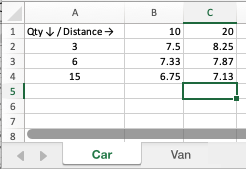
Quantity = 40 · Per = 10 · Distance = 8 miles · Vehicle = Car · Rounding = None
40 ÷ 10 = 4 → lookup: >3 but <6, 0–10 miles, Car → Rate = $7.33 → 4 × $7.33 = $29.32
Scripted Fee
Uses a C# script to read and manipulate order data, apply custom logic, and optionally retrieve rates from a spreadsheet. Supports complex, multi-dimensional pricing scenarios.
Availability:
- Growth plan (with Developer Toolkit)
- Enterprise plan
- Contact sales to enable if not available
A script applies: Base fee = $5 · $1 per km over 10 miles · $0.50 per item over 5 items
Order: Distance = 18 miles · Quantity = 20 items
Base = $5 · Distance extra = (18 − 10) × $1 = $8 · Quantity extra = (20 − 5) × $0.50 = $7.50
Total = $5 + $8 + $7.50 = $20.50
Quick Comparison
| Type | Best For | Complexity |
|---|---|---|
| Rated | Simple per-unit charges | Low |
| Sliding | Tiered pricing based on multiple factors | Medium |
| Scripted | Fully custom business rules | High |
Extra Fee Visibility Options
Extra fees can be configured to control their visibility and usage across different user types.
Visibility for Internal Users
| Visibility Type | Behavior | User Interaction | Notes |
|---|---|---|---|
| Restricted Users Only | Fee is not universally available | Only users with Extra Fees > Restricted access can add the fee to the order | Once added, users with pricing visibility can view it, and users with edit rights can modify it |
| Optional | Not added automatically | Users can manually add it via the Add Pricing Item button in the Pricing section | Useful for situational or discretionary charges |
| Required | Automatically added to the order | No manual action needed | Ensures the fee is always applied |
Visibility for Self-Serve Order Creation
| Visibility Type | Behavior | User Interaction | Notes |
|---|---|---|---|
| Hidden | Fee cannot be added by the user | User will see the fee only after it has been applied to the order | Typically used for backend-applied fees |
| Optional | Not added automatically | Users can manually add it via the Add Pricing Item button in the Pricing section | Useful for situational or discretionary charges |
| Required | Automatically added to the order | No manual action required | Ensures the fee is always applied |
Driver Visibility
| Visibility Type | Behavior | Driver Interaction | Notes |
|---|---|---|---|
| Hidden | Fee is not visible in the Driver App | Driver cannot see the fee when viewing the order or stops | Used for internal or system-level charges |
| View Only | Fee is visible in the Driver App | Driver can see the fee but cannot modify it | Useful when drivers need awareness of required services (e.g., special equipment) |
| View and Add | Fee is fully accessible in the Driver App | Driver can view, edit, and add the fee | Requires Can Add Extra Fee = Yes in the driver profile under Extra Fee Options. Useful when a driver uses equipment not specified on the order — the driver can add without input from the dispatcher. |
Rounding Options on Extra Fees
Multiple rounding options are available on Extra Fees.
Round Up: The quantity will round up to the next Per Unit value. For example, if 2.1 is entered in the quantity on an order's Extra Fee and the Per unit is 1, then 3 is used to calculate the total Extra Fee.
No Rounding: The quantity field is used as-is to calculate the extra fee total. Using the same example, a quantity of 2.1 with a Per unit of 1 would use 2.1 to calculate the total Extra Fee.
Round Down: The quantity is rounded down to the previous Per unit. A quantity of 2.1 with a Per unit of 1 would use 2 to calculate the total Extra Fee.
When using a sliding Extra Fee with No Rounding or Round Up, the price will use the rounded-up quantity to get the unit price.
Support for Negative Extra Fees on Order Details
Internal users can change the price of a rated extra fee to a negative number on an order. Negative values cannot be entered in the Per field within the Extra Fee Schedule.
For sliding and scripted extra fees, the price can be stored in the Excel sheet as a negative value.
• If a negative quantity is entered in an extra fee on the order, the extra fee total will automatically be set to $0.
• If a negative price is entered or calculated by the sliding/scripted extra fee, the total for that extra fee will calculate as a negative value.
• If the total price of an order is negative, the order will be set to $0.
• When an extra fee is negative, the quantity field will be locked in the Account User/Admin Order Details.
• Driver Commission will be set to negative if a commission % is assigned to a negative Extra Fee. However, if the total commission is negative, it will be set to $0.
Improved Controls upon Changing the Account on an Order
When changing the Account on an order to an Account that is blocked, a warning message will be displayed and the user will be able to cancel the change.
- From the Order Details menu, select Change Order Account, then enter the account or user email and select from the list.
- If the new Account is blocked, the following warning message will be displayed:
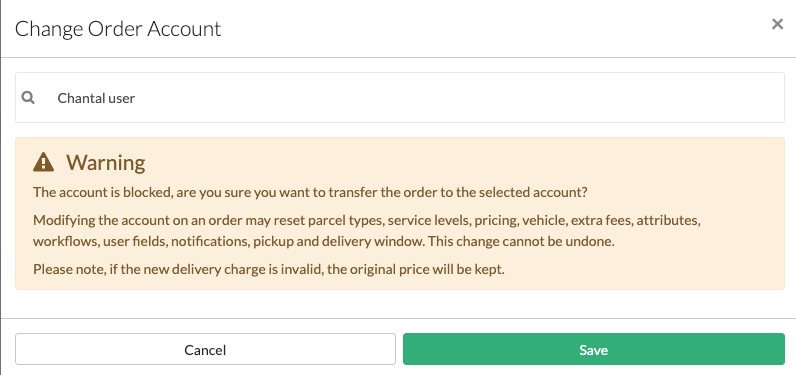
- Click Save to change to the blocked account, or Cancel to return to the Order Details, keeping the original account.
Was this article helpful?
That’s Great!
Thank you for your feedback
Sorry! We couldn't be helpful
Thank you for your feedback
Feedback sent
We appreciate your effort and will try to fix the article