Automatic Offline Mode in the Driver App

Modified on Fri, 17 Jul at 9:25 AM

The Dispatch Science Driver App includes an Automatic Offline Mode to help drivers continue working in areas with poor or unstable cellular coverage.


When a driver attempts to complete a stop and the app is unable to communicate with Dispatch Science due to a weak network connection, the app will automatically switch to Offline Mode. This ensures that completed stops are saved locally and can be synchronized once a reliable connection is restored.


How Automatic Offline Mode Works

When the Driver App sends a stop completion to Dispatch Science, it waits for confirmation from the server.

  • If the request cannot be processed because of a weak cellular connection, the app may take 30–40 seconds before determining that the network is unavailable.
  • The Driver App will then automatically enter Offline Mode.
  • Any stops completed while offline are securely stored on the device and will be uploaded once the driver reconnects to the internet.

What You'll See While Offline

When the app enters Offline Mode:

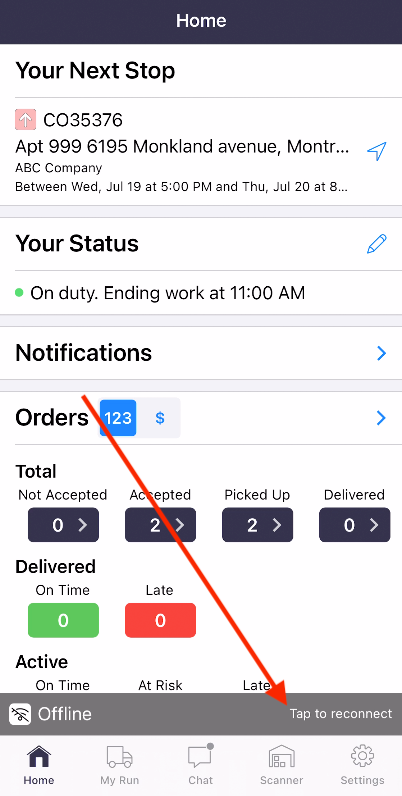
  • A gray status bar appears in the Home tab and My Run screen indicating that the app is offline.
  • Some Driver App features will be unavailable until the connection is restored.


Reconnecting to Dispatch Science

To manually reconnect:

  1. Tap the gray Offline status bar.
  2. The Driver App will attempt to reconnect.

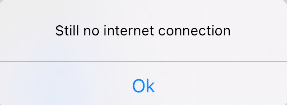
If the network is still weak

A message will appear indicating that the app is unable to reconnect because a stable network connection is not available.

If the network connection is restored

The Driver App will:

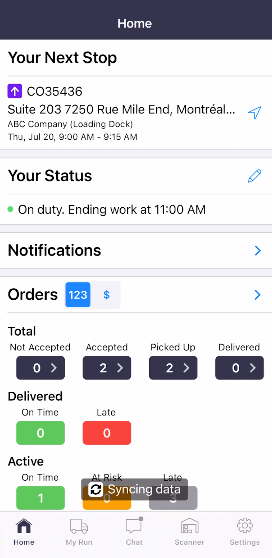
  • Reconnect to Dispatch Science.
  • Automatically upload all stops that were completed while offline.
  • Display a Synchronizing message while the data is being sent.


Automatic Reconnection

The Driver App will also automatically reconnect whenever the device connects to a stable internet connection, including Wi-Fi.


Once connected, any pending stop completions are synchronized with Dispatch Science automatically.


Key Points

  • Offline Mode activates automatically when a stop cannot be submitted due to poor network coverage.
  • Completed stops are safely stored on the device while offline.
  • Tap the gray Offline status bar to attempt a manual reconnection.
  • The app automatically uploads pending stops once a reliable connection (cellular or Wi-Fi) is available.
  • No completed stop information is lost while the app is in Offline Mode.

Was this article helpful?

That’s Great!

Thank you for your feedback

Sorry! We couldn't be helpful

Thank you for your feedback

Let us know how can we improve this article!

Select at least one of the reasons
CAPTCHA verification is required.

Feedback sent

We appreciate your effort and will try to fix the article