The tracking page lets you follow every order delivered to you in one place, without entering tracking numbers one by one. Sign in with your email address and a one-time code to see your recent deliveries, their status and history, and the proof of pickup and delivery.
Table of Contents
Sign In to Your Deliveries
You sign in with the email address your deliveries are registered under. No password is needed: each time you sign in, a 6-digit code is sent to that email address. Your email address and phone numbers are registered by the company that manages your deliveries (see the Managing Consignees guide).
- Open the tracking page.
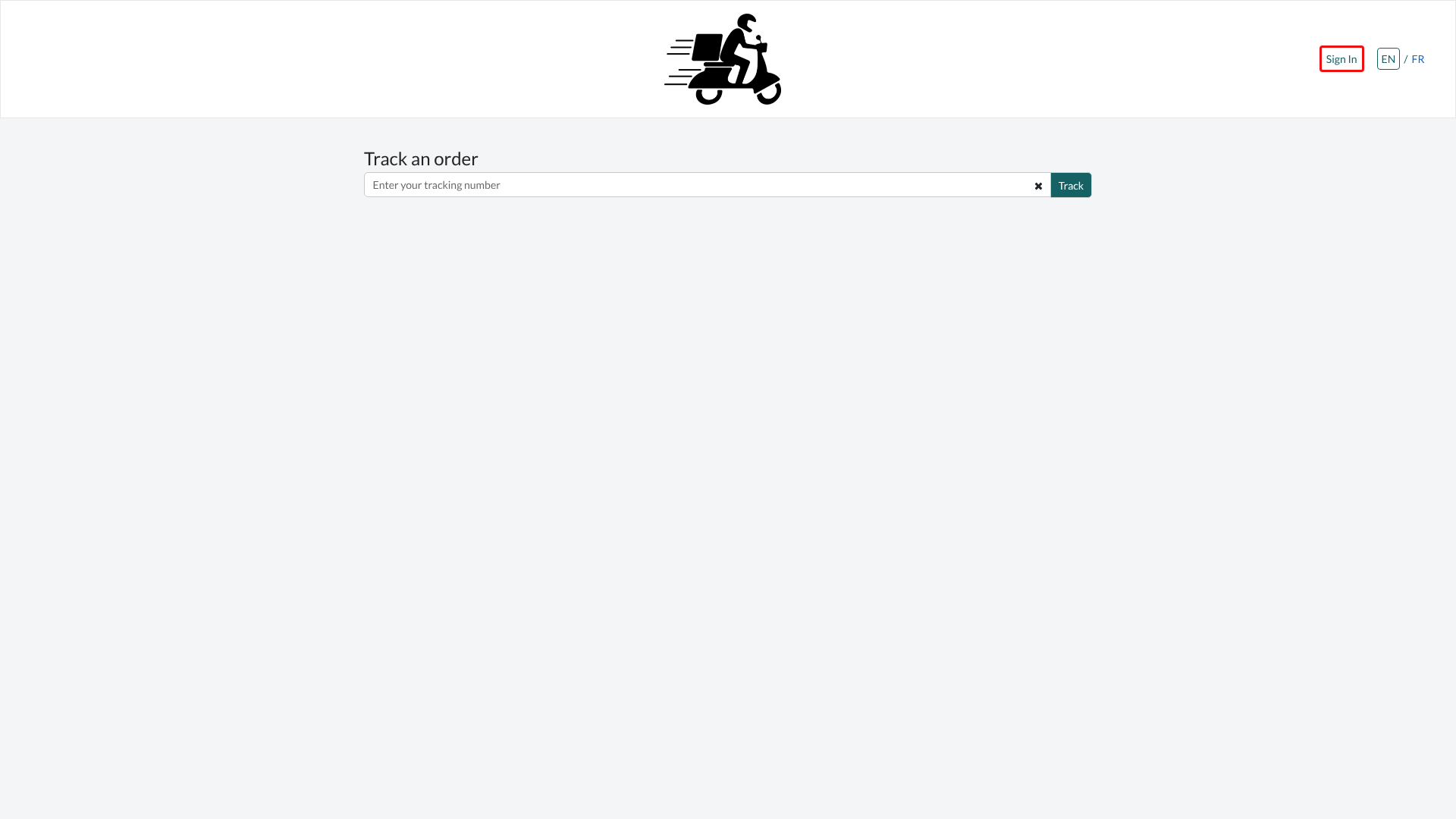
- Click Sign In in the page header. If you don't see this option, contact support.
- In Email Address, enter the email address your deliveries are registered under.
- The email address is required. An empty field shows "Enter your email address."
- An address that is not valid shows "Enter a valid email address, for example name@example.com."
- Click Send Code.
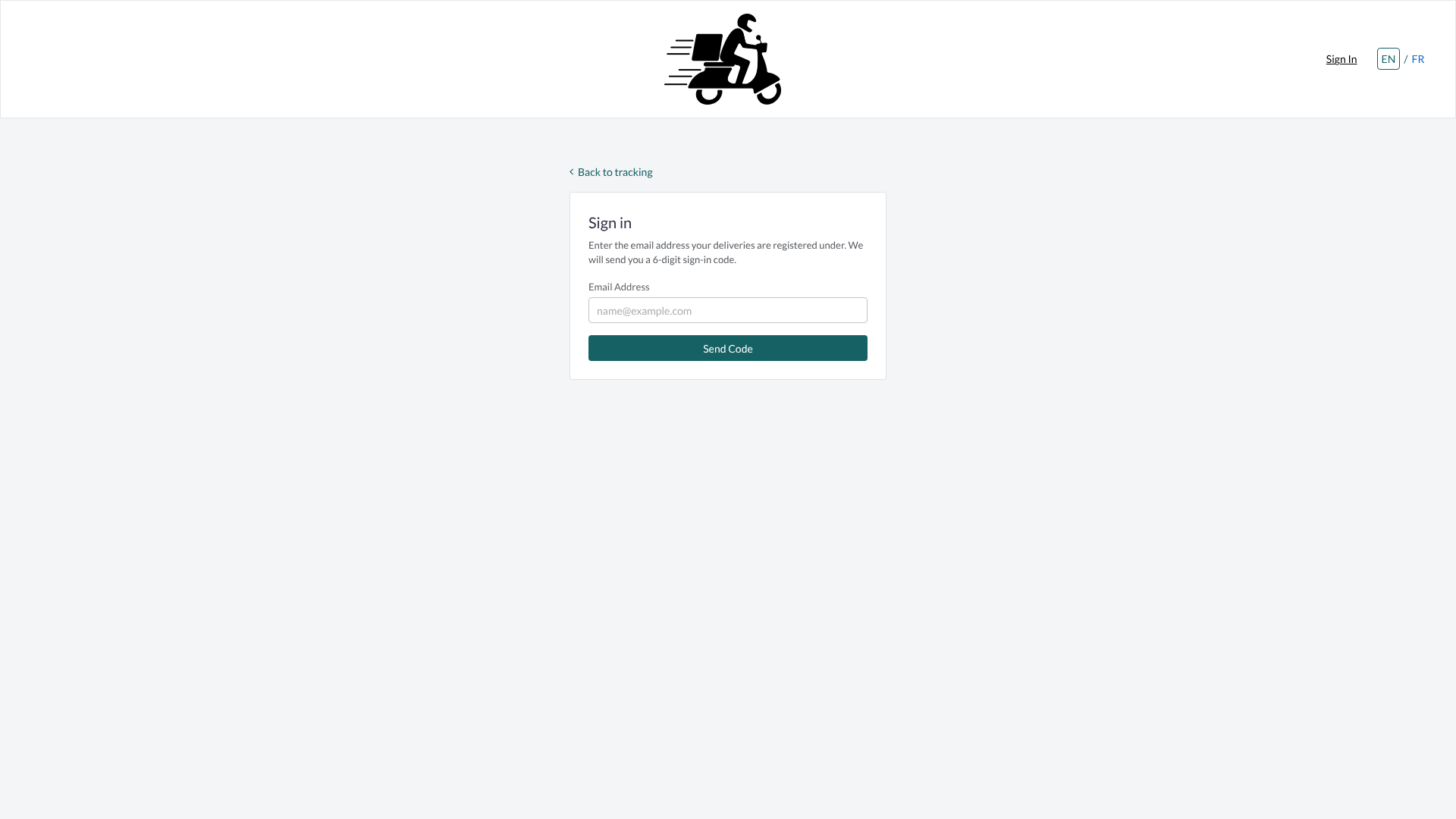
- The Enter your code step opens. Open the email with the subject "Your sign-in code" and read the 6-digit code.
- Type the code in Sign-In Code. The code is submitted automatically when you type the 6th digit. You can also click Sign In.
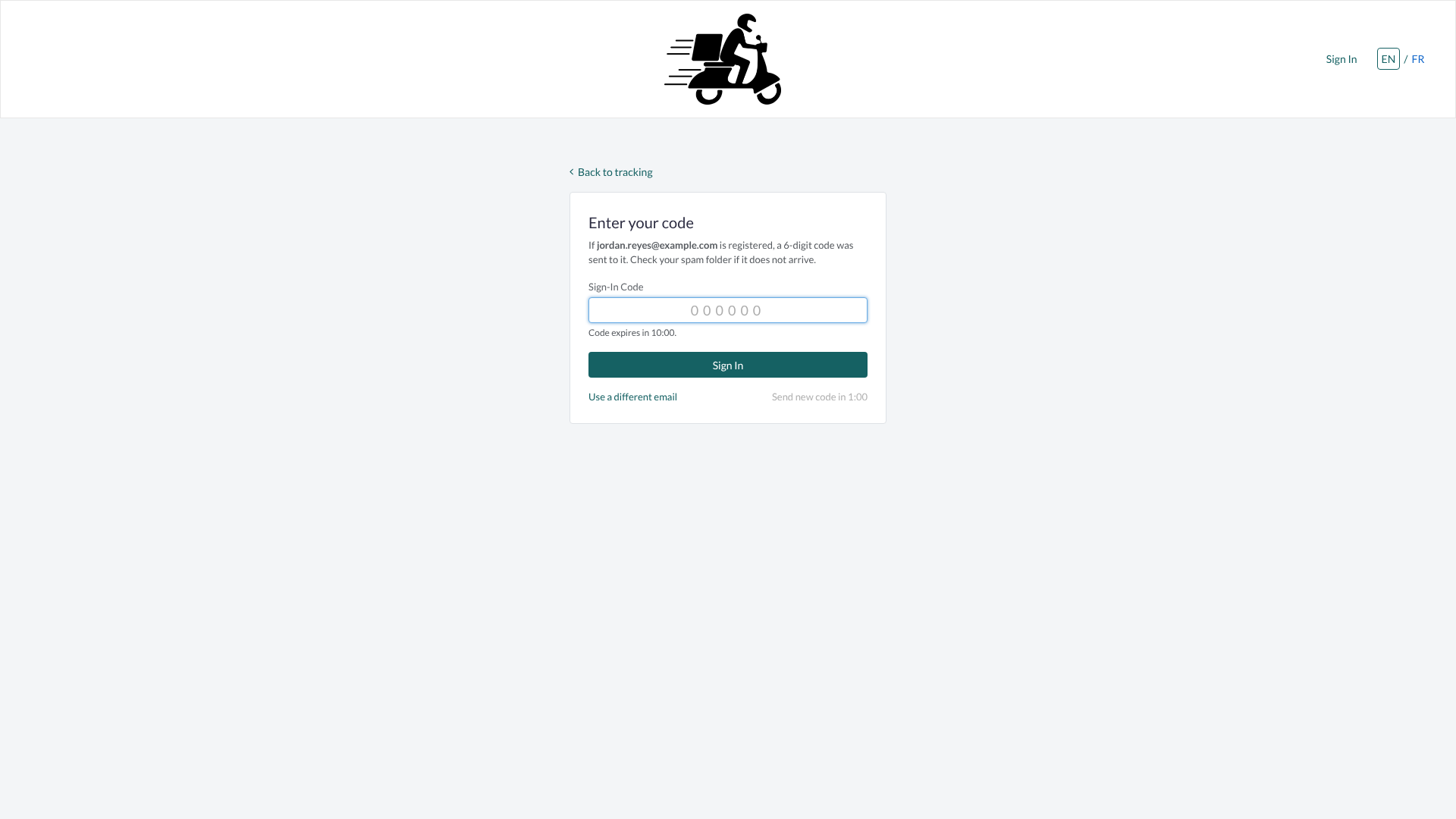
Your deliveries opens, and the page header shows the account menu (user icon) instead of Sign In:

Signing in applies to every tab of the same browser: other open tabs of the tracking page also show the account menu.
To leave the sign-in step without signing in, click Back to tracking. The page you were on is shown again, unchanged.
To correct the email address from the code step, click Use a different email. The email step opens again, with the email address and the code cleared.
The Sign-In Code Email
The email reads "Your sign-in code is:" followed by the code, then "This code expires in 10 minutes." and "If you didn't request this code, you can ignore this email."
- The email is written in the language of the tracking page when that language is English, French or Spanish. Otherwise, it is written in the primary language of the company that manages your deliveries.
- A code works only once.
- Only the most recently sent code works. Earlier codes are not accepted.
Resend a Code
A new code can be requested at most once every 60 seconds. Until then, the code step shows a countdown, for example "Send new code in 0:42".
- On the code step, wait until the countdown reaches zero.
- Click Send new code.
- Use the code from the newest email.
The page shows "A new code was sent. Previous codes no longer work." A new code also starts a fresh count of incorrect attempts.
When a Code Is Not Accepted
The code step shows a countdown under the code field, for example "Code expires in 9:42." The messages below appear under Sign-In Code:
| Message | What it means | How to resolve |
|---|---|---|
| Enter the 6-digit code. | Fewer than 6 digits were entered. Characters other than digits are dropped as you type. | Enter all 6 digits of the code. |
| Incorrect code. | The code does not match the most recent code sent, or it was already used. The field is cleared. | Check the newest email and enter its code. |
| This code has expired. Send a new code. | The 10 minutes are over. The code field is disabled. | Click Send new code. |
| Too many incorrect attempts. Send a new code to try again. | 5 incorrect attempts were made with this code. The code field is disabled. | Click Send new code. |
| Too many incorrect attempts. Try again in 1 hour. | 10 incorrect attempts were made within an hour, across all codes. Sign-in is locked for 1 hour after the last incorrect attempt. The code field is disabled and Send new code is not available. | Wait 1 hour, then sign in again. Sending a new code does not lift the lock. Use a different email clears the message, but the lock stays in place. |
| Something went wrong. Try again. | A server or network failure, unrelated to what you entered. When requesting a code, this message appears as a notification at the top of the page. | Try again. |
View Your Deliveries
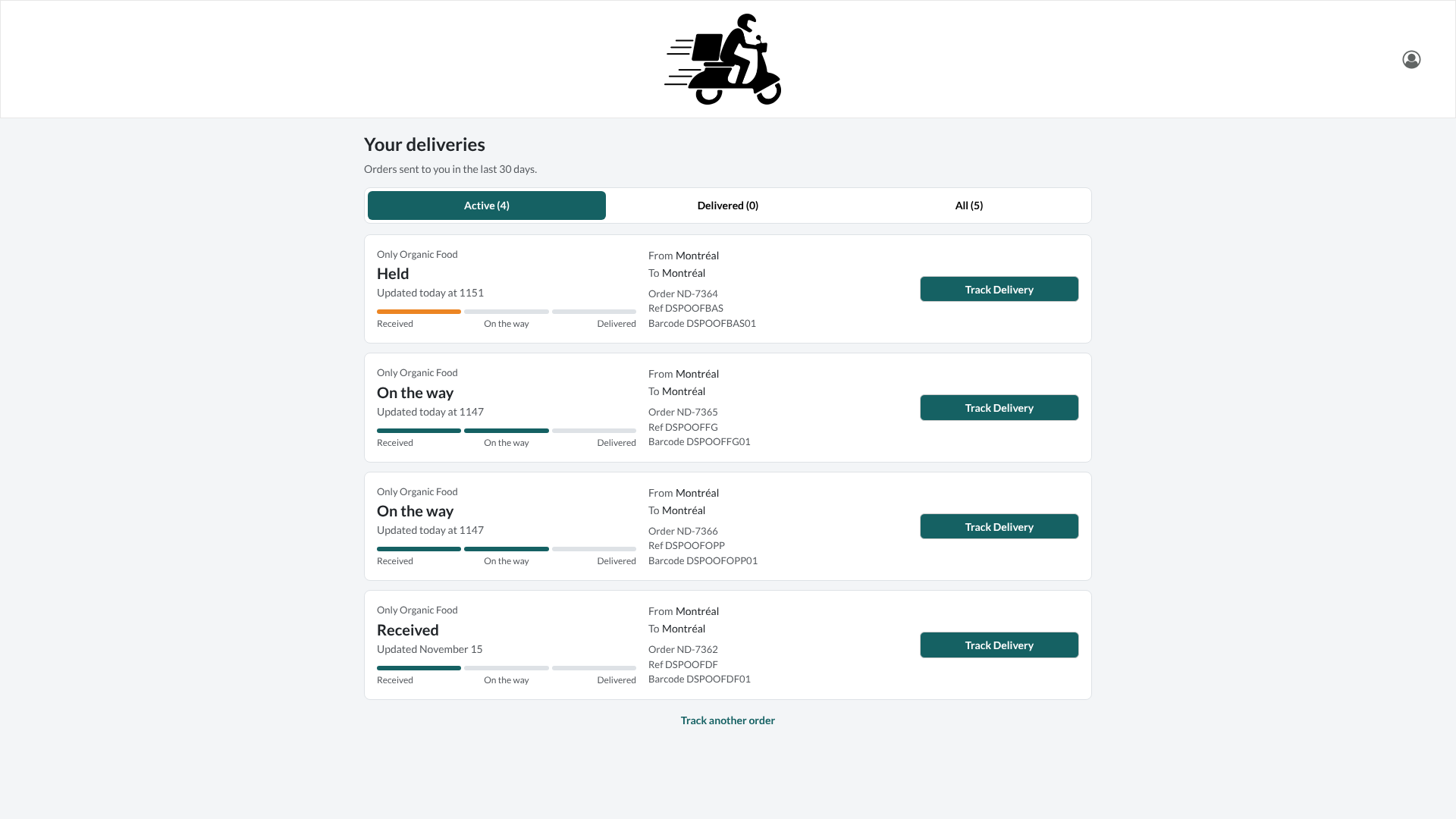
Your deliveries lists the orders sent to you in the last 30 days, with their current status. It opens as soon as you sign in. While you are signed in, opening the tracking page also takes you directly to Your deliveries.
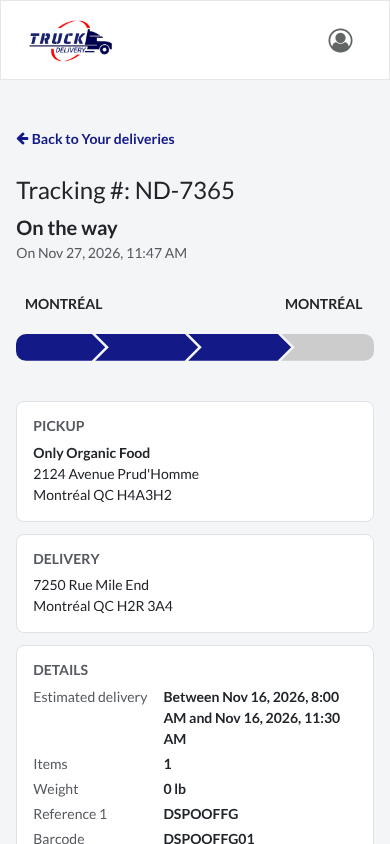
The portal adapts to the screen size: on a phone, Your deliveries and the delivery details show the same information on a single column, with full-width buttons.
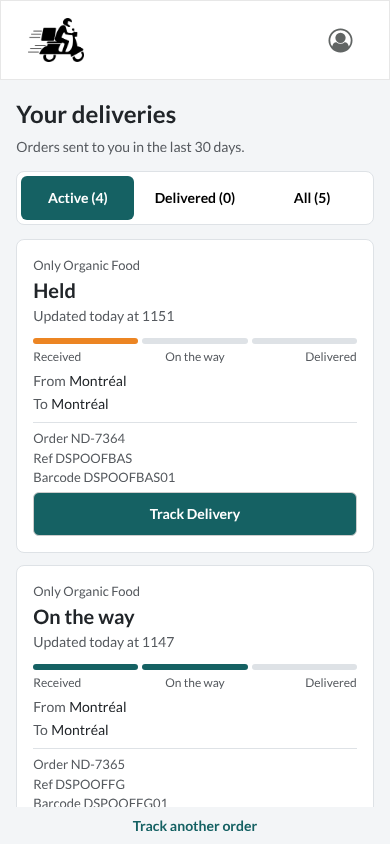
Each order card shows:
- The name of the account that sent the order.
- The status: Received, Assigned, On the way (picked up or en route), Held (on hold; its progress steps take the company's Held status color), Delivered or Cancelled.
- When the status last changed: "Delivered" followed by the date for delivered orders, and "Updated" followed by the date for other orders. This date is shown in the time zone of the delivery address.
- The progress steps Received, On the way and Delivered. Cancelled orders have no progress steps.
- The pickup and delivery cities (From and To), the order number, the references and the barcodes.
Click Track Delivery on a card to open the order's details (see View a Delivery's Details).
Which Orders Are Listed
- An order is listed when its delivery contact phone number matches one of the phone numbers registered for you. For a return order, the pickup contact phone number is compared instead.
- If no phone number is registered for you, no orders are listed. Changes to your phone numbers in the Back Office apply the next time the list loads.
- Only orders created in the last 30 days are listed, counted from the start of the day.
- Orders that are not yet received are not listed. Individual order segments are not listed either.
- The list shows at most 500 orders.
Orders excluded by the phone number, date or status rules above cannot be opened from the portal either.
Tabs and Sort
The orders are grouped in three tabs. Each tab shows its number of orders in parentheses.
| Tab | Orders shown |
|---|---|
| Active | Orders that are neither delivered nor cancelled. This tab is selected by default. |
| Delivered | Delivered orders. |
| All | Every listed order. Cancelled orders appear only in this tab. |
Click a tab to show its orders. In every tab, the most recently updated orders appear first (sorted by last status change, then creation date, then order number). A tab with no order shows "No orders here right now."
Return of Order Link
The card of a return order shows Return of order followed by the original order number, when the original order is also one of your listed orders. Click the order number to open the original order's details.
Track Another Order
You can track an order that is not in your list by its tracking number, while staying signed in.
- Below the list, click Track another order.
- Enter the tracking number in Enter your tracking number.
- Click Track.
- Click Back to Your deliveries to return to your list.
The tracking page looks as it does for any visitor, with one addition: the Back to Your deliveries link, which stays available after each search. If the tracking number cannot be found, the page shows "Unable to find order".
View a Delivery's Details
The order details let you follow one delivery from pickup to delivery, including its history and, when available, the signature collected at each stop.
- On Your deliveries, click Track Delivery on the order card.
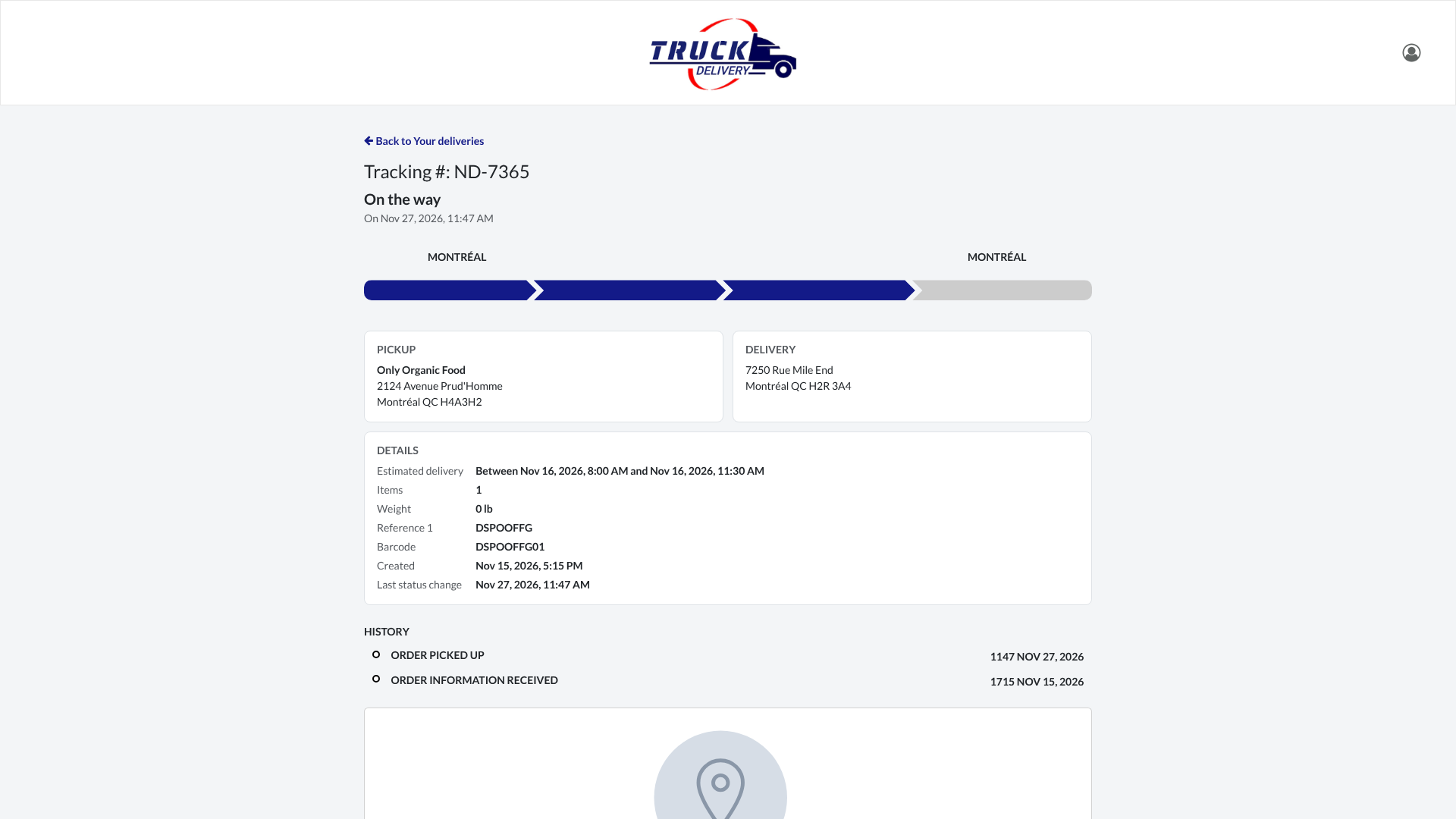
- Read the order details:
- The tracking number (Tracking #), the status and the date of the current status (On followed by the date).
- A progress bar with four steps (received, assigned, picked up, delivered) under the pickup and delivery cities.
- Pickup: the sending account's name and the pickup address.
- Delivery: the delivery address.
- Details: Estimated delivery, Items, Weight (when set), the references, the barcodes, Created and Last status change.
- History: the events of the order.
- While the order is under way, follow it on the map.
- Click Back to Your deliveries to return to the list.
Estimated delivery shows the estimated time of arrival when it is known. Otherwise, it shows the delivery window ("Between" a start time "and" an end time), or a single time when both are equal. For delivered and cancelled orders, Estimated delivery and the map are not shown. The map is also shown only when map tracking is available for the order.
The logo and accent color of the page can change on the order details: each order can use the branding set for the account or company that sent it.
Proof of Pickup and Delivery
When a signature was collected at a stop, and the sender's account is set to show it, the History offers a link to view it:
- View proof of pickup, under the Picked up event.
- View proof of delivery, under the Delivered event.
- Click View proof of pickup or View proof of delivery.
- Read the signature and the Signed by name. A dash is shown when no name was entered.
- Click Close.
The Proof of Pickup or Proof of Delivery dialog also shows the tracking number and the time of the event. If the signature cannot be loaded, the dialog shows "Your deliveries could not be loaded, please try again." If the proof is no longer available, the dialog closes by itself.
Return Orders
Return orders are linked to their original order in both directions:
- On a return order, Return of order followed by the original order number is shown when the original order is one of your orders. Click the number to open the original order's details.
- On an original order, the Return Orders icon (a return parcel) next to the tracking number is shown when the order has return orders you can open. Click the icon to show the Return Orders list, then click a return order number to open its details.
Only return orders that you can open are listed. Other orders linked to the order are not shown.
When an Order Cannot Be Shown
- A message saying that the order cannot be found appears when the order does not exist, or when it is not one of your orders (see Which Orders Are Listed).
- "Your deliveries could not be loaded, please try again." appears for other loading failures. Click Try again in the banner to load the order again.
- Opening a link to Your deliveries or to an order's details while signed out opens the tracking page.
Sign Out
Signing out ends your session on the portal, in this browser.
- Click the account menu (user icon) in the page header. The menu shows "Signed in as" followed by your email address.
- Click Sign Out.

The page shows "You have been signed out." and the tracking page opens. Other open tabs of the same browser also leave Your deliveries. The public tracking page stays available after you sign out: you can still track an order by its tracking number.
If signing out fails, you stay signed in and the page shows "Something went wrong. Try again."
The account menu also lets you change the page language while signed in: under Language, click the other language. The page reloads in that language. When you are signed out, the two language links in the page header do the same.
Session Lifetime
You stay signed in across visits on the same browser until one of these limits is reached:
- 90 days after you signed in.
- 30 days without using the portal.
Your session also ends earlier in these cases:
- Your email address is changed, or your access is disabled or deleted, in the Back Office (see the Managing Consignees guide). You are signed out on every device, and codes not yet used stop working. If your access is enabled again, you need to sign in again.
- Your session appears to be used from two places at once. Both are signed out.
When your session ends, the next action brings back the sign-in step with "Your session has expired. Sign in again." This message appears only on a browser that was signed in.
Was this article helpful?
That’s Great!
Thank you for your feedback
Sorry! We couldn't be helpful
Thank you for your feedback
Feedback sent
We appreciate your effort and will try to fix the article