Consignees are delivery recipients who can sign in to the Consignee Portal to see the orders associated with their phone numbers. In Back Office, you register each consignee with a login email and phone numbers, and you control whether they can sign in. The portal itself is described in the Consignee Portal guide.
Table of Contents
- Configure Who Can Manage Consignees
- View the Consignees List
- Create a Consignee
- Edit a Consignee
- Disable or Enable Portal Access
- Delete a Consignee
- Blockers & Preconditions
- Impact of Consignee Management
Configure Who Can Manage Consignees
Access to consignees is set on Back Office roles with the Consignees permission. This permission is offered on Back Office roles only: it is not available on Self-Serve roles.
| Permission Level | What It Allows |
|---|---|
| None | The Consignees option is hidden from the Accounts menu, and the consignee pages cannot be opened. |
| View | See the consignees list and open a consignee. Fields are read-only, and the New Consignee, Save, Disable, Enable and Delete buttons are not available. |
| Edit | Everything View allows, plus create, edit, disable, enable and delete consignees. |
Give a role access to consignees:
- Navigate to Settings > Configurations > System > Roles.
- Click the name of the Back Office role.
- In the Permissions grid, on the Consignees row, select View or Edit.
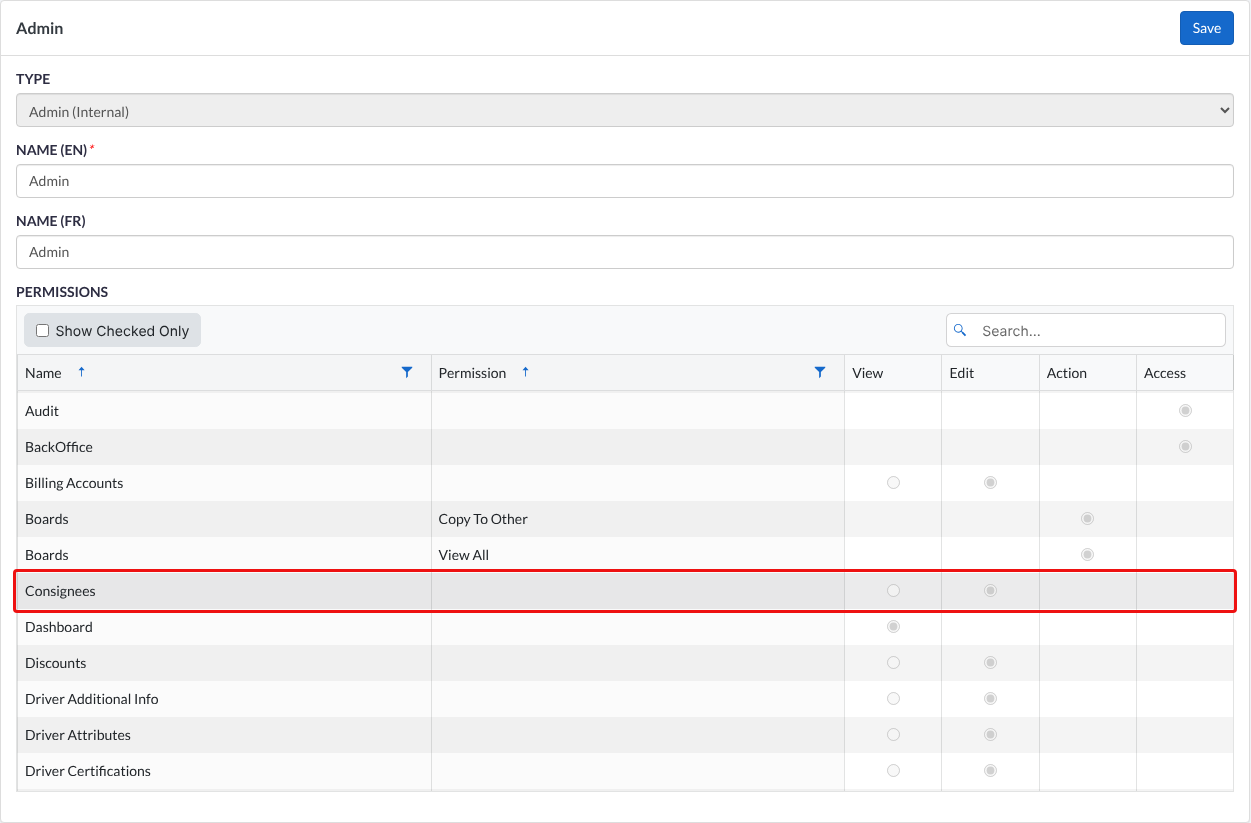
- Click Save.
View the Consignees List
Viewing consignees requires the Consignees permission set to View or Edit (see Configure Who Can Manage Consignees).
- Navigate to Accounts > Consignees.
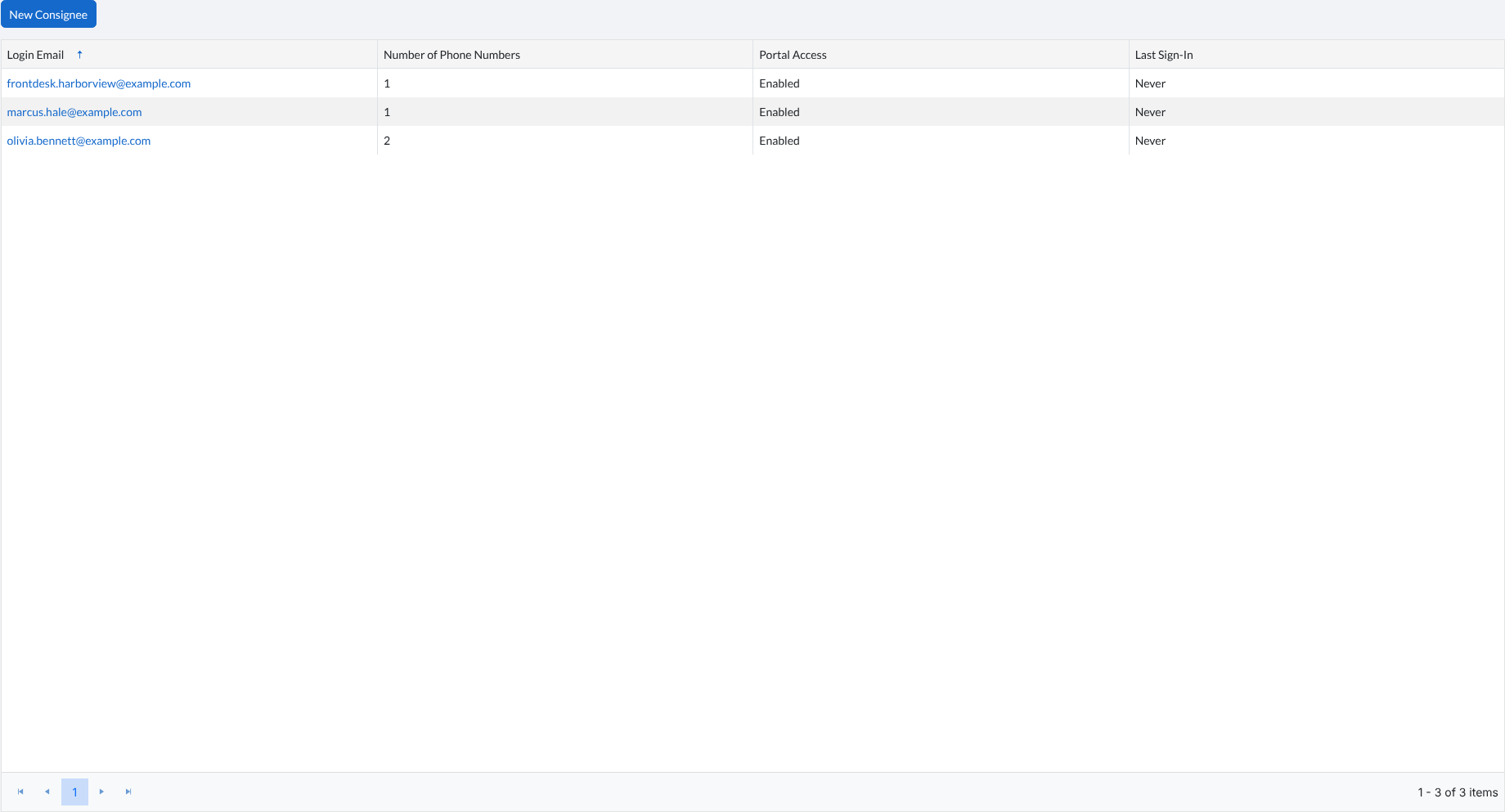
- Click a consignee's login email to open its details.
The list shows every consignee, with portal access enabled or disabled, 50 per page. It is sorted by Login Email in ascending order, and Login Email is the only column you can sort.
| Column | What It Shows |
|---|---|
| Login Email | The email the consignee uses to sign in to the Consignee Portal. Click it to open the consignee. |
| Number of Phone Numbers | How many phone numbers are registered for the consignee. |
| Portal Access | Enabled or Disabled. A disabled consignee stays in the list. |
| Last Sign-In | The date of the consignee's last successful sign-in to the Consignee Portal, or Never until the first one. The date is shown in your user time zone, or in your organization's time zone when yours is not set. |
Create a Consignee
Creating a consignee lets that person sign in to the Consignee Portal right away: a new consignee has portal access enabled. Creating a consignee requires the Edit level of the Consignees permission.
- Navigate to Accounts > Consignees.
- Click New Consignee.

- Enter a required LOGIN EMAIL (up to 256 characters).
- The consignee signs in to the Consignee Portal with this email. A sign-in code is sent to this address, so the consignee needs access to this mailbox.
- The email is saved in lowercase, without surrounding spaces.
- Each consignee needs its own email: two consignees cannot share the same login email.
- Enter at least one phone number under PHONE NUMBERS, with an optional extension.
- Click + Add Phone Number for each additional number.
- Click Save.
The consignees list opens, and the new consignee appears with Portal Access set to Enabled.
Add Phone Numbers and Extensions
The phone numbers determine which orders the consignee sees in the Consignee Portal. The portal shows orders created in the last 30 days whose delivery contact phone matches one of the consignee's numbers, extension included. For return orders, the pickup contact phone is matched instead. Draft orders are not shown, and at most 500 orders are listed.
- Each entry is a phone number including the area code, with an optional extension made of digits only.
- At least one phone number is required.
- The same number can be entered several times with different extensions, but the same number with the same extension can appear only once.
- A consignee can have up to 20 phone numbers. The + Add Phone Number link is hidden once 20 entries exist.
- When there is more than one entry, click the Remove icon on an entry to remove it. An extra entry left without a number must be filled in or removed before saving.

Edit a Consignee
You can update a consignee's login email or phone numbers. Changing the phone numbers changes which orders the consignee sees in the Consignee Portal. Editing requires the Edit level of the Consignees permission.
- Navigate to Accounts > Consignees.
- Click the consignee's login email.

- Change the LOGIN EMAIL, or add, change, or remove phone numbers.
- Click Save.
The consignees list opens. The same rules as for creation apply to the email and phone numbers (see Add Phone Numbers and Extensions).
Saving does not change the consignee's portal access: a disabled consignee stays disabled, and an enabled consignee stays enabled. Editing only the phone numbers does not sign the consignee out of the Consignee Portal.
Change the Login Email
As soon as the new email differs from the saved one, a warning appears under the field:

The new email cannot be one already used by another consignee, including a disabled consignee.
Disable or Enable Portal Access
Disabling a consignee stops them from signing in to the Consignee Portal without removing them. Disabling is reversible: enable the consignee again to restore sign-in. The consignee stays in the list, its phone numbers are kept, and its details can still be edited. Both actions require the Edit level of the Consignees permission. For the effect on the consignee's portal sessions, see Consignee Sessions.
Disable Portal Access
The Disable button is shown when the consignee's portal access is enabled.
- Navigate to Accounts > Consignees.
- Click the consignee's login email.
- Click Disable.
- In the Disable consignee? dialog, click Disable.
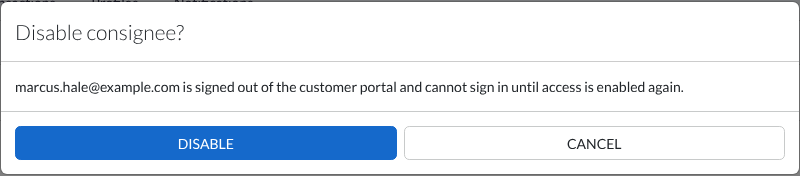
Portal Access becomes Disabled. A disabled consignee keeps its login email: no other consignee can be created or edited with that email while this consignee exists.
Enable Portal Access
The Enable button is shown when the consignee's portal access is disabled.
- Navigate to Accounts > Consignees.
- Click the login email of the disabled consignee.
- Click Enable.

No confirmation is requested. Portal Access becomes Enabled and the consignee can sign in again.
Delete a Consignee
Deleting a consignee removes it and its portal access. Orders and return orders are not affected. Deleting requires the Edit level of the Consignees permission.
- Navigate to Accounts > Consignees.
- Click the consignee's login email.
- Click Delete.
- In the Delete consignee? dialog, click Delete.
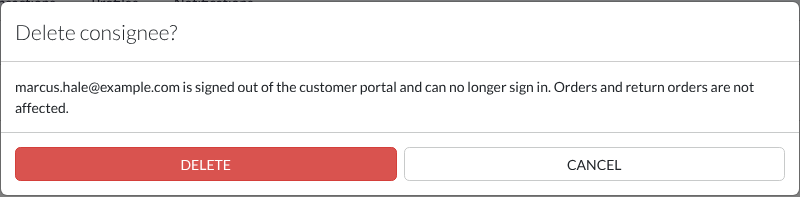
The consignees list opens and the consignee no longer appears in it. Its login email becomes available again for another consignee.
Blockers & Preconditions
The Consignees option under Accounts is not available in these cases:
- Your role does not have the Consignees permission set to View or Edit (see Configure Who Can Manage Consignees).
- Consignee management is not enabled for your organization. If you don't see this option, contact support.
When a consignee cannot be saved, a message appears under the field or phone entry concerned, and nothing is saved:
| Message | What It Means | How to Resolve |
|---|---|---|
| "Please provide an email address." | The LOGIN EMAIL field is empty. | Enter the consignee's email. |
| "Please provide a valid email address." | The LOGIN EMAIL is not a valid email address. | Correct the email. |
| "A consignee with this email already exists." | Another consignee, enabled or disabled, already uses this email. Letter case and surrounding spaces are ignored in this comparison. | Enter a different email, or delete the other consignee if it is no longer needed. |
| "Please provide at least one phone number." | All phone entries are empty. | Enter at least one phone number. |
| "Please provide a phone number or remove this row." | An extra phone entry has no number. | Enter a number in the entry, or click its Remove icon. |
| "Please provide a valid phone number, including the area code." | The phone number is not valid. | Enter the full number, including the area code. |
| "The extension can only contain digits." | The extension contains characters other than digits. | Keep only digits in the extension. |
| "This number is already in the list." | The same number with the same extension is entered twice. | Remove the repeated entry, or change its extension. |

If another user deletes a consignee while you have it open, an error message appears when you save or perform an action on it, and the consignee is not recreated.
Impact of Consignee Management
Consignee Sessions
Some actions sign the consignee out of the Consignee Portal. Any sign-in code already sent to the consignee also stops working.
| Action | Consignee Signed Out | Can Sign In Again |
|---|---|---|
| Disable portal access | ✅ Yes | ❌ No, until portal access is enabled again. No sign-in code is sent to a disabled consignee. |
| Delete the consignee | ✅ Yes | ❌ No |
| Change the login email | ✅ Yes | ✅ Yes, with the new email |
| Change only the phone numbers | ❌ No | Not applicable |
Enabling portal access again does not restore the sessions that were ended: the consignee must sign in again.
Audit Log
Creating, editing, enabling, disabling and deleting a consignee are recorded in the audit log, so users with access to the audit log can review who changed a consignee and when.
- Open the Audit page.
- Filter on the Consignees entity type.
Was this article helpful?
That’s Great!
Thank you for your feedback
Sorry! We couldn't be helpful
Thank you for your feedback
Feedback sent
We appreciate your effort and will try to fix the article