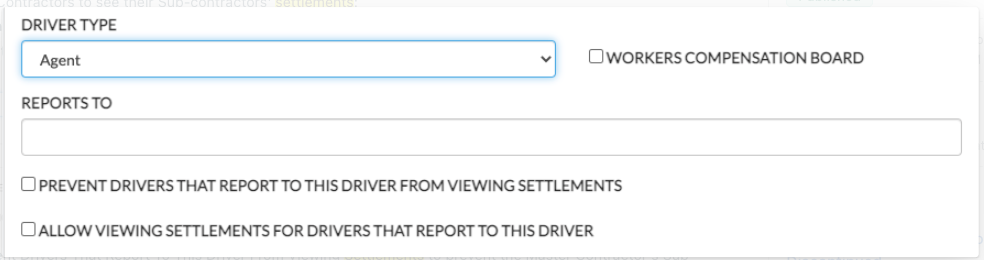
Within Driver Information Details, there are two options available below the “Reports To” field that control how settlements are displayed in the Driver App.
These settings define:
- Whether Master Contractors can view their Sub-contractors’ settlements
- Whether Sub-contractors can view their own settlements
How It Works
Driver Hierarchy Requirement
These options rely on the “Reports To” field:
- Sub-contractors must be assigned to a Master Contractor
- The Master Contractor is selected in the Sub-contractor’s Reports To field
Without this relationship, the settings will not apply.
Settlement Visibility Options
Prevent Sub-contractors from Viewing Their Settlements
- Option: Prevent Drivers That Report To This Driver From Viewing Settlements
- When enabled:
- Sub-contractors assigned to the Master Contractor will not be able to view their settlements in the Driver App
Allow Master Contractor to View Sub-contractor Settlements
- Option: Allow Viewing Settlements for Drivers That Report To This Driver
- When enabled:
- The Master Contractor can view:
- Their own settlements
- Their Sub-contractors’ settlements within the Driver App
- The Master Contractor can view:
How to Configure
Step 1: Assign Sub-contractors to a Master Contractor
- Navigate to the Driver List
- Open each Sub-contractor
- In Information Details, set the Reports To field to the appropriate Master Contractor
- Click Save
Step 2: Configure Settlement Visibility for the Master Contractor
- Navigate to the Driver List
- Open the Master Contractor
- Click Edit in the Information Details section
- Scroll down to the settlement visibility options
Step 3: Apply Desired Settings
- To restrict Sub-contractors from viewing their settlements:
Enable Prevent Drivers That Report To This Driver From Viewing Settlements - To allow the Master Contractor to view Sub-contractors’ settlements:
Enable Allow Viewing Settlements for Drivers That Report To This Driver
Step 4: Save Changes
- Click Save to apply the configuration
Behavior Summary
- Sub-contractors’ access is controlled by the Master Contractor’s settings
- Master Contractors can be given visibility into Sub-contractors’ settlements
- Both options can be used together to centralize settlement visibility
Notes
- The Reports To relationship must be correctly configured for these options to function
- Changes take effect after saving the driver profile
Was this article helpful?
That’s Great!
Thank you for your feedback
Sorry! We couldn't be helpful
Thank you for your feedback
Feedback sent
We appreciate your effort and will try to fix the article