Overview
The Order Update Script allows you to automate updates to orders based on specific triggers and logic. This includes:
Finding and adding Hubs for multi-segment orders
Responding to Order Events
Importing and using external spreadsheet data
Updating delivery pricing dynamically
Finding a Hub
Hubs are configured as Addresses of type Hub and can be retrieved within scripts.
To search for hubs, use:
var hubs = await data.FindHubs("HUB Name");
The input string can be a Company Name or Hub Name
The result may return multiple hubs
From the results, you can retrieve:
Hub ID
Hub Address
Hub Contact Information
Note: Only addresses defined as Hub type can be retrieved using this method.
For more details, refer to the model:
IScriptDataProvider.cs
https://github.com/dispatchscience/DispatchScience.Scripting/blob/main/Dispatch.Scripts.Abstractions/Models/IScriptDataProvider.cs
Adding a Hub to an Order
Once you have retrieved a Hub ID, you can add it to an order to create a Multi-Segment Order.
Example:
await order.AddHubs(hubId);
Workflow:
Use
FindHubs()to locate the desired hub(s)Extract the Hub ID
Add the hub to the order using
AddHubs()
For more details, refer to:
HubInfo.cs
https://github.com/dispatchscience/DispatchScience.Scripting/blob/main/Dispatch.Scripts.Abstractions/Models/HubInfo.cs
Order Events
Order Update Scripts can be triggered based on specific Order Events.
To retrieve available events:
var events = await data.GetEventNames();
This allows you to:
Identify which events trigger updates
Apply logic only when specific changes occur
Script File (Excel Integration)
Order Update Scripts now support importing an Excel spreadsheet directly into the Script Rule.
This enhancement replaces the need for static script parameters and allows for more dynamic and scalable configurations.
The same GetSheet models used in Extra Fee Scripts are supported.
Import an Order Update Script Spreadsheet
Navigate to Settings > System > Script Rule
Open an existing Script Rule
Locate the File section
Click Choose File
Select your Excel file and click Open
Click Save
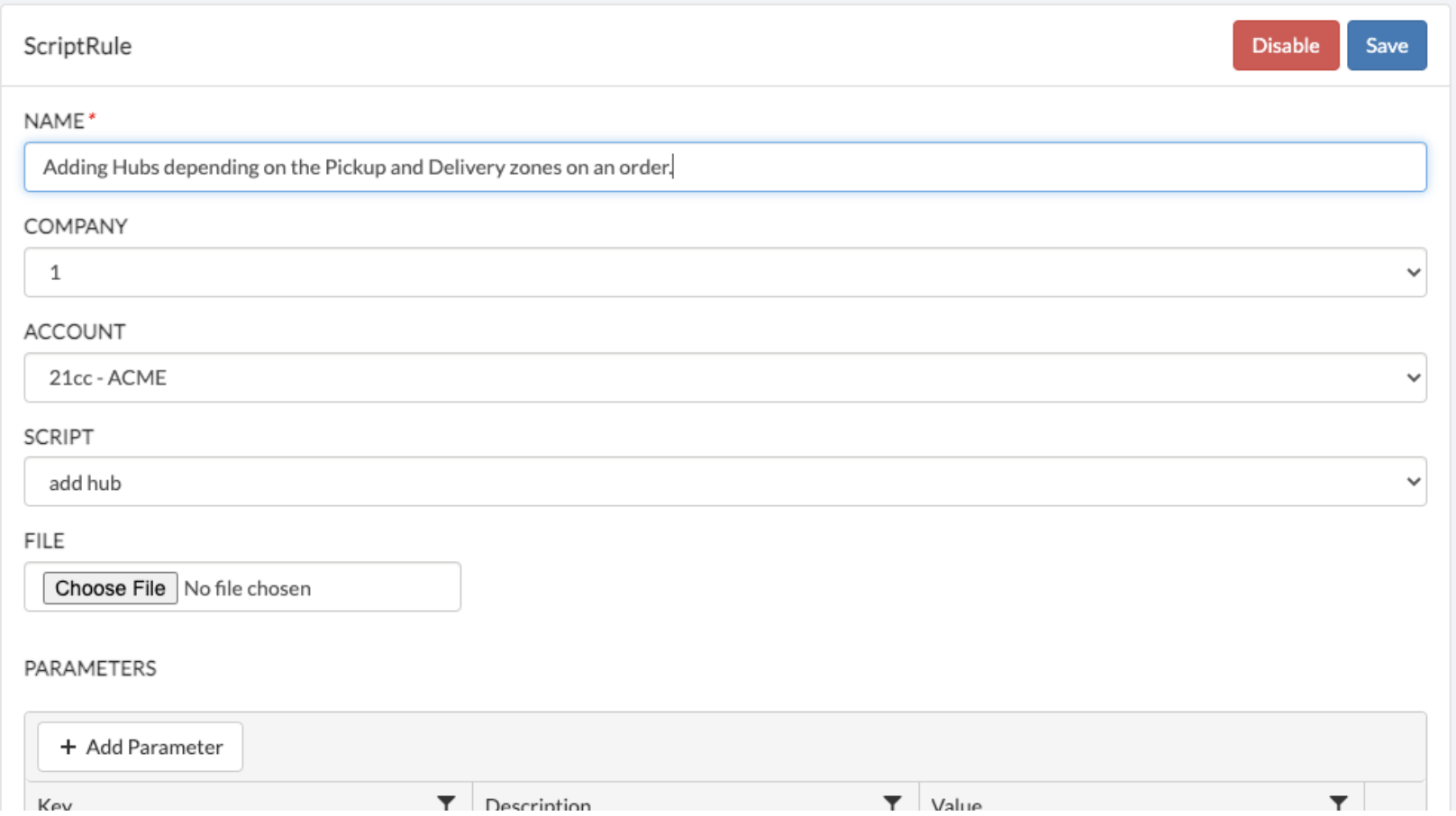
Once uploaded, the file name will appear in the Script Rule.
Accessing the File in Script
Use the GetSheet method to retrieve spreadsheet data within your script.
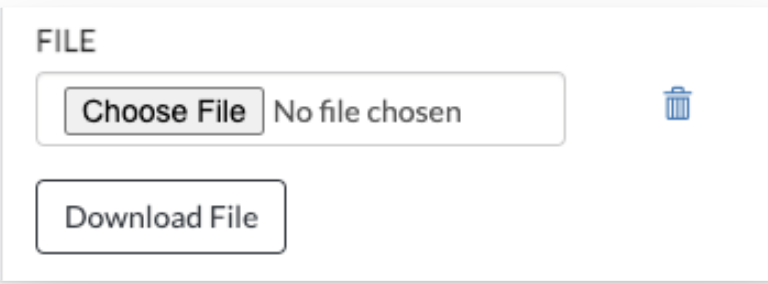
Download an Order Update Script Spreadsheet
Go to Settings > System > Script Rule
Open the desired Script Rule
Click Download File
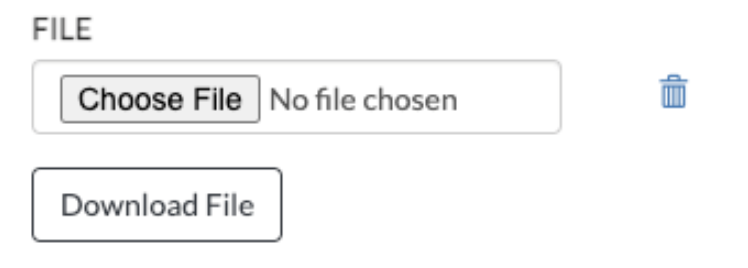
Delete an Order Update Script Spreadsheet
Navigate to Settings > System > Script Rule
Open the Script Rule
Click the trash can icon
Click OK to confirm deletion or Cancel to keep the file
Click Save if required
Updating Delivery Price
The Order Update Script allows you to override or add a delivery charge on an order.
Method:
await order.OverrideDeliveryCharge(decimal basePrice);
Behavior:
Updates the delivery price if it already exists
Adds the delivery price if it is missing or invalid
Key Notes
Hub-related functionality is limited to Hub-type addresses only
Multiple hubs may be returned when searching—ensure you select the correct one
Excel integration allows for more flexible and maintainable scripting logic
Delivery charges can be dynamically controlled through scripts
Was this article helpful?
That’s Great!
Thank you for your feedback
Sorry! We couldn't be helpful
Thank you for your feedback
Feedback sent
We appreciate your effort and will try to fix the article