These features are available on your Test site on the evening of February 17 and released to your Production site on the evening of February 24.
Notification delivery has been optimized by replacing attached report files with direct report links included at the bottom of each notification, ensuring faster sending times and seamless access to related reports. For more information, please review the Notification Delivery Optimization.
TABLE OF CONTENTS
- Driver App Version
- Back Office
- Dispatch Board
- Administration
- Scripts
- Tenant API
- Driver API Enhancements (GET /api/v1/drivers)
- New Get Zones Endpoint
- New Get Driver Zones Endpoint
- New Add Zones to a Driver Endpoint
- New Remove Zones from a Driver Endpoint
- Find Driver User Fields Matching a Value Set
- New Endpoint to Update Multiple Driver User Fields
- Driver Deductions and Additions Endpoints Uses the Description Field
- Deduction and Addition Description on a Driver Settlement
- Driver Cash Deduction and Addition Can Be Added to All Settlements Through the API
- New Scripts Endpoints
- List All Scripts With Optional Type Filter
- Create a Script with Default Content
- Get the information of a specific script
- Update an Existing Script
- Delete a Script
- Get the List of Available Order Events for Order Update Scripts
- Validate Script Content for a Script without Saving
- Endpoint
- Validate Script Content Without a Script
- Enable/Disable Scripts
- New Script Rules Endpoints
- New Order Rules Endpoint
New Features in This Release
Definition
The release notes refer to different sections of the application:
Back Office: Where Customer Service Representatives (CSR) create and edit orders, create accounts, review drivers, etc.
Dispatch Board: Where Dispatchers assign orders to drivers, get notifications for invalid orders, etc.
Auto-Dispatch: This section refers to the automated order assignment setup and its process.
Administration: This section is in the Back Office but refers to sections only an administrator will use like Settings and Pricing.
Customer Portal: Where account users log in to create orders, view their order history, enter a credit card, etc.
Tracking site: Where customers enter a tracking number like the order ID or a reference number to view the status of their order.
OData: Data fields and variables saved in OData.
Account API: API provided to your accounts to create, update and get orders. For documentation, please follow this link:https://api.dispatchscience.com/
Tenant API: API provided to you to create orders for your accounts, retrieve invoices and change invoice status. For documentation, please follow this link: https://api.dispatchscience.com/
Driver App Version
There is no Driver App Version for this rel
Back Office
Orders
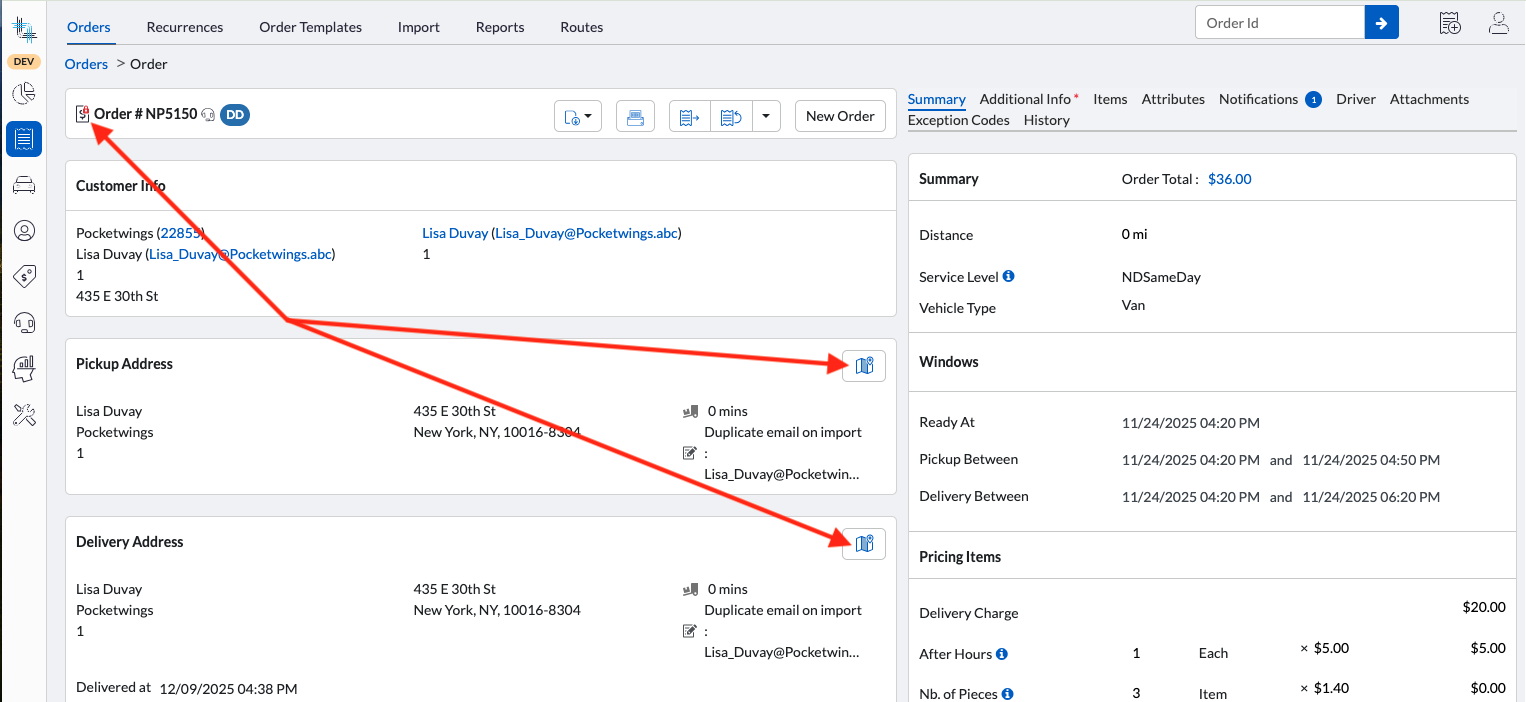
Map Icon Visible After Invoicing
The address map icon (map location, latitude, and longitude) in Order Details is now available even when the order is locked due to invoicing.
Order Audit
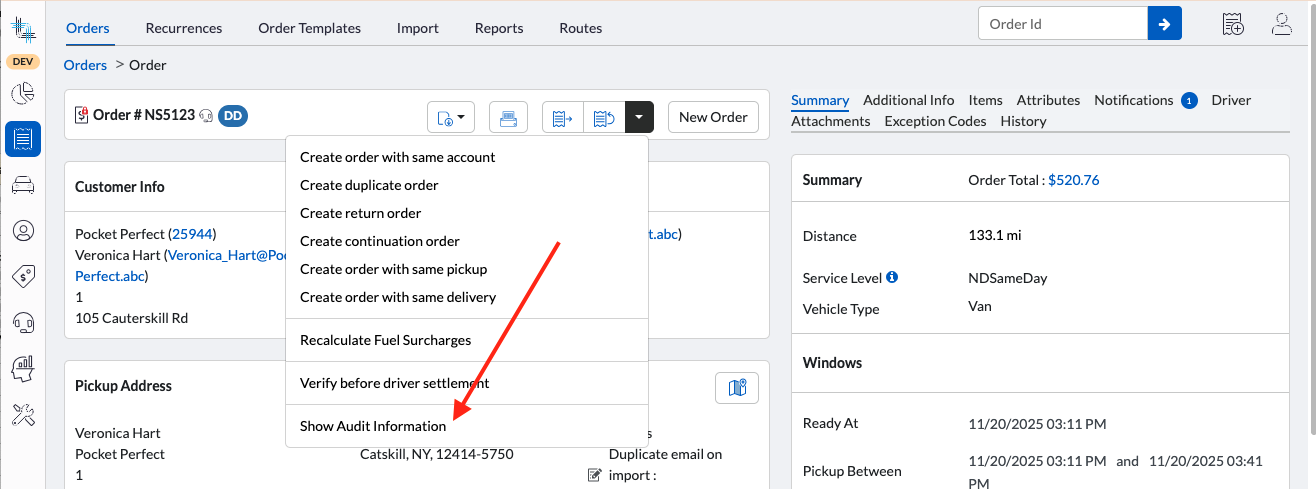
Under Orders>Order Details>Menu=Show Audit Information
Order Update Scripts Now Logged in Order Audit
All updates executed via order update scripts are now persisted in the Order Audit log.
1) The audit log can be accessed from the order details menu by selecting Show Audit Information.
2) Audit Information:
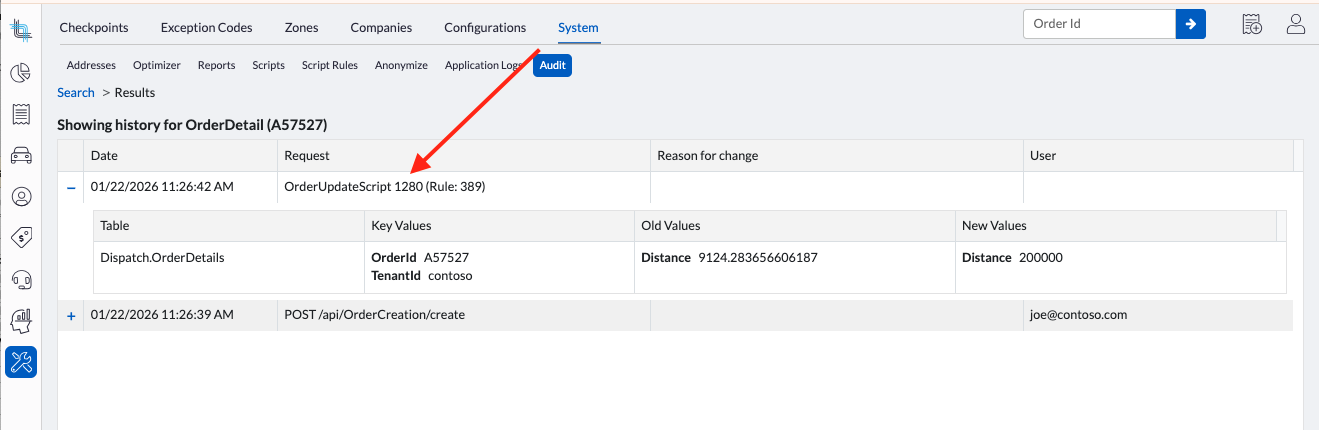
For each script-driven update, the audit entry will include:
- script_id – ID of the script that executed
- script_rule_id – ID of the rule within the script that triggered the update
- change_set – the field-level modifications applied to the order
Notification Delivery Optimization
To improve notification delivery performance, an update has been made to how reports are included in notifications.
Previously, reports were generated and attached directly to notifications before sending. In some cases, this process caused delays in notification delivery due to report generation and file attachment processing time.
With this update:
- Reports are no longer attached as files to notifications.
- A table is now added at the bottom of each notification.
- The table includes direct links to the reports associated with the notification.
- Recipients can access and download the reports by clicking the provided links.
This enhancement ensures faster notification delivery while maintaining easy access to all related reports.
Accounts
Master Accounts
Enhanced user access handling in Master Account
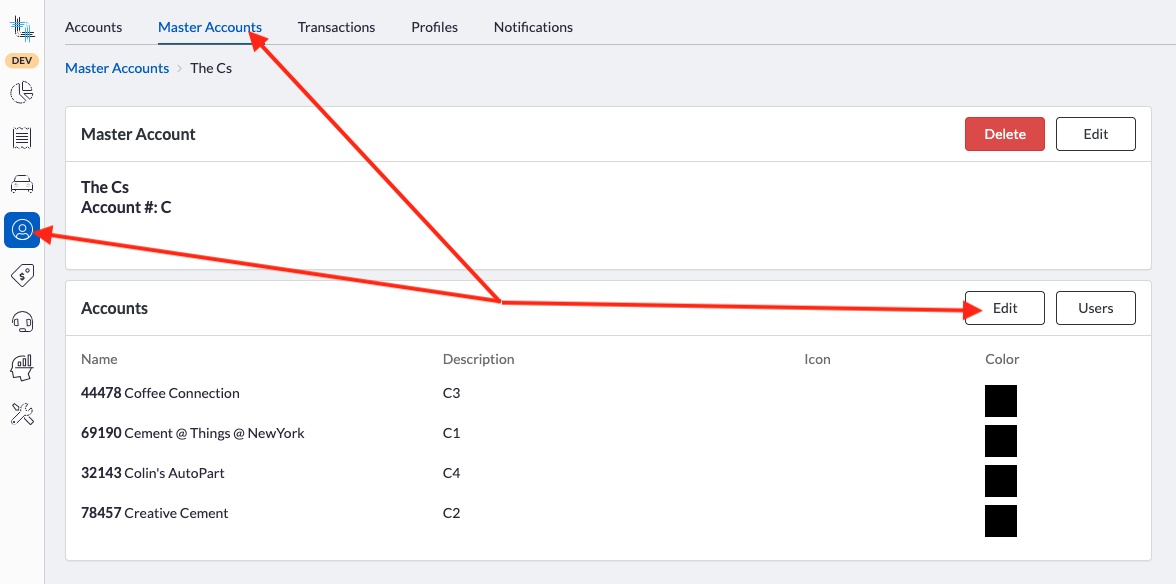
When editing accounts from the Master Account, unchecking all user access for a given account now triggers a confirmation flow. This change provides clearer control over cross-account user permissions and allows for quicker access removal.
Remove Access to Users
1) Open Master Account and click on Edit:
2) In the list of Accounts, uncheck one or more All User Access checkbox then click Save button:
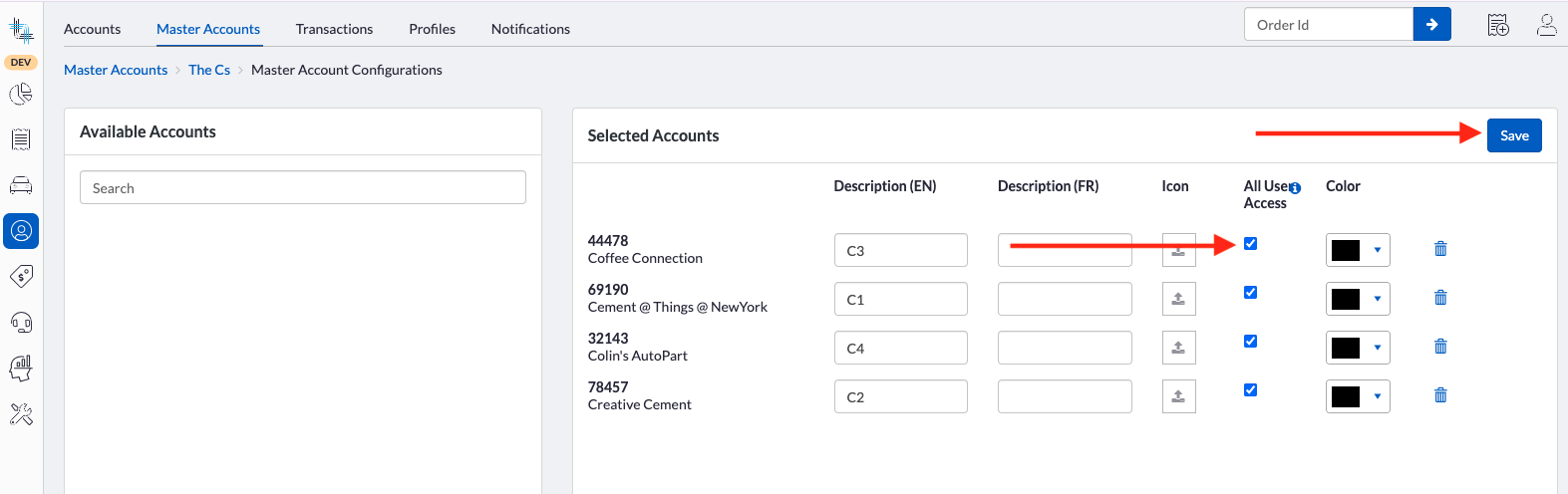
3) From the dialog box, select:
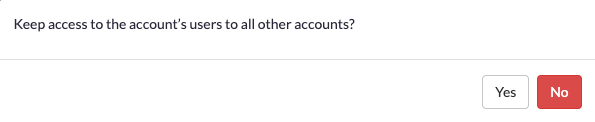
- Yes: The account users access matrix remains enabled, allowing granular removal of access to specific accounts.
- No: Account users, from the Account-s that were unchecked, will have all access removed to all master accounts except their own.
Drivers
24-Hour Auto Offset Added to Driver History Date Range
A 24-hour auto offset is now available in the Driver History date range to simplify date entry.
- When the To date is entered, the system can automatically calculate the From date and time (24 hours earlier).
- When the From date is entered, the system can automatically calculate the To date and time (24 hours later).
This allows you to quickly select a full 24-hour period without manually adjusting times.
Set the Date Range
1) Check the 24h offset above the From date. The From date and the 24h offset checkbox are now locked:
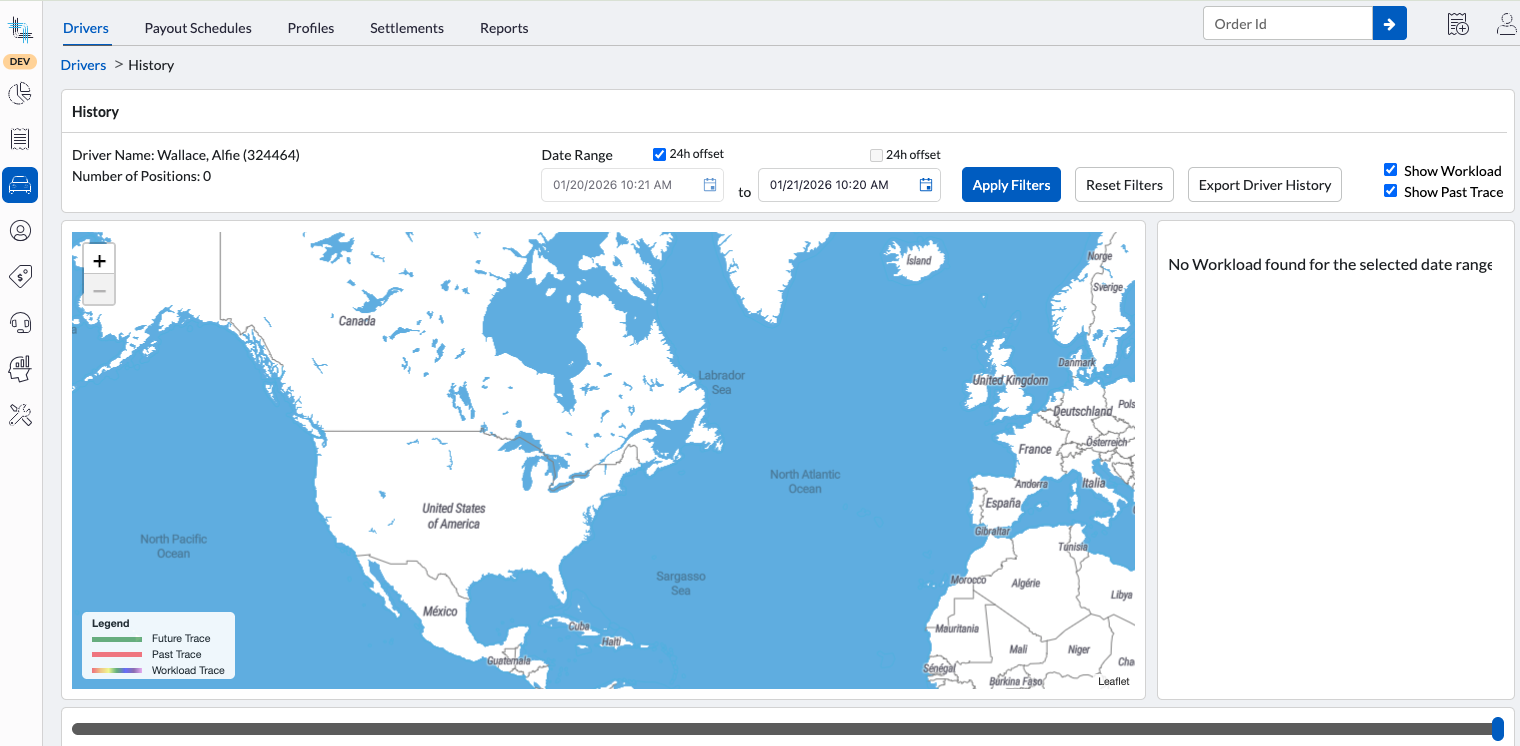
2) Enter the To date. The From date will be calculated automatically.
To unlock the From date field, uncheck the 24h offset checkbox.You can use the 24h offset above the To date to lock the To date field to have it calculated automatically when entering the a date-time in the To Date field.
New Description Field on Driver Addition and Deduction
A new description field is now available when configuring Additions and Deductions on driver details. This field allows administrators and operators to provide contextual information explaining the reason for an addition or deduction applied to a driver settlement.
The description field is now included in the Default Driver Settlement reports.
For custom reports, if you wish to include this field to your reports, please contact Support.
This enhancement improves settlement traceability and auditability by providing clearer justification for settlement adjustments.
Enhanced Driver User Fields
Decimal user fields will no longer store accepted values with unnecessary trailing zeros. Decimal values are now truncated to prevent invalid entries, whether or not zero decimals are used.
Drop-down user fields can now be saved as null values, even if a value was previously selected. This allows clearing a selection when needed.
Accounts
Enhanced Account User Fields
Decimal user fields will no longer store accepted values with unnecessary trailing zeros. Decimal values are now truncated to prevent invalid entries, whether or not zero decimals are used.
Drop-down user fields can now be saved as null values, even if a value was previously selected. This allows clearing a selection when needed.
Dispatch Board
Reports on Dispatch Board
You can request to have Order type reports made available on your Dispatch Board in the following areas:
- Grid Board:
- Order list
The report menu icon is available on the menu bar: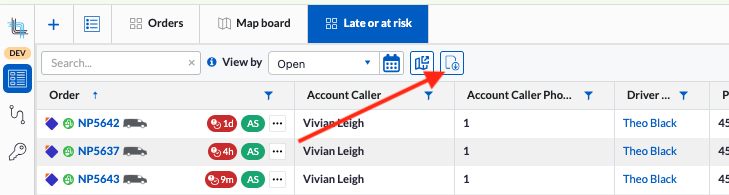
- Mass update menu
The report menu item is available within the mass update with the list of reports: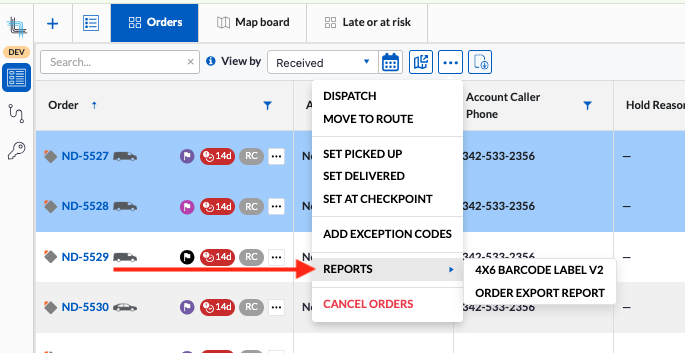
- Order Details
- The report menu item is available on the DIspatch Board order details on the order list:
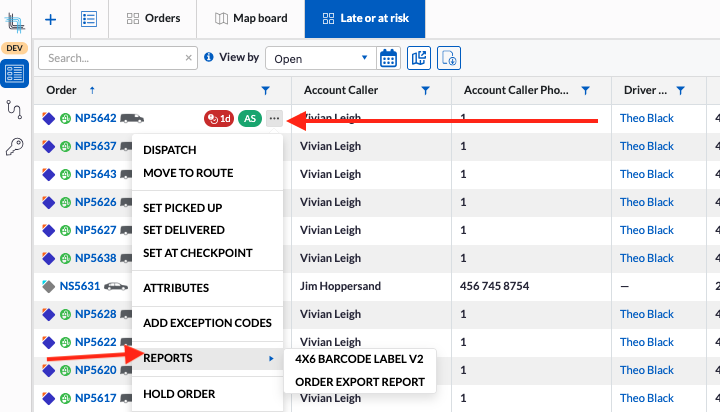
- When opening the order details:
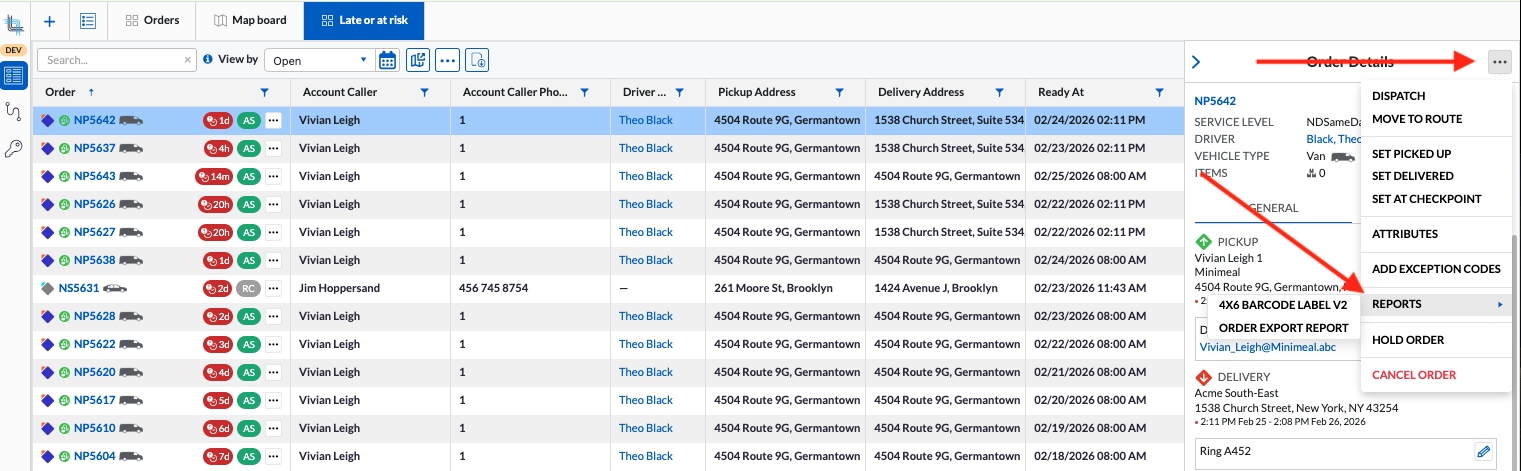
- The report menu item is available on the DIspatch Board order details on the order list:
- Driver List
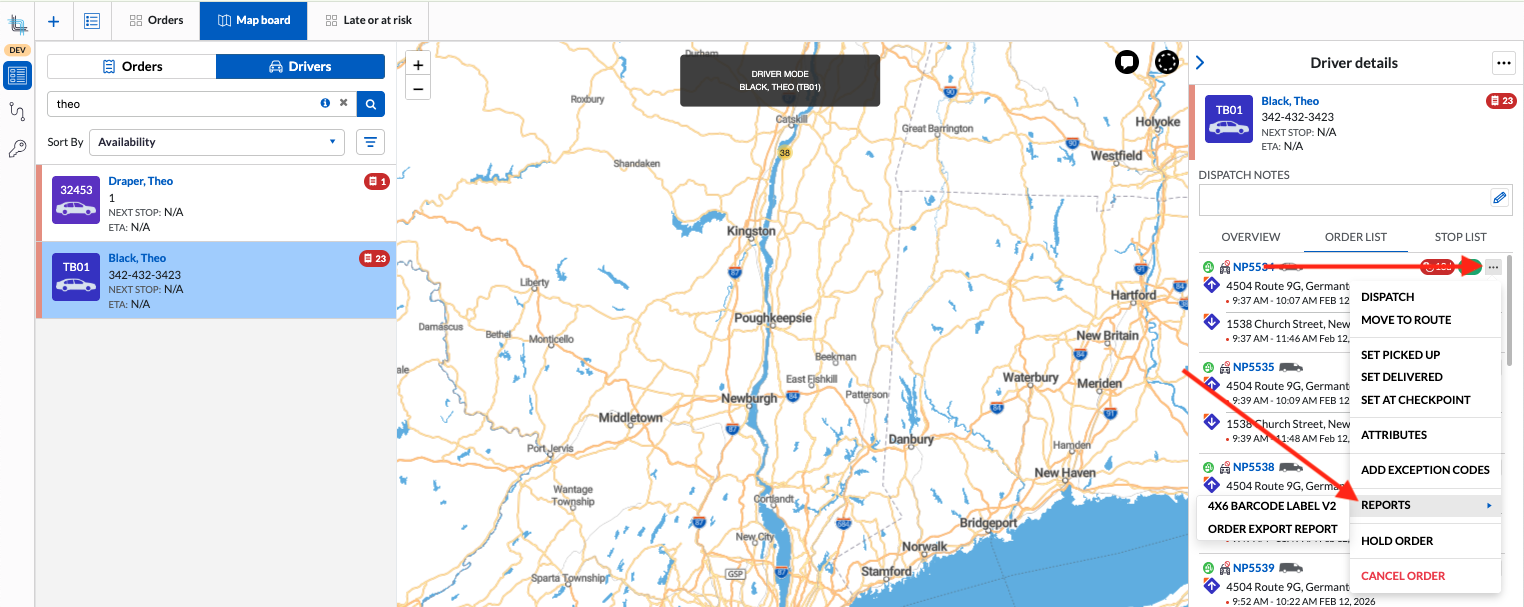
- When opening the driver details and selecting the order list tab:
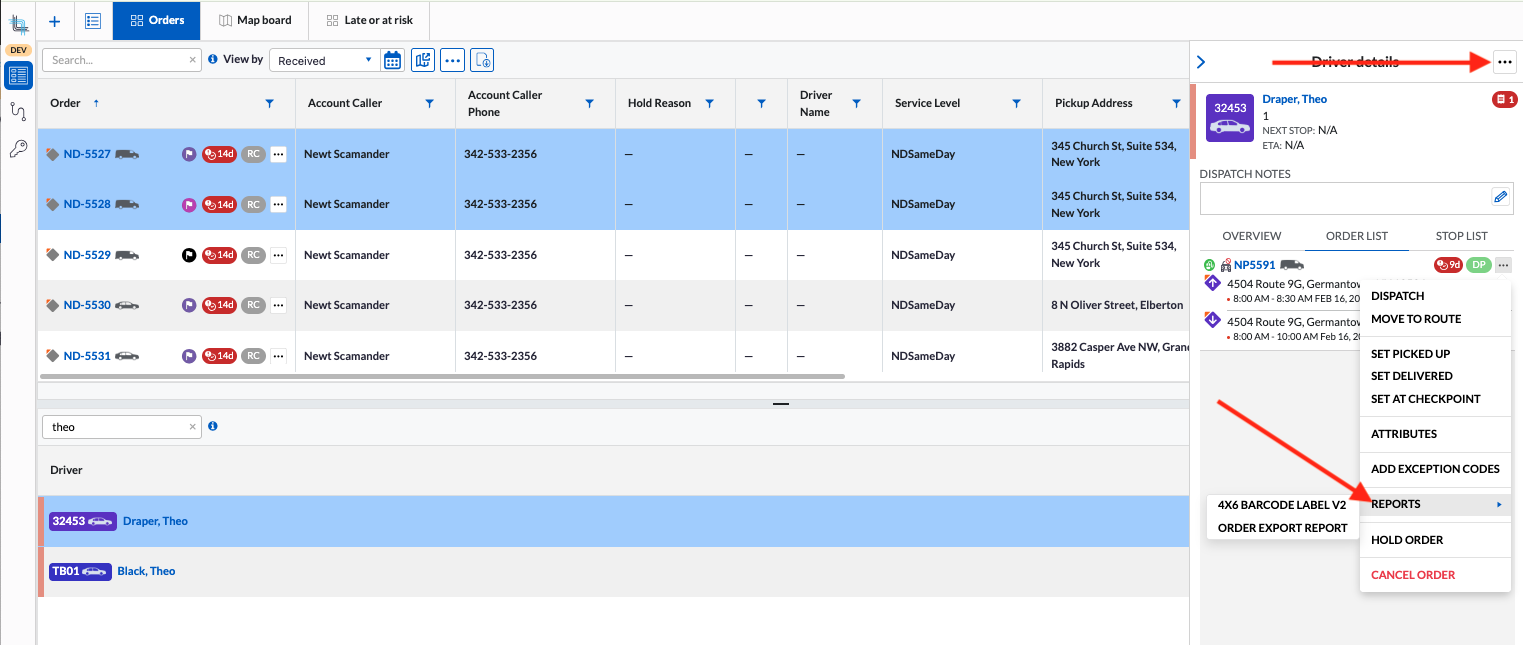
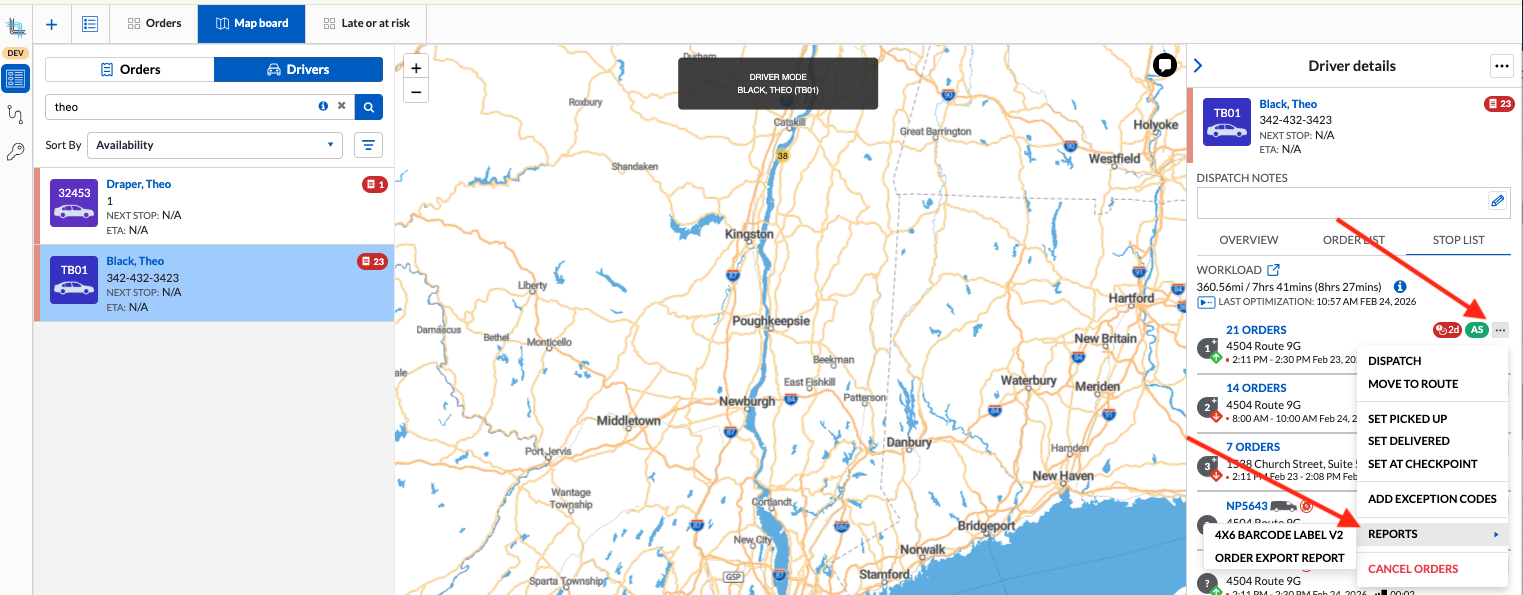
- When opening the driver details and selecting the stop list tab:
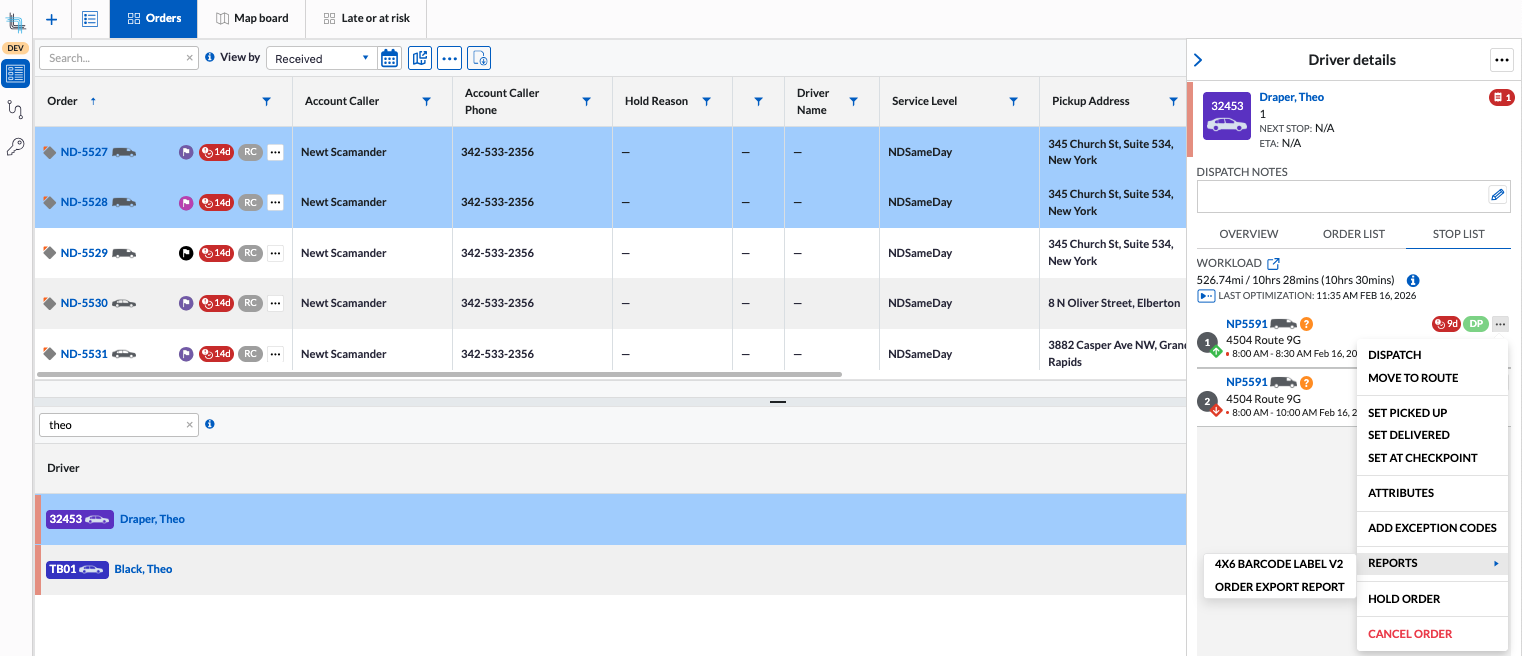
- When opening the driver details and selecting the order list tab:
- Order list
- Order Map Board
- Map Board menu:
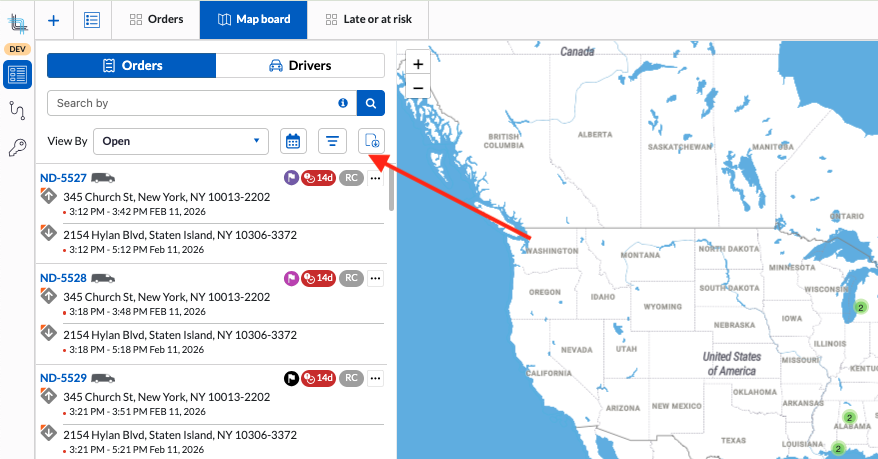
- Order list menu:
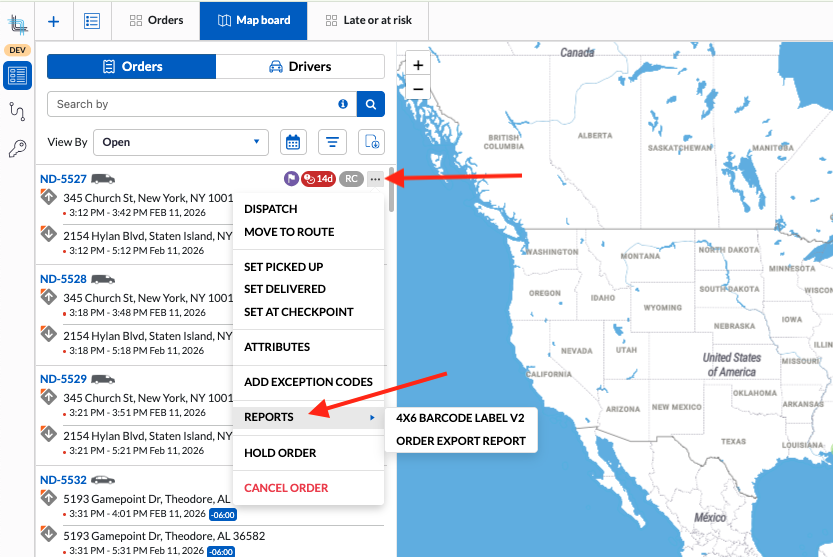
- Order details:
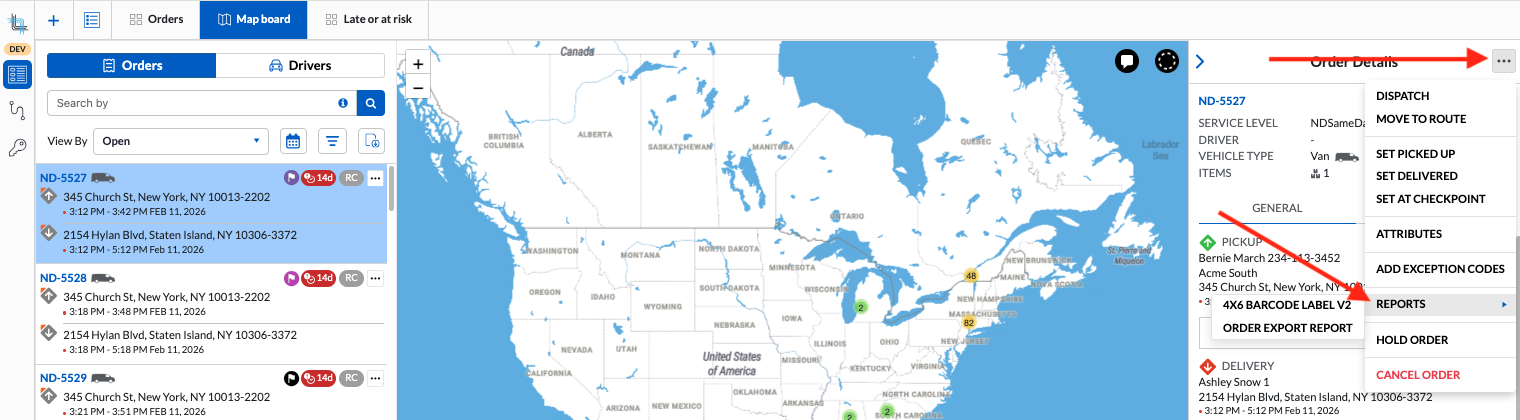
- Map Board menu:
- Driver Map Board
- When opening the driver details and selecting the order list tab:
- When opening the driver details and selecting the stop list tab:
- When opening the driver details and selecting the order list tab:
The menus will only be available once a report has been assigned. Please contact Support to request to have the reports you wish to see in each area:
- Board Order List: Map and Grid Board menu icon
- Board Order details: On order in Grid and Map boards and when opening the order details
- Mass Update menu on Grid Board: On order in Grid boards when selecting multiple orders in the list.
Administration
Extra Fees
Under Settings>Configurations>Order
Lock/Unlock Extra Fee Quantity
Extra fee quantities can now be set as read-only or editable directly from the Extra Fee Schedule for each Extra Fee.
Previously:
- System extra fees had editable quantities for internal users and were always locked for self-serve users.
- Rated and sliding extra fees quantities were always editable for both internal and self-serve users.
- Scripted extra fee quantities were always read-only.
With this update, a new option allows you to control whether the quantity of an Extra Fee can be edited or locked. This provides more flexibility in how extra fees behave on orders:
- Rated and Sliding extra fees can now be locked when a default value is used or when an order update script will update them automatically based on a field on the order.
- System extra fees can now be locked for internal users or remain unlocked. For self-serve users the system extra fee quantity will always be locked regardless of the option.
- Scripted extra fees can now be set as editable, allowing both internal and self-serve users to override the quantity manually while having the unit price still calculated in the script.
Order update scripts can always modify the quantity of extra fees, even if they are locked for users.
The tenant API will follow the rules set on the extra fee quantity.
This change gives teams better control over pricing behavior, enabling automation where needed while still allowing manual overrides for operational flexibility and self-serve scenarios.
Rules
Under Settings>Configurations>Order
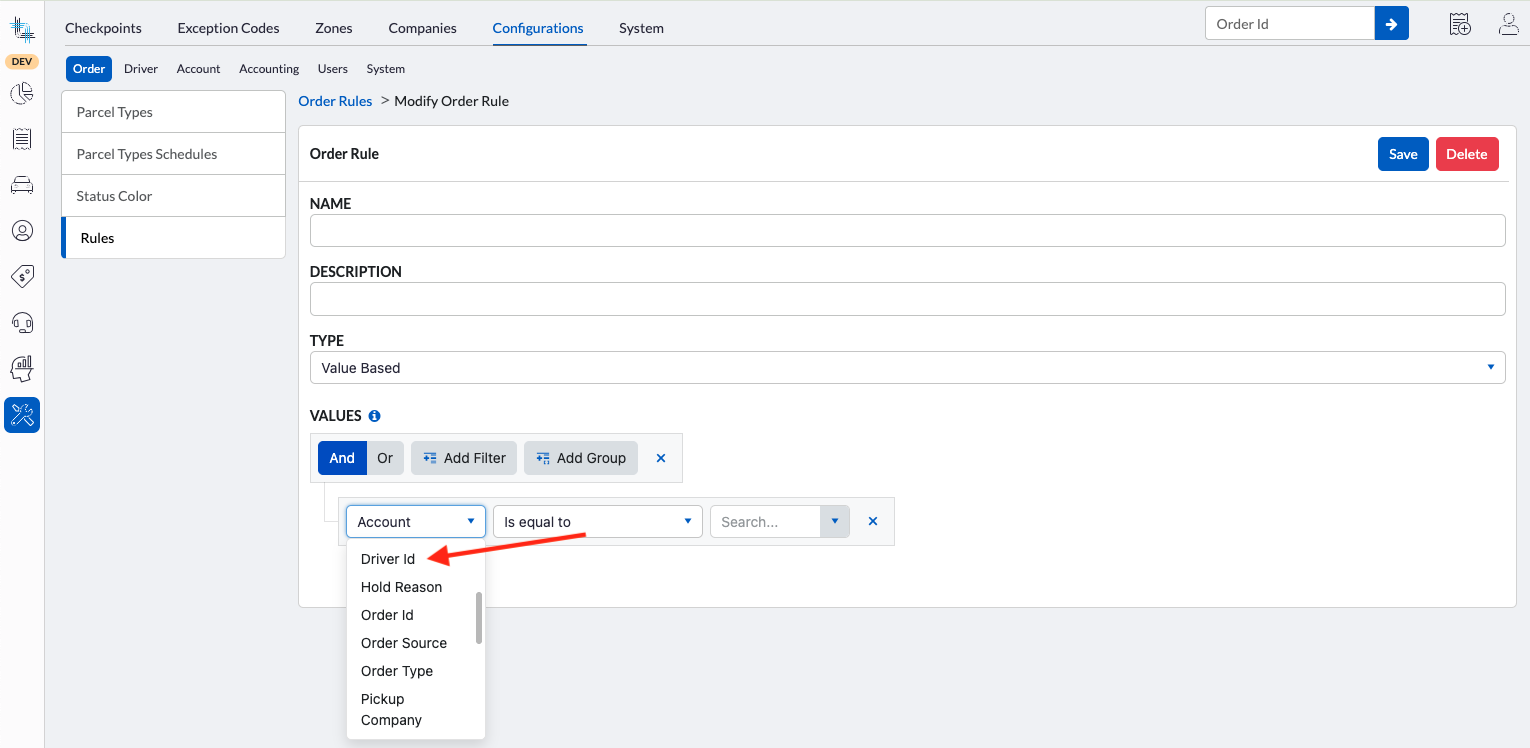
Addition of Driver ID to the Value Based Rules
You can now use Driver ID as a condition in Value-Based Rules. This allows you to create more precise automation by applying rules based on the assigned driver, enabling driver-specific workflows, validations, and exceptions.
Audit
Under Settings>System>Audit
New Route and Route Container Audit
The Audit now includes the changes made to Routes and Route Containers.
Review the Audit of All Route Containers
1) Open Settings>System>Audit
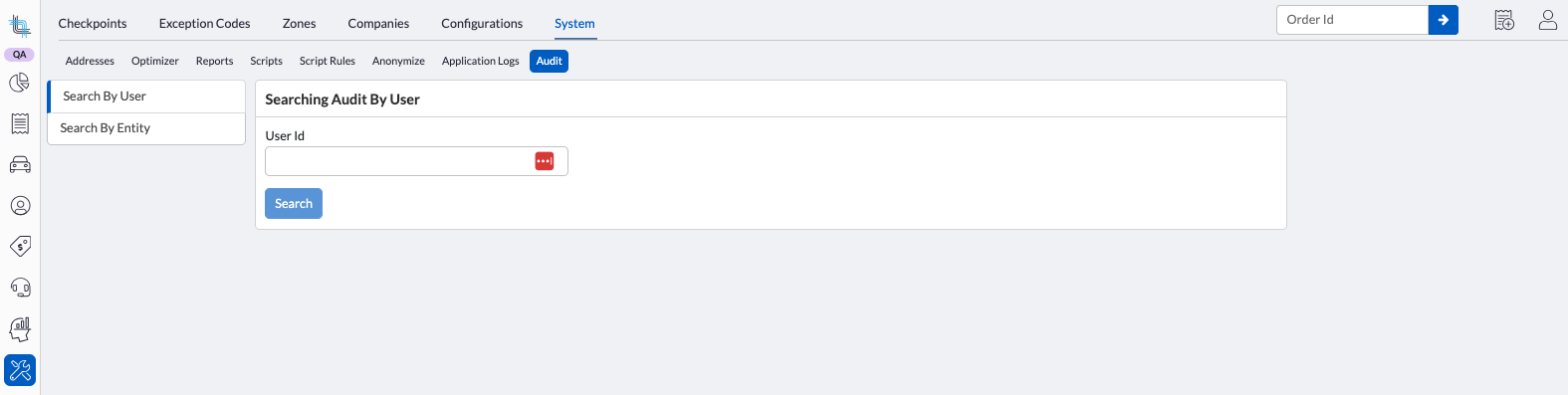
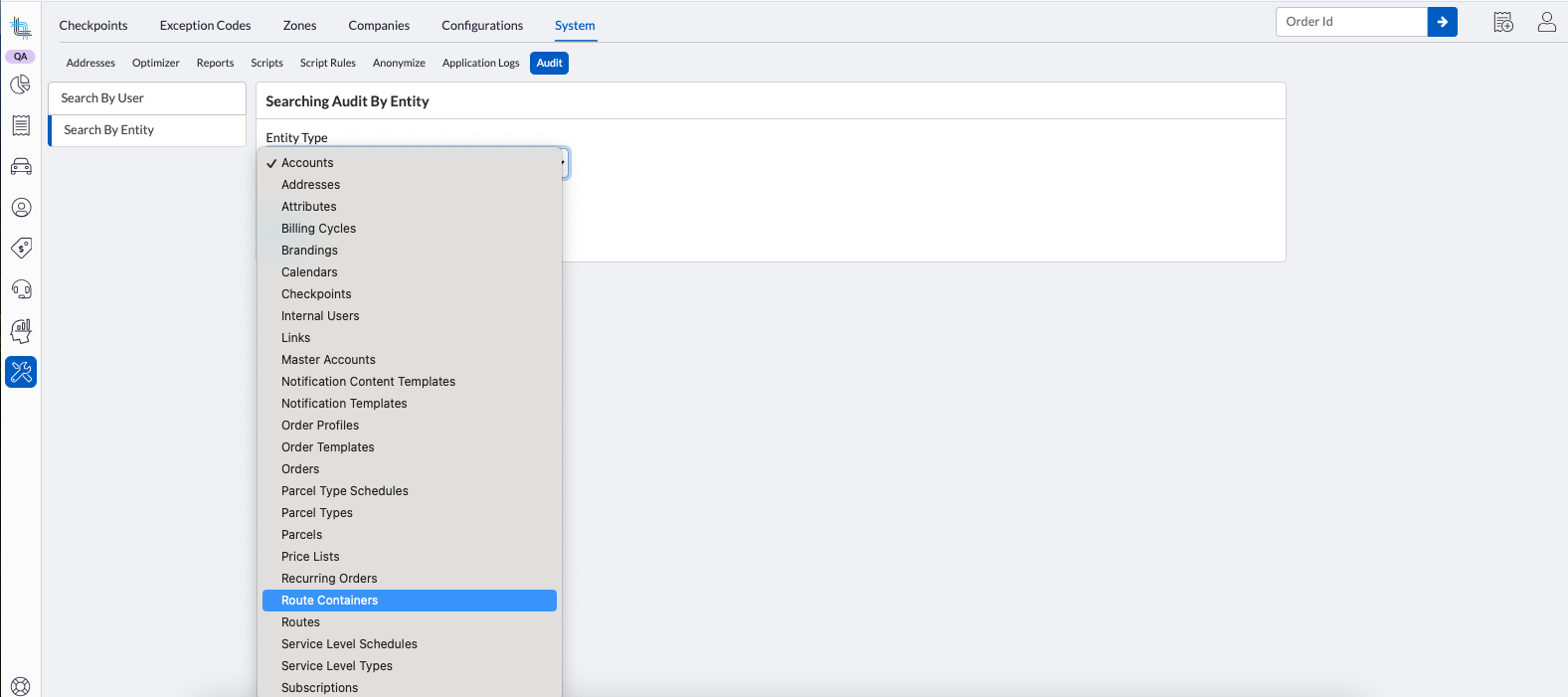
2) Click Search By Entity and in the Entity Type drop-down, select Route Containers and click on Search button
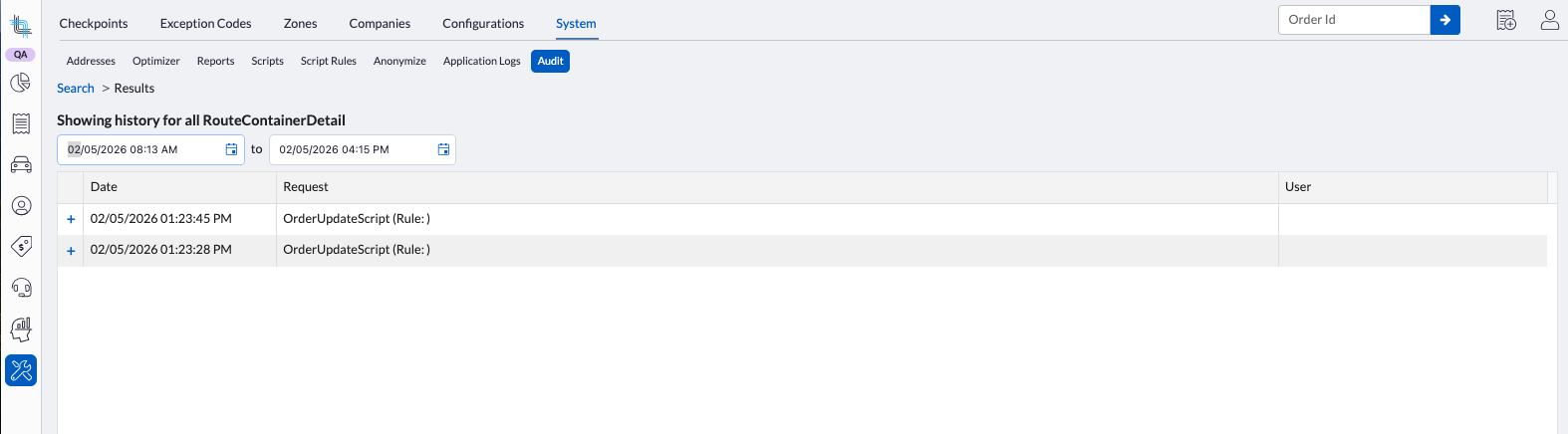
3) Enter a date and time in both date fields to view the changes to all route containers within the selected time
Review a Specific Route Container Audit
1) First find the route container id.
This information can be found by finding the ID within the list of changes across Route Containers, through the route plan id and container date and time in UTC or using the Tenant API. See Find the Route Container ID for more information on each method.
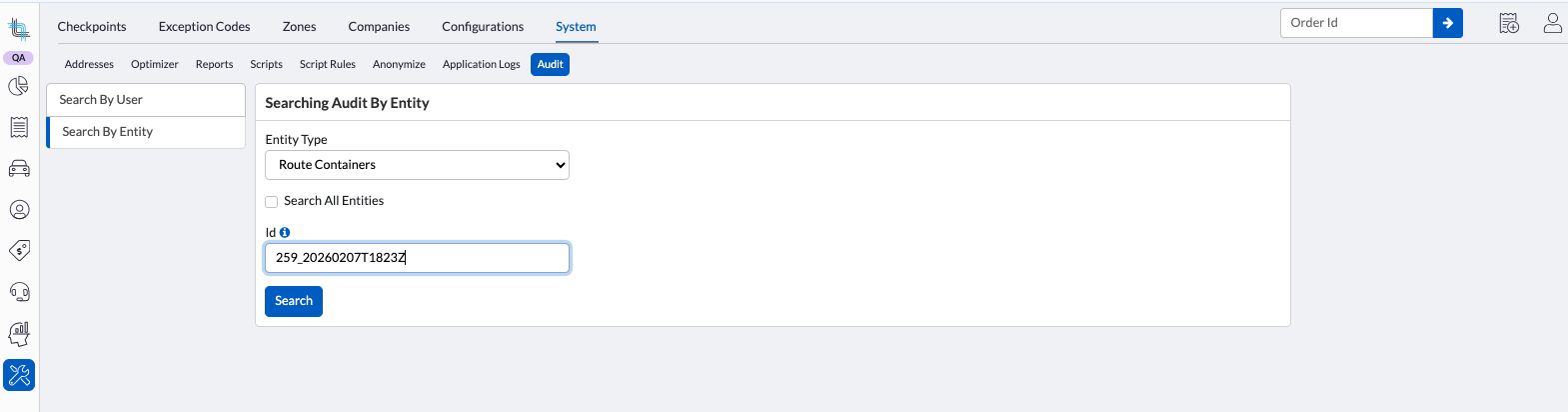
2) In the Audit, select Search By Entity, Select the Entity Type, uncheck the Search All Entities checkbox and enter the route container id in the Id field then click Search
Find the Route Container ID
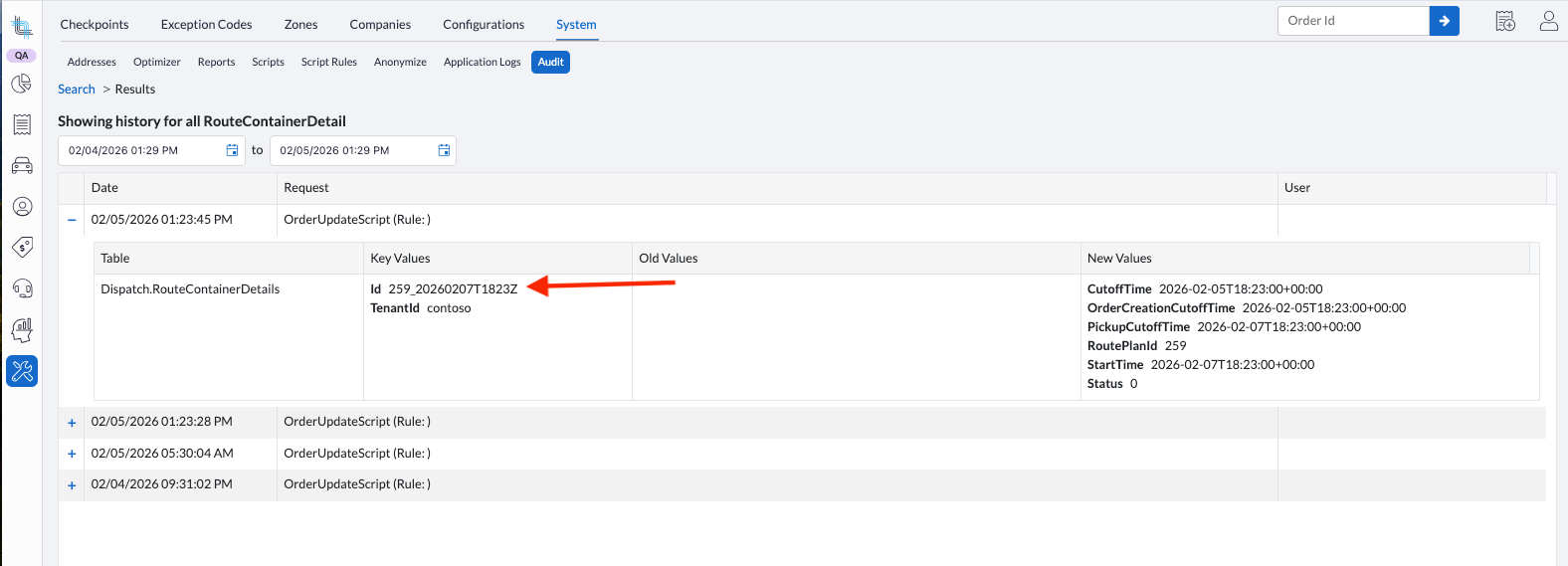
Method 1 - Looking at the Audit by date
This is the simplest way to find the container Id although not the most direct.
Steps:
- Open the Audit by clicking on Settings then System then Audit.
- Click on Search By Entity then select Route Container in the Entity Type.
- Check the Search All Entities checkbox then click on Search.
- Search through the date of the route creation to find its name
Method 2 - Using information in Dispatch Science and time in UTC
The Route Container ID can also be derived manually using the Route Plan ID and the container’s date/time (UTC).
Steps:
- Open the Route Plan in the UI and extract the Route Plan ID from the URL (the numeric value after the last /).
- Identify the container date and time and convert it to UTC.
Example:
A container displayed at 13:00 EST on January 16, 2026
→ UTC becomes: 20260116T1800Z - Construct the Route Container ID using the format:
{routePlanId}_{UTCDateTime}
Example:
Route Plan ID: 76
UTC datetime: 20260116T1800Z
Final Route Container ID:
76_20260116T1800Z
This format is deterministic and can be used for API calls, debugging, and integration scenarios where the container ID is required.
Method 3 - Using the Tenant API:
The Route Container ID can be retrieved using the Tenant API endpoint:
GET /api/v1/routes/containers
Use the following query parameters:
startDate
endDate
status
with the Route container statuses:
0 – In planning
1 – Waiting to be dispatched
2 – Dispatched
3 – In progress
4 – Closed
This endpoint returns the list of route containers matching the provided date range and status.
Review the Audit of All Routes
1) Open Settings>System>Audit
2) Click Search By Entity and in the Entity Type drop-down, select Routes and click on Search button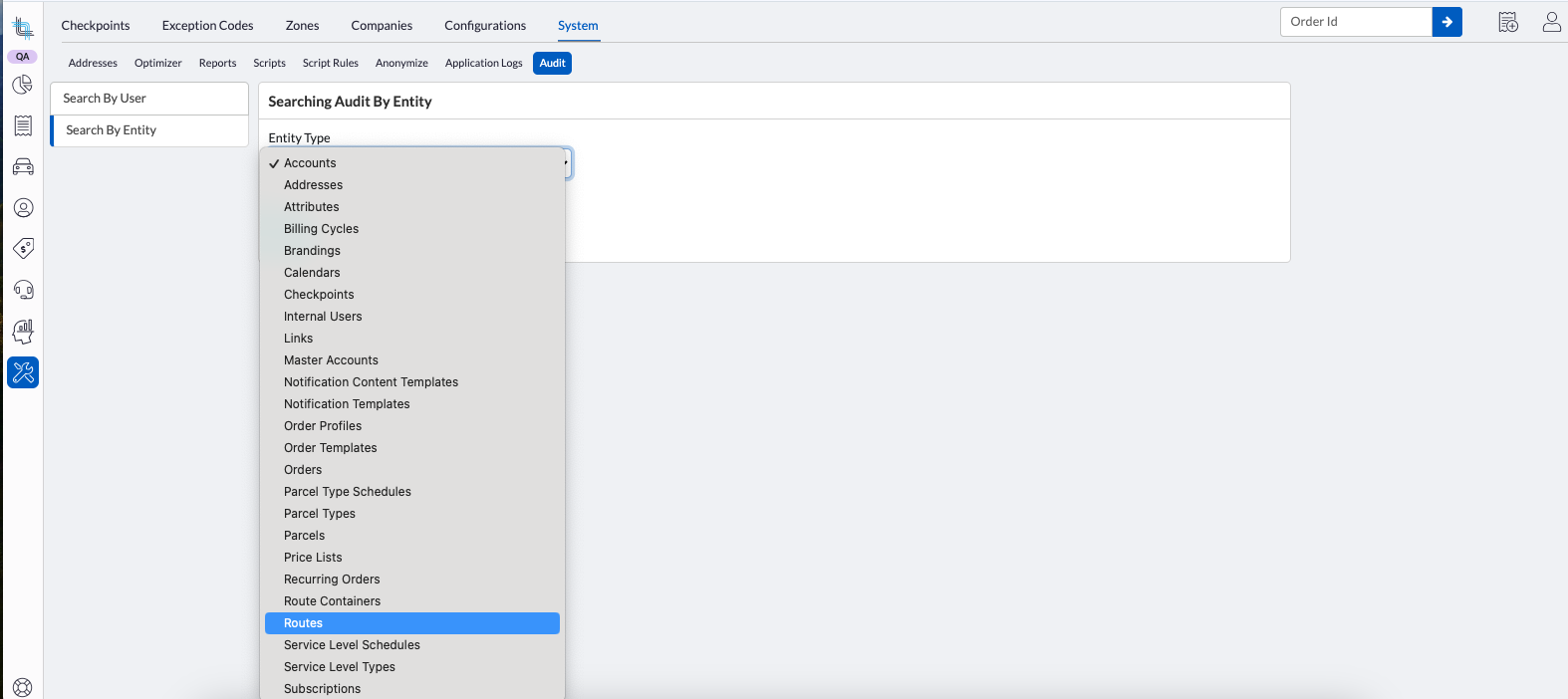
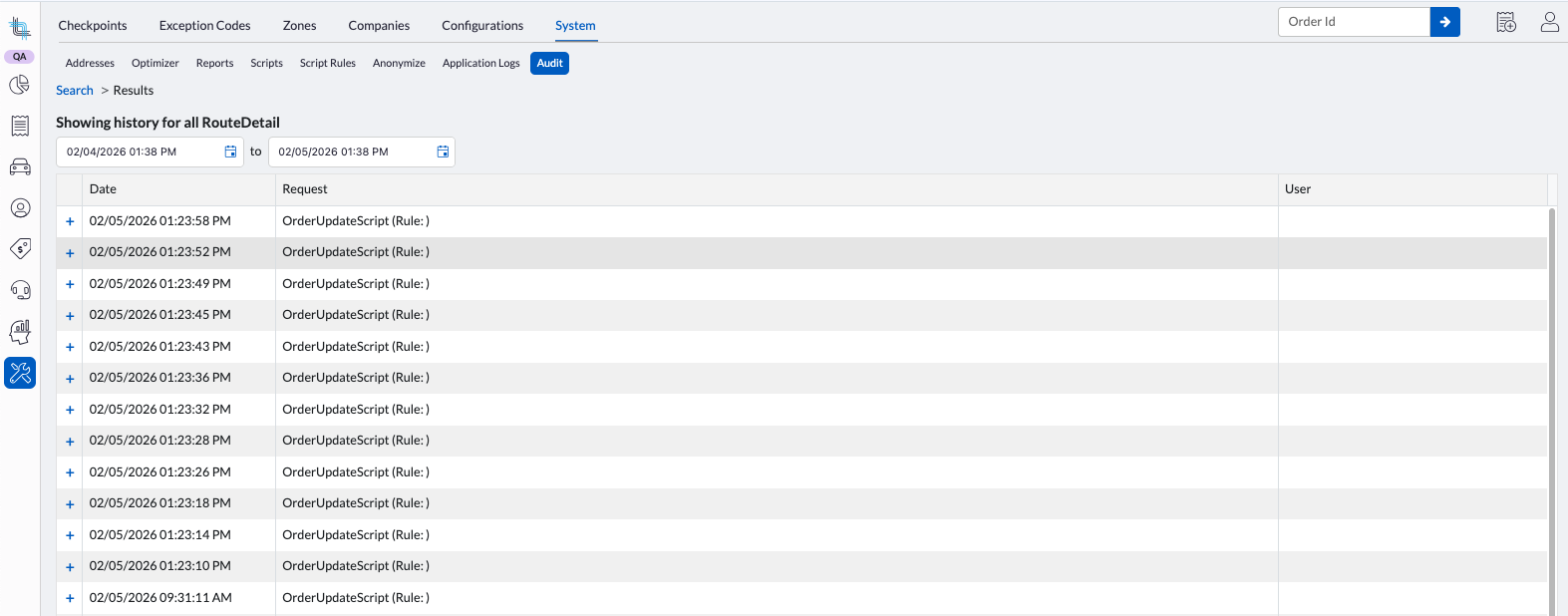
3) Enter a date and time in both date fields to view the changes to all route containers within the selected time
Review a Specific Route Audit
1) First find the route id.
The route id can be found by reviewing its ID in the list of changes across Routes, by using the Routes table in OData or by using the Tenant API.
See Find the Route Id for more information on each method.
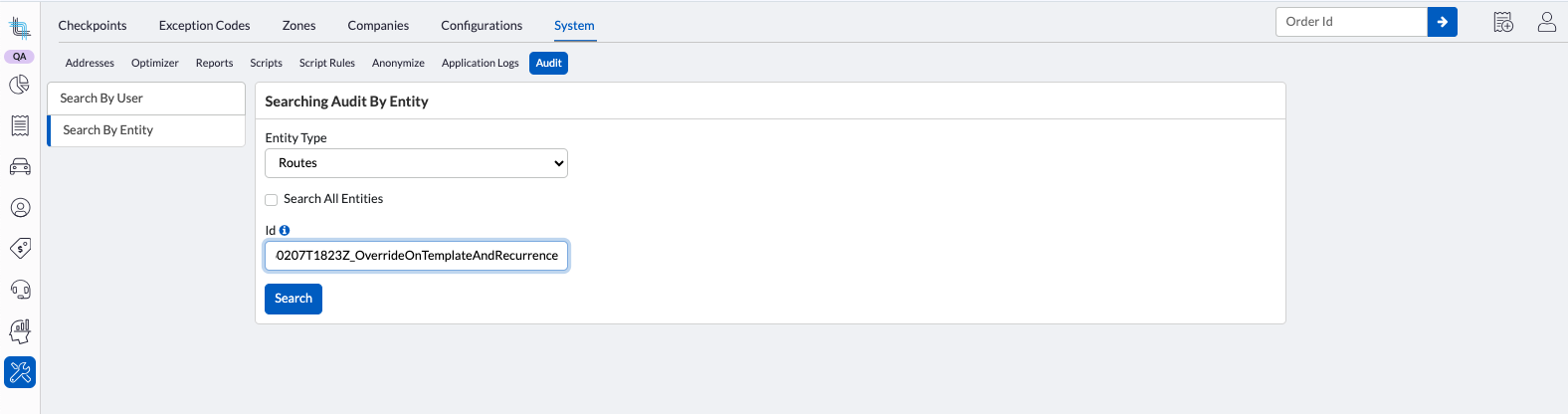
2) In the Audit, select Search By Entity, Select the Entity Type, uncheck the Search All Entities checkbox and enter the route id in the Id field then click Search.
Find the Route ID
Method 1 - Looking at the Audit by date
This is the simplest way to find the Route Id although not the most direct.
Steps:
- Open the Audit by clicking on Settings then System then Audit.
- Click on Search By Entity then select Routes in the Entity Type.
- Check the Search All Entities checkbox then click on Search.
- Search through the date of the route creation to find its name.The start of the Route id will be the container name.
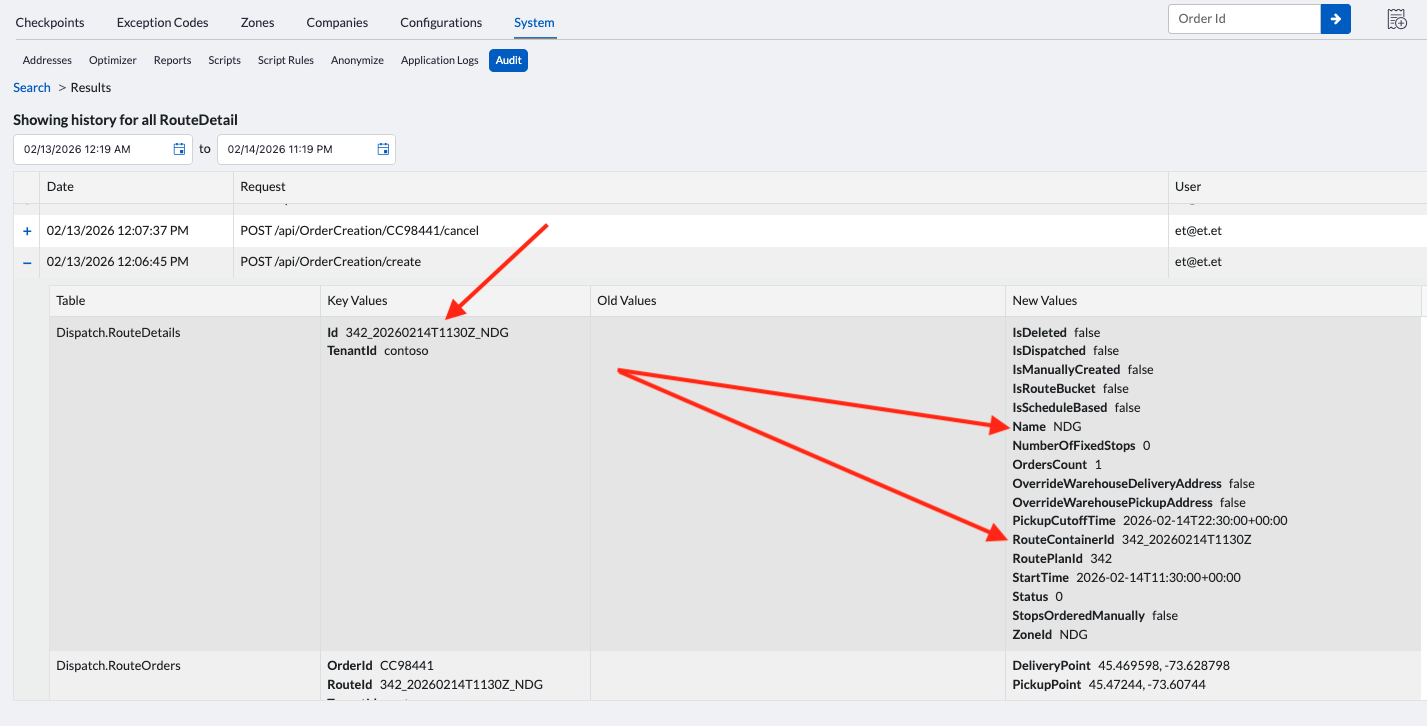
If a route was manually added to a container, its id will not contain its name, it will be a Global Unique Identifier (a set of numbers). You can review the name by opening the entry.Method 2 - The Route ID can also be derived manually using the Container Id and the route name if the route was created from the Route plan. If the Route was created manually within the container, it will use a global unique identifier (a set of numbers) and its name can be found by opening the entry,
Steps:
- Find the Container Id (see Find the Route Container ID)
- Construct the Route ID using the format:
{routePlanId}_{UTCDateTime}_{RouteName}
Example:
Route Plan ID: 76
UTC datetime: 20260116T1800Z
Route name: Route1
Final Route ID:
76_20260116T1800Z_Route1
This format is deterministic and can be used for API calls, debugging, and integration scenarios where the container ID is required.
Method 3:
Using the GET /api/v1/routes/routes and the Container ID, you can get a list of all Route Ids within the container.
Steps:
- First find the Container ID (see Find the Route Container ID).
- In tenant API, use the GET /api/v1/routes/routes and the container Id to get all routes
Scripts
Under Settings>System>Scripts
Update Service Level
The Order Updater now includes the update of the Service Level. Once a service level is changed through a script, the time windows will be recalculated automatically. To recalculate the Delivery charge and any scripted extra fees that may use the service level, make sure to add the updateDeliveryCharge = true and the updateScriptedExtraFees = true.
Task UpdateServiceLevel(string serviceLevelTypeId, bool updateDeliveryCharge = true, bool updateScriptedExtraFees = true);
Price Breakdown on Scripted Extra Fee
A price breakdown can be added on the Order when using scripted extra fees. For each explanation row displayed under the extra fee, you can define:
- Name of fee and a description (via the (i) icon)
- Quantity
- Unit of measure
- Unit price
- Total price
The explanation rows are indented under the extra fee, are read-only, and extend the existing ExtraFeeScriptResultDetails, which already allowed adding a title, description, and metadata (introduced in version 1.73).
This feature makes it easier to understand how each extra fee is calculated and provides full pricing transparency.
Adding a Price Breakdown to an Extra Fee
Within the ExtraFeeScriptResultDetails in the ExtraFeeScriptResult, you can add a PriceBreakdownItems section to define the list of items making up the total price of your extra fee.
The new section is highlighted below.
{
public class ExtraFeeScriptResult
{
public decimal Quantity { get; set; }
public decimal? UnitPrice { get; set; }
public ExtraFeeScriptResultDetails? Details { get; set; }
}
public class ExtraFeeScriptResultDetails
{
public string? TitlePrimary { get; set; }
public string? TitleSecondary { get; set; }
public string? DescriptionPrimary { get; set; }
public string? DescriptionSecondary { get; set; }
public IDictionary<string, object?>? Metadata { get; set; }
public PriceBreakdownItem[]? PriceBreakdownItems { get; set; }
}
public class PriceBreakdownItem
{
public string? TitlePrimary { get; set; }
public string? TitleSecondary { get; set; }
public decimal? Quantity { get; set; }
public string? UnitOfMeasurePrimary { get; set; }
public string? UnitOfMeasureSecondary { get; set; }
public decimal? UnitPrice { get; set; }
public decimal? TotalPrice { get; set; }
}
}
Example
This snippet adds the title and a description as well as a list of items making up the total extra fee. In this case the metadata was not added to the extra fee but can be if needed.
return new ExtraFeeScriptResult
{
Quantity = 1,
UnitPrice = 25.50
Details = new ExtraFeeScriptResultDetails
{
TitlePrimary = "Price by parcel type with an overweight addition",
DescriptionPrimary = "Parcels weighing more than 25 lb incur an additional charge for every pound over 25 lb"
PriceBreakdownItems = new []
{
new PriceBreakdownItem
{
TitlePrimary = "Envelope",
Quantity = 10,
UnitOfMeasurePrimary = "item",
UnitPrice = 1.10m,
TotalPrice = 11.00m
},
new PriceBreakdownItem
{
TitlePrimary = "Medium Box",
Quantity = 4,
UnitOfMeasurePrimary = "item",
UnitPrice = 2.50m,
TotalPrice = 10.00m
},
new PriceBreakdownItem
{
TitlePrimary = "Overweight Charges",
Quantity = 9,
UnitPrice = 0.50m,
TotalPrice = 4.50m
}
}
Where the number values would be replaced by variables calculated in the script.
Result in Order
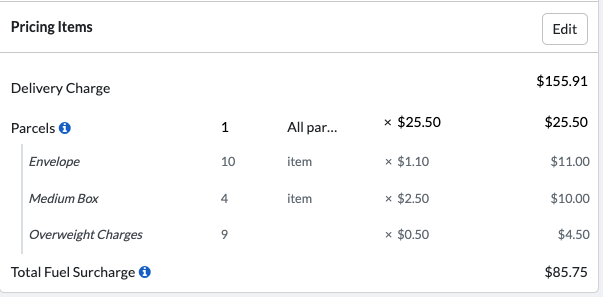
If the unit price is overridden on the order, the price breakdown information is removed.
If the total price is overridden on the order, the price breakdown information is kept.
Using the Reset to default link on the order will recalculate the overridden unit and total prices and restore the price breakdown.
Tenant API
Driver API Enhancements (GET /api/v1/drivers)
The GET /api/v1/drivers endpoint now returns the email and phone number for each driver.
A new parameter is also available to include additional driver information, which contains the driver’s user fields.
Using the new option:
To use the new option, add after the integration-tenants/api/v1 the following:
/drivers?withAdditionalInfo=true
Response with option set to false:
{
"items": [
{
"id": "2e8e2313-f3c4-4132-91fc-2a823a6ffa23",
"firstName": "Bernardette",
"lastName": "Shaw",
"displayName": "Shaw, Bernardette (BS33A)",
"driverNumber": "BS33A",
"driverStatus": 2,
"email": "betteshaw@bshaw.shw",
"phoneNumber": "(345) 234-2353",
"attributeIds": [
"NYMarket"
]
},
{
"id": "3078d0b5-6ad0-457b-8e40-ff5c9b7249a8",
"firstName": "Sophie",
"lastName": "Glass",
"displayName": "Glass, Sophie (32438)",
"driverNumber": "32438",
"driverStatus": 2,
"email": "Sophie_Glass@nomail.abc",
"phoneNumber": "1",
"attributeIds": []
}
]
}
Response with option set to true:
{
"items": [
{
"id": "2e8e2313-f3c4-4132-91fc-2a823a6ffa23",
"firstName": "Bernardette",
"lastName": "Shaw",
"displayName": "Shaw, Bernardette (BS33A)",
"driverNumber": "BS33A",
"driverStatus": 2,
"email": "betteshaw@bshaw.shw",
"phoneNumber": "(345) 234-2353",
"attributeIds": [
"NYMarket"
],
"driverFields": [
{
"id": "SSN",
"labelPrimary": "Social Security Number",
"labelSecondary": null,
"inputFieldType": 1,
"acceptedValues": null,
"value": 0
}
]
},
{
"id": "3078d0b5-6ad0-457b-8e40-ff5c9b7249a8",
"firstName": "Sophie",
"lastName": "Glass",
"displayName": "Glass, Sophie (32438)",
"driverNumber": "32438",
"driverStatus": 2,
"email": "Sophie_Glass@nomail.abc",
"phoneNumber": "1",
"attributeIds": [],
"driverFields": [
{
"id": "SSN",
"labelPrimary": "Social Security Number",
"labelSecondary": null,
"inputFieldType": 1,
"acceptedValues": null,
"value": 0
}
]
}
]
}
New API Endpoint to Return Zones
New Get Zones Endpoint
A new endpoint is now available to retrieve all zone types in Dispatch Science (excluding Pricing Zones, which are managed separately).
Endpoint
GET /api/v1/zones
Optional Parameters
If not used, all zones will be returned.
zoneTypes (array) – Filter zones by one or more zone types
Supported Zone Types
0 – None
1 – Address
2 – AutoDispatch
4 – DriverPosition
8 – Filtering
16 – Taxes
32 – Script
64 – Other
Response
Returns a list of zones ids with their description and associated types:
{
"items": [
{
"id": "ALL",
"zoneTypes": [
8
],
"description": null
},
{
"id": "Arizona",
"zoneTypes": [
2,
8
],
"description": "Arizona"
}
]
}
New Get Driver Zones Endpoint
A new endpoint is now available to retrieve the auto-dispatch and filtering zones assigned to a driver. The driver is identified by its ID and passed as a parameter. This can be used to retrieve the list of zones used before new zones are either added or zones are removed from the driver.
Endpoint
GET /api/v1/drivers/{id}/zones
Parameter
id: The driver id is required.
Response
{
"items": [
{
"zoneId": "Manhattan",
"isForAutoDispatch": true,
"isForFiltering": true
},
{
"zoneId": "Brooklyn",
"isForAutoDispatch": true,
"isForFiltering": false
},
{
"zoneId": "Queens",
"isForAutoDispatch": true,
"isForFiltering": false
}
]
}
A 404 error will be returned if the driver does not exist or is archived.New Add Zones to a Driver Endpoint
A new endpoint is available to assign zones to a driver. This endpoint allows programmatic assignment of zones to drivers for auto-dispatch and filtering purposes.
Endpoint
POST/api/v1/drivers/{id}/zones
Parameter
Driver id: the ID of the driver is required
Body
The body accepts an object containing arrays of zone IDs:
autoDispatchZonesIds – List of zone IDs for auto-dispatch assignment
filteringZonesIds – List of zone IDs for filtering assignment
{
"autoDispatchZonesIds": [
"Brooklyn","Manhattan"
],
"filteringZonesIds": [
"Brooklyn","Manhattan"
]
}
A 404 error is returned if a driver is not found, if a zone is not found or the zone type is incorrect.New Remove Zones from a Driver Endpoint
A new endpoint is available to remove zones from a driver. This endpoint allows programmatic removal of driver zone assignments for auto-dispatch and filtering.
Endpoint
Delete/api/v1/drivers/{id}/zones
Parameter
Driver id: the ID of the driver is required
Body
The body accepts an object containing arrays of zone IDs:
autoDispatchZonesIds – List of zone IDs for auto-dispatch assignment
filteringZonesIds – List of zone IDs for filtering assignment
{
"autoDispatchZonesIds": [
"Brooklyn","Manhattan"
],
"filteringZonesIds": [
"Brooklyn","Manhattan"
]
}
A 404 error is returned if a driver is not found, if a zone is not found or the zone type is incorrect.Find Driver User Fields Matching a Value Set
A new endpoint is available to retrieve drivers based on a specific value in a user-defined field on their account. This allows quickly filtering drivers that match a specific criteria.
Endpoint
GET/api/v1/drivers/additional-information/{fieldId}/{fieldValue}
Parameter
fieldid: Id of the field to search (string)
fieldValue: value to find in the field (string)
Response
The field id, the field value and the driver will be returned for each driver matching the criteria.
Null values in the user field is not supported. Only explicit (non-null) values can be used as search criteria and the criteria must be an exact match of the value in the user field.New Endpoint to Update Multiple Driver User Fields
A new endpoint is available to update multiple user-defined fields on a driver in a single request, removing the need to update fields individually.
This endpoint allows batch updates of driver additional information, improving performance and reducing API calls.
Backward Compatibility
The existing endpoint PUT /api/v1/drivers/{id}/additional-information/{fieldId} remains available and supported for updating a single user field at a time.
Endpoint
PUT /api/v1/drivers/{driverId}/additional-information
Parameters
driverId: Id of the driver
Body
[
{
"fieldId": "string",
"value": "string"
},
{
"fieldId": "string",
"value": "string
}
]
Driver Deductions and Additions Endpoints Uses the Description Field
The description field added to the Driver addition and deduction on the Driver details in Dispatch Science is also available to the Driver Deduction Endpoints.
Get a Driver's Additions and Deductions
When retrieving the additions and deductions added to a driver the description field is available.
Endpoint
GET /api/v1/drivers/deductions/{driverId}
Response
[
{
"deductionId": 0,
"displayNamePrimary": "string",
"displayNameSecondary": "string",
"description": "string",
"startDate": "2026-02-02T15:40:37.198Z",
"endDate": "2026-02-02T15:40:37.198Z",
"overrideGlobalSettings": true,
"isPercentage": true,
"amount": 0
}
]
Add an Addition or Deduction to a Driver
When adding an addition or a deduction on a driver, the description can be added.
Endpoint
POST /api/v1/drivers/deductions/{driverId}
Body
{
"deductionId": 0,
"description": "string",
"startDate": "2026-02-02T15:48:10.915Z",
"endDate": "2026-02-02T15:48:10.915Z",
"overrideGlobalSettings": true,
"isPercentage": true,
"amount": 1000000
}
Update an Addition or Deduction on a Driver
When updating an addition or a deduction on a driver, the description can be modified.
Endpoint
PUT /api/v1/drivers/deductions/{driverId}/{deductionId}
Body
{
"description": "string",
"startDate": "2026-02-02T15:51:11.295Z",
"endDate": "2026-02-02T15:51:11.295Z",
"overrideGlobalSettings": true,
"isPercentage": true,
"amount": 1000000
}
Deduction and Addition Description on a Driver Settlement
The description field for driver settlement Additions and Deductions can now be added or updated after a settlement has been generated.
This allows post-generation enrichment of settlement data, enabling operators to document contextual or corrective information without requiring settlement regeneration, improving auditability and operational flexibility.
Driver settlement endpoint now returns addition and deduction descriptions
The endpoint now includes the description field for Additions and Deductions.
This ensures that any contextual information associated with settlement adjustments is available via the API for reporting, auditing, and external reconciliation workflows.
Endpoint
GET /api/v1/settlements/{settlementId}
Response
{
"item": {
"settlementId": "string",
"creationDate": "2026-02-03T18:13:43.616Z",
"createdByUserName": "string",
"documentDate": "2026-02-03T18:13:43.616Z",
"accountingProfileCode": "string",
"totalAmount": 0,
"status": "string",
"canCancel": true,
"canChangeStatus": true,
"driver": {
"driverId": "string",
"firstName": "string",
"lastName": "string",
"driverNumber": "string"
},
"items": [
{
"orderId": "string",
"payoutValue": 0
}
],
"deductions": [
{
"id": 0,
"deductionValue": 0,
"displayNamePrimary": "string",
"displayNameSecondary": "string",
"description": "string",
"deductionId": 0,
"deductionDisplayNamePrimary": "string",
"deductionDisplayNameSecondary": "string"
}
]
},
"status": [
"string"
]
}
Description Field available When Adding Settlement Adjustments
A description can now be entered when adding an Addition or Deduction directly on a driver settlement.
This allows operators to capture contextual information at the time of adjustment, improving traceability and auditability of settlement changes.
Endpoint
POST /api/v1/settlements/deductions/{settlementId}
Parameters
settlementId : id of the settlement, example DAS-123
Body
[
{
"deductionId": 0,
"overrides": {
"description": "string",
"isPercentage": true,
"amount": 0,
"percentage": 0
}
}
]
Description Field Available When Updating a Settlement Adjustment
A description can now be entered when updating an Addition or Deduction directly on a driver settlement.
This allows operators to add contextual information at the time of adjustment, improving traceability and auditability of settlement changes.
Endpoint
PUT /api/v1/settlements/deductions/{settlementId}
Parameters
settlementId : id of the settlement, example DAS-123
Body
[
{
"id": 0,
"overrides": {
"description": "string",
"isPercentage": true,
"amount": 0,
"percentage": 0
}
}
]
Driver Cash Deduction and Addition Can Be Added to All Settlements Through the API
In previous releases, cash-type deductions and additions could only be applied to settlements that matched either the accounting profile of the default Company or, if configured at the driver level, the Driver Cash Settlement Company.
Now, cash deductions and additions can also be added via the Add Deduction endpoint, or their type can be updated using the Update Deduction endpoint to any Driver settlement regardless of its accounting profile.
Endpoints
POST /api/v1/settlements/deductions/{settlementId}
PUT /api/v1/settlements/deductions/{settlementId}
New Scripts Endpoints
A new set of endpoints has been added to manage scripts through external systems using the Tenant API.
These APIs provide the same functionality as the Back Office Scripts screen, including script creation, update, validation, enabling, disabling, and deletion.
File updates for script templates and bulk operations across multiple scripts are not supported with the API.List All Scripts With Optional Type Filter
This endpoint will return all scripts and can be filtered by script type.
Endpoint
GET /api/v1/scripts
Optional filter
Extra Fee: 0
Order Update: 1
Order Rule: 2
Response
For each script, the following is returned:
{
"items": [
{
"id": 35,
"name": "Configurable Extra Fee",
"description": null,
"type": 0,
"useValidation": false,
"isDisabled": false,
"debugModeEnabled": false
}
]
}
Create a Script with Default Content
New scripts with default content can now be created using the API. The script will be validated upon creation.
Endpoint
POST /api/v1/scripts
Parameters
{
"name": "string",
"description": "string",
"type": 0,
"executionEvents": [
"string"
]
}
Where:
type: type of script (see List all scripts with optional type filter for types)
executionEvents: can be listed using the GET /api/v1/scripts/order-events endpoint.
Get the information of a specific script
This endpoint allows you to get the information from a specific script Id.
Endpoint
GET /api/v1/scripts/{id}
Response
{
"id": 0,
"name": "string",
"description": "string",
"type": 0,
"content": "string",
"useValidation": true,
"isDisabled": true,
"debugModeEnabled": true,
"permissions": [
"string"
],
"executionEvents": [
"string"
]
}
Update an Existing Script
This endpoint allows you to update an existing script's name, description, content, validation, permission and execution events.
Endpoint
PUT /api/v1/scripts/{id}
Body
{
"name": "string",
"description": "string",
"content": "string",
"useValidation": true,
"debugModeEnabled": true,
"permissions": [
"string"
],
"executionEvents": [
"string"
]
}
Delete a Script
Delete a script using its id.
Endpoint
DELETE /api/v1/scripts/{id}
Get the List of Available Order Events for Order Update Scripts
This returns the list of all order events that can be used in the section executionEvents.
Endpoint
GET /api/v1/scripts/order-events
Validate Script Content for a Script without Saving
Script contents can be validated before making the change. This should be used before you make a change to the script content.
Endpoint
POST /api/v1/scripts/{id}/validate
Body
{
"content": "string",
"useValidation": true
}
Validate Script Content Without a Script
Script contents can be validated without having to create a script. This is useful to validate scripts before they are created.
Endpoint
POST /api/v1/scripts/validate
Body
{
"content": "string",
"type": 0,
"useValidation": true
}
Enable/Disable Scripts
You can enable and disabled scripts using these endpoint.
Enable Endpoint
POST /api/v1/scripts/{id}/enable
Disable Endpoint
POST /api/v1/scripts/{id}/disable
New Script Rules Endpoints
A new set of endpoints has been added to manage script rules through external systems using the Tenant API.
These APIs provide the same functionality as the Back Office Script Rules screen, including script rule creation, update, validation, enabling, disabling, and deletion.
List All Script Rules
This endpoint will return all script rules including the parameters if used. To download the file associated to the script rule, use GET /api/v1/script-rules/{id}/file.
Endpoint
GET /api/v1/script-rules
Response
{
"items": [
{
"id": 0,
"name": "string",
"scriptId": 0,
"companyId": 0,
"accountId": "string",
"isActive": true,
"rank": 0,
"stopProcessing": true,
"data": [
{
"key": "string",
"value": "string",
"description": "string"
}
]
}
where data returns the parameters when used.
Create a Script Rule
Script Rules can be created through this endpoint. Once the rule is created, a file can be associated to the Script Rule using the POST /api/v1/script-rules/{id}/file endpoint.
Endpoint
POST /api/v1/script-rules
Body
{
"name": "string",
"scriptId": 0,
"companyId": 0,
"accountId": "string",
"rank": 2147483647,
"stopProcessing": true,
"data": [
{
"key": "string",
"value": "string",
"description": "string"
}
]
}
where data contains the script rule parameters if used.
Retrieve a Specific Script Rule
You can retrieve a specific script rule using this endpoint by providing its id.
Endpoint
GET /api/v1/script-rules/{id}
Response
{
"id": 0,
"name": "string",
"scriptId": 0,
"companyId": 0,
"accountId": "string",
"isActive": true,
"rank": 0,
"stopProcessing": true,
"data": [
{
"key": "string",
"value": "string",
"description": "string"
}
]
}
Update a Script Rule
Script Rules can be updated using this endpoint. To upload a new file, use POST /api/v1/script-rules/{id}/file.
Endpoint
PUT /api/v1/script-rules/{id}
Body
{
"name": "string",
"scriptId": 0,
"companyId": 0,
"accountId": "string",
"rank": 2147483647,
"stopProcessing": true,
"data": [
{
"key": "string",
"value": "string",
"description": "string"
}
]
}
Delete a Script Rule
You can delete a Script Rule.
Endpoint
DELETE /api/v1/script-rules/{id}
Activate/Deactivate a Script Rule
Script Rules can be activated or deactivated using these endpoints.
Activate Endpoint
POST /api/v1/script-rules/{id}/activate
Deactivate Endpoint
POST /api/v1/script-rules/{id}/deactivate
Upload a Script Rule File
File uploaded to the Script Rule will be validated agains the script's validation rules if used then stored in blob storage for retrieval when needed. The sheet items will be saved in the database.
Endpoint
POST /api/v1/script-rules/{id}/file
Body
An Excel file as a string($binary)
Download a Script Rule File
A Script Rule File can be downloaded if there is a need to update it.
Endpoint
GET /api/v1/script-rules/{id}/file
Response
The Excel file that was previously stored in the blob storage.
Delete a Script Rule File
A Script Rule File can be deleted without deleting the script. This endpoint requires the script id only.
Endpoint
DELETE /api/v1/script-rules/{id}/file
Verify if a File is Associated to a Script Rule
This endpoint verifies if a file has already been uploaded to a Script Rule.
Endpoint
GET /api/v1/script-rules/{id}/file/exists
New Order Rules Endpoint
A new endpoint is now available to retrieve the Order Rules created in DIspatch Science.
Endpoint
GET /api/v1/order-rules
Response
{
"items": [
{
"id": 0,
"name": "string",
"description": "string",
"type": 1,
"scriptId": null,
"serializedFilter": "{\"filters\":[{\"operator\":\"eq\",\"value\":\"NDSameDay\",\"field\":\"serviceLevelId\"},{\"operator\":\"eq\",\"value\":\"AddressDoesntExist\",\"field\":\"holdExceptionCodeId\"}],\"logic\":\"and\"}"
},
{
"id": 0,
"name": "string",
"description": "string",
"type": 0,
"scriptId": 0,
"serializedFilter": null
}
]
}
In the first item, the rule is value based and the values are returned in a serialized entry. These will be type = 1.
In the second item, the rule is of type script. The serializedFilter is left null and the scriptid is shown. These will be type = 0.
Was this article helpful?
That’s Great!
Thank you for your feedback
Sorry! We couldn't be helpful
Thank you for your feedback
Feedback sent
We appreciate your effort and will try to fix the article