Settings > System > Application Logs
The Application Logs provide a chronological record of events that occur within Dispatch Science. They include errors, warnings, and informational messages to help monitor system activity and troubleshoot issues.
Examples of logged events include:
- Script execution
- Requests for information sent to drivers
- Integration activity and processing
- Recurring order execution
- Other system events and background processes
Search the Application Logs
You can search the application logs using the search bar and/or the column filter.
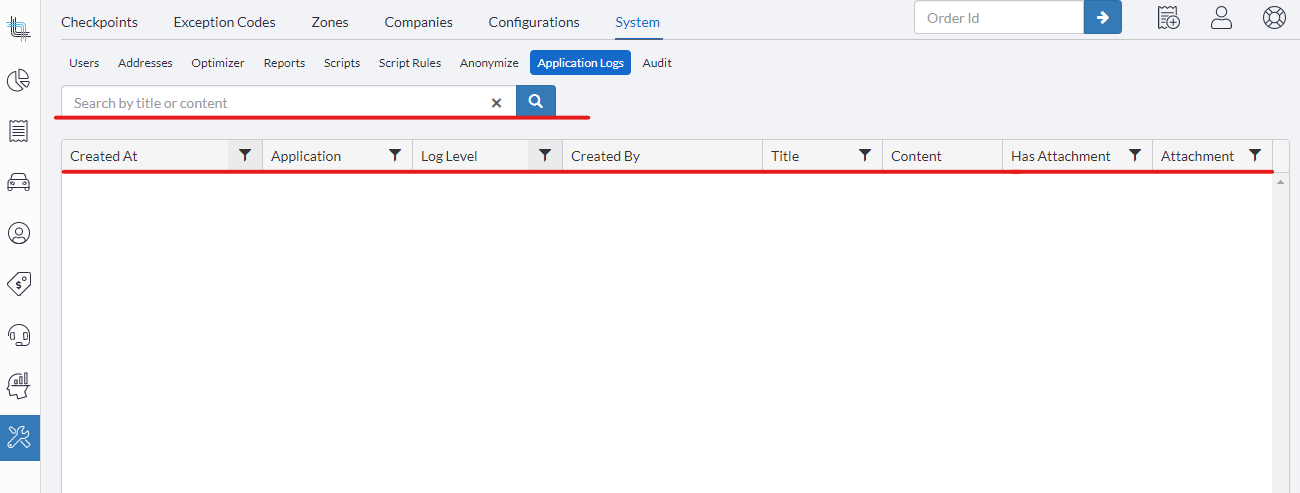
Search Bar
An information icon is available on the Application logs search bar to indicate what values can be searched:

Allowed search fields include:
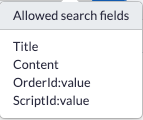
You can use the generic search with the available columns by typing the information directly in the search bar.
Searching by OrderId and/or ScriptId
- In Application Log, in the search, you can search:
- by Order Id by typing the following: OrderId:ORDERID
- by ScriptId by typing the following: ScriptId:SCRIPTID
- or by both by typing the following: ORDERId:ORDERID ScriptId: SCRIPTID
Note: the script Id can be found on the URL once you open the script.
Column Filter
Each column can be used to filter the result further.
- Created At: Filter by date-time
- Application: Filter by the type of log:
- AutomationScript: Feedback for script of type Order Update
- Dispatch: Order import, dispatch to driver, etc..
- DriverApp: Events on the driver app like uploading attachments, etc.
- DriverAppSupport: Driver app log
- ExtraFeeScript: Feedback for script of type Extra fee
- Integration: Integration feedback
- Optimization: Result of auto-dispatch or suggestion
- OrderRule Script: Feedback for script of type Order rule
- RecurringOrder: Feedback on order and route recurrences
- Log Level
- Information
- Warning
- Error
- Created By
- Title: gives information about the type
- Content: Event and/or error
- Has Attachment
- Attachment
Route Recurrence Search
The Application Logs will give you information about the Route Recurrence which has run or has failed. This information is available when viewing the Application Logs under Settings, System, Application Logs.
The following information is available in the grid:
In Application column: RecurringOrder
In Title column: You will have the Route Plan Id
You can download the file to get the batch Id, Route recurrence Id, as well as the Order Template Ids.
Was this article helpful?
That’s Great!
Thank you for your feedback
Sorry! We couldn't be helpful
Thank you for your feedback
Feedback sent
We appreciate your effort and will try to fix the article