An order on a restricted service level can only be created when its pickup, its delivery, or both are contacts that are assigned a specific attribute. This lets you reserve a service level for the addresses you approve, while chosen Back Office users can still create orders on it with any address.
Table of Contents
- Before You Start
- Create an Order on a Restricted Service Level
- Edit an Order on a Restricted Service Level
- Create an Order on a Restricted Service Level in the Self-Serve Portal
- Allow Users to Bypass the Restriction
- Use Order Templates with a Restricted Service Level
- Impact on Order Imports and Other Order Sources
- Exceptions and Limitations
- Troubleshooting
Before You Start
Complete the setup in this order before creating orders on a restricted service level:
- Create an attribute of type Restricted Service Level. See Use an Attribute to Restrict a Service Level.
- Assign the attribute to the contacts allowed on the service level. See Assign a Contact's Attributes in the Back Office.
- Configure the Address Restrictions of the service level in its Service Level Schedule. See Restrict a Service Level by Address.
- Give the bypass permission to the roles that must use any address. See Allow Users to Bypass the Restriction.
- Check the setup with a test order. See Create an Order on a Restricted Service Level.
The Restriction Applies To setting of the service level decides which addresses are checked on an order:
- Pickup address only: the pickup must be an authorized contact.
- Delivery address only: the delivery must be an authorized contact.
- Both pickup and delivery must match: the pickup and the delivery must each be an authorized contact, each with its own list of attributes.
- At least one of pickup or delivery must match: one authorized address is enough, and the other can be any address.
- No restriction: no address is checked.
An authorized contact is a contact of the order's account, or of the order's user, that is assigned at least one of the attributes selected for the pickup or the delivery of the service level. One of the selected attributes is enough. The assignment only counts between its start date and its end date (end date included), and an archived attribute authorizes no contact. A restricted address is a pickup or a delivery that must be an authorized contact under the selected service level.
Create an Order on a Restricted Service Level
This section describes what a Back Office user without the bypass permission sees and does. For such a user, an order on a restricted service level can only be created when its restricted addresses are authorized contacts. The Restricted Service Level attribute itself is never added to the order, even when the pickup or delivery contact is assigned it. Return, duplicate and continuation orders open in the same order screen, so the same rules apply to them.
Select a Restricted Service Level
- Open the Create Order screen.
- Open the Service Level dropdown. A lock icon precedes every restricted service level, with the tooltip "Requires an authorized contact":
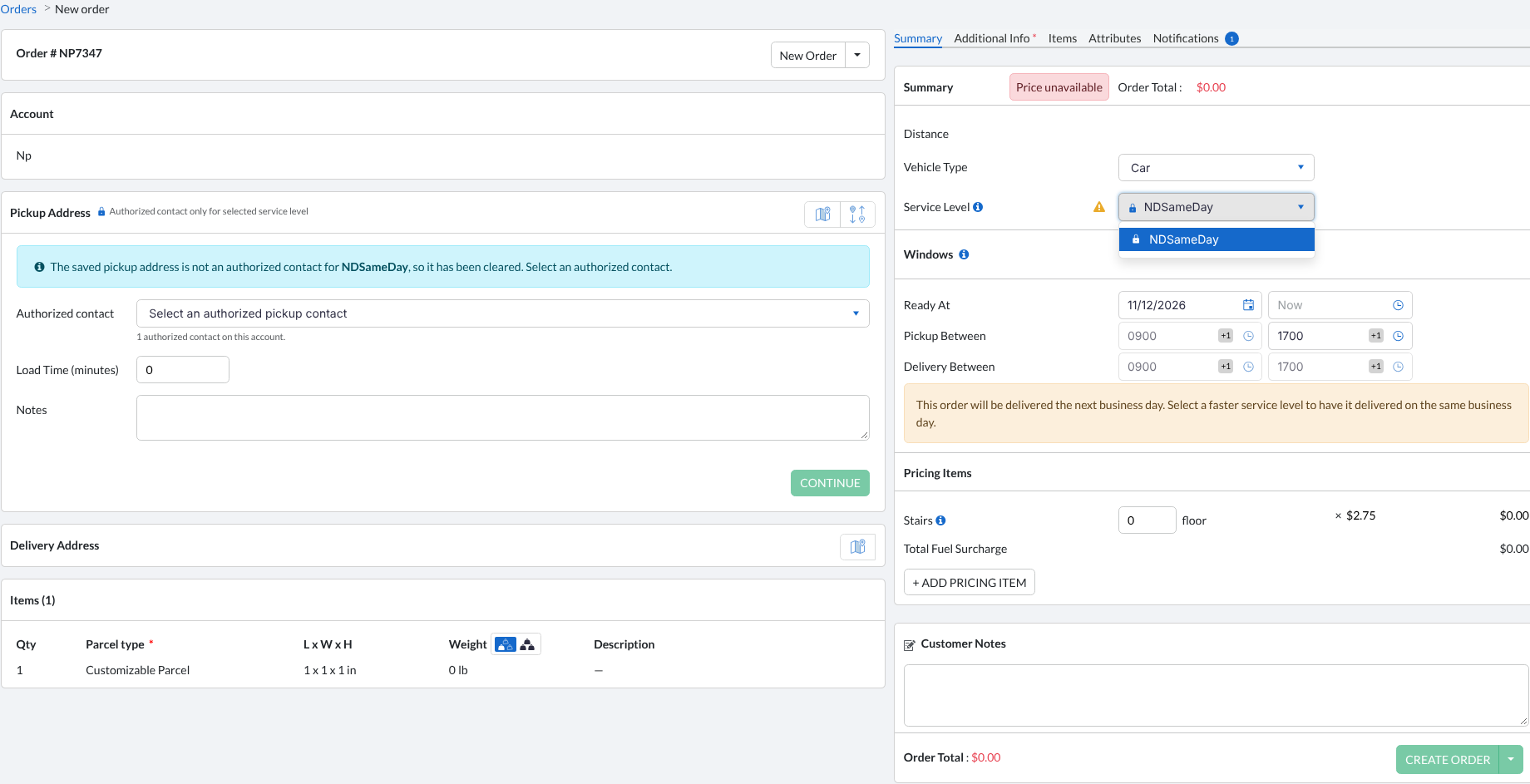
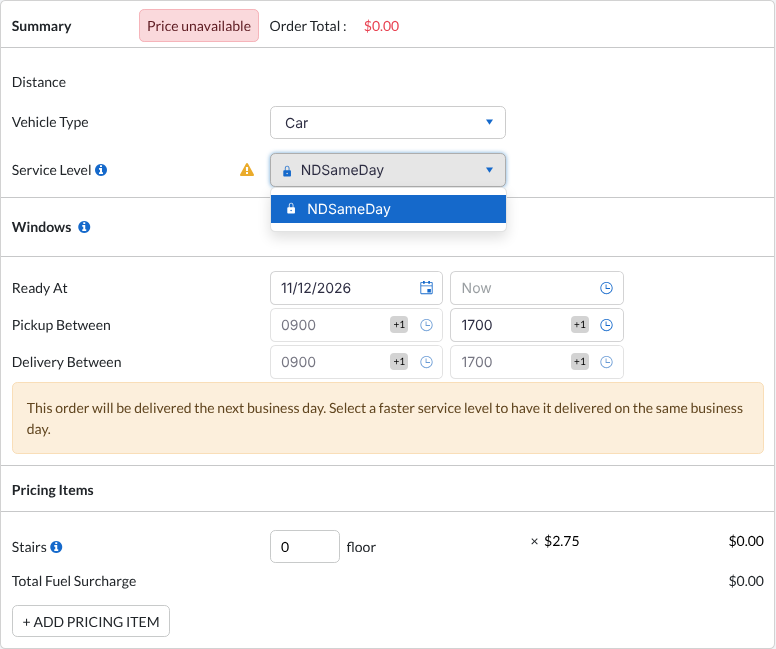
- Select the restricted service level.
- If the current pickup or delivery is not an authorized contact, the Authorized contact required dialog opens with one dropdown per address to replace. Select an authorized contact in each dropdown, then click Use Selected Contacts:
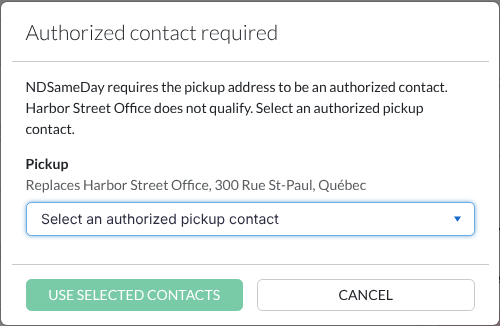
- Under At least one of pickup or delivery must match, one selection is enough, and the first choice of each dropdown is Keep the current address.
- Click Keep followed by the previous service level name (or Cancel if no service level was selected) to keep the previous service level.
- If the account has no authorized contact for a restricted address, the Service level not available dialog opens. Click Close. The previous service level is kept:
Fill a Restricted Pickup or Delivery
- Open the pickup (or delivery) card. The card header shows Authorized contact only for selected service level, and the number of authorized contacts on the account is shown until you select one:
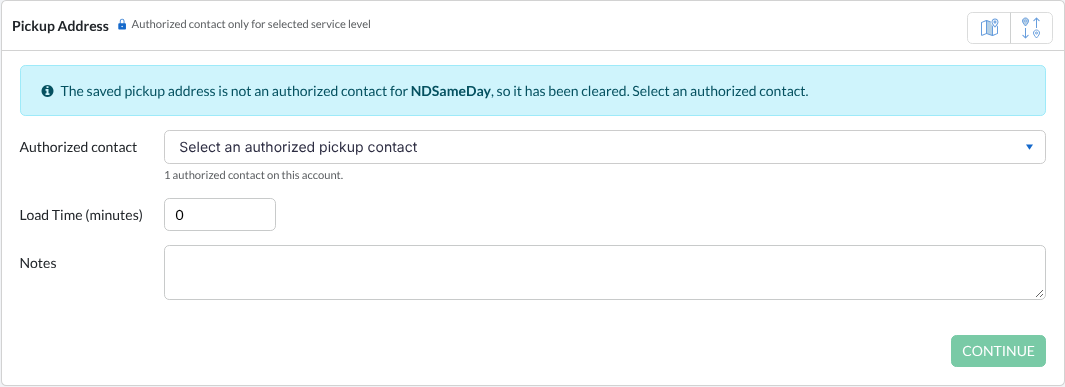
- In the Authorized contact dropdown, select a contact. Each choice shows the company and contact name above the address:
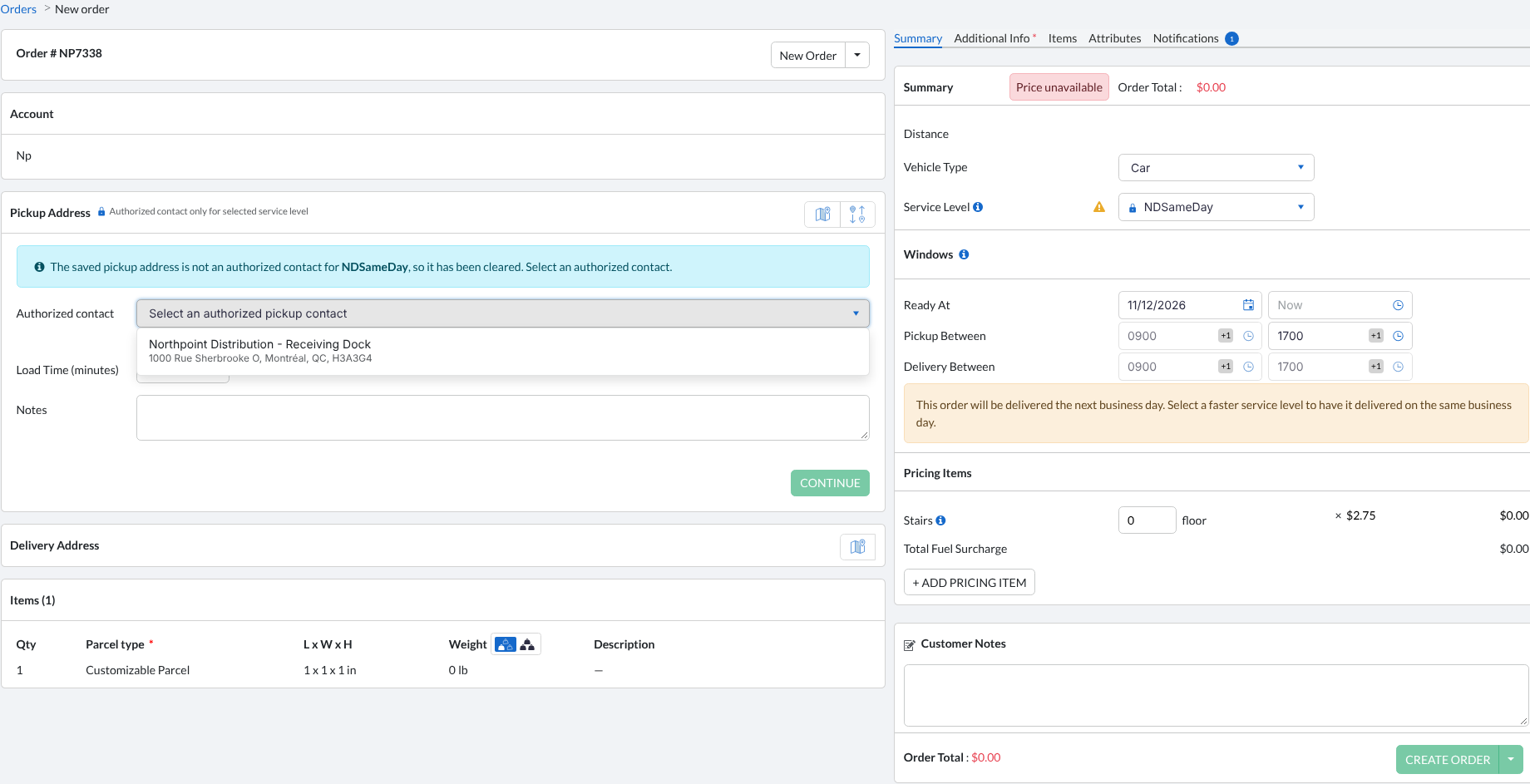
- Adjust Load Time (minutes) (or Unload Time (minutes)) and Notes if needed. The other address fields come from the selected contact and cannot be edited.
- Click Continue.
When Either Pickup or Delivery Is Enough
Under At least one of pickup or delivery must match, neither address is restricted on its own. Each card offers the authorized contacts in an optional dropdown, and you can also enter any contact and address. If the account has no authorized contact to offer, the card shows "Enter any contact and address below, or add the required attribute to a contact on this account."
While neither address is an authorized contact, a note under the service level and on each address card explains the rule, and Create Order is disabled:
Select an authorized contact for the pickup or the delivery to enable Create Order.
Swap Pickup and Delivery
Swapping pickup and delivery is prevented when a restricted address would no longer be an authorized contact. Swaps are not prevented when neither the pickup nor the delivery is a restricted address.
- Click the swap icon in the header of the pickup or delivery card.
- If the Addresses not swapped dialog opens, click Close. Both addresses stay in place:
Edit an Order on a Restricted Service Level
When an existing order is edited, only the addresses the edit changes are checked, and both addresses are checked when the service level changes. Editing any other field of the order is not prevented by the restriction. Existing orders are not checked again until someone changes their pickup, delivery or service level, and in a multi-segment order only the edited order is checked. Pickup, delivery and service level changes made from the Dispatch Board or the Driver App are not checked.
- Open the order to edit.
- Edit the pickup or delivery, or select another service level.
- Click Save.
When you select a restricted service level and an address does not qualify, the Authorized contact required dialog opens with a Use on Save button. The contacts you pick are held until you save the service level, and a Saving will also change notice lists them:
Nothing changes on the order until you save. Cancel keeps the current addresses.
When a saved pickup or delivery is not an authorized contact (for example, it was entered by a user with the bypass permission or changed by a system update), the address is kept. The card shows Not an authorized contact, its fields are read-only except Load Time (minutes), Unload Time (minutes) and Notes, and the Authorized contact dropdown lets you replace it with an authorized contact if you want. Save stays enabled:
Create an Order on a Restricted Service Level in the Self-Serve Portal
In the Self-Serve portal, customers create orders on a restricted service level with the same rules as in the Back Office (see Create an Order on a Restricted Service Level). A Self-Serve user is only offered a restricted service level when their authorized contacts can meet its restriction, unless the order already uses it.
- In the Self-Serve portal, open Create Order.
- Open the Service Level dropdown. The lock icon marks the restricted service levels:
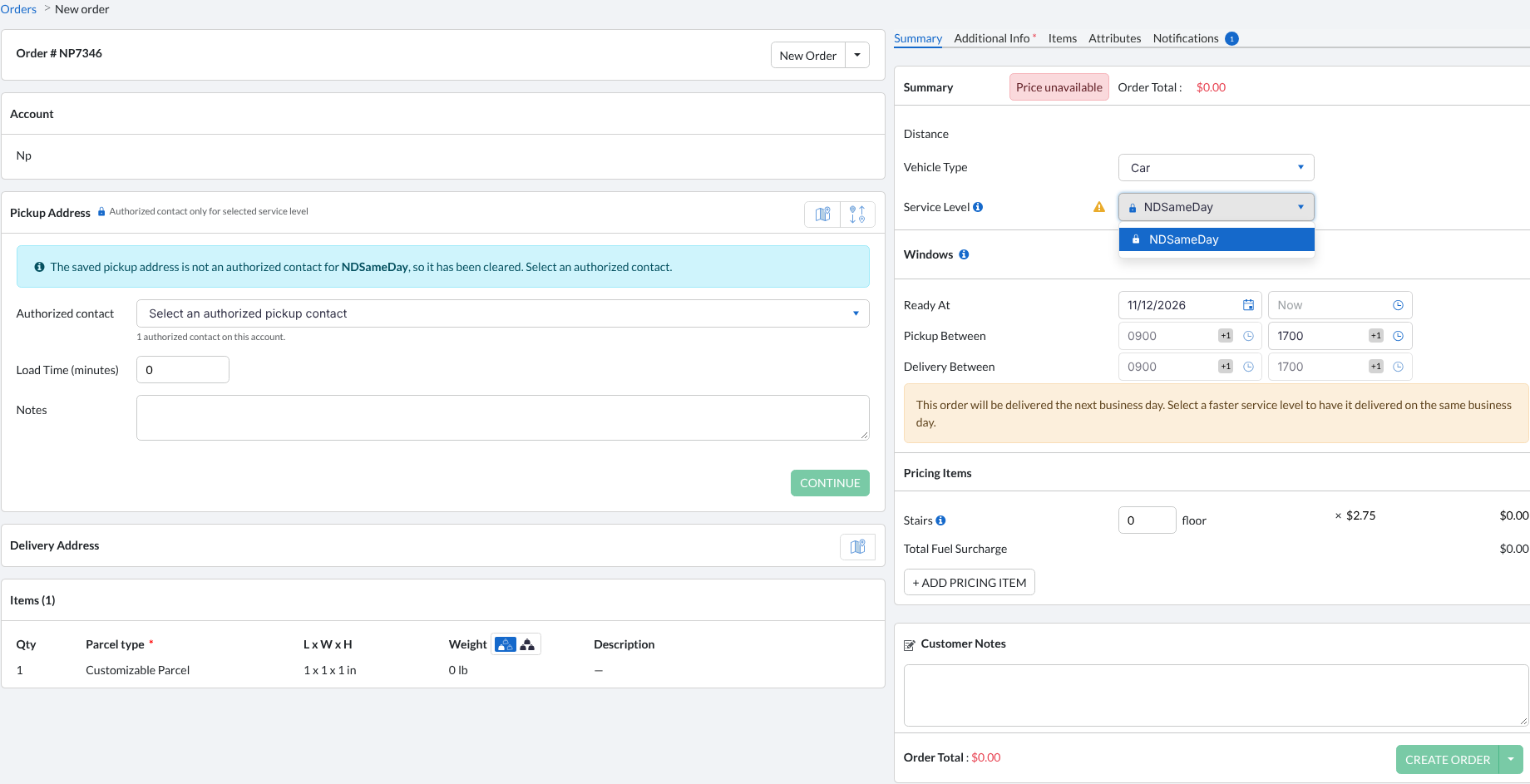
- Select the restricted service level.
- If the Authorized contact required dialog opens, select an authorized contact for each address, then click Use Selected Contacts.
- If the Service level not available dialog opens, click Close. The previous service level is kept:
- In the pickup (or delivery) card, select a contact in the Authorized contact dropdown:
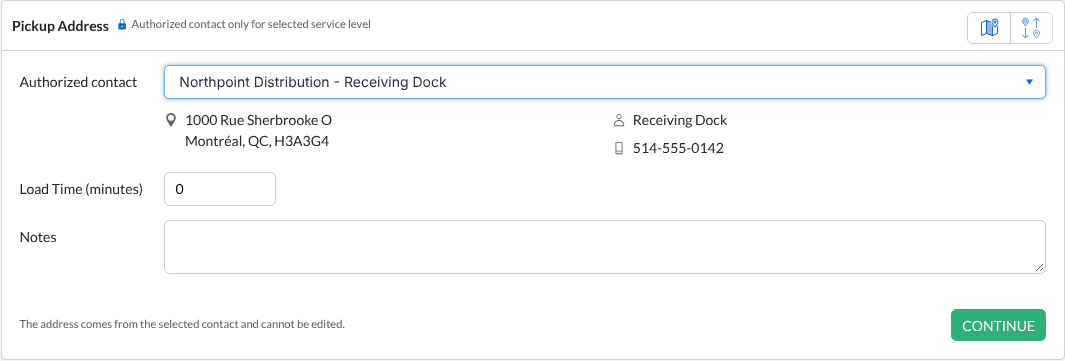
- Click Create Order.
Allow Users to Bypass the Restriction
The Orders - Bypass Service Level Restrictions permission lets Back Office users create, edit and confirm orders, and save order templates, with any address on a restricted service level. Users without it follow the rules described in the previous sections. The permission is selected by default for the Admin role type and the Administrator role template. It only applies to Back Office users: Self-Serve users never bypass the restriction, whatever their role.
Select the Permission on a Role
- Open the role assigned to the users who must use any address.
- Select the Orders - Bypass Service Level Restrictions permission.
- Save the role.
Order Screen Once the Permission Is Selected
Once the permission is selected, selecting a restricted service level opens no dialog, and the pickup and delivery accept any contact and address. When the account has authorized contacts, the address card offers them as a shortcut in the Authorized contact dropdown, above the divider or enter any contact and address below:
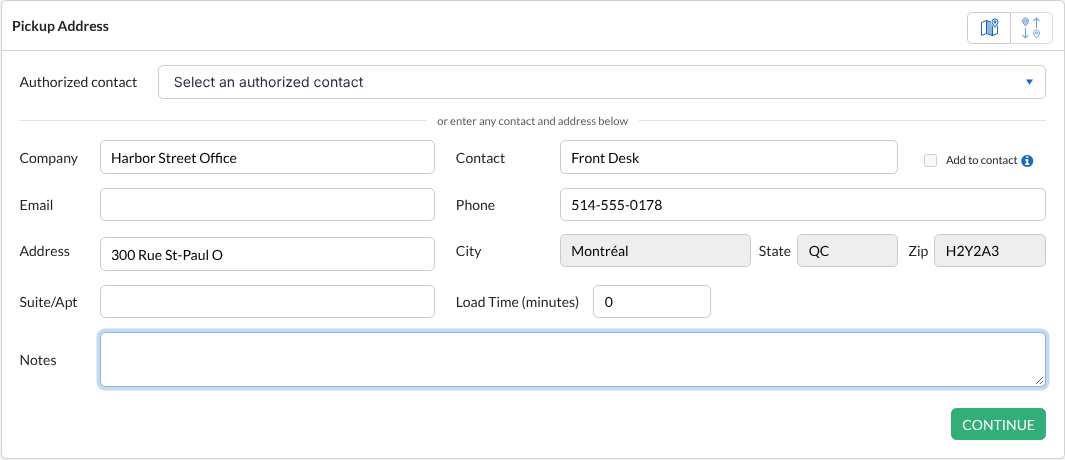
The header of each restricted address shows whether the address is an Authorized contact or Not an authorized contact. Hovering over Not an authorized contact shows the tooltip "This address is not an authorized contact for Express." (where Express is the selected service level):

The lock icon still marks restricted service levels in the Service Level dropdown. Swapping pickup and delivery and saving the order stay available whatever the addresses.
What Each User Type Sees
| On a Restricted Service Level | Self-Serve User | Back Office User Without the Permission | Back Office User With the Permission |
|---|---|---|---|
| Lock icon in the Service Level dropdown | Yes | Yes | Yes |
| Restricted service levels offered | Only when the user's authorized contacts can meet the restriction, or when the order already uses it | All | All |
| Selecting a service level the current addresses do not meet | Authorized contact required or Service level not available dialog | Authorized contact required or Service level not available dialog | No dialog |
| Restricted pickup or delivery | An authorized contact must be selected; its address cannot be edited | An authorized contact must be selected; its address cannot be edited | Any contact and address; authorized contacts offered as a shortcut |
| Swap pickup and delivery | Prevented when a restricted address would not be an authorized contact | Prevented when a restricted address would not be an authorized contact | Allowed |
| Order templates that do not meet the restriction | Not saved | Not saved | Saved |
| Imported orders that do not meet the restriction | Imported On Hold | Imported On Hold | Imported without hold |
Use Order Templates with a Restricted Service Level
Order templates follow the same screen rules as orders (see Create an Order on a Restricted Service Level). Without the bypass permission, a template whose addresses do not meet the restriction is not saved, and Create Template is disabled under the same conditions as Create Order. When a template is edited, only the addresses the edit changes are checked, or both when the service level changes.
- Open Create Template, or open the template to edit.
- Select the restricted service level, then select an authorized contact for each restricted address:
- Click Create Template (or Save).
In the Self-Serve portal, templates use the same controls and the restriction is never bypassed.
Impact on Order Imports and Other Order Sources
The restriction also applies to orders that are not created from the order screen.
Order Import Files
For an importer without the bypass permission, in the Back Office or the Self-Serve portal:
- A row whose pickup or delivery is not an authorized contact for the row's service level is imported but put On Hold, with the hold reason Restricted Service Level Bypassed. The restriction message is added as hold notes.
- The import result lists the row in its warnings, with a reason naming the pickup or the delivery.
- Valid rows are imported normally.
- A Back Office user without the bypass permission can release the order after review.
An import performed by a Back Office user with the bypass permission puts no order on hold for this reason.
In an order template import file, a template row whose addresses are not authorized contacts is not imported, and the message appears in the import result. Importers with the bypass permission are not affected.
Orders from the API and the Email Assistant
- API: orders created, confirmed, quoted, returned, duplicated or updated through the API are checked, and a request that does not meet the restriction is prevented with the restriction message. Through the Tenant API, the bypass permission of the API user applies; customer API calls never bypass the restriction.
- Email assistant: emailed quotes and order requests whose addresses are not authorized contacts do not create an order, and the restriction message is sent back to the sender.
Exceptions and Limitations
Users and Apps Not Restricted
- Back Office users with the Orders - Bypass Service Level Restrictions permission can create orders with any address.
- Order changes made by order update scripts, rules and other system updates are not checked.
- Pickup, delivery and service level changes made from the Dispatch Board are not checked.
- Pickup, delivery and service level changes made from the Driver App are not checked, and orders created from the Driver App are not checked either.
Changes That Are Not Checked
- Segment orders of a multi-segment order are created without the check: only the order being created or edited is checked.
- On an existing order or template, an edit that does not change the pickup, the delivery or the service level is not checked.
Records Not Checked Again
- Existing orders and templates keep their addresses, even when those addresses are no longer authorized contacts, until someone changes their pickup, delivery or service level.
- Orders created from a template are not checked for addresses that still use the template's contact and address.
- Recurring orders are still created from a template whose addresses are not authorized contacts.
Imported Orders on Hold
Imported orders that do not meet the restriction are not prevented: they are imported On Hold for review (see Order Import Files). An order already on hold for another reason stays as it is, with a warning only. If the Restricted Service Level Bypassed hold reason is not available, the order is imported without hold, with a warning only.
Configuration That Prevents or Blocks a Restriction
- A service level set to No restriction checks no address. This is the intended way to leave a service level open to every address. See Change or Remove an Address Restriction.
- Reattempt and custom service levels cannot be restricted. See When You Can Set an Address Restriction.
- Archiving an attribute does not lift the restriction. An archived attribute authorizes no contact, so if every attribute selected for the pickup (or delivery) of a service level is archived, no contact qualifies for that address and only users with the bypass permission can create orders on that service level. Under At least one of pickup or delivery must match, the other address can still meet the rule. To lift the restriction, set the service level to No restriction. See Archive an Attribute.
- Restricted Service Level attributes are not shown to Self-Serve users on their contact screens, so Self-Serve users cannot assign them from those screens. See Assign a Contact's Attributes in the Self-Serve Portal.
Self-Serve Specifics
- Self-Serve users never bypass the restriction, whatever their role.
- A restricted service level is not offered to a Self-Serve user whose authorized contacts cannot meet it, unless the order already uses it.
- The Authorized contact dropdown lists authorized contacts even for Self-Serve users who do not have permission to view contacts.
Troubleshooting
In the messages below, Express stands for the name of the selected service level.
| Message or Symptom | Cause | What to Do |
|---|---|---|
| Service level not available dialog: "Add the required attribute to a contact on this account, or select another service level." | The account has no authorized contact for a restricted address of the service level. | Assign the attribute to a contact of the account (Assign a Contact's Attributes in the Back Office), or select another service level. |
| Self-Serve: "Contact your dispatcher to have an authorized contact added to your account, or select another service level." | The account has no authorized contact for a restricted address. | Contact your dispatcher, or select another service level. See Create an Order on a Restricted Service Level in the Self-Serve Portal. |
| "No authorized pickup contact is available for Express." (or delivery) with "Add the required attribute to a contact in this account, or select a different service level." | The order's service level is restricted and the account has no authorized contact for this address. The address fields are read-only. | Assign the attribute to a contact of the account, or select another service level. See Fill a Restricted Pickup or Delivery. |
| Authorized contact required dialog | The current pickup or delivery is not an authorized contact for the selected service level. | Select an authorized contact for each address, or keep the previous service level. See Select a Restricted Service Level. |
| Addresses not swapped dialog | The swap would put an address that is not an authorized contact on a restricted address. | Click Close and change the addresses in their cards. See Swap Pickup and Delivery. |
| "Either this address or the delivery address must be an authorized contact. Neither is yet." and Create Order disabled | The service level requires at least one authorized address, and neither address is an authorized contact. | Select an authorized contact for the pickup or the delivery. See When Either Pickup or Delivery Is Enough. |
| "Express requires the pickup address to be an authorized contact." (or the delivery address, or both) | The order was submitted with a restricted address that is not an authorized contact, for example through the API or the email assistant. | Use an authorized contact for that address, or select another service level. See Orders from the API and the Email Assistant. |
| "Express requires an authorized contact for either the pickup or the delivery address. Neither address on this order is an authorized contact. Change one of the two addresses, or select another service level." | Neither address of the order (or order template) is an authorized contact. | Change one of the two addresses to an authorized contact, or select another service level. See When Either Pickup or Delivery Is Enough. |
| A contact is missing from the Authorized contact dropdown | The contact does not belong to the order's account or user, its attribute assignment is outside its start and end dates, or its attribute is archived or not selected on the service level. | Check the contact's attribute assignment and dates. See Assign a Contact's Attributes in the Back Office. |
| A restricted service level is missing from the Self-Serve Service Level dropdown | The user's authorized contacts cannot meet the restriction. | Assign the attribute to the contacts the customer needs. See Self-Serve Specifics. |
| Imported order On Hold with the hold reason Restricted Service Level Bypassed | The row's pickup or delivery is not an authorized contact for its service level. | Review the order, then correct its addresses or release it. See Order Import Files. |
| "This Restricted Service Level attribute cannot change type because it is assigned to the following contacts:" followed by the contact list | The attribute has active or upcoming assignments on contacts. | See Change the Type. |
| "This Restricted Service Level attribute cannot change type because it is used by the following service levels:" followed by the service level list | Service levels still select the attribute in their Address Restrictions. | See Change the Type. |
| "Select at least one attribute for the pickup address." (or the delivery address) | The Restriction Applies To mode uses this address, but no attribute is selected for it. | See Allowed Contact Attributes. |
| "Start Date must be before End Date" | The attribute assignment on the contact ends before it starts. | See Assign a Contact's Attributes in the Back Office. |
Was this article helpful?
That’s Great!
Thank you for your feedback
Sorry! We couldn't be helpful
Thank you for your feedback
Feedback sent
We appreciate your effort and will try to fix the article