Importing order templates from a CSV file lets you create many Order Templates in one operation instead of creating each one manually. Dispatch Science checks the file before anything is created and shows, for each template, whether it will be imported.
Table of Contents
- Configure Who Can Import Order Templates
- Open the Import Templates View
- Download a Starter File
- Lay Out Order Templates in the File
- CSV Column References
- Select and Validate a File
- Read the Validation Results
- Blockers & Preconditions
- Import the Order Templates
- Review Previous Imports
Configure Who Can Import Order Templates
Importing order templates requires the Import permission of the Order Templates section (Order Templates - Import). On the role screen, it is the row with Order Templates in the Name column and Import in the Permission column. Once the permission is selected, users of the role see Import Templates on the Order Templates page. They can then download starter files, validate and import files, and open Previous Imports.
The permission is offered for Back Office roles only: Customer Portal roles do not offer it. Existing Admin roles and the Administrator role template have it selected by default. Any other role needs it selected.
Editing a role requires the permission to manage roles. To give a role access to the import, follow these steps:
- Navigate to Settings > Configurations > System > Roles.
- Click New Role to create a Back Office role, or click the name of an existing Back Office role to edit it.
- In the Permissions grid, on the row with Order Templates in Name and Import in Permission, select the option in the Action column:

- Click Save.
Open the Import Templates View
You need the Order Templates - Import permission to open this view (see Configure Who Can Import Order Templates).
- Navigate to Orders > Templates.
- Click Import Templates, to the right of New Template:
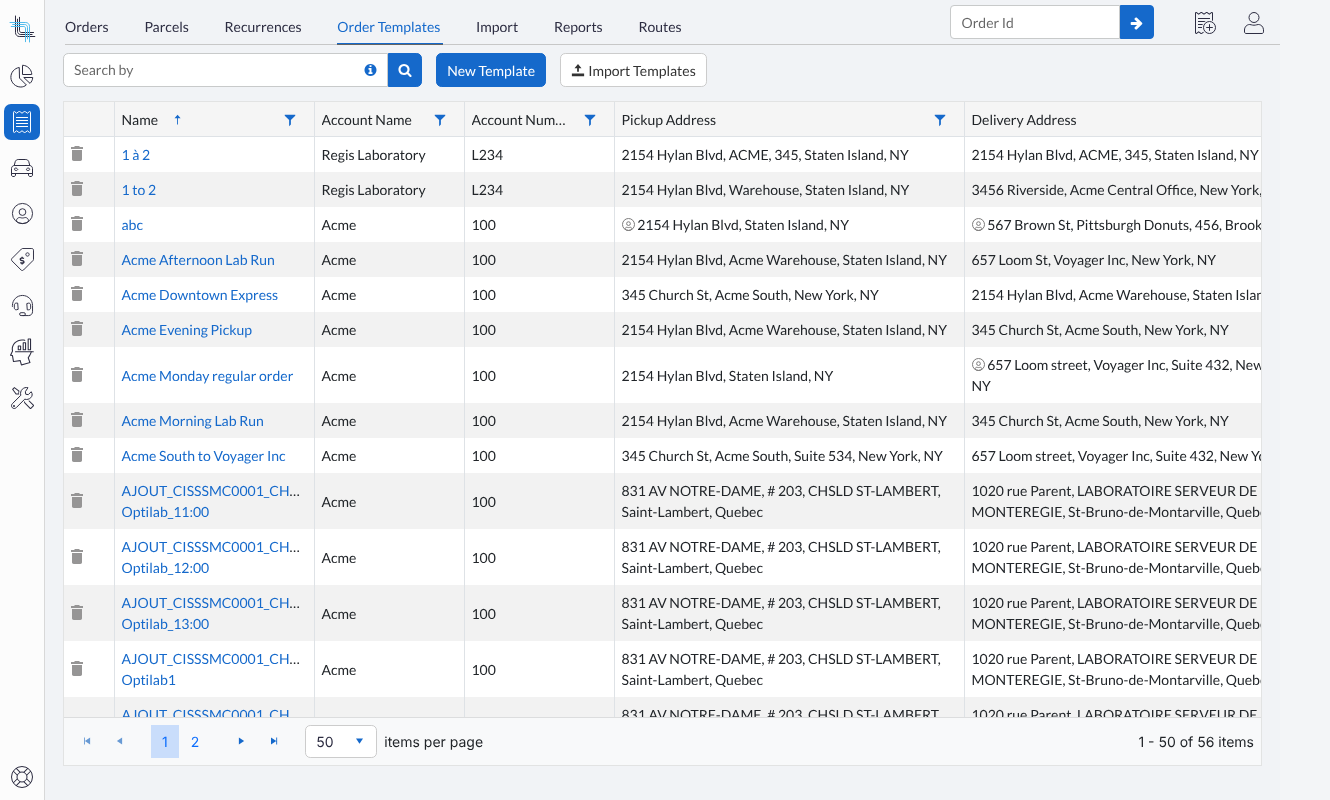
The Import Templates page opens:
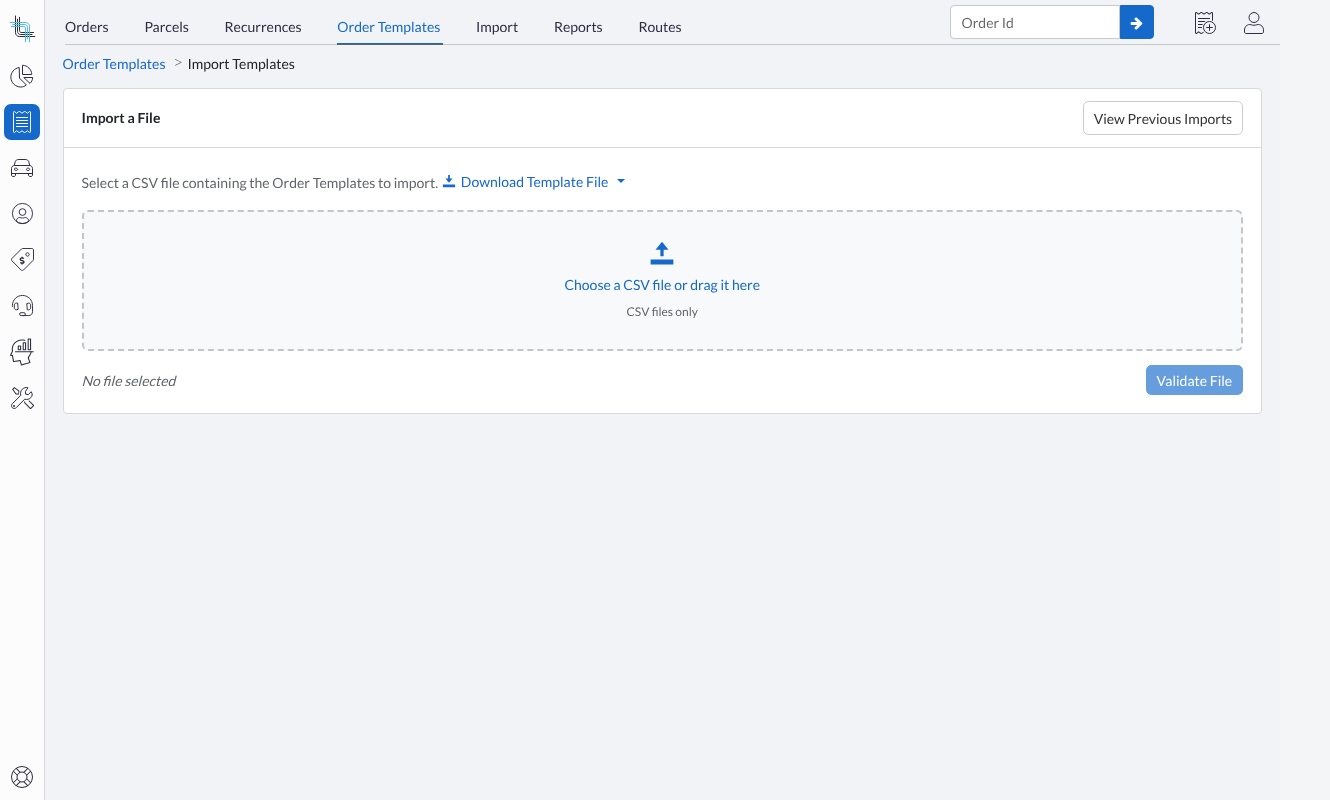
Download a Starter File
A starter file is a CSV file that contains only the header row, with the supported column names. Use it as the base of your import file.
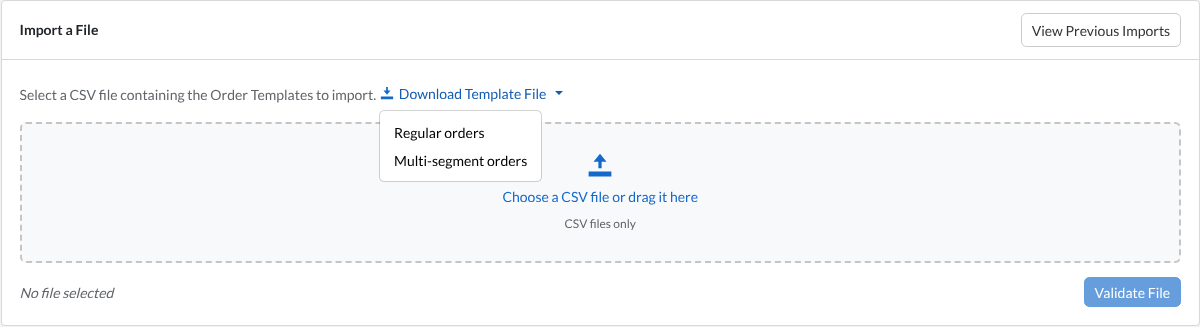
- On the Import Templates page, click Download Template File.
- Click Regular orders or Multi-segment orders. The file downloads in a new tab.
| Starter File | File Name | Columns |
|---|---|---|
| Regular orders | order-templates-regular.csv | The 79 columns for regular templates, without the hub columns. |
| Multi-segment orders | order-templates-multi-segment.csv | All 92 columns, including the hub columns. |
Both files are saved as UTF-8, comma-separated. A starter file you just downloaded never raises an unmapped-column warning. Download Template File is shown until the selected file has been validated.
Lay Out Order Templates in the File
Each order template is a block of rows. The first row of the block holds the template details, and the rows below it can add more entries to lists such as items or Extra Fees.
Save the File as UTF-8 CSV
Save the file as UTF-8 (with or without a byte-order mark), with commas as the delimiter. Blank lines are skipped, and spaces around cell values are removed.
Keep the Header Row
The first row of the file is the header row. Column names are matched to the supported columns without regard to case or surrounding spaces, and the column order does not matter. A column that matches no supported column is ignored, with a warning. Keep the header row of the starter file unchanged to avoid these warnings.
Fill the Details on the First Row
A row that fills any details column (any column outside the Extra Fee, item, attribute, order user field and hub columns) starts a new order template. The template details, including its mandatory values, are read from this first row only.
Add One Entry per Row Below It
A row that fills only Extra Fee, item, attribute, order user field or hub columns adds entries to the template above it. Each list is read row by row on its own, so the lists do not need to line up: a template can have three items and one Extra Fee. The next template starts on the next row that fills a details column again.
A row with only these list columns placed before the first template's row continues no template and is ignored, with a warning.
Enter Several Values in One Cell
Only AttributeId, OrderUserFieldId and OrderUserFieldValue accept several values in one cell, separated by ;. You can combine values in one cell with values on further rows. No other column is split.
Example Layout
In this example, only a few columns are shown. The first template has two items and two attributes; the second template has one item:
| TemplateName | AccountNo | ItemParcelTypeId | ItemWeight | AttributeId |
|---|---|---|---|---|
| Template A | 1001 | BOX | 2.5 | FRAGILE;COLD |
| ENVELOPE | 0.2 | |||
| Template B | 1002 | BOX | 1 |
CSV Column References
The import file supports 92 columns. In the tables below, Mandatory means that the column must be in the header row and filled on the template's first row. Columns marked "for each entry" are required only on rows that add an entry to their list.
Typed columns must hold a value in the following formats:
| Format | Expected Value |
|---|---|
| Boolean | true or false (any case), or 1 or 0. An empty cell means false, unless the column says otherwise. |
| Whole number | A number without decimals, for example 12. |
| Decimal | A number with . as the decimal separator, for example 1250.50. A , thousands separator is accepted; a currency sign such as $ is not. |
| Number | A number with . as the decimal separator; fractions and thousands separators are accepted. |
| Time | A time of day as h:mm, hh:mm, h:mm:ss or hh:mm:ss, for example 8:30. A bare number is not accepted. |
An empty cell means the value is not set. A value that cannot be read in its format skips the template.
Template Details
Identity and Usage
| Column | Mandatory | Expected Value | Description |
|---|---|---|---|
| TemplateName | Yes | Text | Name of the order template. It must not already be used by an existing order template, and must be unique within the file (not case-sensitive). |
| AccountNo | Yes | Account identifier | Account of the template. Enter the account's identifier, not its separate account number. The account must exist. |
| CallerUserEmail | Yes | Email address | Caller of the template: the email of a user who belongs to the account, or who can use the account through a Master Account (not case-sensitive). |
| IsForRecurringOrder | No | Boolean | Makes the template usable for recurring orders. At least one of the three IsFor columns must be true. When true, every item needs an ItemParcelTypeId. |
| IsForCsrStandaloneOrder | No | Boolean | Makes the template usable for CSR orders created in the Back Office. At least one of the three IsFor columns must be true. |
| IsForSelfserveStandaloneOrder | No | Boolean | Makes the template usable for Customer Portal orders. At least one of the three IsFor columns must be true. |
| CanBeModifiedBySelfserve | No | Boolean | Allows Customer Portal users to modify the template. Kept only when IsForSelfserveStandaloneOrder is true; otherwise it is stored as false, without a notice. |
| PreventDeliveryPriceModification | No | Boolean | Prevents the delivery price from being modified on orders created from the template, unless the user's role has the Prices for Orders Created from Locked Template permission of the Orders section. |
| PreventExtraFeesPriceModification | No | Boolean | Prevents the Extra Fee prices from being modified on orders created from the template, unless the user's role has the Prices for Orders Created from Locked Template permission of the Orders section. |
| UseInfosFromContactForPickup | No | Boolean | When true, the pickup information comes from the address-book contact in PickupContactId, which must be valid for the account and the caller. The file's pickup address, contact name, email, phone and language are then not stored, but the mandatory pickup address columns must still be filled. |
| UseInfosFromContactForDelivery | No | Boolean | Same as UseInfosFromContactForPickup, for the delivery, with DeliveryContactId. |
Service and Routing
| Column | Mandatory | Expected Value | Description |
|---|---|---|---|
| ServiceLevelId | Yes | Service Level ID | Service Level of the template. With VehicleTypeId, it must form a pair offered in the account's Service Level Schedule and available for templates, unless your role gives access to all Service Levels and vehicles. A reattempt Service Level is not accepted. A Service Level that restricts addresses also checks the pickup and delivery contacts. |
| VehicleTypeId | Yes | Vehicle type ID | Vehicle type of the template. See ServiceLevelId. |
| DefaultDriverId | No | Driver ID | Default Driver of the template. It must be an existing Driver, and it is not allowed on a multi-segment template. |
| OrderProfileId | No | Order profile ID | Order profile of the template. It must be one of the account's order profiles available for manual override. The template is recorded with its order profile manually overridden, and this profile's configuration is used to check the reference numbers and order user fields. |
| RouteName | No | Text: letters, digits, _ and - only |
Route name of the template. It is cleared, without a notice, on a multi-segment template. |
Notes and Reference Numbers
| Column | Mandatory | Expected Value | Description |
|---|---|---|---|
| Notes | No | Text | Stored as the template's driver notes. |
| InternalNotes | No | Text | Internal notes of the template. |
| ReferenceNumber1 | No | Text | First reference number. It is checked against the reference-number configuration of the account profile. |
| ReferenceNumber2 | No | Text | Second reference number, checked like ReferenceNumber1. |
| ReferenceNumber3 | No | Text | Third reference number, checked like ReferenceNumber1. |
Pickup and Delivery Window Override
The eight window columns are stored only when OverridePickupAndDeliveryWindow is true. When it is false or empty, they are ignored without a notice.
| Column | Mandatory | Expected Value | Description |
|---|---|---|---|
| OverridePickupAndDeliveryWindow | No | Boolean | When true, the template uses the pickup and delivery window set in the eight columns below, and all eight become required. |
| PickupFromDayOffset | Only when the override is true |
Whole number, 0 or more | Day offset of the start of the pickup window. It cannot be greater than PickupToDayOffset or DeliveryFromDayOffset. |
| PickupToDayOffset | Only when the override is true |
Whole number, 0 or more | Day offset of the end of the pickup window. |
| PickupFromTime | Only when the override is true |
Time | Start time of the pickup window. With equal day offsets, it must not be after PickupToTime or DeliveryFromTime. |
| PickupToTime | Only when the override is true |
Time | End time of the pickup window. |
| DeliveryFromDayOffset | Only when the override is true |
Whole number, 0 or more | Day offset of the start of the delivery window. It cannot be greater than DeliveryToDayOffset. |
| DeliveryToDayOffset | Only when the override is true |
Whole number, 0 or more | Day offset of the end of the delivery window. |
| DeliveryFromTime | Only when the override is true |
Time | Start time of the delivery window. With equal day offsets, it must not be after DeliveryToTime. |
| DeliveryToTime | Only when the override is true |
Time | End time of the delivery window. |
Collection and Identity Validation
The columns of this group, except GenerateProofOfDeliveryOnDelivery, depend on the options the account allows. A value the account does not allow is ignored and marked (ignored), and the template is still created.
| Column | Mandatory | Expected Value | Description |
|---|---|---|---|
| CollectOnDelivery | No | Decimal (amount) | Amount to collect on delivery. Kept only when the account allows collect on delivery. |
| CollectOnPickup | No | Decimal (amount) | Amount to collect on pickup. Kept only when the account allows collect on pickup. |
| AllowPartialCollectOnDelivery | No | Boolean | Allows a partial collection on delivery. Kept only when the account allows collect on delivery and partial collect on delivery. |
| AllowPartialCollectOnPickup | No | Boolean | Allows a partial collection on pickup. Kept only when the account allows collect on pickup and partial collect on pickup. |
| RequireIdentityValidation | No | Boolean | Requires identity validation on delivery. Kept only when the account allows identity validation on delivery. |
| RequireIdentityValidationOnPickup | No | Boolean | Requires identity validation on pickup. Kept only when the account allows identity validation on pickup. |
| GenerateProofOfDeliveryOnDelivery | No | Boolean; empty means the account's default | Generates a proof of delivery on delivery. Any value, true or false, skips the template when the account is not configured to use Proof of Delivery templates. When empty, the account's proof-of-delivery default applies if the account has a proof-of-delivery report template. |
| PackageValidationOption | No | NoValidation, PickupOnly, DeliveryOnly or PickupAndDelivery (any case), or 0, 1, 2 or 3 |
Package validation option of the template. Kept only when the account allows the package validation option to be set on order templates. |
Price
| Column | Mandatory | Expected Value | Description |
|---|---|---|---|
| DeliveryChargePrice | No | Decimal (amount) | Replaces the calculated delivery charge of the template. When empty, the calculated price is kept. |
Pickup
| Column | Mandatory | Expected Value | Description |
|---|---|---|---|
| PickupAddressLine1 | Yes | Text | First line of the pickup address. |
| PickupAddressLine2 | No | Text | Second line of the pickup address. |
| PickupCity | Yes | Text | City of the pickup address. |
| PickupPostalCode | Yes | Text | Postal code of the pickup address. |
| PickupStateProvince | Yes | Text | State or province of the pickup address. |
| PickupCompany | No | Text | Company at the pickup address. |
| PickupContactId | No | Whole number (address-book contact ID) | Address-book contact for the pickup. Required when UseInfosFromContactForPickup is true. Checked when the Service Level restricts addresses. |
| PickupContactName | No | Text | Name of the pickup contact. |
| PickupContactPhone | No | Text | Phone number of the pickup contact. |
| PickupContactEmail | No | Email address | Email of the pickup contact. When filled and no PickupContactId is given, it must be a valid email address. |
| PickupContactLanguage | No | en, fr or es |
Language of the notifications sent to the pickup contact. The import does not check the value. |
| PickupNotes | No | Text | Notes for the pickup. |
| PickupDurationInMinutes | No | Whole number (minutes) | Duration of the pickup, in minutes. Empty means 0. |
Delivery
| Column | Mandatory | Expected Value | Description |
|---|---|---|---|
| DeliveryAddressLine1 | Yes | Text | First line of the delivery address. |
| DeliveryAddressLine2 | No | Text | Second line of the delivery address. |
| DeliveryCity | Yes | Text | City of the delivery address. |
| DeliveryPostalCode | Yes | Text | Postal code of the delivery address. |
| DeliveryStateProvince | Yes | Text | State or province of the delivery address. |
| DeliveryCompany | No | Text | Company at the delivery address. |
| DeliveryContactId | No | Whole number (address-book contact ID) | Address-book contact for the delivery. Required when UseInfosFromContactForDelivery is true. Checked when the Service Level restricts addresses. |
| DeliveryContactName | No | Text | Name of the delivery contact. |
| DeliveryContactPhone | No | Text | Phone number of the delivery contact. |
| DeliveryContactEmail | No | Email address | Email of the delivery contact. When filled and no DeliveryContactId is given, it must be a valid email address. |
| DeliveryContactLanguage | No | en, fr or es |
Language of the notifications sent to the delivery contact. The import does not check the value. |
| DeliveryNotes | No | Text | Notes for the delivery. |
| DeliveryDurationInMinutes | No | Whole number (minutes) | Duration of the delivery, in minutes. Empty means 0. |
Items
Enter one item per row. A row that fills any item column adds an item to the template.
| Column | Mandatory | Expected Value | Description |
|---|---|---|---|
| ItemParcelTypeId | Only when IsForRecurringOrder is true (for each item) |
Parcel Type ID | Parcel Type of the item. It must be in the account's Parcel Type Schedule. |
| ItemDescription | No | Text | Description of the item. |
| ItemWeight | No | Number | Weight of the item. Empty means 0. |
| ItemHeight | No | Decimal | Height of the item. When the item has a Parcel Type, allowed only if that Parcel Type has customizable dimensions. |
| ItemLength | No | Decimal | Length of the item. When the item has a Parcel Type, allowed only if that Parcel Type has customizable dimensions. |
| ItemWidth | No | Decimal | Width of the item. When the item has a Parcel Type, allowed only if that Parcel Type has customizable dimensions. |
| ItemBarcodeTemplate | No | Text | Barcode template of the item. |
Extra Fees
Enter one Extra Fee per row.
| Column | Mandatory | Expected Value | Description |
|---|---|---|---|
| ExtraFeeId | Yes, for each entry | Extra Fee ID | Extra Fee to add. A fee that is not in the account's Extra Fee Schedule, or a restricted fee your role cannot add, is ignored and marked (ignored); the template is still created. A system-default fee in the account's Extra Fee Schedule is accepted whatever your role. |
| ExtraFeeQty | Yes, for each entry | Decimal | Quantity of the Extra Fee. |
| ExtraFeeUnitPrice | No | Decimal (amount) | Unit price of the Extra Fee. Kept only when it, or ExtraFeeTotalPrice, differs from the calculated price; when empty, the calculated price is kept. |
| ExtraFeeTotalPrice | No | Decimal (amount) | Total price of the Extra Fee. Kept only when it differs from the calculated price; when empty, the calculated price is kept. |
Attributes
| Column | Mandatory | Expected Value | Description |
|---|---|---|---|
| AttributeId | No | Attribute ID; several IDs in one cell separated by ; |
Attribute of the template. Enter one per row, several per cell, or both. Duplicate IDs are removed (not case-sensitive). |
Order User Fields
| Column | Mandatory | Expected Value | Description |
|---|---|---|---|
| OrderUserFieldId | Yes, for each entry | Order user field ID; several IDs in one cell separated by ; |
Order user field to fill. It is checked against the order user field configuration of the account profile. A row with a value but no ID is reported as missing. |
| OrderUserFieldValue | No | Text; several values in one cell separated by ; |
Value of the order user field. Each value is paired with the ID at the same position in OrderUserFieldId; an ID without a matching value gets no value. |
Hubs (Multi-Segment Only)
The hub columns are in the Multi-segment orders starter file only. Enter one hub per row. A template with at least one hub entry is created as a multi-segment template. Each hub uses the information of its contact.
| Column | Mandatory | Expected Value | Description |
|---|---|---|---|
| HubAddressLine1 | Yes, for each entry | Text | First line of the hub address. |
| HubAddressLine2 | No | Text | Second line of the hub address. |
| HubCity | Yes, for each entry | Text | City of the hub address. |
| HubPostalCode | Yes, for each entry | Text | Postal code of the hub address. |
| HubStateProvince | Yes, for each entry | Text | State or province of the hub address. |
| HubCompany | No | Text | Company at the hub. |
| HubContactId | Yes, for each entry | Whole number (address-book contact ID) | Address-book contact of the hub. It must be valid for the account and the caller. |
| HubContactName | No | Text | Name of the hub contact. |
| HubContactPhone | No | Text | Phone number of the hub contact. |
| HubContactEmail | No | Email address | Email of the hub contact. The import does not check its format. |
| HubContactLanguage | No | en, fr or es |
Language of the notifications sent to the hub contact. The import does not check the value. |
| HubLoadTimeInMinutes | No | Number (minutes) | Stop duration at the hub, in minutes. Empty means 0. |
| HubNotes | No | Text | Stop notes at the hub. |
Select and Validate a File
Validation checks the file against your current data and shows the result for each template. Validating creates nothing.
- In the Import a File section, click Choose a CSV file or drag it here and select your file, or drag the file onto that area:
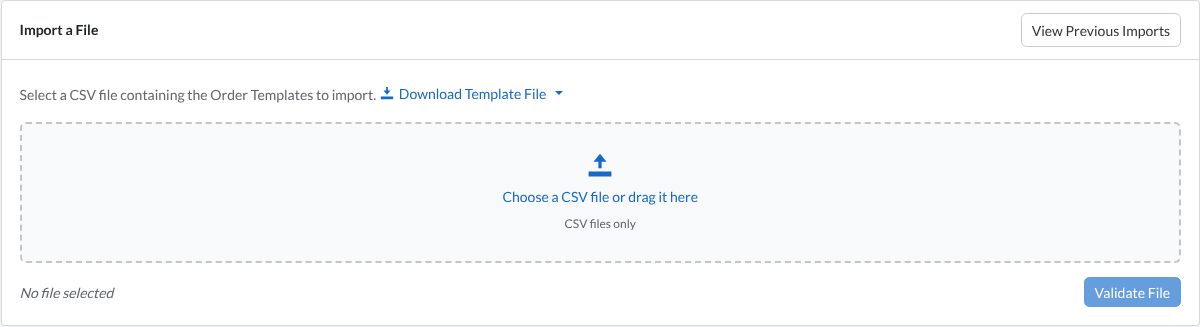
- Check the file name shown. To use a different file, click Remove (the x icon beside the file name), then select another file:
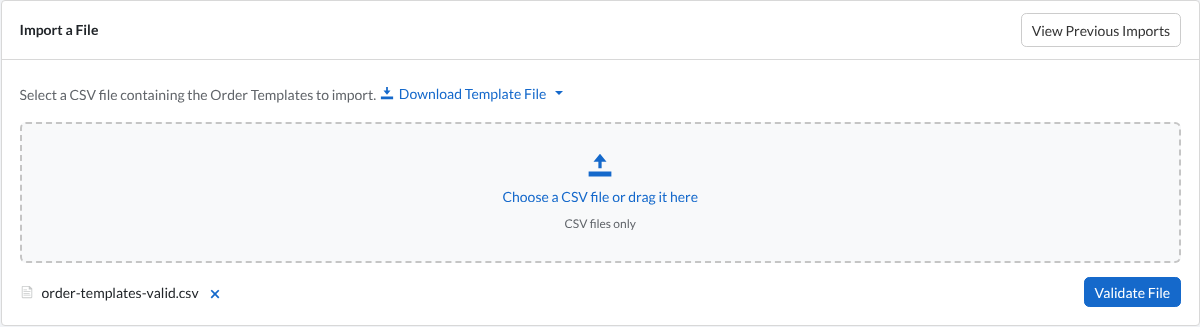
- Click Validate File. The button shows Validating… while the file is checked:
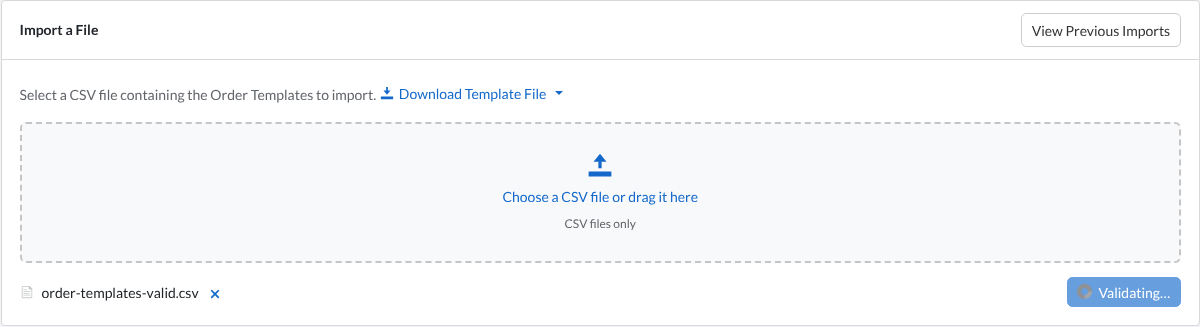
When validation ends, the Validation section shows the results. After validation, Choose another file replaces the selection area, with the validated file name beside it. Validate File is available only when a file is selected and has not been validated yet.
Selecting another file, clicking Remove or clicking Choose another file clears the previous result. Validate the new file before you import it.
Read the Validation Results
Each template gets one outcome. The causes of each outcome are listed in Blockers & Preconditions.
| Outcome | What Happens on Import |
|---|---|
| Will import | The template is created. |
| Will import, with values ignored | The template is created without the ignored values. |
| Skipped | The template is not created; the other templates are still imported. |
| Blocked | The file has an error: no template can be imported. |
Banners
One banner sums up the validation:
| Banner | When It Is Shown |
|---|---|
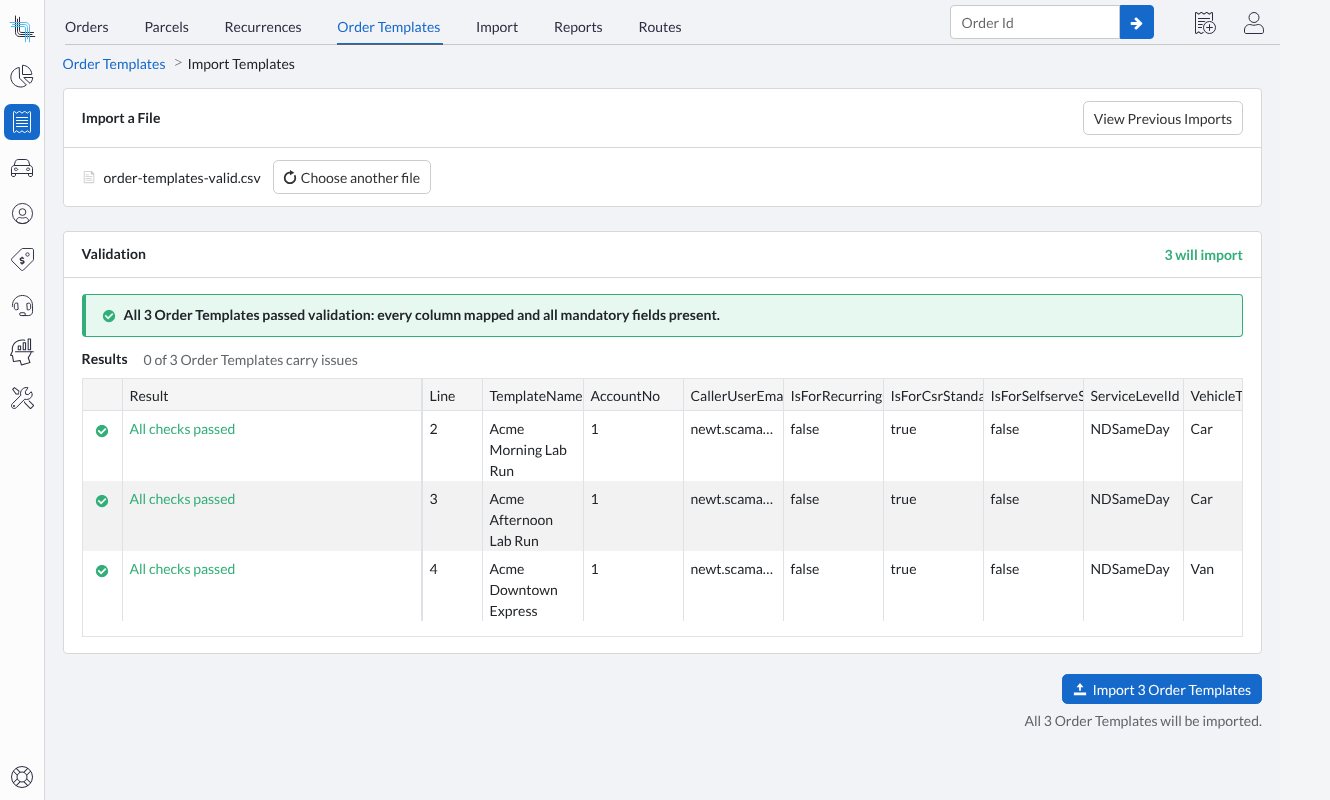
| Green: "All 12 Order Templates passed validation: every column mapped and all mandatory fields present." (with your number of templates) | The file has no issue at all. For a single template, the banner reads "The Order Template passed validation: every column mapped and all mandatory fields present." |
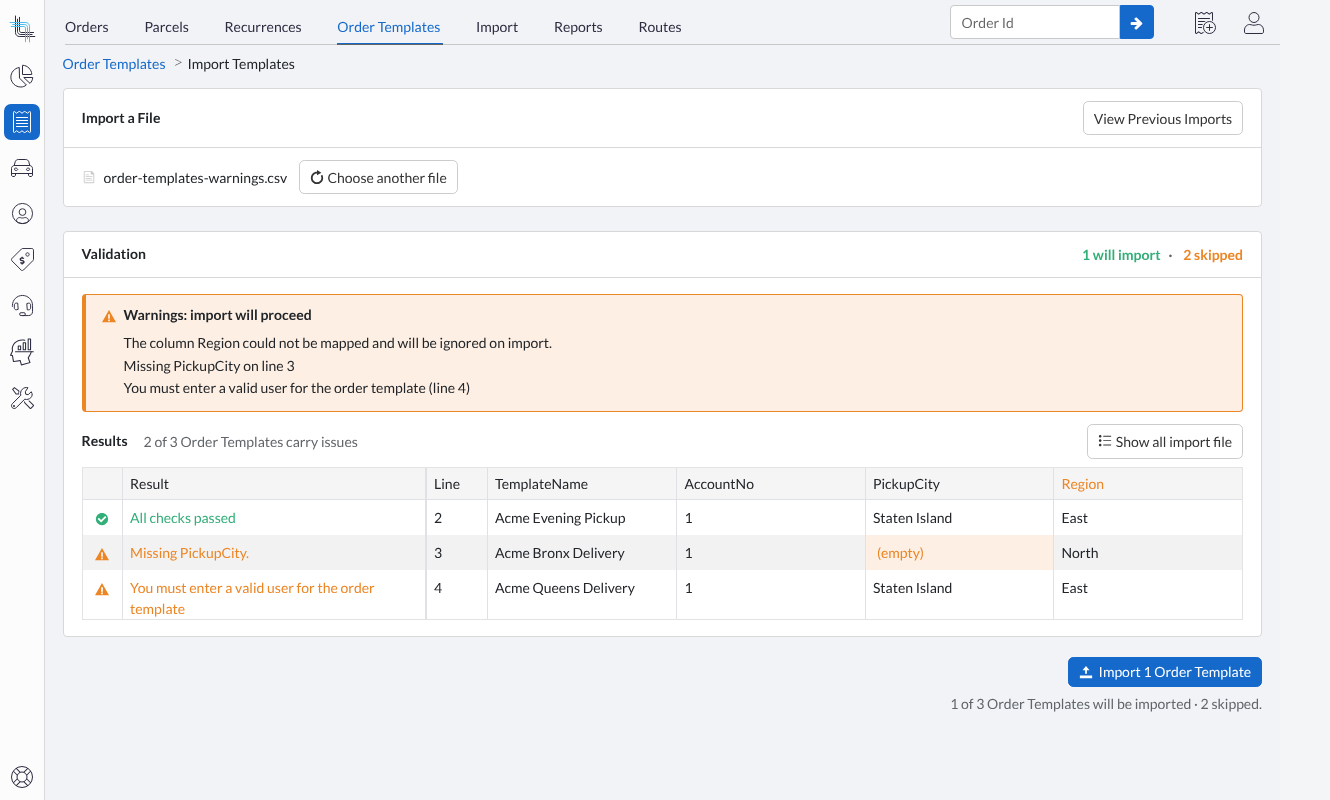
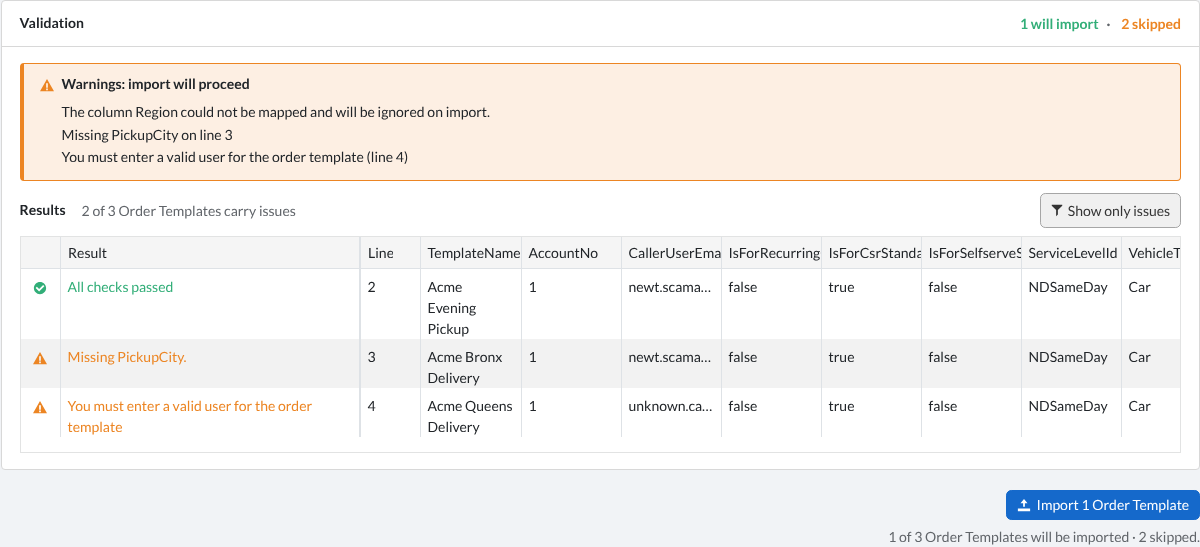
| Orange: Warnings: import will proceed | The file has issues but no error, including when the only issues are ignored values or unmapped columns. The banner lists one line per issue. |
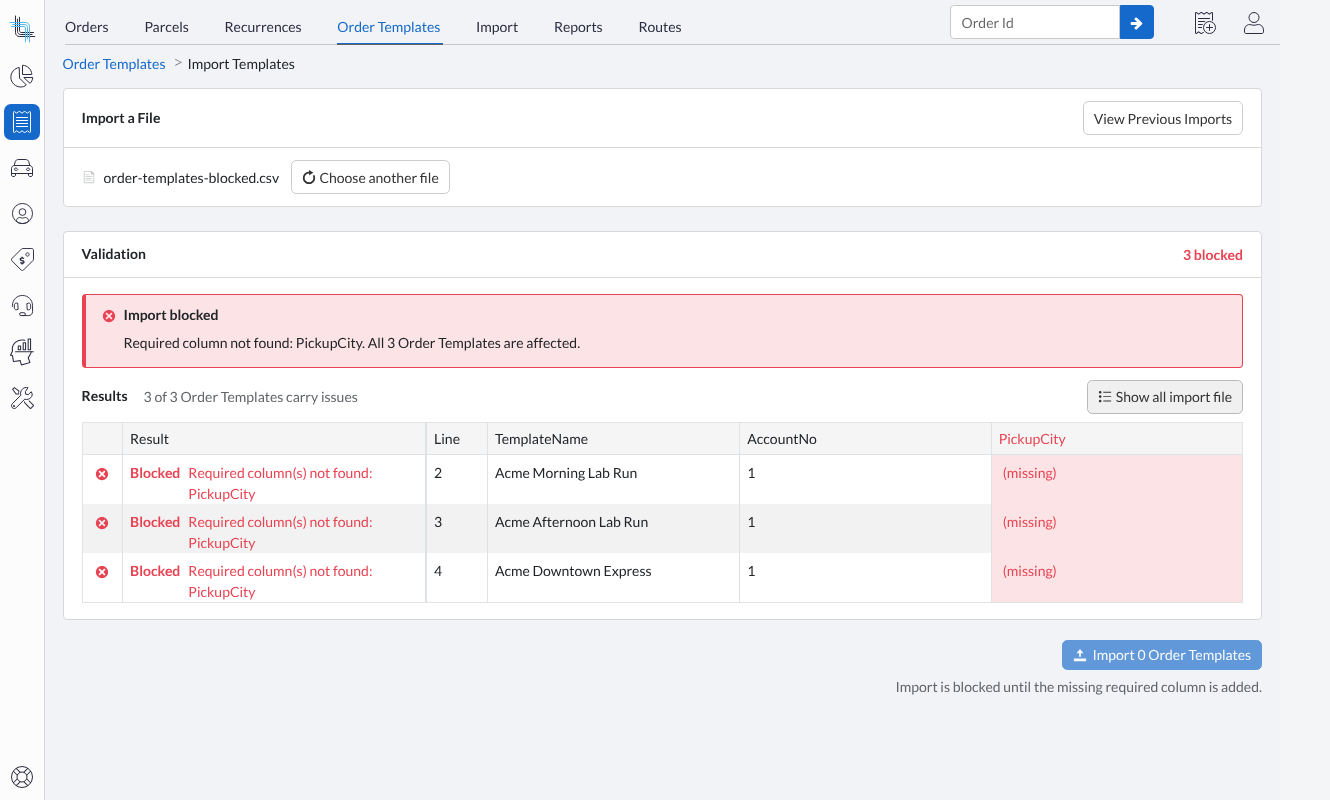
| Red: Import blocked | The file has at least one error. The banner lists every issue line. |
An issue found on several templates is listed once, with the number of templates affected. Up to 100 lines of each kind are listed; the rest is summed up as "and 5 more similar issues are not listed." (with the actual number).
The header of the Validation section also shows counters: the number of templates blocked or that will import, the number with values ignored, and the number skipped, when not zero.
A file with no issue:
A file with warnings:
A blocked file:
Per-Template Results
The Per-Template Results grid shows the outcome of each template. Its caption shows how many templates have issues, for example "3 of 12 Order Templates carry issues".
The first columns stay visible while you scroll:
- The outcome icon: green for a template that will import, with or without ignored values, orange for a skipped template, red for a blocked template.
- Result: the outcome in words for Will import, with values ignored and Blocked, with one line per reason. A template with no issue shows "All checks passed".
- Line: the line of the template in the file.
The file's columns follow. A column with an empty header is shown as Column followed by its position. Cells with an issue carry a marker:
| Marker | Meaning |
|---|---|
| (missing) | A mandatory column is missing from the header row. |
| (empty) | A required value is empty. |
| (ignored) | The value will not be imported. The original value is shown beside the marker. |
Show Only Issues or the Whole File
When the file has issues, the grid opens on the issues view. This view shows one row per template, with TemplateName, AccountNo and the columns with issues only.
- Click Show all import file to show every column, including the rows that add entries below each template.
- Click Show only issues to return to the issues view.
A file with no issue is always shown whole, and these buttons are not shown.
Summary Line Under the Import Button
The line under the Import button tells you what the import will do. With 12 templates in the file, it reads for example:
- "Import is blocked until the missing required column is added."
- "All 12 Order Templates will be imported."
- "10 of 12 Order Templates will be imported · 2 skipped."
When some templates have ignored values, the line adds, for example, "3 of them will be imported with values ignored."
The Import button is available only when the file has no error and at least one template will be imported.
Blockers & Preconditions
File type and size are checked when you select the file. All other checks are performed when you validate the file, and again when the import is performed.
Import Blocked
An error blocks the whole file: every template is Blocked, and the Import button is not available. Fix the file, then select and validate it again.
| Message | What It Means | How to Resolve |
|---|---|---|
| "Required column not found: PickupCity. All 12 Order Templates are affected." (with the missing column and your number of templates) | A mandatory column is missing from the header row. The column is added to the grid, marked (missing). The business rules are not checked. | Add the column to the header row. |
| "The file carries no data row." | The file has no header row, or no row below it. | Add the header row and at least one template row. |
| "The file could not be read as CSV." | The file is not UTF-8 (for example, UTF-16) or is not a comma-delimited CSV file. | Save the file as UTF-8, comma-separated CSV. |
| "The file could not be read as CSV, starting at line 8." (with the actual line) | The file cannot be read as comma-delimited CSV from this line. | Correct the line, then save the file as UTF-8, comma-separated CSV. |
Warnings That Skip No Template
These warnings show the orange banner, but every template keeps its outcome.
| Message | What It Means | How to Resolve |
|---|---|---|
| "The column TemplateNme could not be mapped and will be ignored on import." (with the column name) | The header matches no supported column. Its values are ignored. | Correct the header to a supported column name, or remove the column. |
| "The column PickupCity appears more than once. Only its first occurrence is read." (with the column name) | A supported column is in the header twice. | Remove the duplicate column. |
| "The row on line 5 continues no Order Template and will be ignored." (with the line) | A row with only list columns comes before the first template's row. | Move the row below the template it belongs to. |
Cells beyond the last header are also reported, by their position. A column with an empty header is reported only if it holds values.
Template Skipped
A skipped template is not created; the other templates are still imported. When mandatory values are empty, the business rules of this template are not checked until the missing values are filled. A skipped template does not count in the duplicate-name check within the file.
| Message | What It Means | How to Resolve |
|---|---|---|
| "Missing PickupCity." (with the column name) | A mandatory value is empty on the template's first row. | Fill the value. |
| "The value in column PickupDurationInMinutes could not be read." (with the column name) | The value is not in the expected format. | Correct the value. See the formats in the column reference. |
| "Another Order Template earlier in the file already uses the name Template A." (with the name) | Two templates in the file have the same name (not case-sensitive). The later one is skipped. | Rename one of the templates. |
| "An order template with the same name already exists. Please choose a new name." | An existing order template already uses this name. | Rename the template. |
| "The account 1001 does not exist." (with the value of AccountNo) | AccountNo is not the identifier of an existing account. No other business rule is checked for this template. | Enter the account's identifier, not its account number. |
| "You must enter a valid user for the order template" | CallerUserEmail matches no user who belongs to the account or can use it through a Master Account. | Enter the email of such a user. |
| "At least one of these properties must be set to true: IsForRecurringOrder, IsForCsrStandaloneOrder, IsForSelfserveStandaloneOrder" | None of the three usage columns is true. |
Set at least one of them to true. |
| "'IsForRecurringOrder' option is not available if some items doesn't have a parcel type." | The template is for recurring orders, but an item has no ItemParcelTypeId. | Fill ItemParcelTypeId on every item, or set IsForRecurringOrder to false. |
| "'UseInfosFromContactForPickup' requires a valid PickupContactId for the CallerUserId. Send 'UseInfosFromContactForPickup' false to stop using the contact." (and the same message for the delivery) | The contact is not a valid address-book contact for the account and the caller. | Correct the contact ID, or set the column to false. |
| "Cannot set a default driver on a multi-segment order template." | DefaultDriverId is filled on a template with at least one hub. | Remove the default Driver or the hubs. |
| "Default driver is invalid: Driver 'D-100' does not exist." (with the Driver ID) | DefaultDriverId is not an existing Driver. | Correct the Driver ID. |
| A message starting with "If 'overridePickupAndDeliveryWindow' is 'true', you must provide values for" | The window override is true, but some of the eight window columns are empty. |
Fill all eight window columns. |
| "DayOffsets cannot be less than 0." | A day offset is negative. | Enter 0 or more. |
| "Pickup day offsets cannot be greater than delivery day offsets" | A start offset is greater than its end offset, or the pickup start offset is greater than the delivery start offset. | Correct the day offsets. |
| "For pickup and delivery with the same day offset, the pickup needs to be before the delivery" | With equal day offsets, a start time is after its end time, or the pickup start time is after the delivery start time. | Correct the times. |
| "GenerateProofOfDeliveryOnDelivery cannot have a value because the account is not configured to use Proof of Delivery templates." | GenerateProofOfDeliveryOnDelivery is filled for an account without a proof-of-delivery report template. | Leave the cell empty. |
| "Invalid Order Profile Id" | OrderProfileId is not one of the account's order profiles available for manual override. | Correct the order profile ID or leave it empty. |
| Depends on the account profile's configuration | A reference number or an order user field does not meet the account profile's configuration. | Correct the value. |
| "The route name is invalid. It should only contain alpha-numeric characters as well as '_' and '-'." | RouteName contains other characters. | Use only letters, digits, _ and -. |
| "Invalid Service level and Vehicle Type Configuration" | The Service Level and vehicle type pair is not offered for templates in the account's Service Level Schedule, or the Service Level is a reattempt level. | Use a pair offered to the account. |
| A message starting with the Service Level name, for example "Same Day requires the pickup address to be an authorized contact." | The Service Level restricts addresses, and the pickup contact, the delivery contact, both, or either one is not authorized for it, depending on the Service Level. When neither contact is authorized, the message includes "Neither address on this order template is an authorized contact." This check is not performed when your role can bypass Service Level restrictions. | Use an authorized contact in PickupContactId or DeliveryContactId. |
| "No contact was found with id 1234 for this account." (with the contact ID) | A hub's HubContactId is not a valid address-book contact for the account and the caller. | Correct the hub contact ID. |
| Missing value, reported on the entry's line | A hub entry, an Extra Fee entry, or an order user field entry lacks a required value. | Fill the required values of the entry. |
| "The parcel type BOX does not exist or is not available for the account 1001." (with the Parcel Type and the account) | ItemParcelTypeId is not in the account's Parcel Type Schedule. | Use a Parcel Type available to the account. |
| "The parcel type BOX does not have customizable dimensions. You must remove those values." (with the Parcel Type) | Item dimensions are filled for a Parcel Type without customizable dimensions. | Remove ItemHeight, ItemLength and ItemWidth. |
| An invalid email address message | PickupContactEmail or DeliveryContactEmail is not a valid email address, and no contact ID is given. | Correct the email address. |
Values Ignored
The template is created without the ignored value. Its outcome is Will import, with values ignored, and the cell is marked (ignored).
| Message | What It Means | How to Resolve |
|---|---|---|
| "The extra fee WAIT is not available for this account and will not be added." (with the Extra Fee ID) | The Extra Fee is not in the account's Extra Fee Schedule, or it is a restricted fee your role cannot add. | Use an Extra Fee available to the account. |
| "The account does not allow the package validation option to be set on an order template." | The account does not allow the package validation option on order templates. | Leave PackageValidationOption empty. |
| "The account does not allow collect on delivery." | The account does not allow collect on delivery. | Leave CollectOnDelivery empty, and AllowPartialCollectOnDelivery empty or false. |
| "The account does not allow collect on pickup." | The account does not allow collect on pickup. | Leave CollectOnPickup empty, and AllowPartialCollectOnPickup empty or false. |
| "The account does not allow partial collect on delivery." | The account does not allow partial collect on delivery. | Leave AllowPartialCollectOnDelivery empty. |
| "The account does not allow partial collect on pickup." | The account does not allow partial collect on pickup. | Leave AllowPartialCollectOnPickup empty. |
| "The account does not allow identity validation on delivery." | The account does not allow identity validation on delivery. | Leave RequireIdentityValidation empty. |
| "The account does not allow identity validation on pickup." | The account does not allow identity validation on pickup. | Leave RequireIdentityValidationOnPickup empty. |
Some values are not stored without any notice: they are described with their column in the column reference.
Import the Order Templates
- Click the Import button, for example Import 12 Order Templates (Import 1 Order Template for a single template).
- The Previous Imports page opens with a confirmation message:
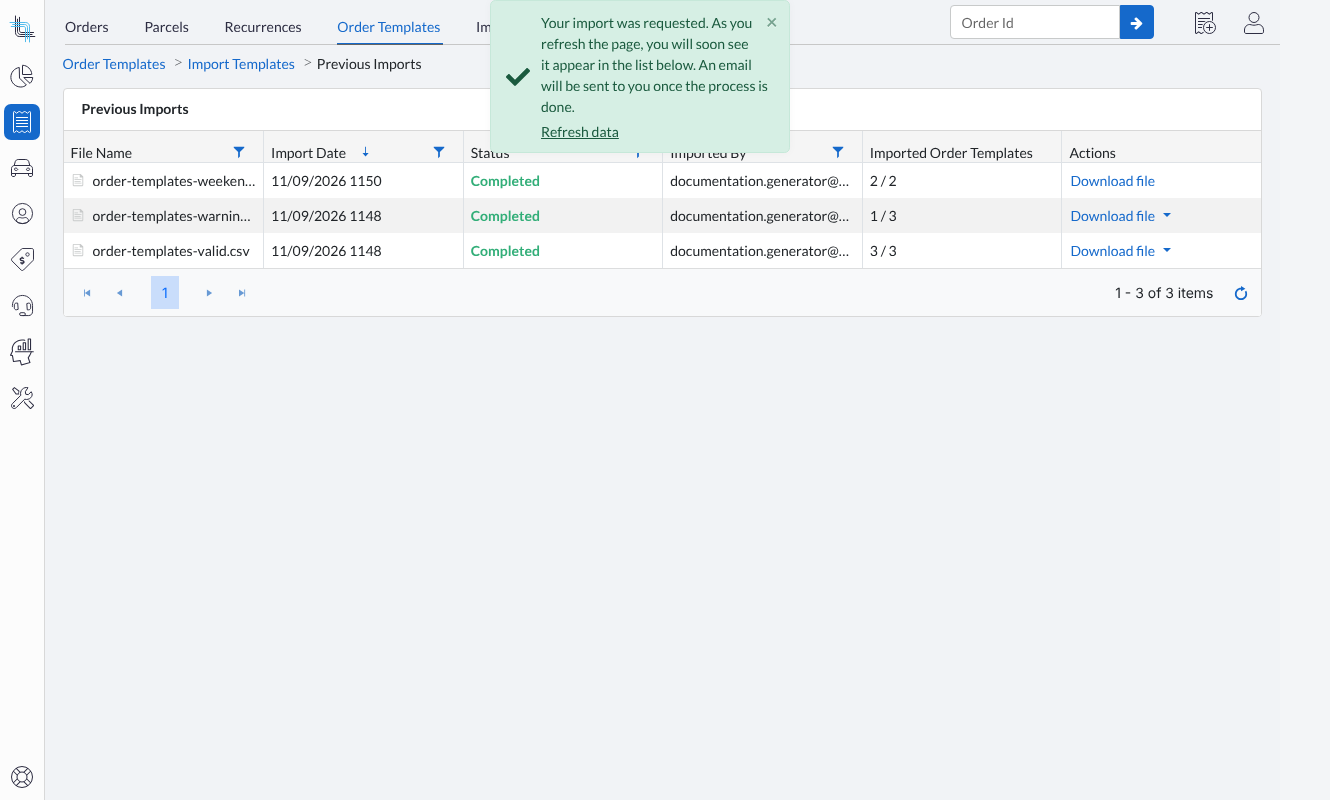
- Click Refresh data in the message to show the import in the list.
The message reads "Your import was requested. As you refresh the page, you will soon see it appear in the list below. An email will be sent to you once the process is done." It stays until you close it or click Refresh data. The import is listed as In Progress.
When you click the Import button, the file is validated again. If it now has an error, the import is not started: you stay on the Import Templates page with the message "The file cannot be imported: it must pass validation without errors first." Correct the file and try again.
Completion Email
When the import ends, Dispatch Science emails you, with your tenant's technical support address in copy when one is configured. The email uses your contact language, or your tenant's primary language when you have none. It contains:
- The subject "Your Dispatch Science order template import has completed".
- The heading "Import completed", or "Imported with errors" when the import failed or a template was not imported.
- The file name.
- The number of order templates imported out of the number handled, and the number not imported.
- A breakdown (Imported successfully, Imported with warnings, Not imported) when a template was flagged.
- An Open the import log button when the log was stored; otherwise, an Open the import page button.
No email is sent if you have no email address. A problem when sending the email does not change the recorded outcome of the import.
Import That Stops Part-Way
Any failure during the import stops the whole import, including an error while creating one template. The templates already created are kept. The import shows Failed with the counts reached, since the counts are saved every 10 templates and at the end. The log is still stored when possible, and you still receive the email.
If you validate the same file again, each template already created under the same name is skipped with "An order template with the same name already exists. Please choose a new name.", so importing the file again creates only the templates that do not exist yet.
Review Previous Imports
The Previous Imports page lists every order template import of your tenant, not only yours. The newest imports come first, 25 per page.
- On the Import Templates page, click View Previous Imports.
- Filter or sort the list, as needed. Click Clear All Filters to remove the filters.
- Click Download file on a row to download the file submitted for that import. The download opens in a new tab.
- Click the More actions arrow on a row, then click Download log to download the log of that import.
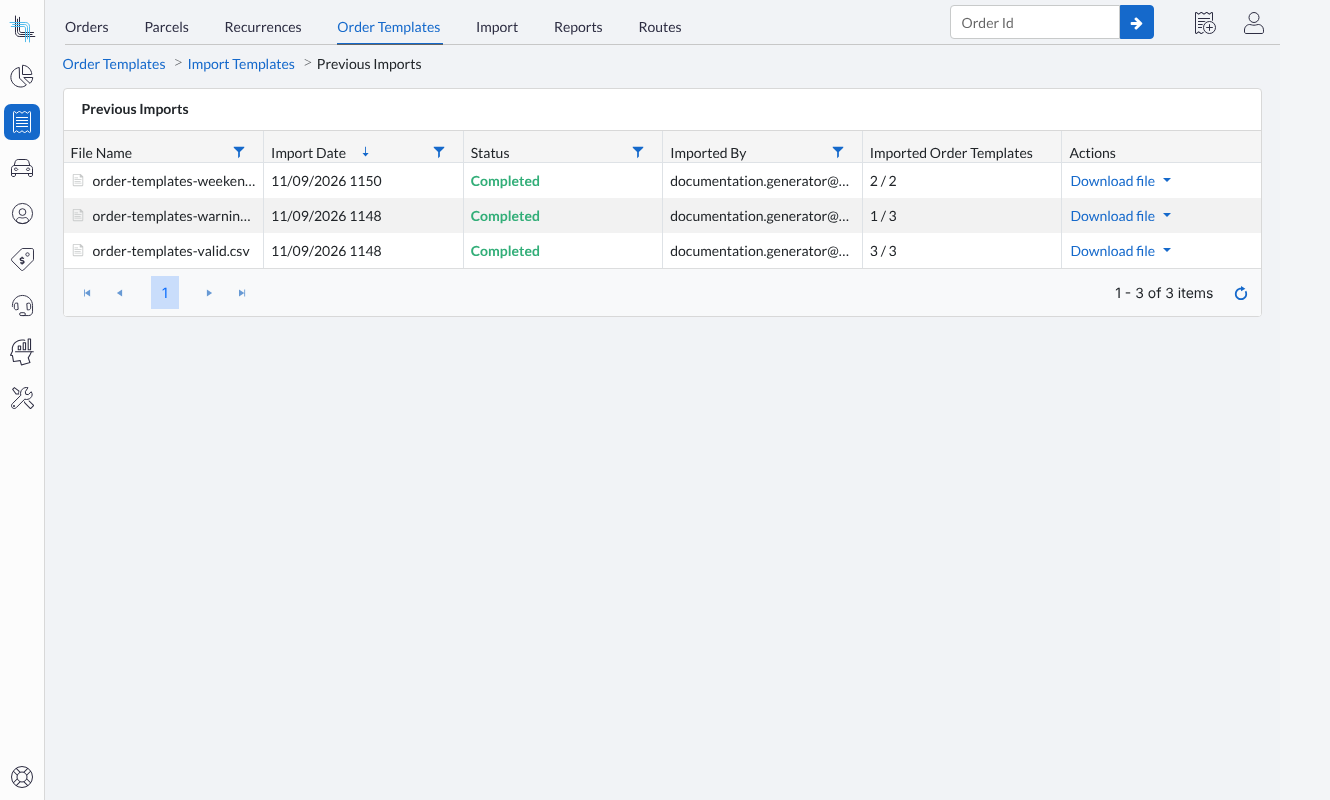
The page also opens after you start an import. The list does not refresh on its own: click the Refresh data icon at the end of the pager to update it. Click Import Templates in the breadcrumb to return to the import page.
| Column | Content |
|---|---|
| File Name | Name of the imported file. Sortable, with a text filter. |
| Import Date | Date of the import, with a date filter. |
| Status | In Progress (requested or being processed), Completed, or Failed (an error occurred or the import stopped part-way). |
| Imported By | User who started the import. Filterable. |
| Imported Order Templates | Templates created out of the total in the file, for example 10 / 12. Created templates include those imported with warnings. |
| Actions | Download file, shown when the submitted file is stored, and the More actions menu, shown when a log is stored. |
The log is stored only once the import has ended. It has one line per template (imported, imported with warnings with the reasons, or not imported with the reasons) and a closing line, Completed or Stopped, with the counts. Download log is not available while the import is in progress, or when the log could not be stored.
Was this article helpful?
That’s Great!
Thank you for your feedback
Sorry! We couldn't be helpful
Thank you for your feedback
Feedback sent
We appreciate your effort and will try to fix the article