Company access lets you limit which of your tenant's companies an internal Back Office user works with. Assigning one or more companies to a user narrows the accounts and the orders that user can find and open in Dispatch Science.
Table of Contents
- How Company Access Works
- Before You Assign Companies
- Check a User's Company Access
- Assign Companies to a User
- Remove a Restriction
- What a Restricted User Sees
- Notes
How Company Access Works
Every account belongs to a company, and an order takes the company of its account. The Companies assignment on a user record tells Dispatch Science which of those companies the user works with. Company access applies to internal Back Office users only, so customer portal users and drivers are not affected by it.
No Company Selection Means All Companies
| Companies Checked on the User | What the User Can Work With |
|---|---|
| None | Every company of the tenant. No company filtering is applied. |
| One company | Only the accounts and the orders of that company. |
| Several companies | Only the accounts and the orders of the checked companies. |
| Every company checked | The companies checked at that moment, and only those. |
Before You Assign Companies
The conditions below must be met before company access can be set on a user.
| What You Need | What It Unlocks | Without It |
|---|---|---|
| More than one company in your tenant | The Companies list on the user record | The Companies field is not displayed, in read-only mode or in edit mode, and no company restriction can be configured |
| The view permission of the Settings - Tenant Users section of the Roles screen | Reading a user record, including the Companies row | The Users configuration page is refused |
| The edition permission of the Settings - Tenant Users section of the Roles screen | The Edit button on the Workforce Details card | The user record stays read-only: you can check a user's company access but not change it |
| A user record that is not archived | The Edit button on the Workforce Details card | The Edit button is not shown, even with the edition permission. Unarchive the user first |
Check a User's Company Access
The companies assigned to a user are displayed on the read-only user record, in the Workforce Details card.
- Go to Settings > Configurations > Users.
- Click the user's name in the Name column.
- Read the Companies row of the Workforce Details card.
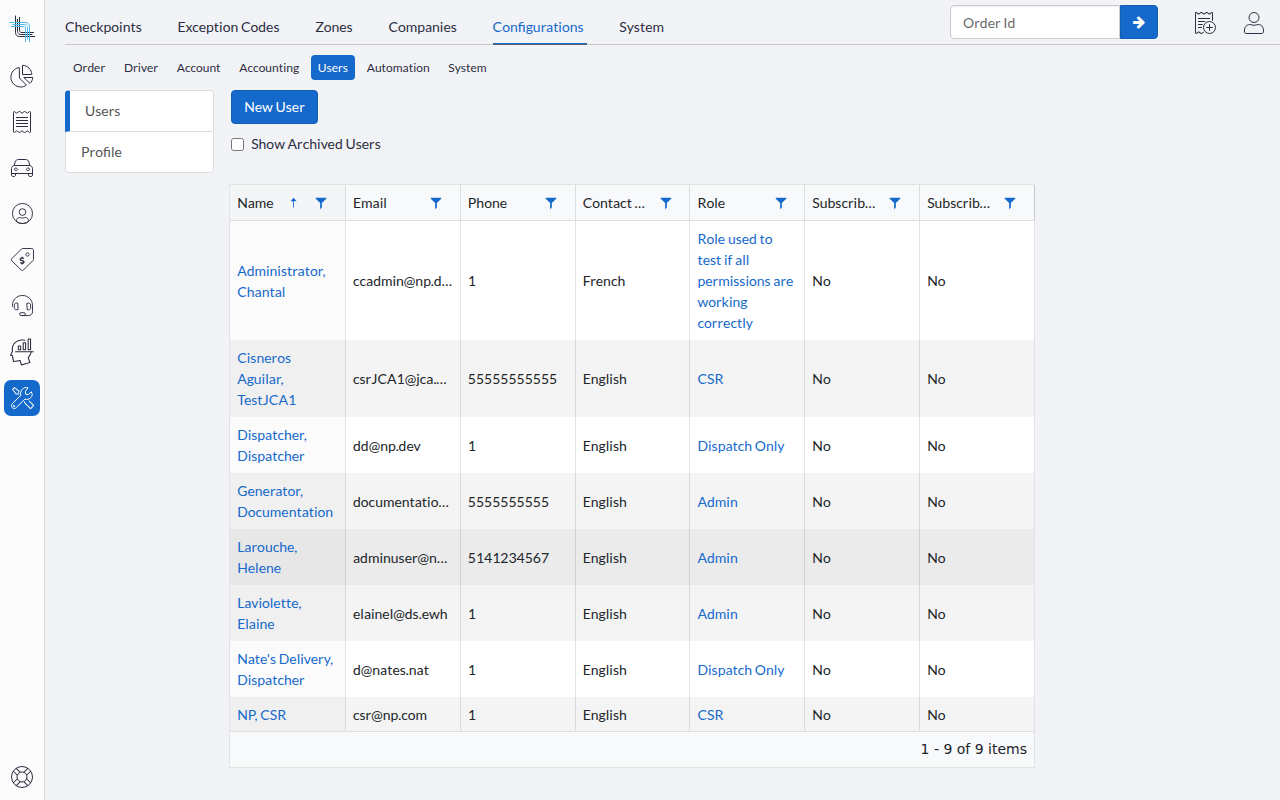
The assigned companies are shown by full name, ordered by name and separated by commas. A single dash means that no company is assigned to that user, as described in No Company Selection Means All Companies:
Assign Companies to a User
Checking companies on a user record restricts that user to the accounts of those companies and to the orders of those accounts. The new scope is read from the user record on every request, so the change applies to that user's next action and no sign-out is required.
- Go to Settings > Configurations > Users.
- Click the user's name in the Name column.
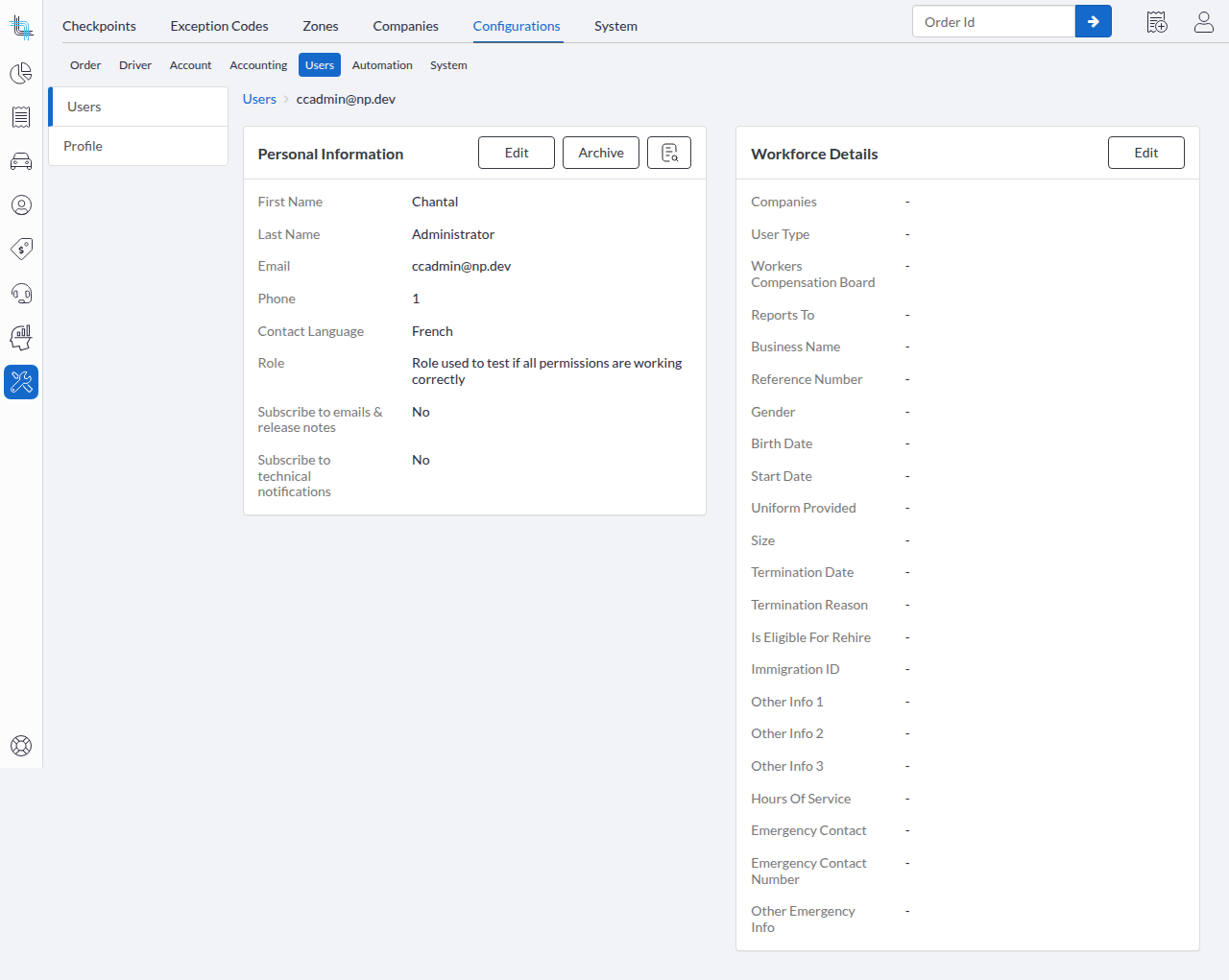
- Click Edit in the header of the Workforce Details card.
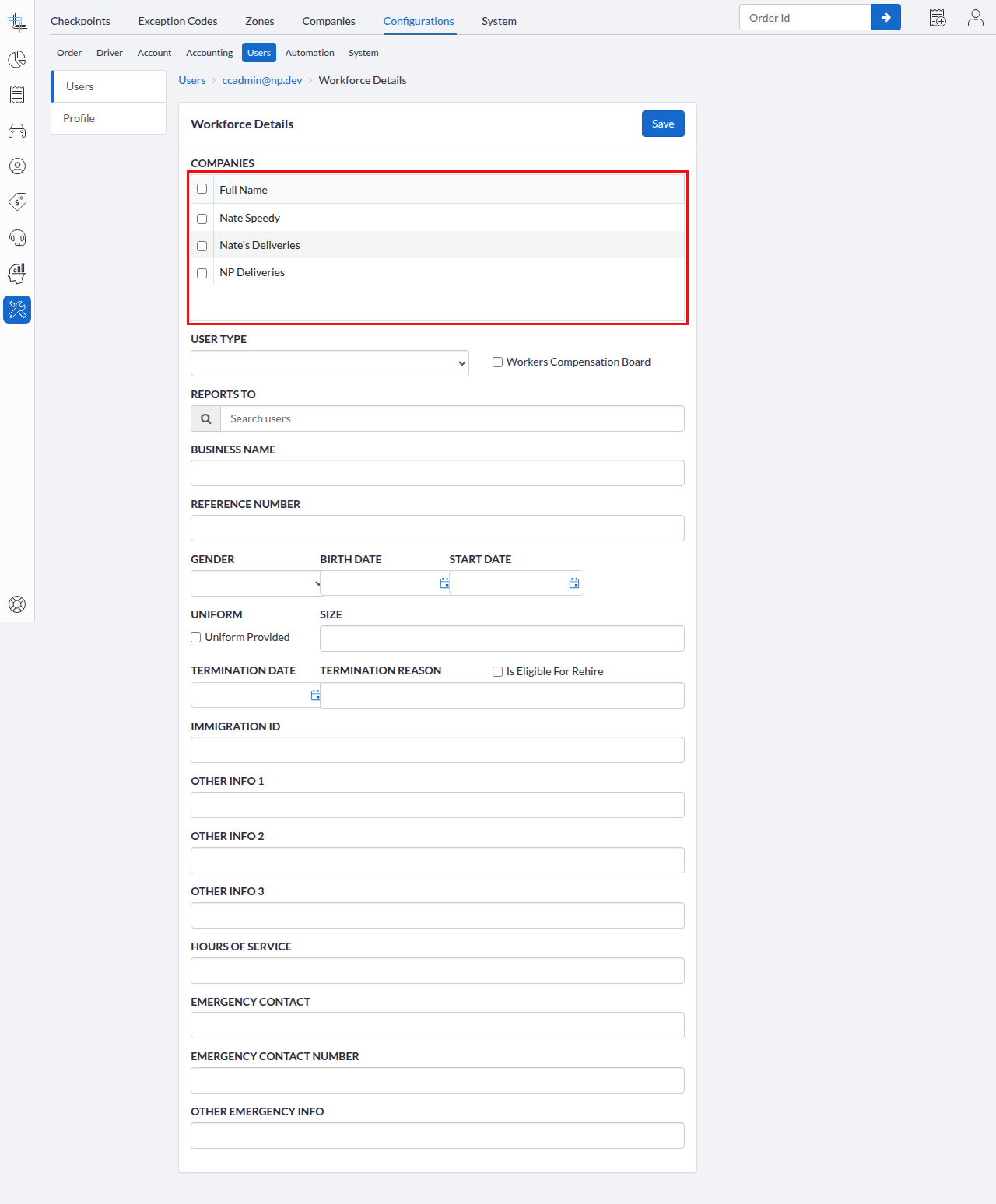
- In the Companies list, check the box for each company the user should work with.
- The list shows every company of the tenant, ordered by full name, with the companies already assigned already checked.
- The checkbox in the header of the Select column checks or clears every row at once.
- Click Save.
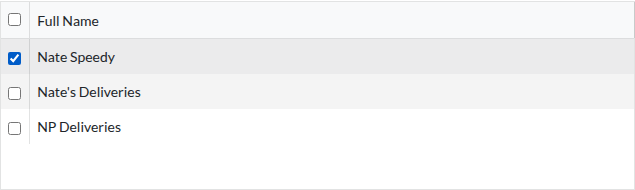
The read-only user record opens again and a confirmation message is displayed. If the form cannot be saved, it is displayed again with an error message and nothing is saved, including the company selection. Personal Information has its own Edit button and is not part of this form.
Audit Trail
Saving the Workforce Details card is recorded in the user record's audit trail, so you can see who edited the card and when. The entry records the edit of the card; it does not list the companies assigned before and after the change. The audit trail is available only when it is enabled for your tenant.
Remove a Restriction
Removing a restriction gives the user access to every company of the tenant again.
- Go to Settings > Configurations > Users.
- Click the user's name in the Name column.
- Click Edit in the header of the Workforce Details card.
- Clear every checkbox in the Companies list. A user with no company checked has access to every company of the tenant, so an empty list restores full access instead of removing it.
- Click Save.
The Companies row of the user record shows a single dash again. Clear the list rather than checking every company: both give the same result today, but only an empty list also covers the companies created later.
What a Restricted User Sees
Once at least one company is checked on a user, the company filtering below is applied to that user.
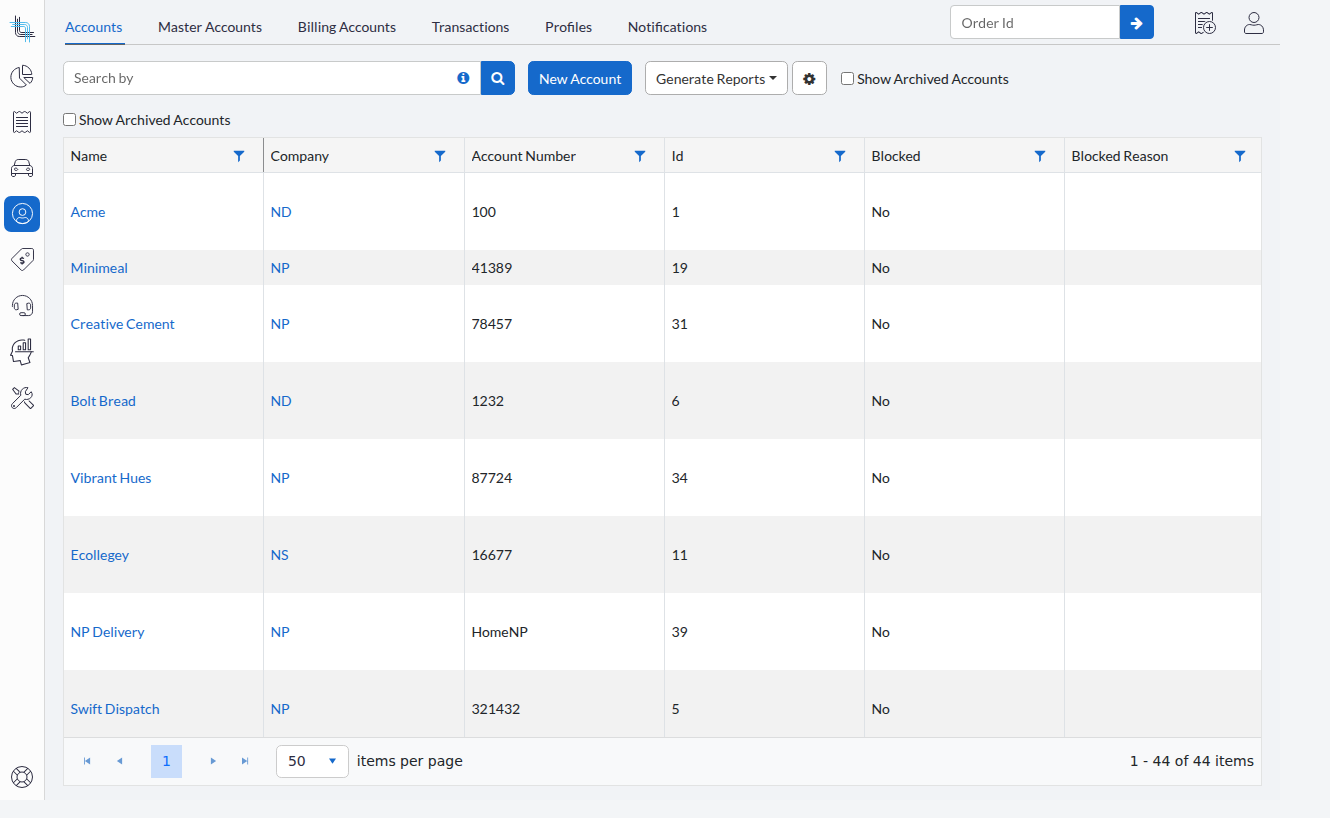
Account List
Only the accounts of the assigned companies are listed. The totals, the paging and the sorting apply to that filtered list, so the counts displayed are the counts of what the user is allowed to work with:
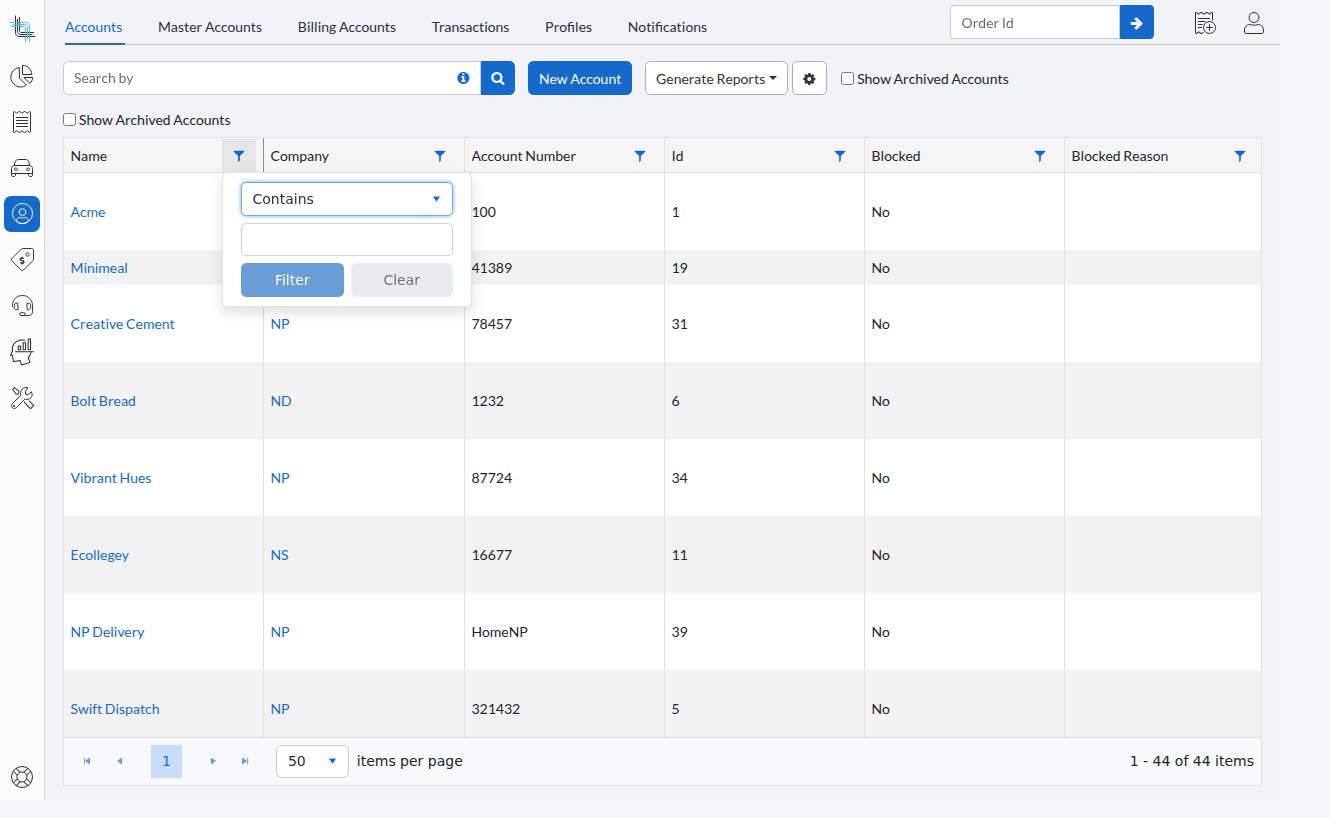
The Company column filter is narrowed as well: it offers only the companies the user may access, and the counts match the filtered list:
Account Details
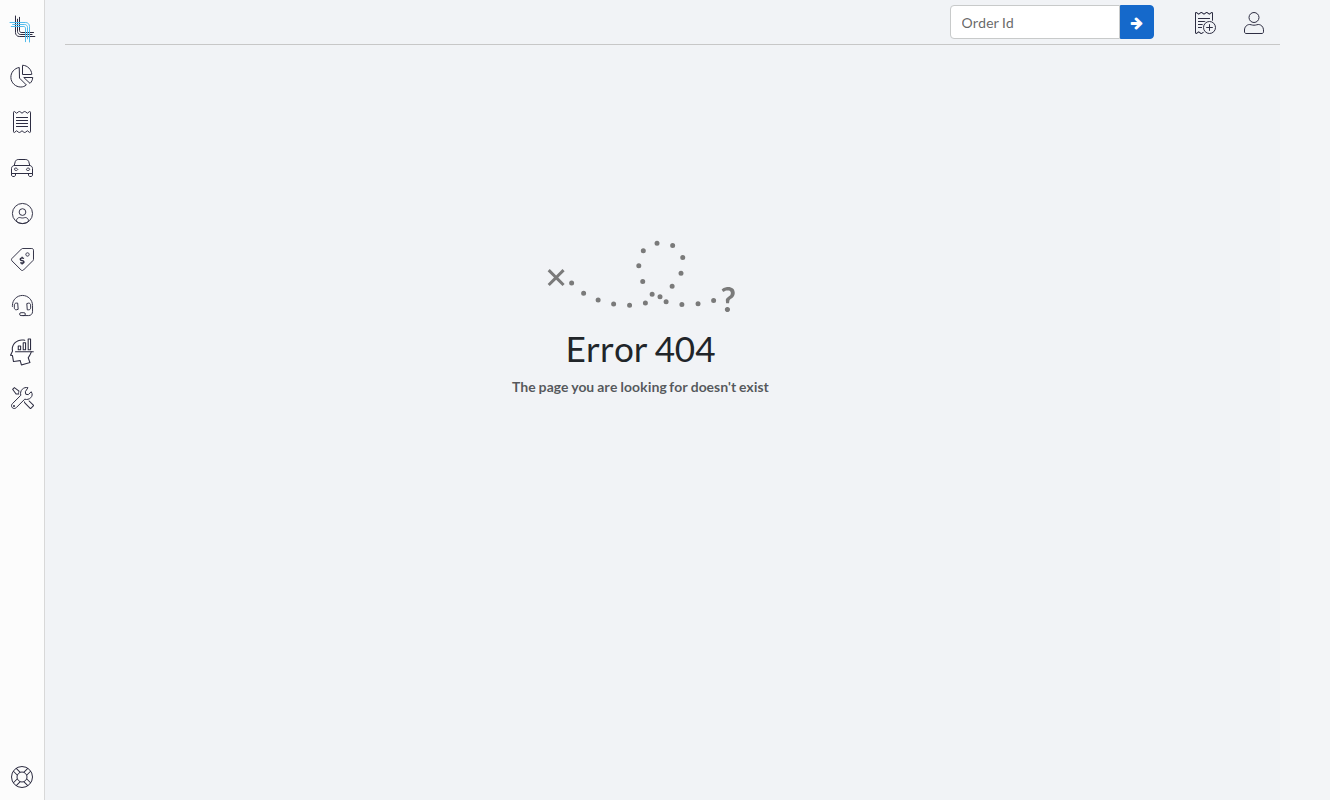
Opening the details page of an account whose company is outside the user's companies shows the standard not-found page, with the heading "Error 404" and the text "The page you are looking for doesn't exist". The same page is displayed when the account does not exist at all, so a restricted user cannot tell the two cases apart:
Order List
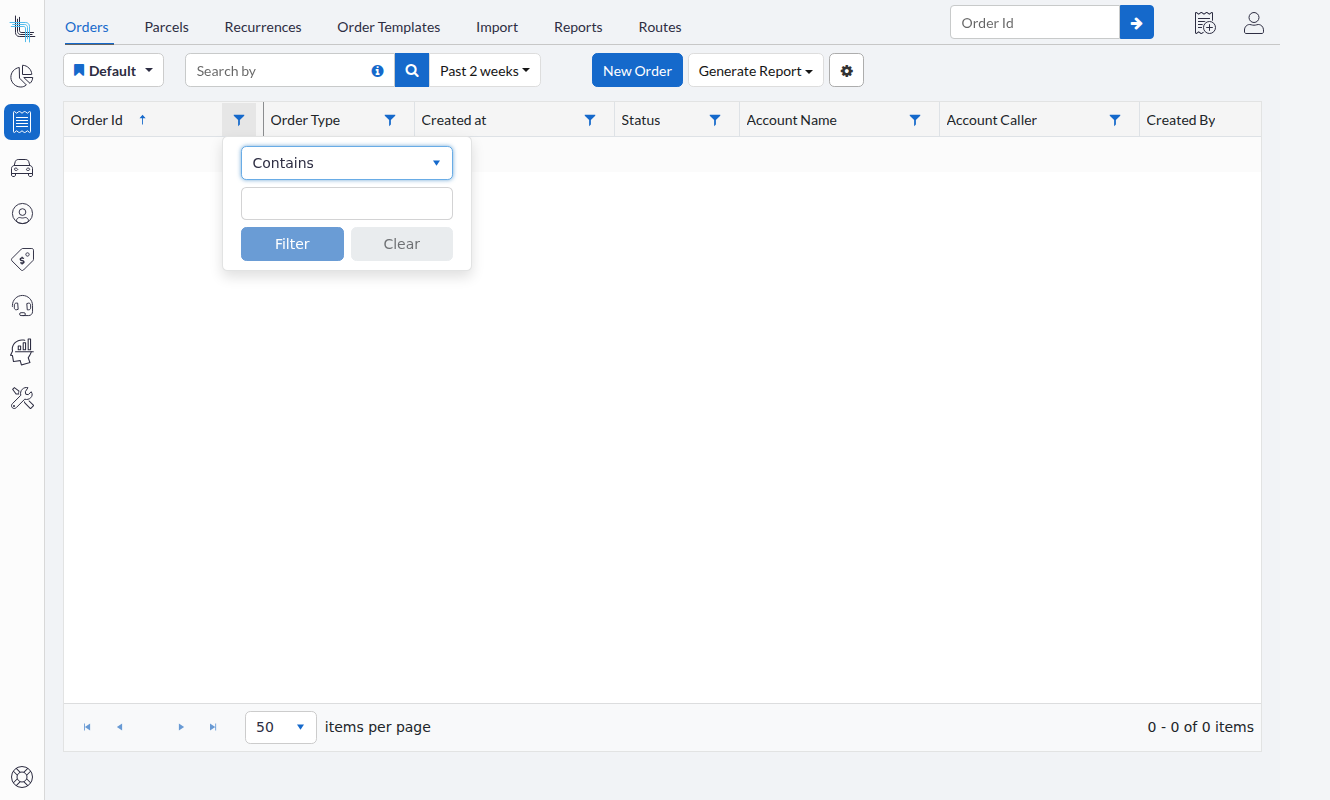
Only the orders whose account belongs to an assigned company are listed, with the totals, the paging and the sorting applied to that filtered list:
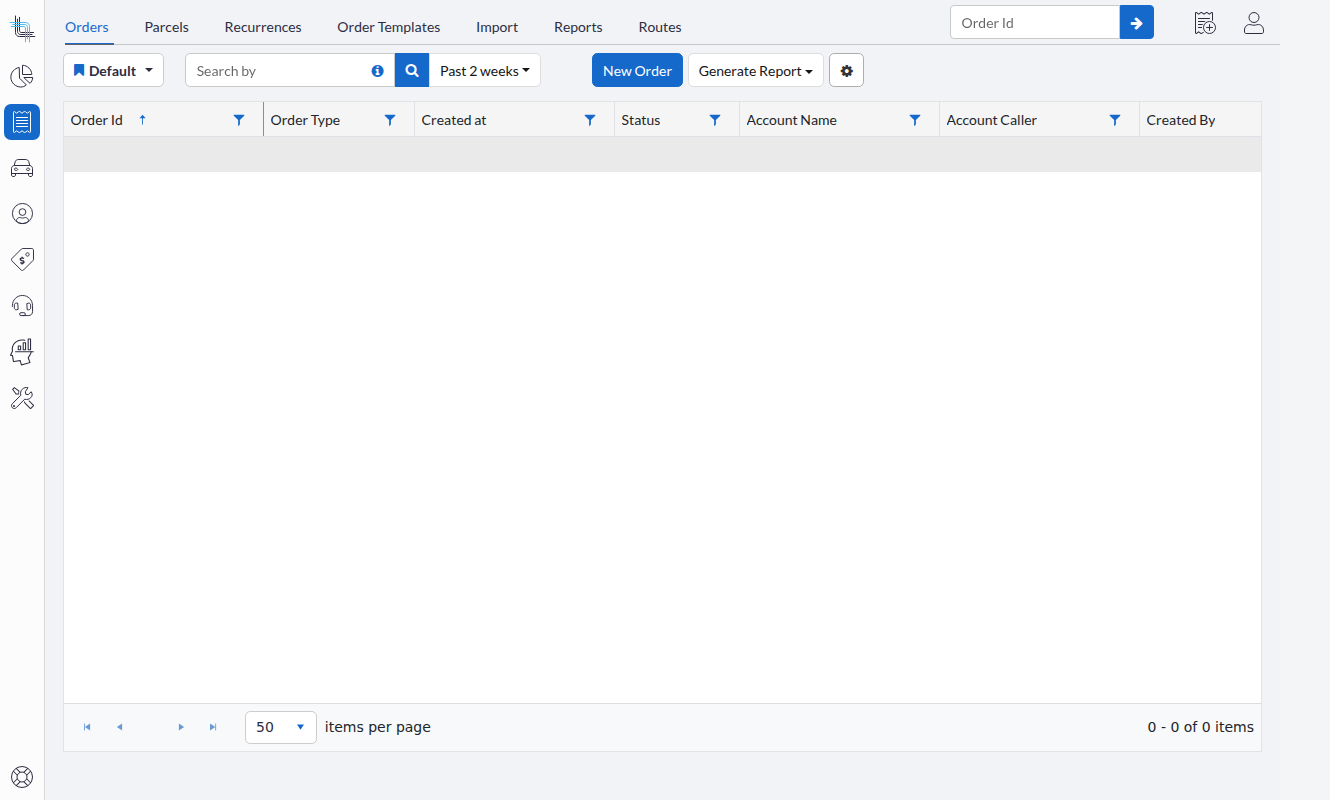
As on the Account list, the Company column filter offers only the companies the user may access:
Order Details
Opening an order whose account belongs to a company outside the user's companies shows the standard error page. Viewing that order, editing its fields, adding a hub and changing its caller all behave the same way.
Search and Autocomplete Fields
On the order creation and order editing screen, the account search, the caller and contact search and the order-template list propose only accounts of the assigned companies. Typing the name of an account outside those companies returns no match, and the contact and order-template lookups of such an account show the standard error page:
Moving an existing order to an account of a company the user is not assigned to is prevented in the same way. The order keeps its current account.
Screens Not Filtered Yet
The following surfaces still show the data of every company of the tenant:
- the dashboard and reports
- the Dispatch Board, Dynamic Views and the Transactions page
- the Driver App
- the address book contact suggestions
These surfaces are planned to use the same company access in an upcoming release: the filtering was built as a shared, reusable layer so the remaining screens can adopt it. Plan your rollout accordingly.
Notes
- Company filtering is applied on the server, where the data is queried, not by hiding rows in the browser. Changing a grid filter or the parameters of a list request does not widen what those lists return.
Was this article helpful?
That’s Great!
Thank you for your feedback
Sorry! We couldn't be helpful
Thank you for your feedback
Feedback sent
We appreciate your effort and will try to fix the article