These features are available on your Test site on the evening of December 2nd and released to your Production site on the evening of December 9th.
New Features in This Release
- Smarter order filtering with multi-field User Field searches for faster order identification.
- More accurate Off-Hours pricing with automatic recalculation when time windows change.
- Stronger parcel data validation to ensure clean, consistent order information.
- Faster driver management through paginated driver lists and enhanced settlement search.
- More powerful map tools with new zone overlay controls.
- Self-serve improvements for clearer template creation and contact-linking logic.
- New internal user profiles enabling parcel-rule enforcement and auto-label settings across teams.
- Bulk charge recalculation via the new Batch Tool option for re-rating orders at scale.
- API enhancements
TABLE OF CONTENTS
- Driver App Version 1.73
- Back Office
- Dispatch Board
- Self-Serve Portal
- Administration
- Batch Tool
- Scripts and Script Rules
- Tenant API
Definition
The release notes refer to different sections of the application:
Back Office: Where Customer Service Representatives (CSR) create and edit orders, create accounts, review drivers, etc.
Dispatch Board: Where Dispatchers assign orders to drivers, get notifications for invalid orders, etc.
Auto-Dispatch: This section refers to the automated order assignment setup and its process.
Administration: This section is in the Back Office but refers to sections only an administrator will use like Settings and Pricing.
Customer Portal: Where account users log in to create orders, view their order history, enter a credit card, etc.
Tracking site: Where customers enter a tracking number like the order ID or a reference number to view the status of their order.
OData: Data fields and variables saved in OData.
Account API: API provided to your accounts to create, update and get orders. For documentation, please follow this link:https://api.dispatchscience.com/
Tenant API: API provided to you to create orders for your accounts, retrieve invoices and change invoice status. For documentation, please follow this link: https://api.dispatchscience.com/
Driver App Version 1.73
Alternative Environment Pre-Production Selection Removal
In the Alternative Environment, Pre-Production is no longer an option since the site is not available.
Back Office
Orders
Order List
Changes to User Field Filtering
The Order List now allows filtering by up to two User Fields in the User Fields column. Enter the values to search as an Include for each field and choose whether the filter uses AND or OR logic.
This enhancement allows more precise and flexible filtering of orders, making it easier to quickly identify orders that match multiple user-specific criteria.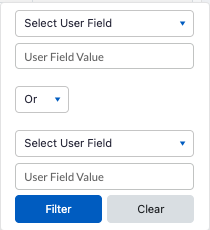
Once the change is available in Production, the filter will remain as it was previously but only the first 2 fields will show when opening the filter. The filter will remain as-is until cleared.Order Off Hours Extra Fee Application
Off Hours extra fee will now be calculated, added or removed, whenever the Pickup and/or Delivery windows are adjusted, as long as the the Service Level allows Off Hours. Previously, the Off Hours extra fee was added or removed when modifying the Ready At date and time only.
Off-Hours fees will now be recalculated whenever the Pickup and/or Delivery windows are adjusted, as long as the Service Level allows Off-Hours. Previously, the Off-Hours extra fee was only added or removed when modifying the Ready At date and time.
Creating or Editing Orders with Parcel Rules
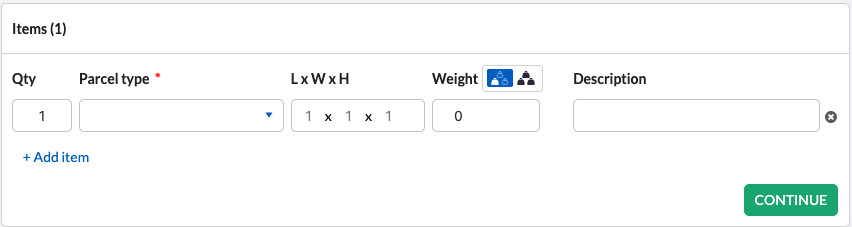
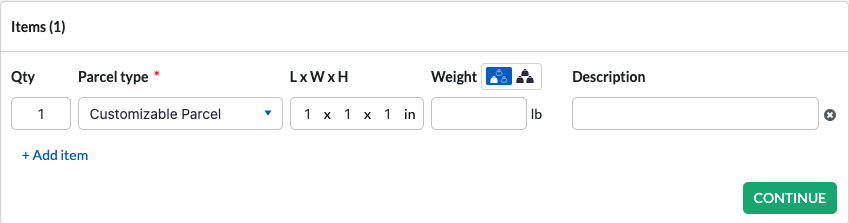
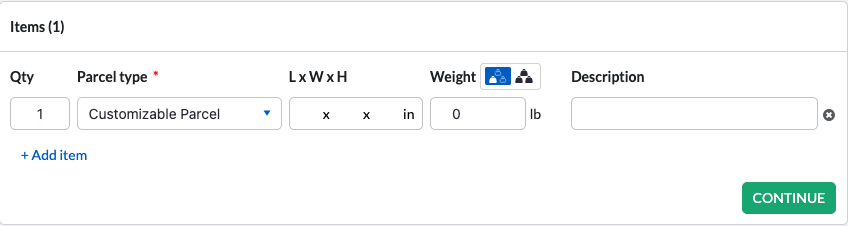
When using Parcel Rules, the following will happen on the Create Order screen in the Parcel section. It is important to note that if the parcel has a default weight or default dimensions, those will be used if not entered by the user.
- Empty Parcel Type:

- Empty Parcel Weight by Default:

- Empty Parcel Dimensions by Default:

- Require Parcel Description:
If a description is not entered or if only spaces are entered, the order cannot be created:
- Require Parcel on Order:
This will prevent an order from being created if no parcel is added:
- Require Non Zero Value for Parcel Weight and Dimension:

Creating Order with Open Label Report After Order Creation
If the Open Label Report After Order Creation checkbox is checked on the User Profile and a label report is available, upon creating the order, the Order Label dialog box will open automatically.
Saving Notes when Creating Contact on Order
When a contact is created while the order is either created or edited by checking the Create Contact option in the Pickup or Delivery section, notes will only be saved with the contact if user has access to the new action permission Orders > Add Contact Notes. If this action permission is not selected as part of the user role, the contact note will not be saved once the contact is created. For more information about the permission, please review Add Contact Notes permission.
Order Template Creation Enhancements
Users will now see a clear error message when attempting to create an Order Template directly from the Order Creation screen.
Create Order Template Only
Users cannot create an Order Template alone when the Add to Contact checkbox is selected, as contacts are created only when an order is created.
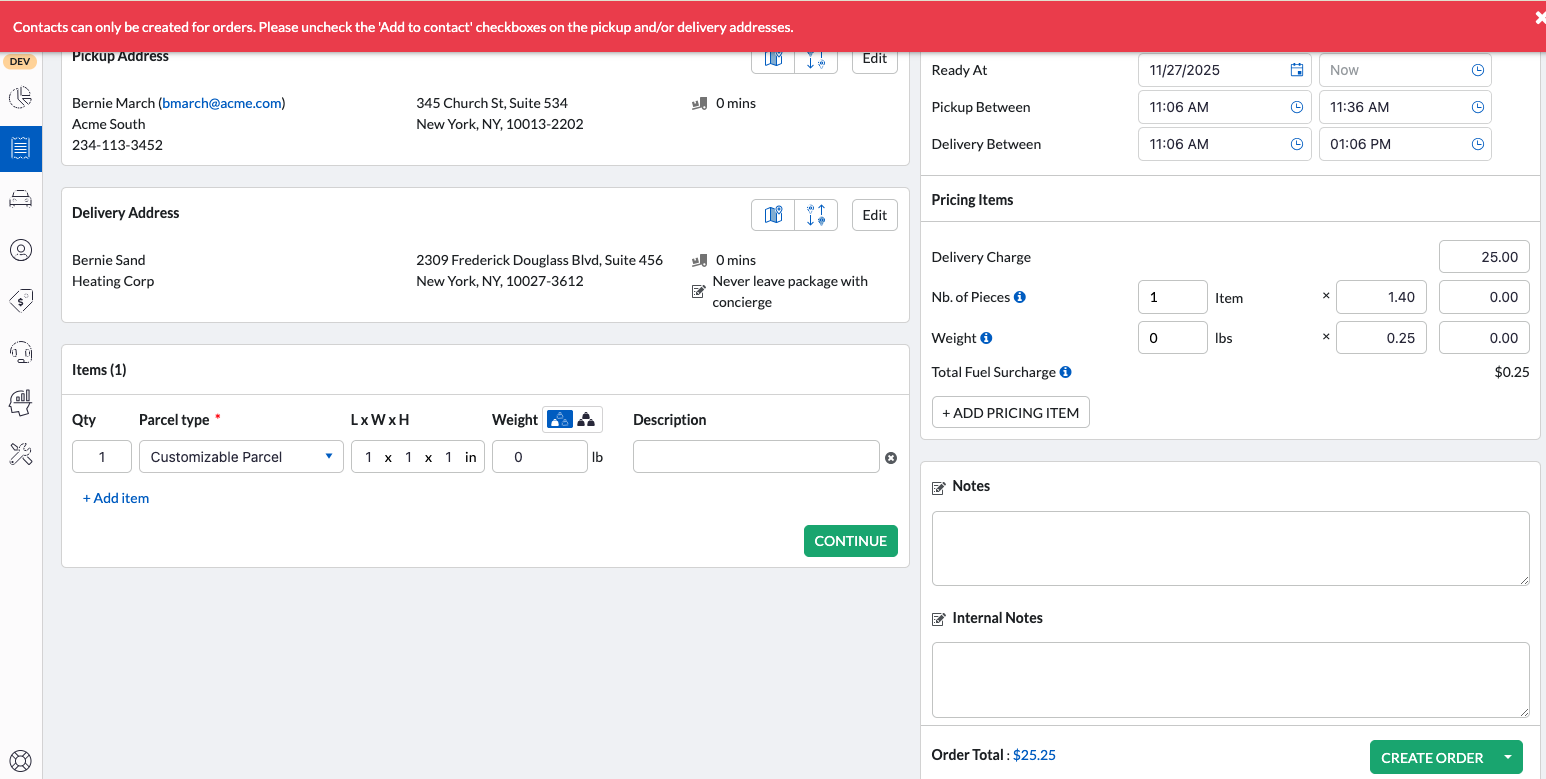
To proceed, deselect the Add to Contact checkbox in the Pickup and/or Delivery address sections and then create the Order Template again.
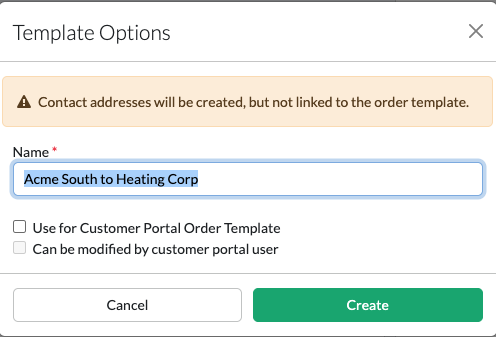
Create Order and Order Template
When creating an Order and an Order Template at the same time, users will now be reminded—via a dialog box—that contacts will not be linked to the Order Template.
Drivers
Driver List Pagination
The Driver list has been updated to include pagination. When the number of drivers exceeds the selected display limit, the list will now automatically split into pages, allowing easier navigation and faster loading times.
The same features remain available in the quick search, and filters continue to work seamlessly across all pages.
Settlements
The Driver Settlement general filter has been updated to allow searching by multiple fields, including:
- Driver First Name
- Driver Last Name
- Driver Number
- Order ID
- Settlement Number
This improvement makes it faster and easier to locate specific settlements or drivers, improving efficiency in reviewing and managing driver settlements.
Accounts
Multi-Segment Profile
Accounts>Profiles> Multi-Segment Order Profiles
You can now control how reference fields are updated across multi-segment orders. For each reference field, specify whether it should update when any segment or any multi-segment reference field is updated, ensuring your data stays aligned with your process.
Setup Update on Reference Fields
1) Open Accounts, Profiles then click on Multi-Segment Order Profiles
2) Check the reference fields that should be updated, when a segment or multi-segment's reference field is updated.
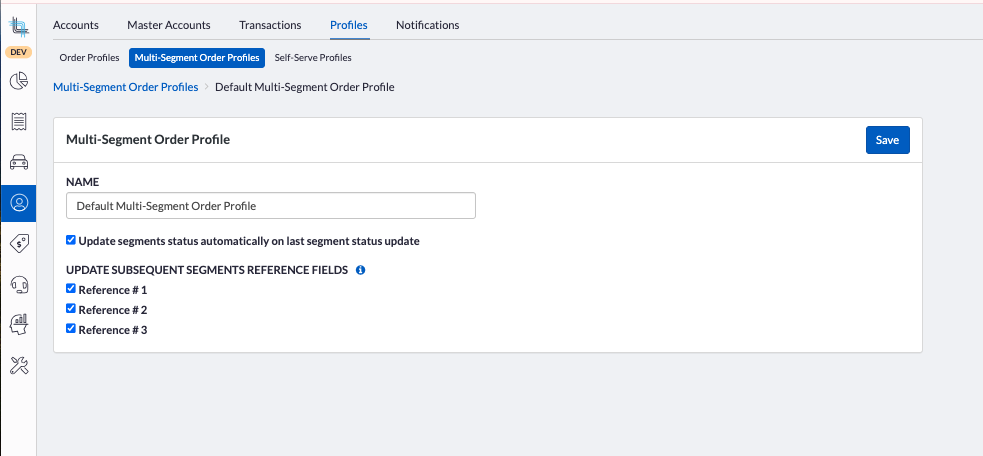
3) Click Save.
When this option is enabled, the reference field will update to the new value regardless of the Order Profile selected on the multi-segment or segment. Make sure that reference fields across different Order Profiles used in multi-segment orders are of the same type when using this option.Master Accounts
Accounts>Master Accounts
Access Management Across Master Accounts
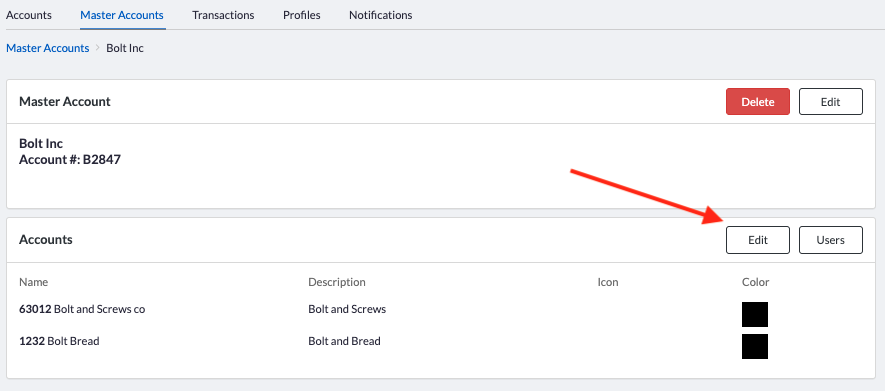
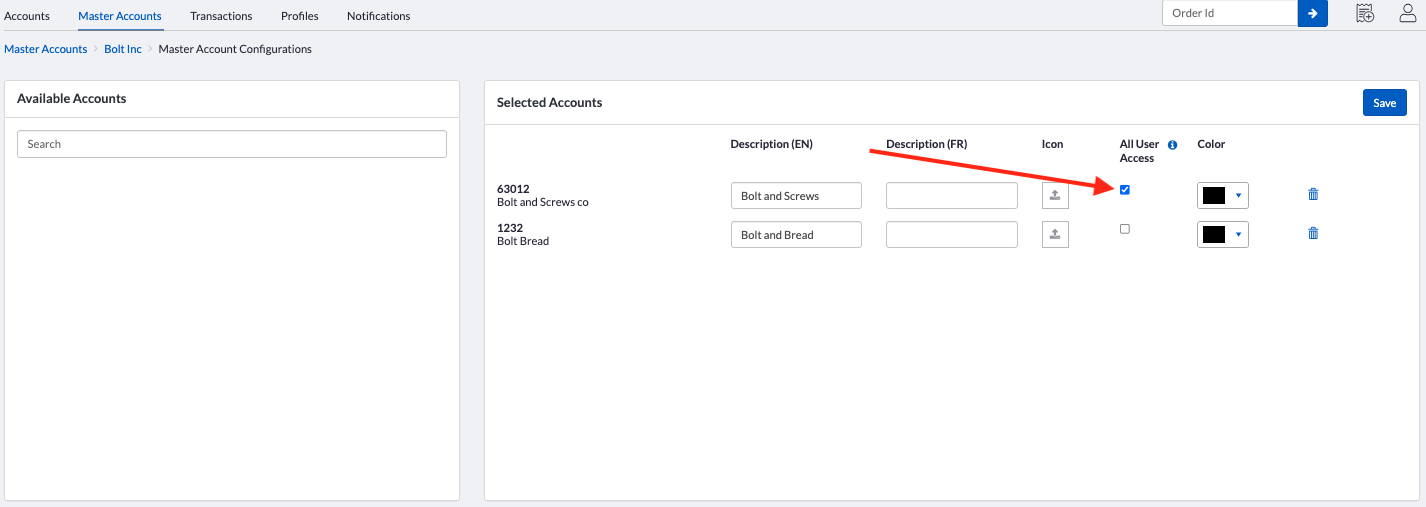
A new option has been added to simplify user access management within a Master Account. When adding or editing the list of accounts under a Master Account, you can now enable a checkbox that grants all users from one Account access to every other Account within the same Master Account. This eliminates the need to assign users individually, saving time and reducing manual updates.
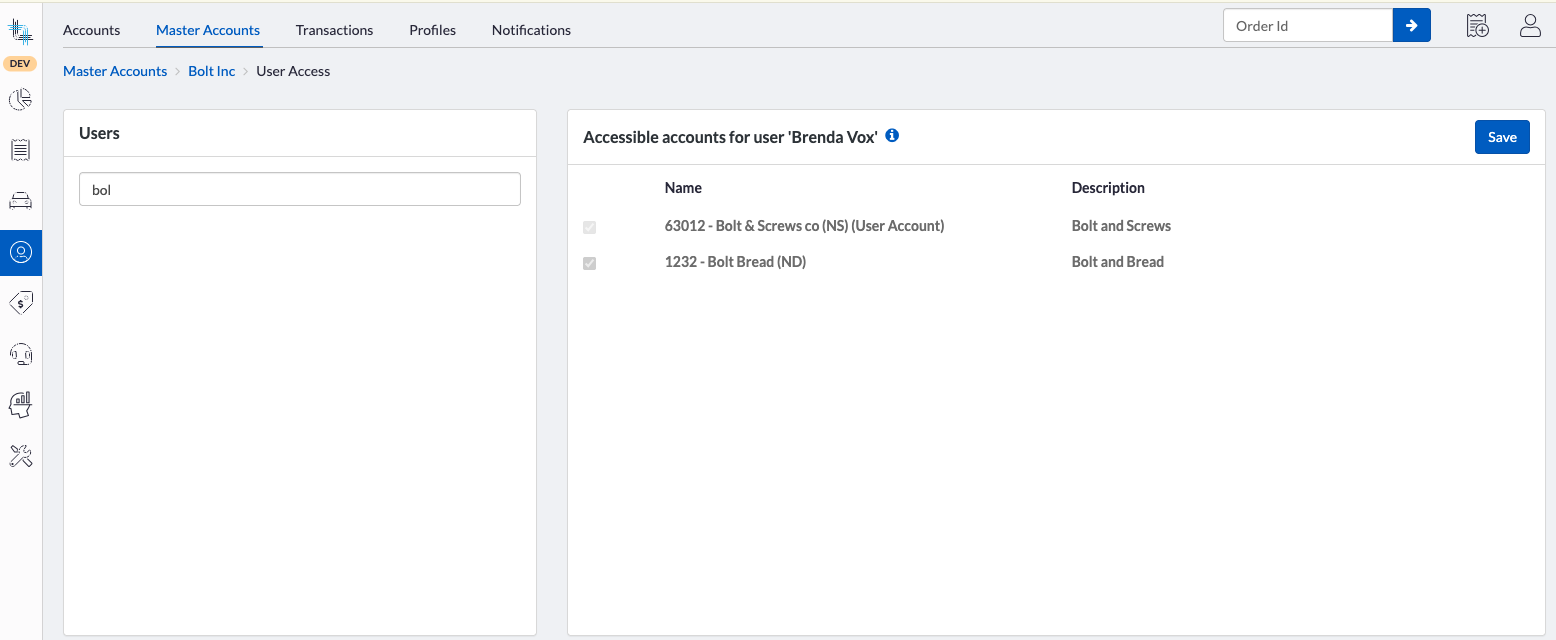
The selection of accounts by users will be locked. In order to select which accounts a user should have access to, make sure the new option is unchecked.
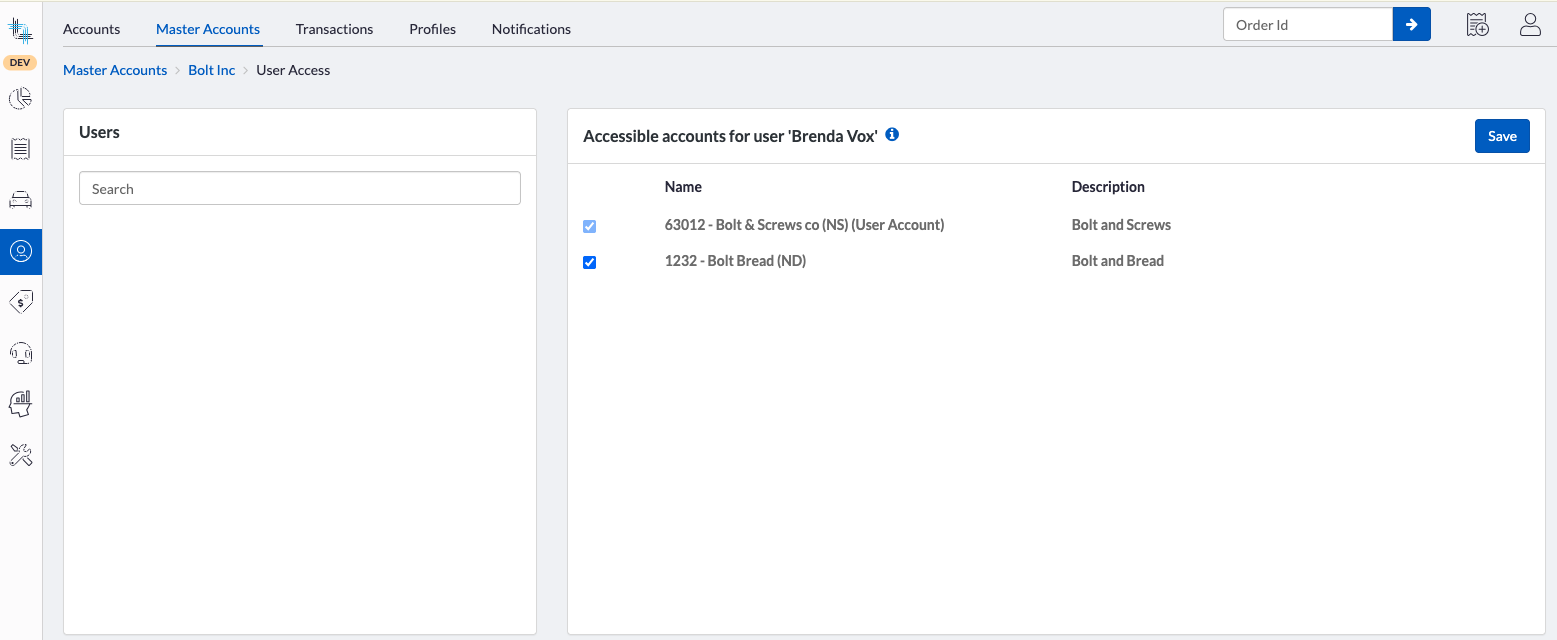
Unchecking the option will keep all users selected but unlock the checkbox selection for the accounts. You can then unassign access by selecting the appropriate accounts for each user.
Additional Benefits
- When users are added to an account within a Master Account that has the All User Access option enabled, they will automatically receive access to all Accounts under the Master Account.
- Self-serve users can be added either directly in Dispatch Science or through the Tenant API.
- When a new account is added to a Master Account, all users from accounts that have the All User Access option enabled will automatically gain access to the newly added account.
Set Access to All Users
1) Click on Accounts then on Master Accounts then click on the Master Account to edit:
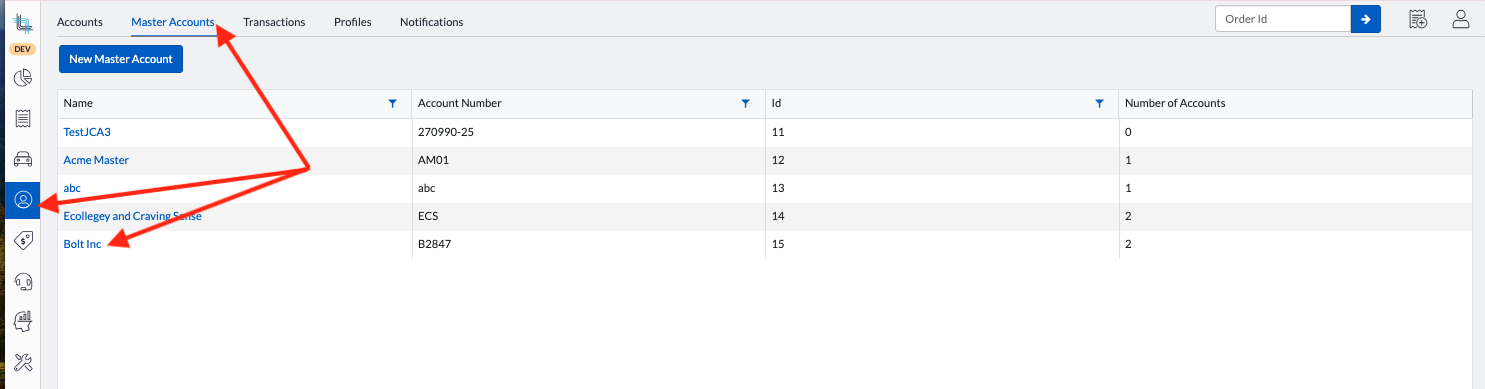
2) Click on Edit button in the Account section to edit the list of Accounts:
 3) Check the All User Access on the Account row to enable access to all the other accounts for all users within the checked account:
4) Click on Save.
All users will be checked automatically for all accounts and the account checkboxes will be locked when viewing the users from this account:
Remove Access to All Users
1) Click on Accounts then on Master Accounts then click on the Master Account to edit:
2) Click on Edit button in the Account section to edit the list of Accounts:
3) Uncheck the All User Access on the Account row to remove access to all the other accounts for all users within the checked account:
4) Click on Save.
All users of the account will still have access to all account but the account checkbox on those users will be editable except their own. You can then remove access by unchecking the appropriate accounts for each user.
Dispatch Board
Routes
Show Empty Routes in Containers
Empty routes configured through the Route Plan are now displayed in the Route Containers and are available when moving orders to Routes.
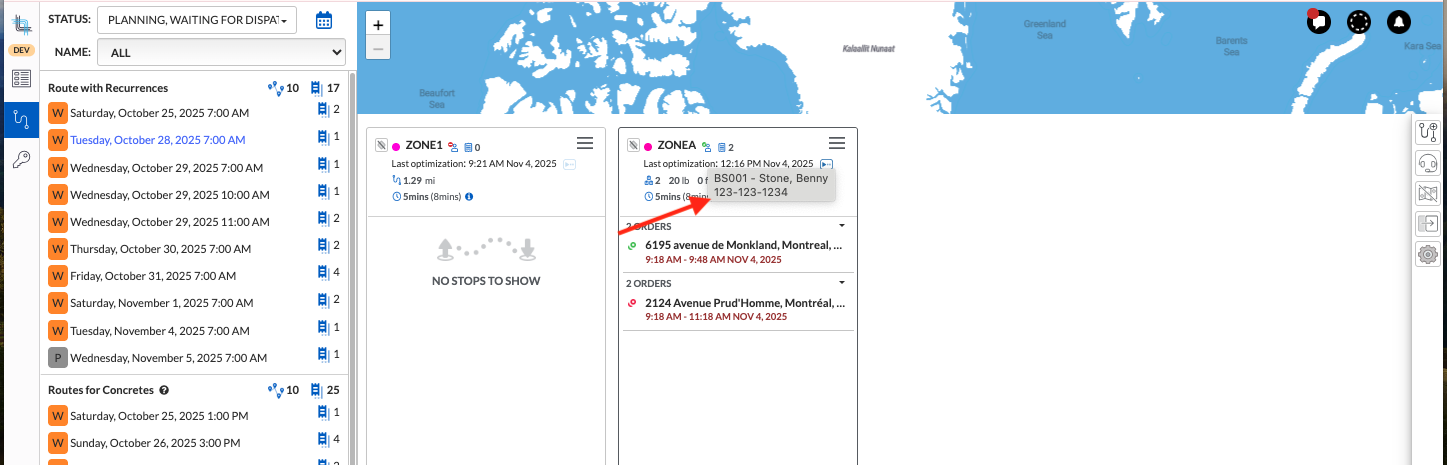
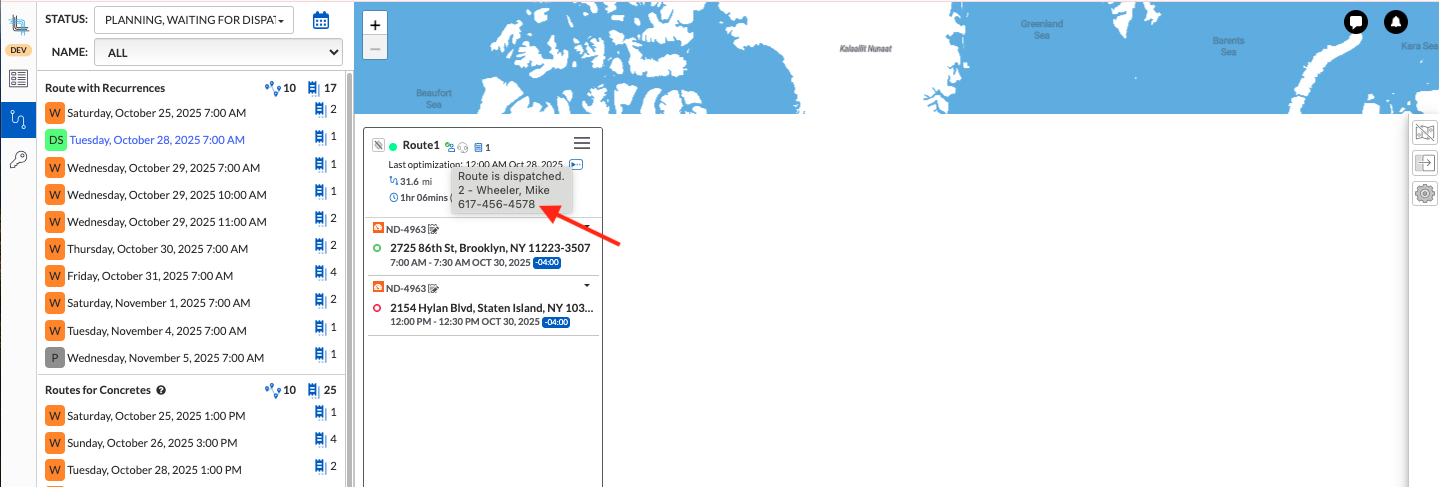
Driver Phone Number Showing on the Route
The driver phone number is now visible when hovering on the driver icon on a route:
Allocated driver on an undispatched route:
Driver on a dispatched route:
Map Board
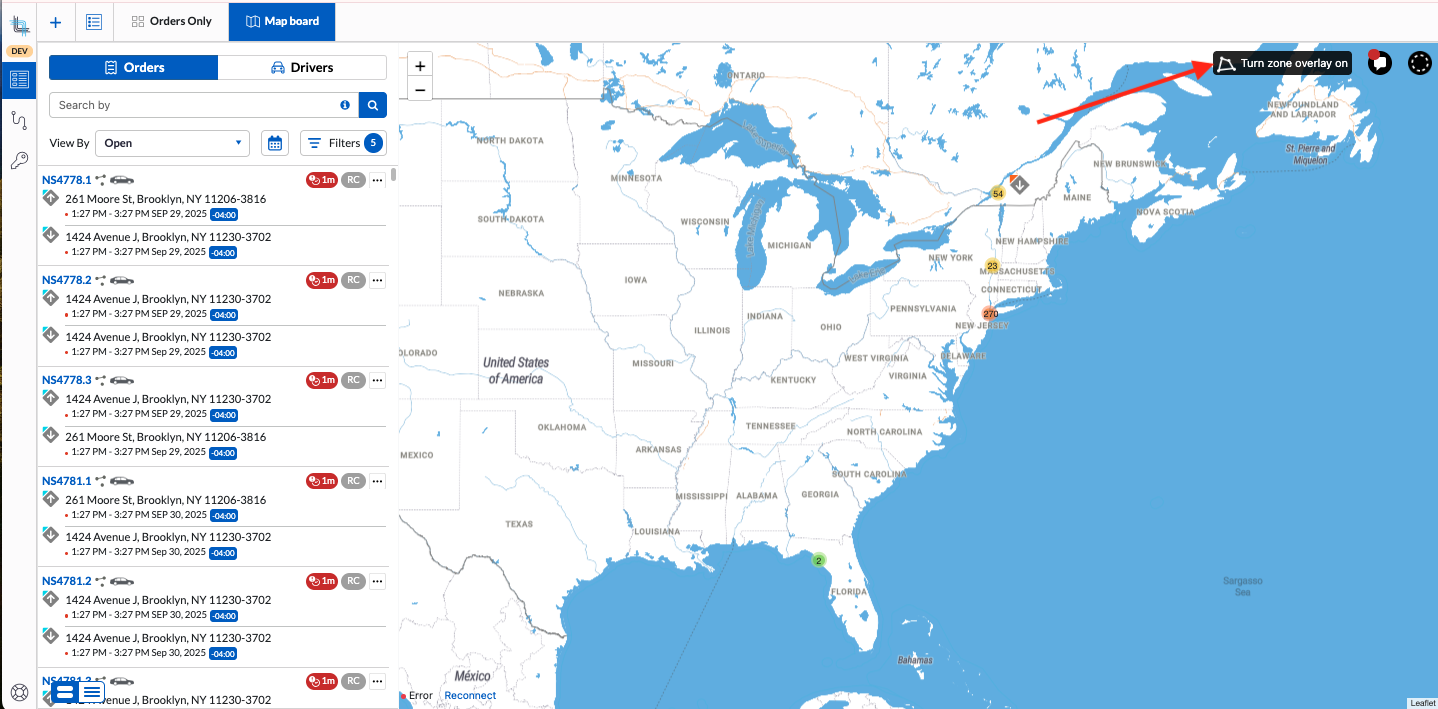
Zone Overlay
The Zone Overlay button to show and hide the selected filtered zones on the map has been added to the Map Board:
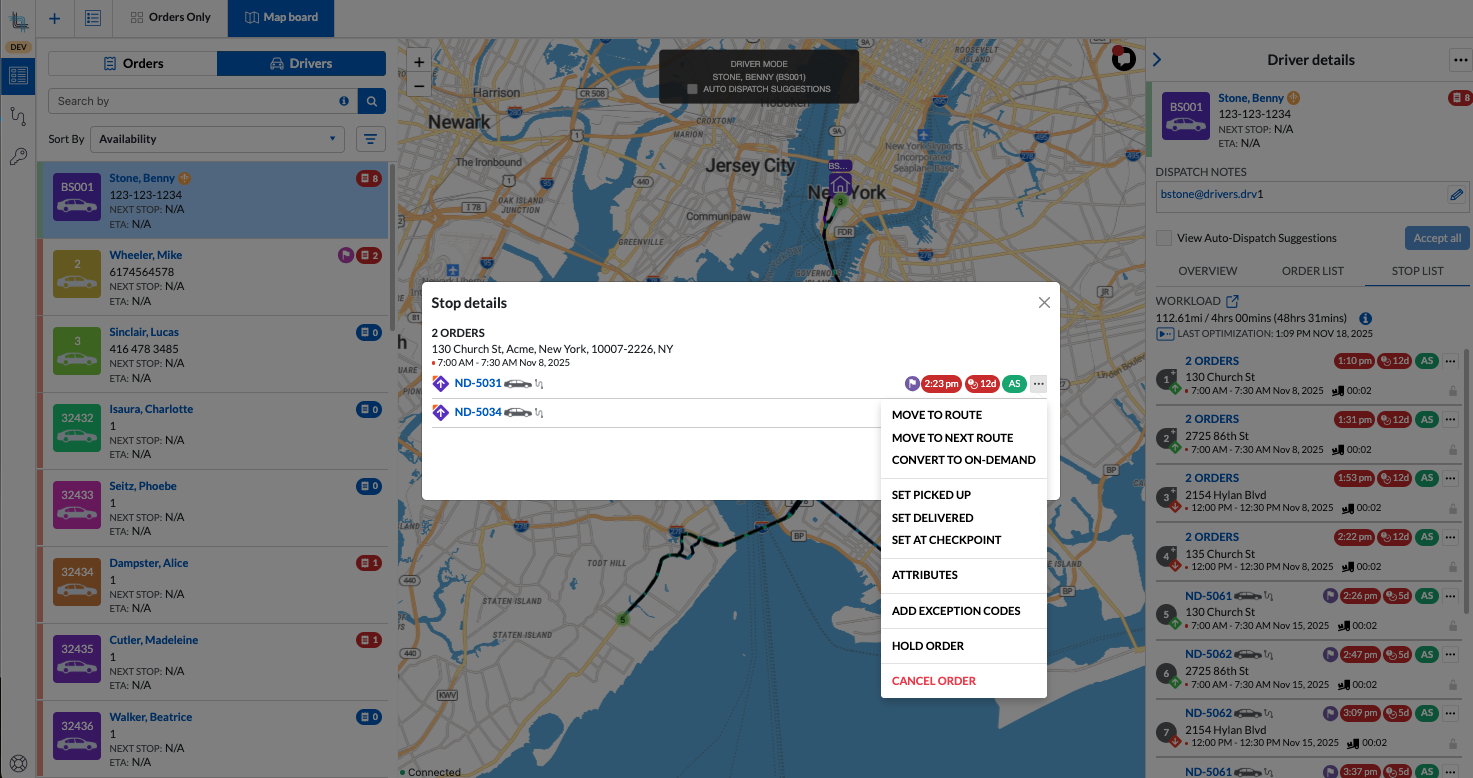
Enhanced Action List on Grouped Orders in Driver Sliding Panel
To streamline order management at the driver level, new actions have been added for grouped stops. These enhancements reduce the number of steps required to perform bulk actions and help dispatchers manage workloads more efficiently.
You can have access to this enhanced menu in the Driver sliding panel, in the Stop List on grouped orders by clicking on the ... menu:
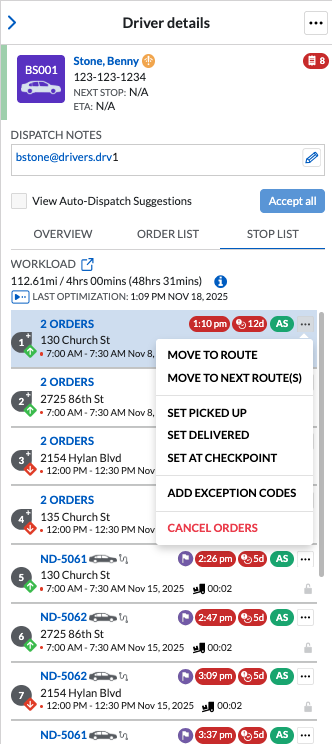
You will also find additional actions in the individual stop menu after expanding a grouped stop by clicking the number of orders, allowing you to view and manage each stop within the group more easily.
Self-Serve Portal
Order Template Creation Enhancements
Self-serve users will now see a clear error message when attempting to create an Order Template from the Order Creation screen.
Create Order Template Only
Users cannot create an Order Template without an Order when the Add to Contact checkbox is selected, as contacts are created only when an order is created.
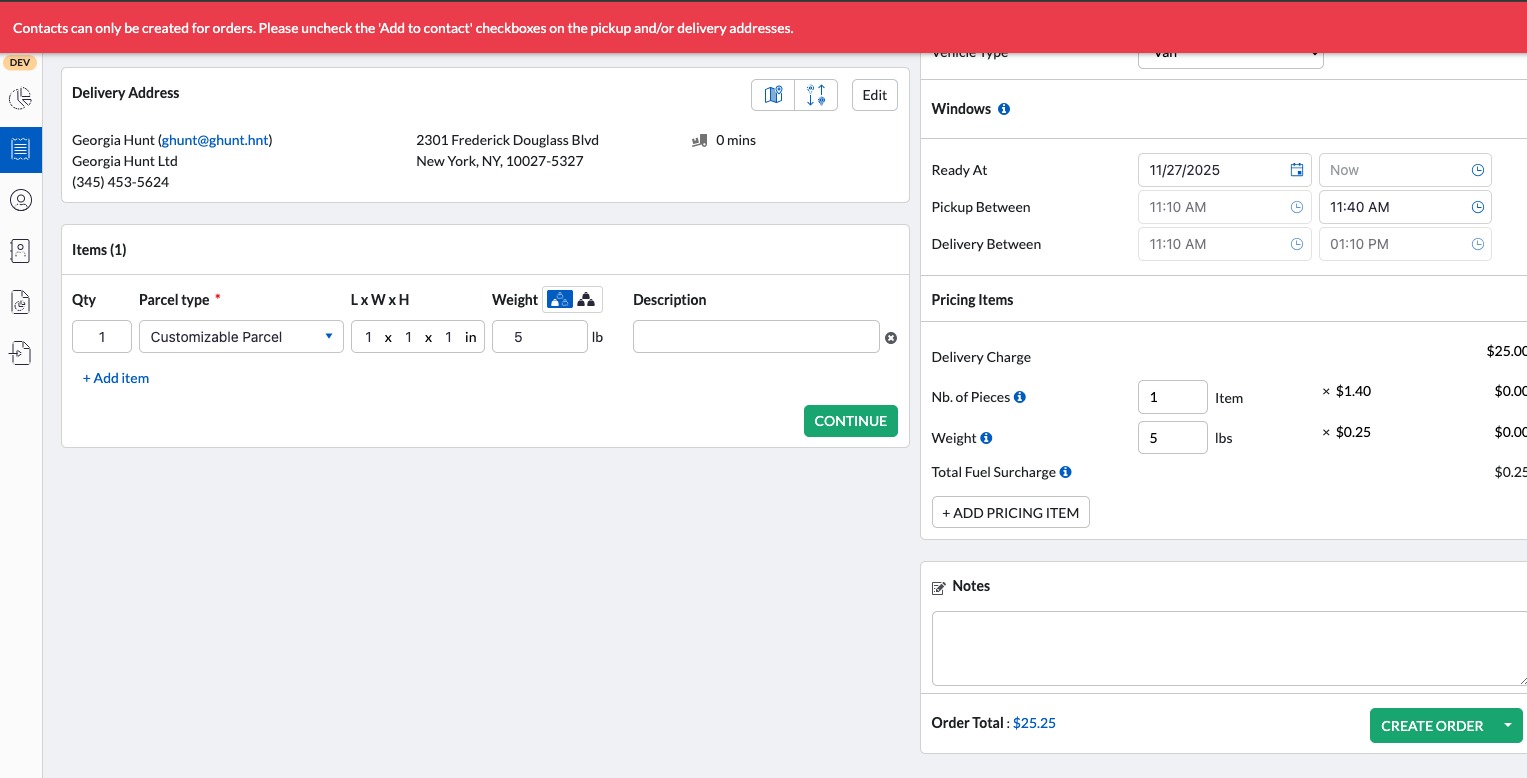
To proceed, deselect the Add to Contact checkbox in the Pickup and/or Delivery address sections and then create the Order Template again.
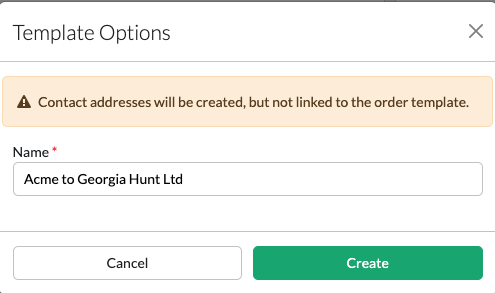
Create Order and Order Template
When creating an Order and an Order Template at the same time, users will now be reminded—via a dialog box—that contacts will not be linked to the Order Template.
Save Notes with Contact on Order
When a contact is created while the order is either created or edited by checking the Create Contact option in the Pickup or Delivery section, notes will only be saved with the contact if user has access to the new action permission Orders > Add Contact Notes. If this action permission is not selected as part of the user role, the contact note will not be saved once the contact is created. For more information about the permission, please review Add Contact Notes permission.
Administration
Roles
Settings>Configuration>System>Roles
Contact Creation with Notes
New permissions have been introduced to restrict internal users from creating contacts while creating or editing an order. These permissions were already available for Self-Serve roles and are now extended to internal users.
Additionally, the permission has been split to include an extra layer of control that prevents adding a note to the contact when it is created from an order. This change was made because notes entered on an order typically relate to the order itself, not to the contact.
Internal Role Permissions
There are two new permissions of type Action added to the Internal Admin and User roles:
- Orders>Add Contact: Enables the Add to Contact checkbox on the order pickup and delivery section at order creation and edit when a contact is entered/updated.
- Orders>Add Contact Notes: When selected, this permission will include the note when a contact is created from the Order's pickup and delivery section by checking Add to Contact checkbox. If this is not selected, the note will not be included upon contact creation.

Both permission will be checked on all roles who have edit access on the order. Self-Serve Permission
There is one new permission of type Action added to the Self-Serve Admin and User roles:
- Orders>Add Contact Notes: When selected, this permission will include the note when a contact is created from the Order's pickup and delivery section by checking Add to Contact checkbox. If this is not selected, the note will not be included upon contact creation.

This permission will be checked on all roles who have edit access on the Account Contact and/or User Contact.Internal Users Profiles Roles
A new role has been added to give access to the Settings>Configuration>Users>Profiles:

This role is set to Edit for all Internal Administrator on deployment.
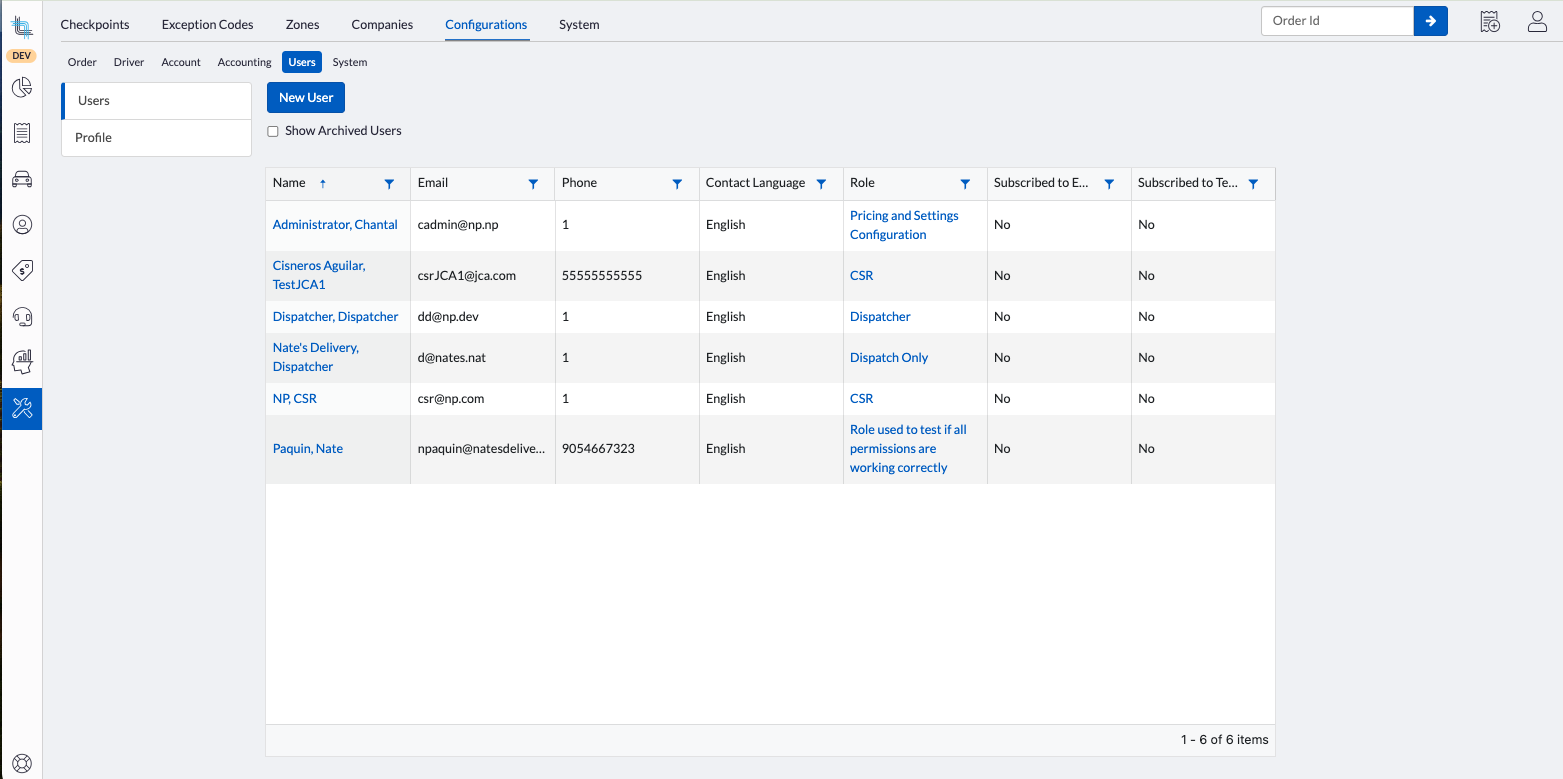
User List Relocation
Settings>Configuration>Users>Users
The Users list has been moved from Settings>System>Users to Settings>Configuration>Users>Users.
New User Profile
Settings>Configuration>Users>Profile
A new User Profile has been introduced to manage Parcel rules and label-printing settings for internal users. These options were previously available only to self-serve users and are now extended to internal users in this release. A default profile is created with all settings disabled to ensure that current behavior remains unchanged when the new version goes live.
You can update the profile as needed, and it will apply to all internal users unless they are exempted by granting the Skip Rule Enforcement permission.
Setting Default User Profile
1) Open Settings, Configuration, Users, Profile.
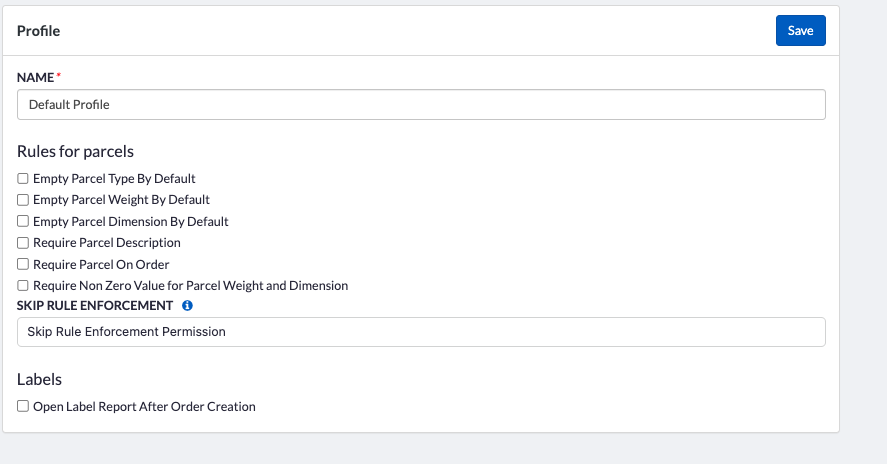
2) In the Rules for Parcels section, select the rules that should apply to all internal users across all Accounts.
To ensure complete parcel information at order creation, you can require specific fields or conditions to be filled in. Enabling these rules prevents order creation in Dispatch Science as well as orders created through the API or imports.
- Rule Options
- Empty Parcel Type By Default: No parcel type is preselected; users must enter one manually.
- Empty Parcel Weight By Default: Parcel weight is blank by default; users must enter a value.
- Empty Parcel Dimension By Default: Parcel dimensions are blank; users must enter all three values.
- Require Parcel Description: The description field is blank by default; this rule requires users to provide a description.
- Require Parcel On Order: Prevents order creation unless at least one parcel is added.
- Require Non-Zero Value for Parcel Weight and Dimension: Prevents order creation if any dimension or the weight is set to zero.
3) If certain users should be exempt from these rules, assign the appropriate permission under Skip Rule Enforcement.
Users who are assigned one or more of the selected permissions as part of their role with a minimum of View access will be exempt from the rules and will be able to create or edit the orders without meeting the requirements.
4) If the Label print dialog box should be opened automatically after an order is created, check the Open Label Report After Order Creation.
When this is checked, if you have a label type report set to show under the  icon on your order details, the dialog box will open automatically to have the label printed.
When importing orders with the Empty Parcel Type By Default, the values of any value left blank in the import file will be filled in by the parcel type configured dimensions. If the values are 0 and the Require Non-Zero Value for Parcel Weight and Dimension is checked, these orders will not be created.To access this new menu, a new role was added. Ensure this is setup accordingly for your users.
Existing Internal Admin roles are set to Edit access to this feature by default. Please review and update your internal user and admin roles as needed to ensure they have the appropriate permissions. For more information see Roles above.Batch Tool
Recalculate Order Charges and Extra Fees
A new menu item has been added to the Batch Tool in the Order list to enable recalculating the delivery and extra fee charges on Orders. This can be done by selecting the Update the Price on Orders in the additional menu on the Orders tab once you have selected the orders to update.
Scripts and Script Rules
Settings>System>Scripts and Script Rules
Select Events for Order Script Execution
You can now choose the specific events that trigger an order update script. Previously, while it was possible to view the relevant events, the script had to run to verify them.
This reduces unnecessary script executions, thus improving system performance. It also provides more control over automation, ensure scripts will only run when needed.
It also simplifies troubleshooting by limiting the script activity to relevant events.
This field is now mandatory on new or edited scripts before it can be saved.Add Events for Script Execution
1) Open Settings>System>Scripts.
2) In the list of scripts, click on an order update script name to edit it:
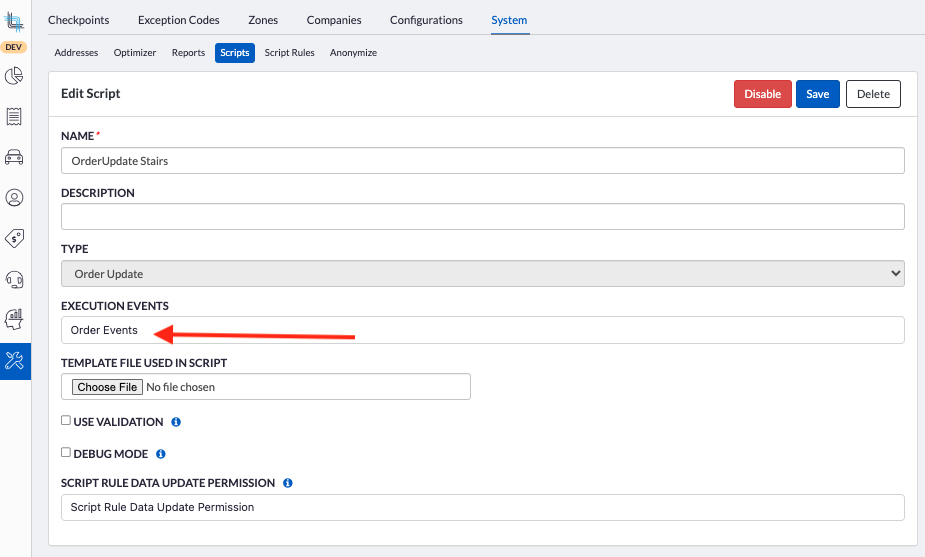
3) In the Execution Events field, click in the field to see the list of events or start typing the event name. The list will then filter.
4) Click on the event and it will be added in the field.
Up to 20 events can be selected.5) Click Save.
Remove an Execution Event
1) Open Settings>System>Scripts.
2) In the list of scripts, click on an order update script name to edit it
3) In the list of Events, click the X on the event to remove.
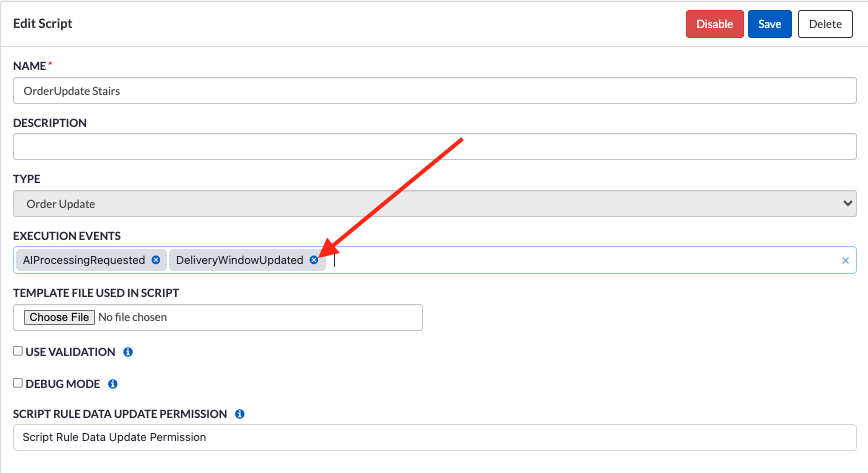
Repeat for each event to delete.
4) Click Save.
Warning Added on Scripts
A warning was added on the scripts to remind users that scripts can only operate internally and are now allowed to make external calls:

Any scripts using external alls will be deactivated without notice.
Order Source and Order Status Available on Extra Fee Scripts
You can now reference Order Source and Order Status when configuring extra fee scripts.
This enhancement is useful when you need to prevent extra fee scripts from running on high-volume orders created through imports or the API. By using Order Status and Source, the extra fee can instead be triggered on those orders only after the order moves to a specific status but still calculate when entered manually in DIspatch Science.Tenant API
POST /api/v1/drivers/deductions/{driverId}
When adding cash deductions/additions to a driver settlement through the POST /api/v1/drivers/deductions/{driverId}, the driver's Cash Settlement Company is now taken into account.
PUT /api/v1/drivers/deductions/{driverId}/{deductionId}
When editing cash deductions/additions to a driver settlement through the PUT /api/v1/drivers/deductions/{driverId}/{deductionId}, the driver's Cash Settlement Company is now taken into account.
Driver Fields
A new section called DriverFields has been added to the Tenant API. This section provides endpoints that allow you to retrieve, create, update, and archive driver user fields directly through the API.
GET /api/v1/driverfields
This endpoint will return all the Driver user fields.
Paramaters
None
Response
[
{
"id": "string",
"labelPrimary": "string",
"labelSecondary": "string",
"acceptedValues": "string",
"fieldBehaviorInternalUsers": 0,
"inputFieldType": 0,
"fieldType": 0,
"archived": true
}
]
POST /api/v1/driverfields
This endpoint is used to create Driver user fields.
Parameters
None
Body
{
"id": "string",
"labelPrimary": "string",
"labelSecondary": "string",
"fieldBehaviorInternalUsers": 0,
"acceptedValues": "string",
"inputFieldType": 0
}
Fields:
id: Driver user field id
labelPrimary: Driver user field label in the primary language
labelSecondary: Driver user field label in the secondary language
fieldBehaviorInternalUsers: 0=updatable, 1=read-only, 2=hidden
acceptedValues: Each value are separated by a semi-column, ex: "ABC;DEF;GHI". This field is nullable.
inputFieldType: 0=Text, 1=Integer, 2='Decimal, 3=YesNo, 4=Dropdown
PUT /api/v1/driverfields/{driverfieldId}
This endpoint is used to update Driver user fields.
Parameters
driverfieldId
Body
{
"labelPrimary": "string",
"labelSecondary": "string",
"fieldBehaviorInternalUsers": 0,
"acceptedValues": "string",
"inputFieldType": 0
}
Fields:
labelPrimary: Driver user field label in the primary language
labelSecondary: Driver user field label in the secondary language
fieldBehaviorInternalUsers: 0=updatable, 1=read-only, 2=hidden
acceptedValues: Each value are separated by a semi-column, ex: "ABC;DEF;GHI". This field is nullable.
inputFieldType: 0=Text, 1=Integer, 2='Decimal, 3=YesNo, 4=Dropdown
POST /archive/{driverFieldId}
This endpoint is used to archive Driver user fields.
Once a user field is archived, it will no longer show with the Get endpoint and it cannot be updated with the Put endpoint.Parameters
driverfieldId
Addition of the Return Home Setting in Driver End Points
The Return Home setting has been added to the following endpoints:
- POST /api/v1/drivers
- Used to create drivers
- To keep backward compatibility, the field is not required.
- Value will be set to true by default if not available to keep current functionality.
- PATCH /api/v1/drivers/{id}
- Used to update a driver
- Body:
{ "op": "replace",
"path": "/returnHome",
"value": true or false
}
- GET /api/v1/drivers/{id}
- Used to get the information on one driver
Field Name:
returnHome: Returns false when Return Home is disabled on the driver, returns true when Return Home is enabled on the driver.
Was this article helpful?
That’s Great!
Thank you for your feedback
Sorry! We couldn't be helpful
Thank you for your feedback
Feedback sent
We appreciate your effort and will try to fix the article