TABLE OF CONTENTS
- Introduction to the Dispatch Board
- Types of Dispatch Boards
- Managing and Creating Dispatch Boards
- Search and Filters
- Customize Columns on Grid Board
- Order and Driver Quick View
- Order Sliding Panel
- Driver Sliding Panel
- Actions on Orders
- Dispatch Orders
- Move Order to Route
- Move Routed Order to Next Route
- Convert a Routed Order to On Demand
- Set Order Picked Up
- Set Order Delivered
- Set at Checkpoint
- Add/Remove Attributes on an Order
- Add Exception Codes to Orders
- Set an Order on Hold
- Release a Held Order
- Cancel Order
- Reactivate an Order
- Generate a Report
- Lock Stops on Driver Stop List
- Unlock Stops on Driver Stop List
- Set a Driver Off Duty
- Chat with Drivers
- Auto Dispatch Suggestions
- Board Elements Glossary
Introduction to the Dispatch Board
The Dispatch Board is a powerful tool designed to help dispatchers efficiently manage and monitor orders and driver activity in real time. It provides a centralized view of order statuses, driver locations, and overall operational progress—either through an interactive map or a structured grid layout.
With the ability to create multiple boards using custom filters, dispatchers can easily focus on specific order types, statuses, or regions. This flexibility helps ensure that potential issues are quickly identified and addressed, and that orders are assigned based on real-time driver availability and location.
Additionally, the Dispatch Board supports bulk actions, allowing dispatchers to mass update orders directly from the interface, streamlining the workflow and reducing manual effort.
Types of Dispatch Boards
The Dispatch Board offers several layout options to suit different operational needs, each providing a unique way to visualize and manage orders and drivers. Below are the available board types:
- Map Board
Displays both orders and drivers on a map, offering a visual, location-based overview.
Ideal for real-time geographic tracking and quick assignment based on proximity.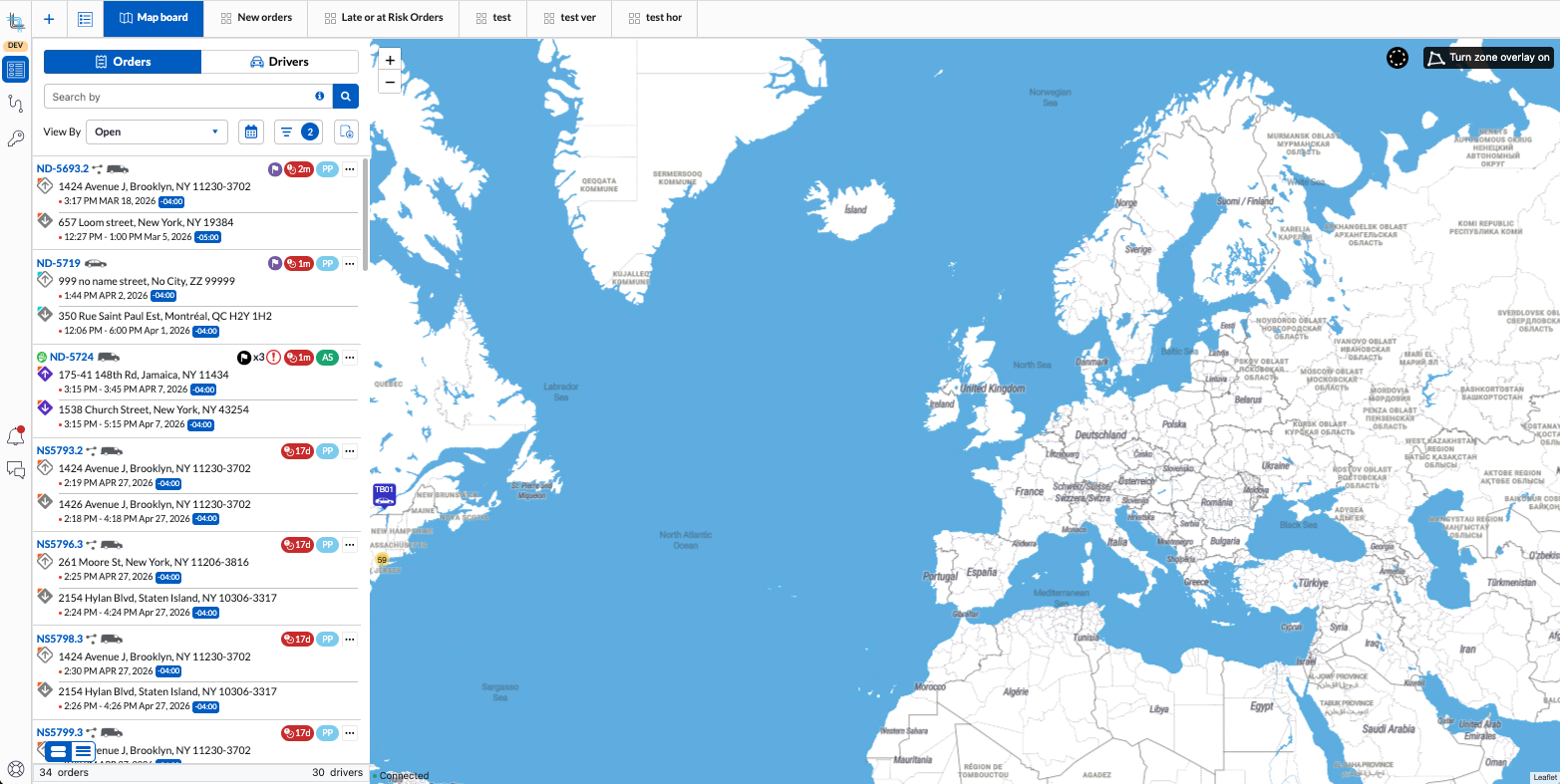
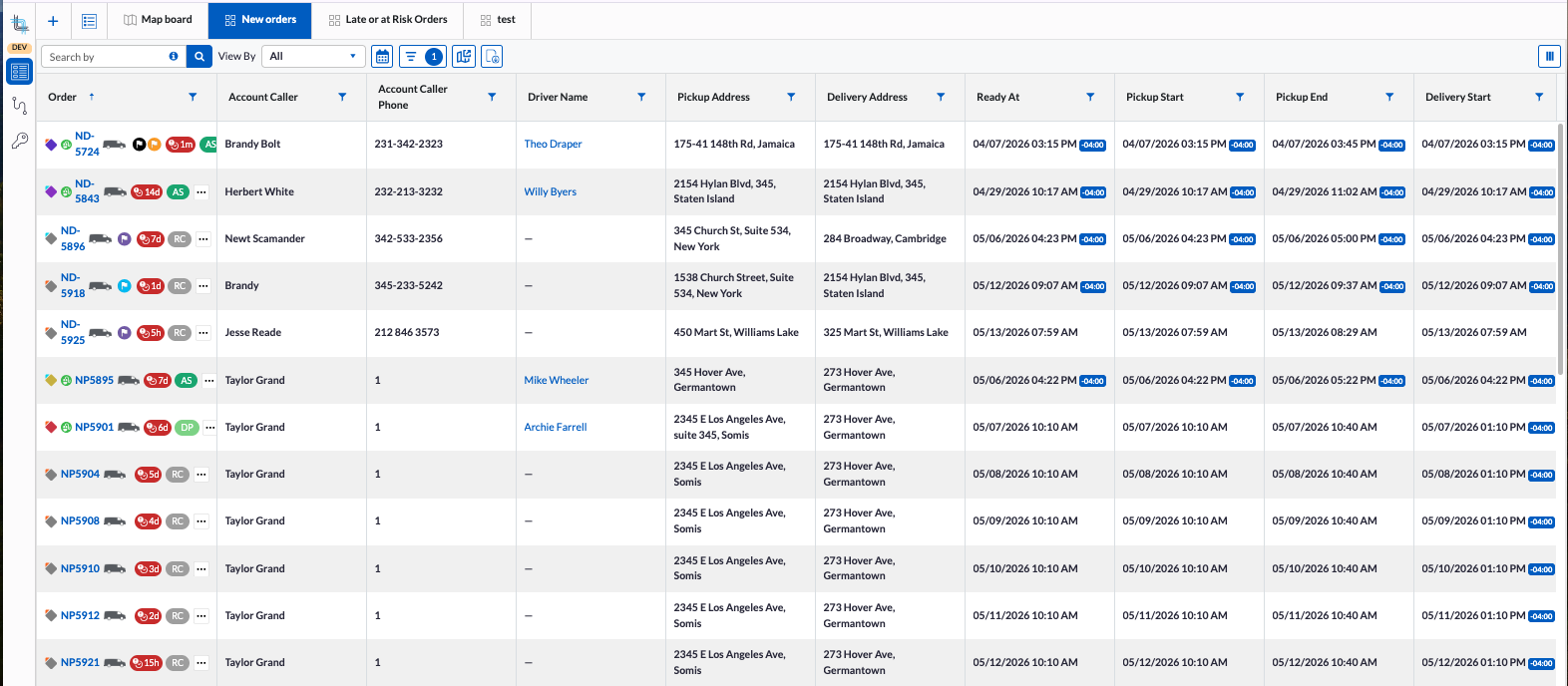
- Grid Boards
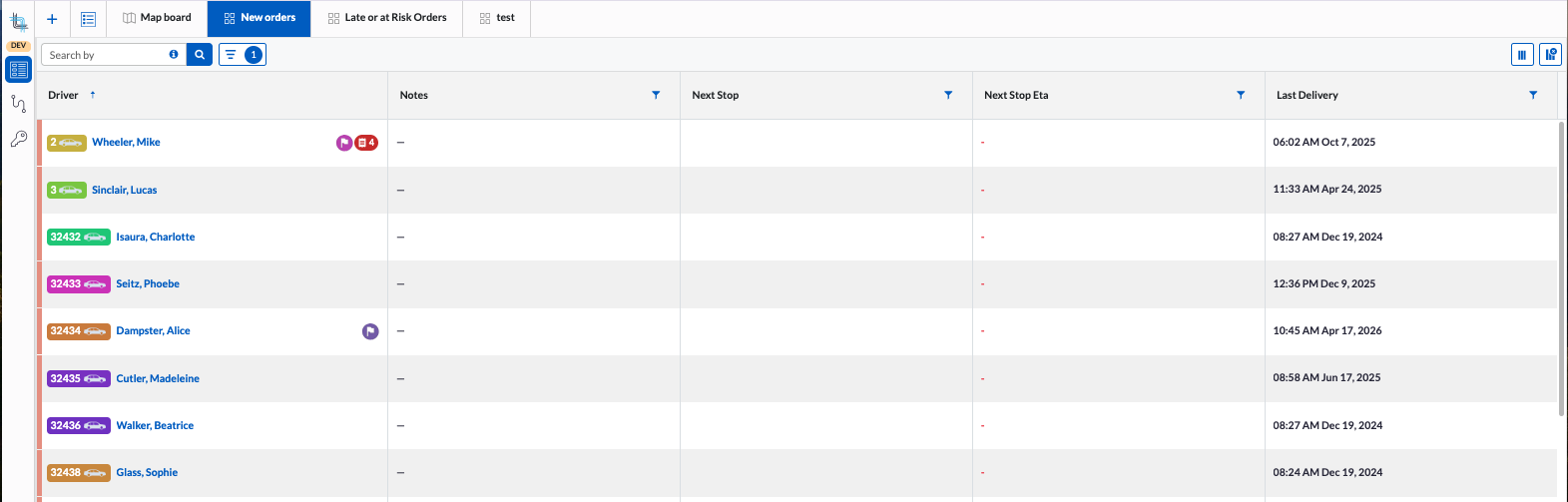
Provide a tabular view of orders and drivers with customizable columns.
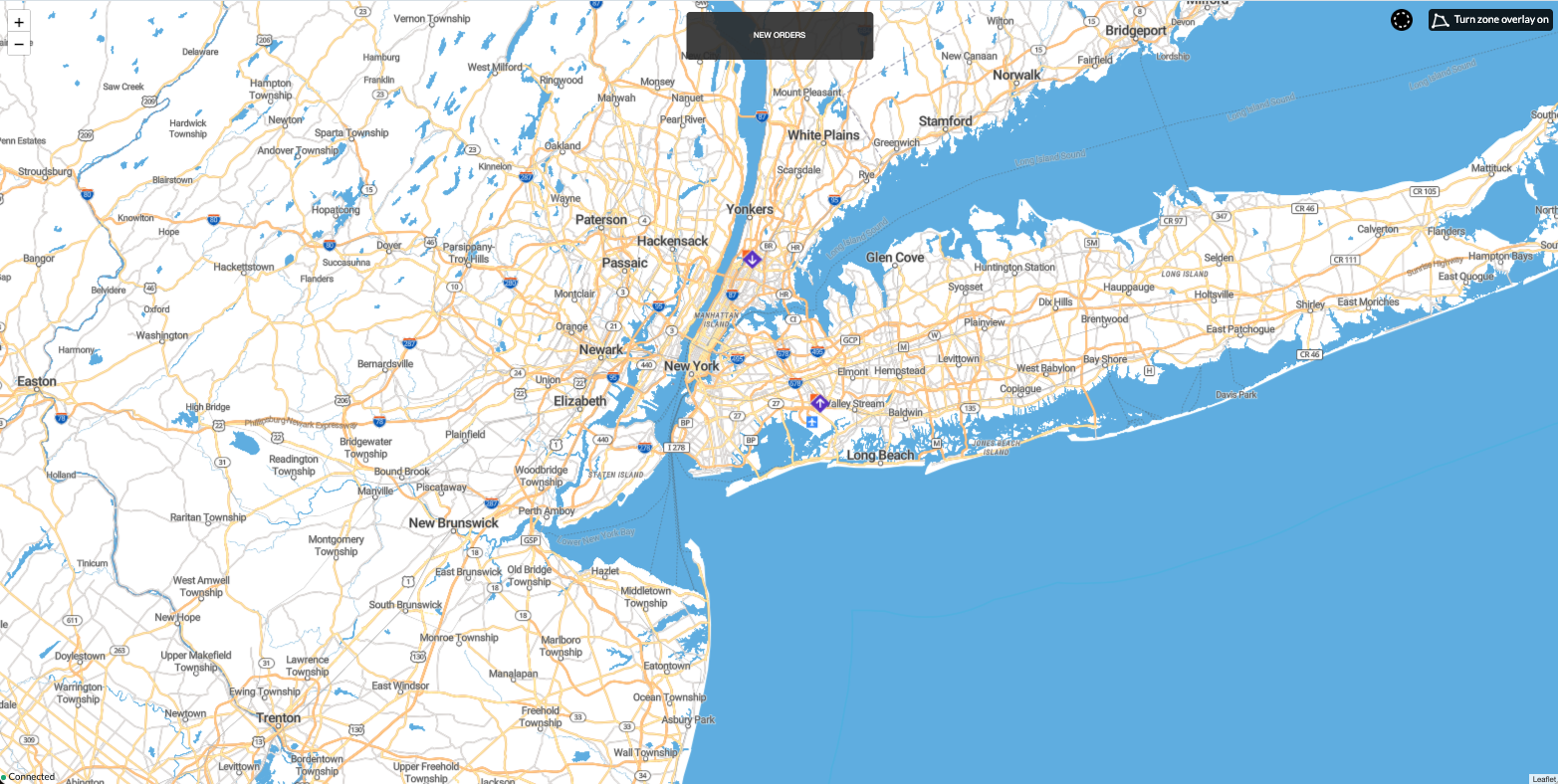
They can be combined with an optional linked map for additional context.- The Grid Boards are available in the following layouts:
- Horizontal Grid with an accompanying linked map: Orders and drivers displayed on top of each other.
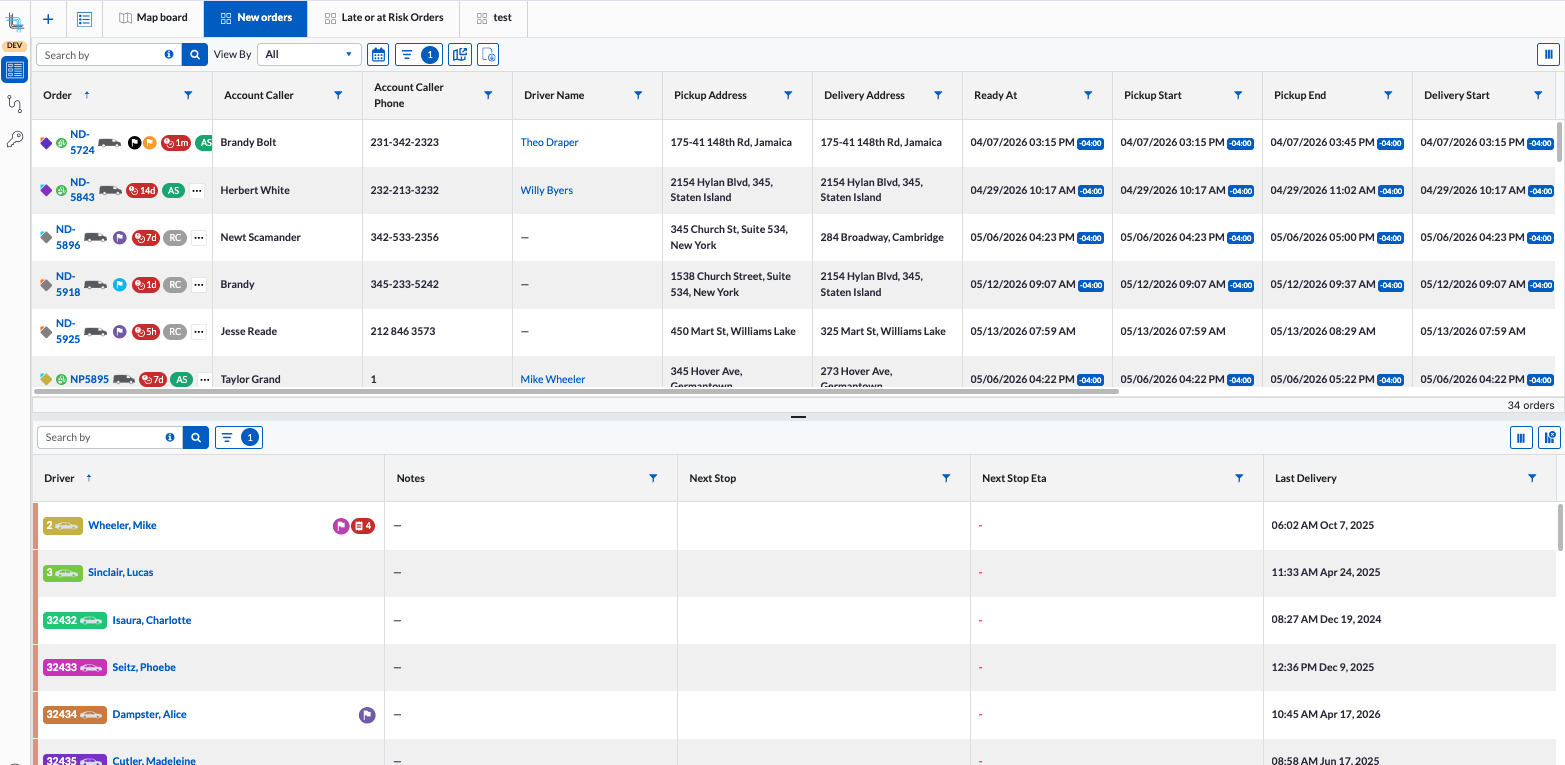
- Vertical Grid with an accompanying linked map: Orders and drivers displayed side by side.
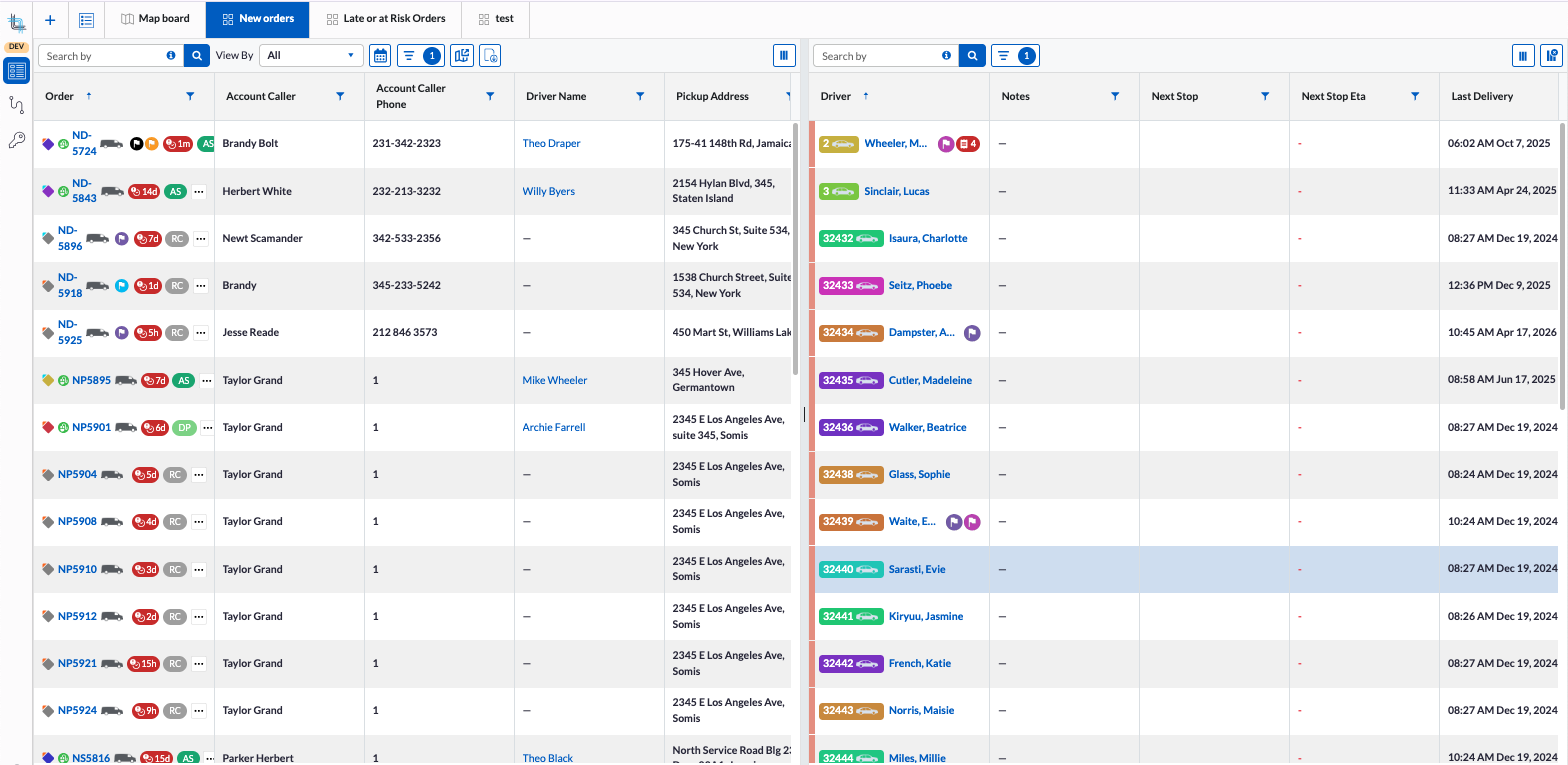
- Vertical Grid with Map: Two vertically aligned grids, one for orders, one for drivers, with a built-in map view for simultaneous data and location monitoring.
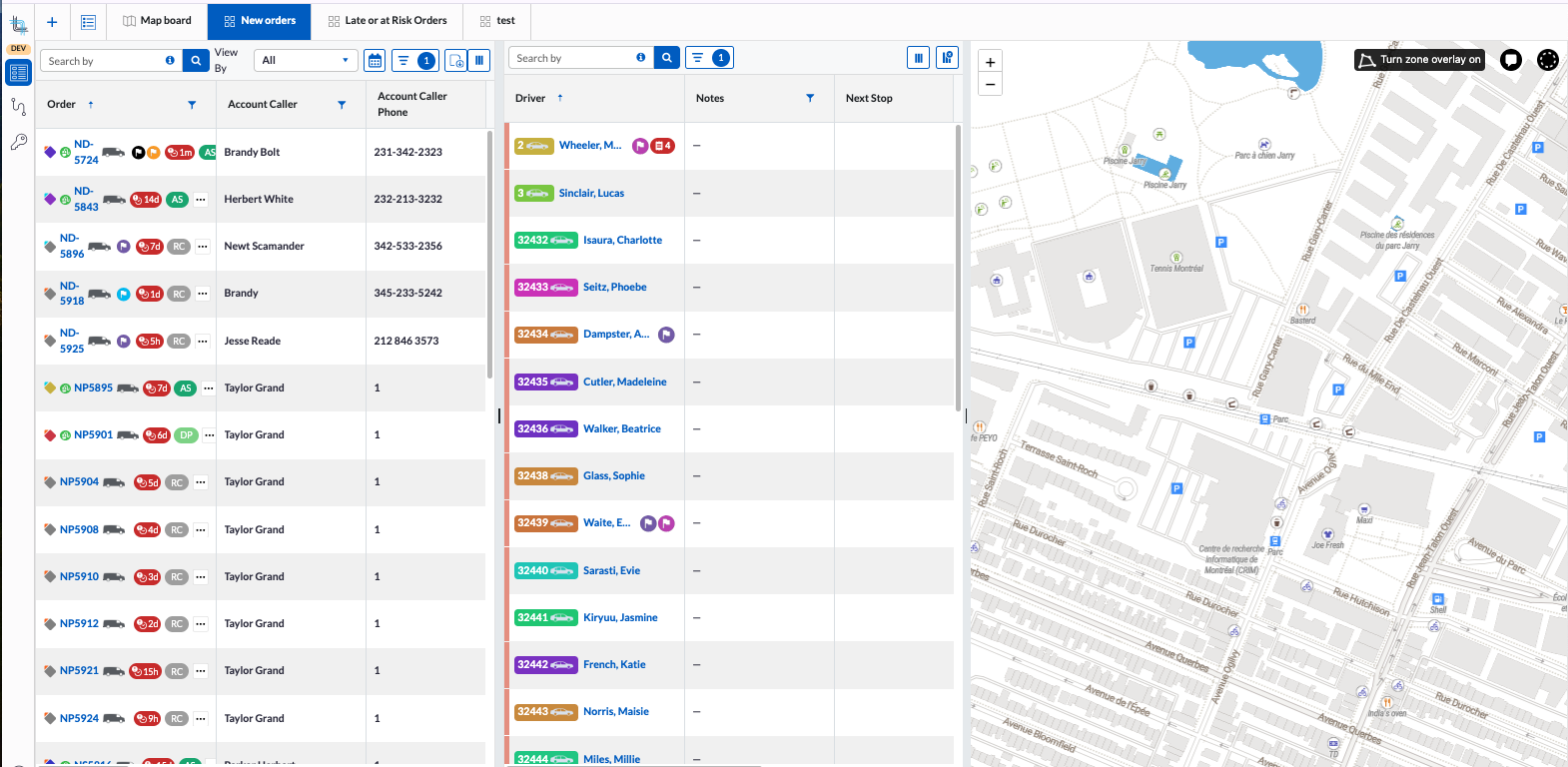
- Order-Only Grid with an accompanying linked map: Focused exclusively on order information.
- Driver-Only Grid: Displays only driver details and statuses.
- Horizontal Grid with an accompanying linked map: Orders and drivers displayed on top of each other.
- The accompanying linked map grid is a map showing the filtered list of orders and drivers:
- The Grid Boards are available in the following layouts:
All boards support filtering through:
- A global search bar for quick filtering.
- Advanced filter for both drivers and orders on zones, attributes, accounts, etc..
Additional filter on grid board:
- Column-level filters for more precise data refinement, including sort.
These flexible board configurations allow dispatchers to tailor their workspace to match their workflow, whether they're monitoring delivery progress, assigning tasks, or responding to issues in real time.
Managing and Creating Dispatch Boards
By default, a Map Board is automatically generated when you first access the Dispatch Board from the Back Office by clicking on the left menu item  . This default board can be modified as needed. You can always manually create additional Map or Grid Boards to support different workflows and operational needs.
Each board can be customized with specific filters and on grid boards, specific columns to focus on particular order types, statuses, regions, or driver groups. To streamline setup, you can also copy an existing board—either one of your own or, if you have the appropriate permissions, a board created by another user. Once copied, the new board can be modified independently, allowing you to tailor it to your specific requirements.
This flexibility makes it easy to maintain multiple views for different use cases, ensuring you always have the right information at your fingertips.
Open the Dispatch Board
When opening the Dispatch Board from the Back Office by clicking on  , what you see depends on whether a default board has been set:
- If a default board exists, you will be taken directly to that board upon opening the Dispatch Board.
- If no default board is set, you will be directed to the Dispatch Board Landing Page, where you can select to view a board or create a new board.
At any time, you can return to the Board List by clicking on the Dispatch Board Landing Page  located in the top left. This allows you to switch between boards or manage your existing configurations with ease.
Dispatch Board Landing Page
The Actions menu on the Dispatch Board Landing Page provides several tools for managing your Map and Grid boards efficiently.
Searching for a Board
In the Search, start typing the name of the board.
You can also sort the board list in ascending order by clicking once on header (name, board type or description). Click again on the header to sort in descending order. Click again to remove the sort.
Set a Default Board
When a default board is set, navigating to the Dispatch Board will automatically open that board, bypassing the Dispatch Board landing page.
To set the default board, click on the star beside its name.
You can reset the default board by clicking on its start, this will remove the star and when the dispatch board is opened, the list will show by default.
Edit Board Settings

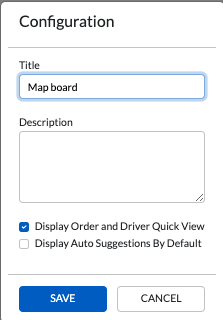
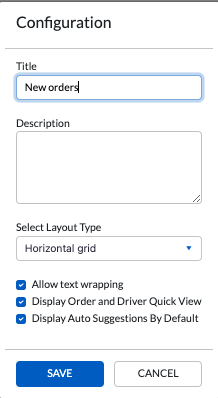
Select Settings from the Actions menu to modify:
- The name and description of the board.
- The quick order and driver view visibility.
- The auto-dispatch suggestions visibility.
- Column text wrapping for the grid board.
- Layout type for the grid board.
Reorder Boards

Use the Move Up and Move Down actions to change the order in which boards appear in your list and tabs.
If the list is filtered, you will not be able to move boards in the list. Ensure there are no sort order before attempting to do so.Copy a Board

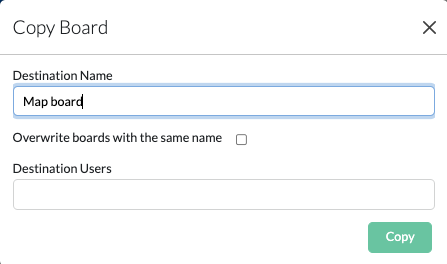
Select Copy to duplicate a board. During the copy process, you can:
- Change the name of the copied board.
- Select one or more users to copy the board to by starting to type its name in the Destination Users then select it from the list.
- If a board with the same name already exists for a selected user, you can enable the Override option to replace it.
If you have permission, you can also see all boards from all users by clicking on the View All Users. From the list, you can then copy any board to yourself or other users.Delete a Board

- Choose Delete to remove a board from your list. A confirmation popup will appear—confirm the action to proceed with deletion.
Deleting a board is permanent and cannot be undone. You can only delete your own boards.Create a Board
- If you have not created a board, a Map board will be available by default however, if boards were already created but none were set as default, you will see the Board List with the existing boards.
 Click on the Add Board button.
OR
Boards were created and you have a default board then you will see the board. Click on the + button to add the new board: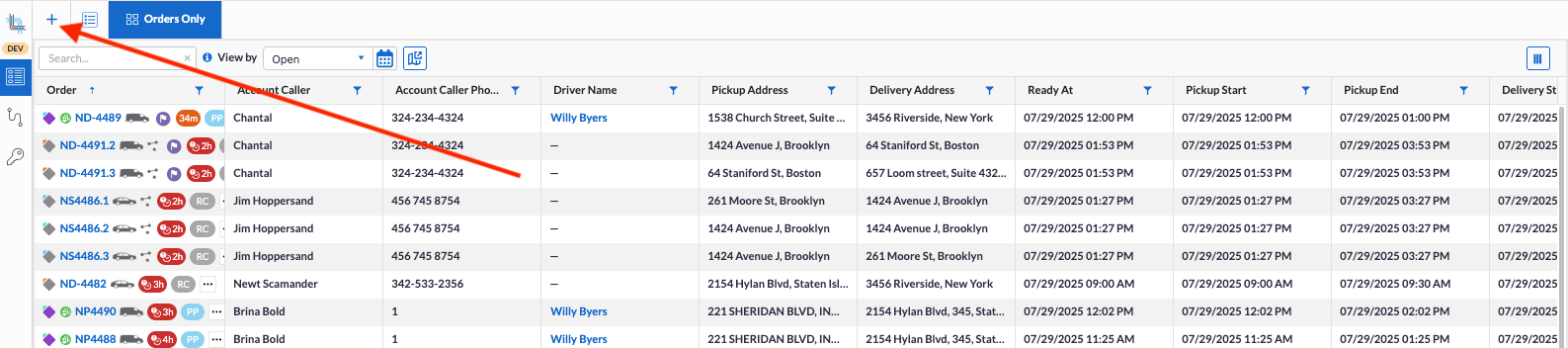
- The new board dialog box will then appear:
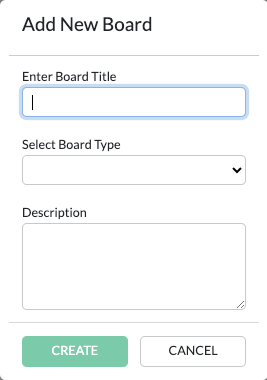
- Enter the board title then select the board type:
Map or Grid board.
If you select a Grid board, you will then be able to select the Layout Type:- Vertical grid: orders and drivers grids, side by side with optional linked map
- Horizontal grid: orders and drivers grids, stacked on top of each other with optional linked map
- Orders only grid: order list only with optional linked map
- Driver only grid: driver list only with optional linked map
- Vertical grid with map: orders and driver grid with a third section for the map
- Select the options:
- Display Order and Driver Quick View: with this option checked, when hovering over an order or a driver, you will see a summary
- Display Auto Suggestions By Default: with this option checked when using auto-dispatch suggestions, suggestions will always show when available.
- Allow text wrapping (only available for grid board): with this option checked, text will wrap within the cell in the grid board.
- Clicking on Create button will create the board and add it to the last position.
Board Tabs
You can create and manage multiple boards of different types, each with its own filtering criteria and optional linked maps to support various dispatch workflows. Boards can be created from the tab view or from the board landing page.
- For all Boards, you can:
- Edit the name and description.
- Change the board type (map or grid)
- Check or uncheck the quick view and auto suggestions display.
- Duplicate or delete the board directly from the board tab using the Settings option.
- For Grid Boards, you can also:
- Change the layout type (vertical, horizontal, etc..).
- Check or uncheck the column wrapping.
These customization options allow you to tailor each board to your specific operational needs after they are created.
Edit Board Settings
Managing and adjusting boards is seamless. Users do not need to navigate back to the board list to make updates, as boards can also be edited directly while being viewed. This streamlines configuration and reduces unnecessary navigation, allowing changes to be made faster and in context resulting in a more efficient workflow and a smoother overall user experience when managing boards.
- From an active board, hover over the tab until the board type icon changes to a Settings icon
 otherwise click on the board to activate it then hover over the tab to see
  .
. - Click on
 to open the Board settings panel, which will slide in from the right side of the screen.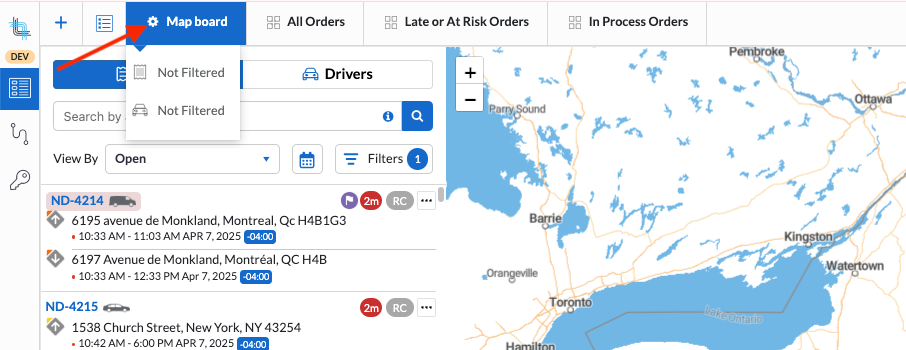
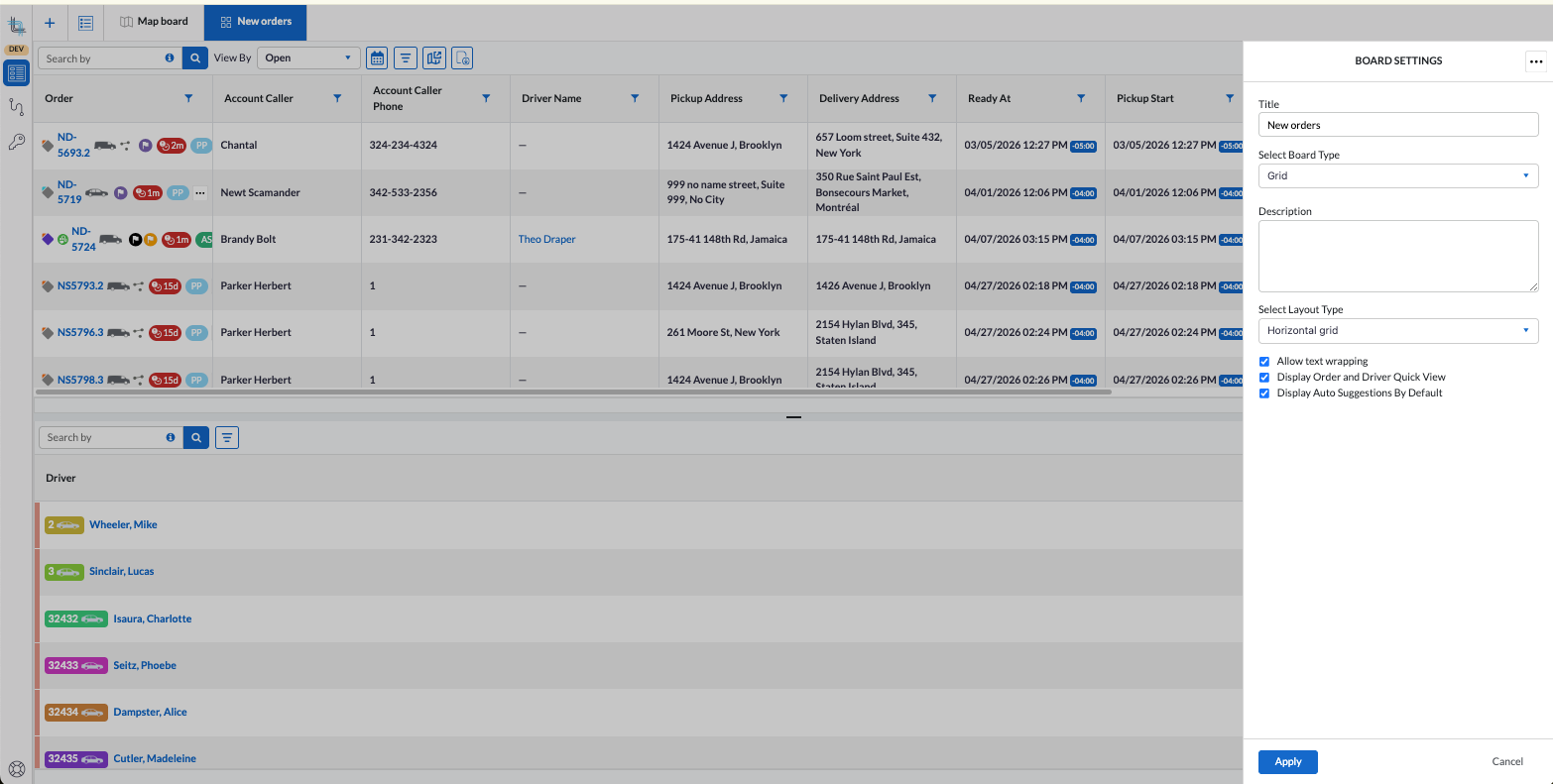 To close the settings panel without saving changes, either:
Click Cancel in the bottom-right corner of the panel
or
Click anywhere on the Map board, outside the settings panel.
Once the Sliding setting panel is open, you will be able to rename a board, change its options, change its layout (for grid board), copy or delete a board.
Rename a Board
- Enter the new name and optional description then click on Apply button.
Change the Board Type
- Select the Board type (grid or map).
Note: When switching from grid to map, the common options and filters will be kept however, column selection, filter and sort will be lost.
Change the Board Options
- Check or uncheck the different options:
- On both board types:
- Display Order and Driver Quick View
Display Auto Suggestions By Default
On grid board only:
Allow text wrapping
- On both board types:
- Click on Apply button.
Change the Grid Board Layout
- Select a layout type in the dropdown and click on Apply button.
Copy a Board
- From the ... menu in the upper right corner of the sliding panel, click on Duplicate:
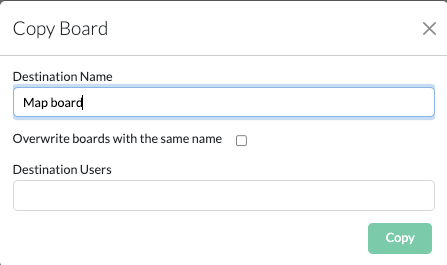
- Enter the name of the new board in Destination Name.
- Check Overwrite boards with the same name if the board already exists and you want to replace it.
- In Destination Users, click to see the list of names or click and start typing the name of the user (yourself or another internal user) where the board should be copied.
- Click outside the box to close the drop-down field.
- Click Copy button.
The new board is copied and placed at the end of the boards already available and the settings panel closes.
Delete a Board
- From the ... menu in the upper right corner of the sliding panel, click on Delete:
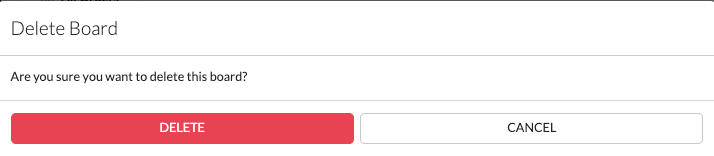
- Click on Delete button to delete the board, Cancel to return without deleting the board.
The board has been permanently deleted and cannot be recovered.Search and Filters
Quick Search Bar
The Quick Search bar allows users to rapidly locate specific orders or drivers without applying advanced filters. Simply type a keyword or value into the search field, and the system will automatically search across a predefined set of fields related to the active tab.
When using the Orders tab, the search scans across order-related fields. When using the Drivers tab, the search applies across driver-related fields. The searchable fields available for each tab are listed below.
Results are updated dynamically as you type, making it easier to quickly locate the information you need and streamline dispatch operations.

To view the search fields, click on the  in the quick search bar.
Available order search fields:
- Order Id
- Driver Name
- Driver Number
- Account Name
- Delivery Address
- Delivery Zipcode
- Delivery City
- Delivery State/Province
- Pickup Address
- Pickup Zipcode
- Pickup City
- Pickup State/Province
- Reference #1
- Reference #2
- Reference #3
- Account Number
Available driver search fields:
- Driver Name
- Driver Number
- Business Name
- Reference Number
- Vehicle Type
Advanced Filter
Advanced filtering on the Map and Grid boards brings greater control and efficiency to daily dispatch operations. By allowing dispatchers to refine both orders and drivers based on key operational criteria such as zones, vehicles, attributes, working status, accounts, users, and reference fields, teams can focus only on the most relevant data at any given time. This targeted visibility helps reduce manual searching, improves dispatch accuracy, and supports faster decision-making in fast-paced environments. With additional support for routed and multi-segment orders, the feature also ensures complex delivery structures remain easy to manage without losing context.
Overall, advanced filters streamline operations, reduce complexity, and enable more precise and efficient resource allocation across the board to quickly identify and review orders that require attention—such as those that need to be dispatched to specific drivers, are potentially at risk, delayed, or require priority handling.
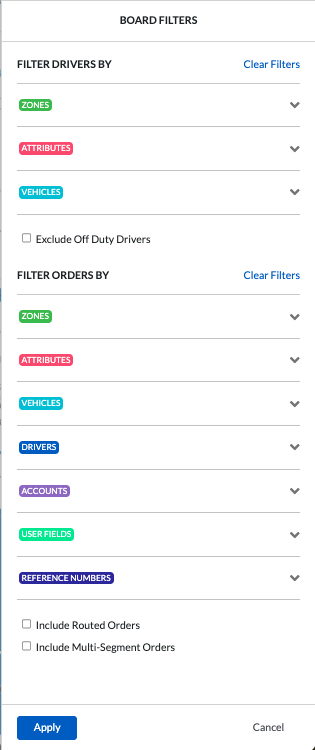
Filters can be used to include or exclude drivers/orders matching the criterias.
Available Driver Filters:
- Zones – Zones represent the geographic areas or regions where the driver are assigned to work. Using zone filters helps dispatchers quickly identify available drivers within a specific area, streamlining order assignment and improving operational efficiency.
- Attributes – Attributes can be used to represent certifications, equipment, skill sets.
- Vehicles – Drivers assigned to specific vehicles or exclude drivers based on their vehicles.
- Status – Filter drivers by availability (hide drivers that are off duty).
Available Order Filters:
- Zones – Filter orders by pickup and delivery address filtering zones.
Note: Orders that are not within any filtering zones will display automatically on boards to ensure orders are not missed. - Attributes – Attributes can be used to represent certain requirements.
- Vehicles – Orders assigned to particular vehicles.
- Drivers - Orders already assigned to specific drivers.
- Accounts - Orders from specific accounts.
- User Fields - Orders where specific user defined fields are assigned a specific value.
- Reference Numbers - Orders where the reference fields are assigned a specific value.
- Routed Orders - By default, only standard (on demand) orders are displayed. Enabling this option will allow you to also display orders assigned to routes, providing a complete view of both routed and non-routed orders.
- Multi-segment Orders - By default, standard orders and segments are displayed. Enabling the option will allow you to also display the multi-segment orders. Only standard orders and segments can be dispatched to drivers.
Open the Advanced Filter
- On Map, in Order tab or Driver tab and on the Grid Boards, click on the advanced filter icon:
 ).
). - Set your filter and click on Apply or click on Cancel to return to the board without making changes.
Filtering Rules
Within a single filter, selected criteria are combined using an OR logic, meaning items matching any of the selected values will be included. Across different filter categories such as zones, vehicles, and attributes, an AND logic is applied, meaning results must meet all selected filter conditions simultaneously. This structure allows for both flexible and precise filtering to better match operational needs.
Clear Filters
Order and Driver filter can be cleared at any time by clicking the “Clear Filters” link located in the top-right corner of the filter section. This allows users to quickly reset their selection and return to the full list ofdrivers/orders without manually deselecting each criterion.
Filters
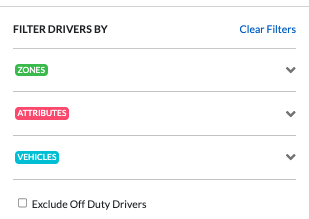
Drivers can be filtered by zones, attributes and vehicle type, allowing dispatchers to quickly identify the most suitable resources for each operational need. In addition, off-duty drivers can be excluded from the list, helping to reduce noise and focus only on available, active drivers. This streamlines driver selection and supports more efficient and accurate dispatching decisions.
Orders can be filtered by zones, attributes, vehicle type, drivers, accounts, user fields, and reference fields, allowing dispatchers to quickly narrow down orders based on operational needs. By default, routed orders are excluded from the dispatch board since they are typically managed directly from the Routes board. Similarly, multi-segment orders are hidden by default because only their individual segments are dispatched to drivers. However, both routed orders and multi-segment orders can be displayed on the board when needed, providing additional visibility to help teams monitor the status of these orders and ensure that nothing is missed, delayed, or left undispatched.
Setup to Advanced Filter
- Open the section you wish to add a filter by clicking on the section name.
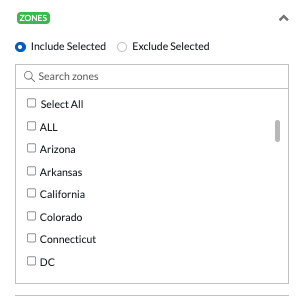 A Select All is available at the top of the list to select all items and if clicked again to unselect all items.
 - Select the criteria you wish to apply, the number of selected criteria will show beside the section.
- Items are selected by checking their corresponding checkbox.
- If the list of available criteria is long, quickly locate a specific item using the search field at the top of the list by typing its name.
- To reset the view and display all available criteria again, simply clear the search field using the “X” icon.
- Choose whether the selected criteria should be included or excluded from the results, allowing for flexible and precise filtering of your data.
- Repeat for the other sections.
- Click on Apply when done or Cancel if no changes should be saved.
Filter on User Fields and Reference Number Fields
User Field and Reference Number filters operate slightly differently from other filters because they can represent multiple types of information across different fields. Reference fields, in particular, can be renamed within the account order profile, meaning that the same underlying field, such as Reference Number 1, may appear under different names and contain different types of data depending on how it is configured. To make filtering more intuitive and accurate, reference fields are displayed using their configured display name, allowing users to search using the terminology and information relevant to their operation.
User Defined Fields also support more advanced filtering since multiple custom fields can exist, each storing different types of operational data. Instead of searching all user fields collectively, users can filter by individual user-defined fields and specify values specific to each field. This approach provides greater precision and flexibility when locating orders based on custom business information.
- Open the User field or Reference numbers section.
- Select the criteria you wish to apply, the number of selected criteria will show beside the section.
- Items are selected by checking their corresponding checkbox.
- If the list of available criteria is long, quickly locate a specific item using the search field at the top of the list by typing its name.
- To reset the view and display all available criteria again, simply clear the search field using the “X” icon.
- When a criteria is selected, a text box opens below the name:
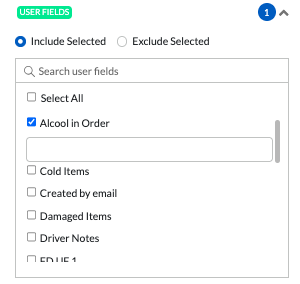
- Enter the search value in the text box
- Repeat for each user field/reference number field.
- Click on Apply when done or Cancel if no changes should be saved.
Additional Criteria
Drivers can also be filtered by their working status, allowing off-duty drivers to be hidden from the list for a cleaner and more focused dispatch view. To hide off-duty drivers, enable the “Exclude Off Duty Drivers” option by checking its checkbox.
Routed orders and multi-segment orders can also be displayed on the board when additional visibility is required. To include them in the results, enable the “Include Routed Orders” and/or “Include Multi-Segment Orders” options by checking their corresponding checkboxes.
Once the selection is done, click on Apply when done or Cancel if no changes should be saved.
Visibility of Filters
When a filter has been applied, the number of filters will show on the filter on the board. This incorporates both types, drivers and orders)
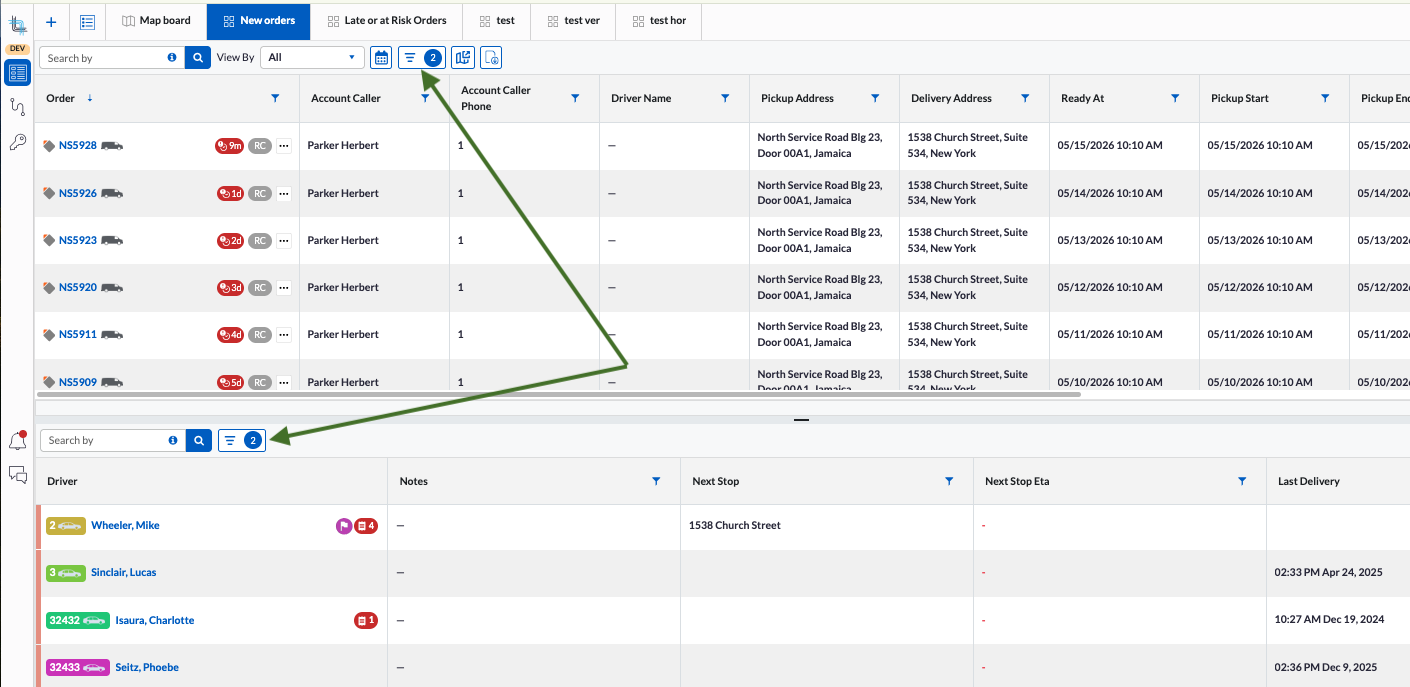
and
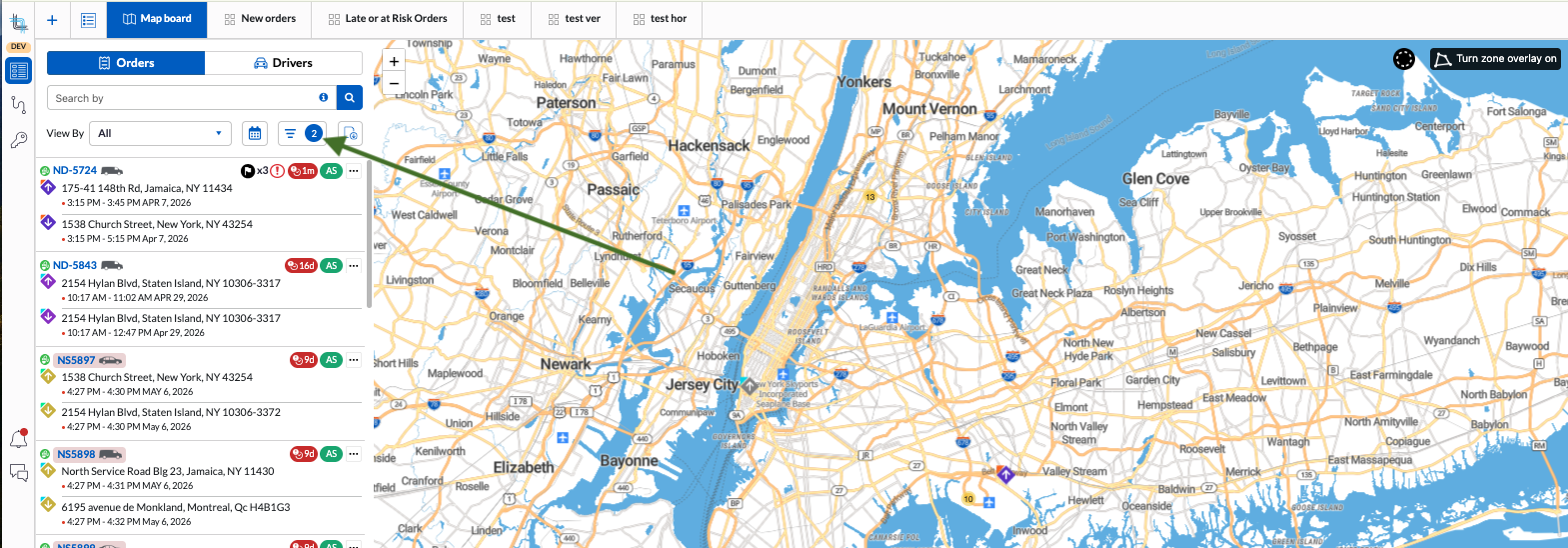
Filter Orders by Status
The View By field, along with its associated calendar, allows you to filter the orders based on specific statuses for a selected date or date range.
This helps dispatchers focus on relevant orders according to their timeline and status.
The View by is available on both Grid with Order List and Map Board on the Orders tab.
View By Selection and Calendar Behavior
Selecting a different status category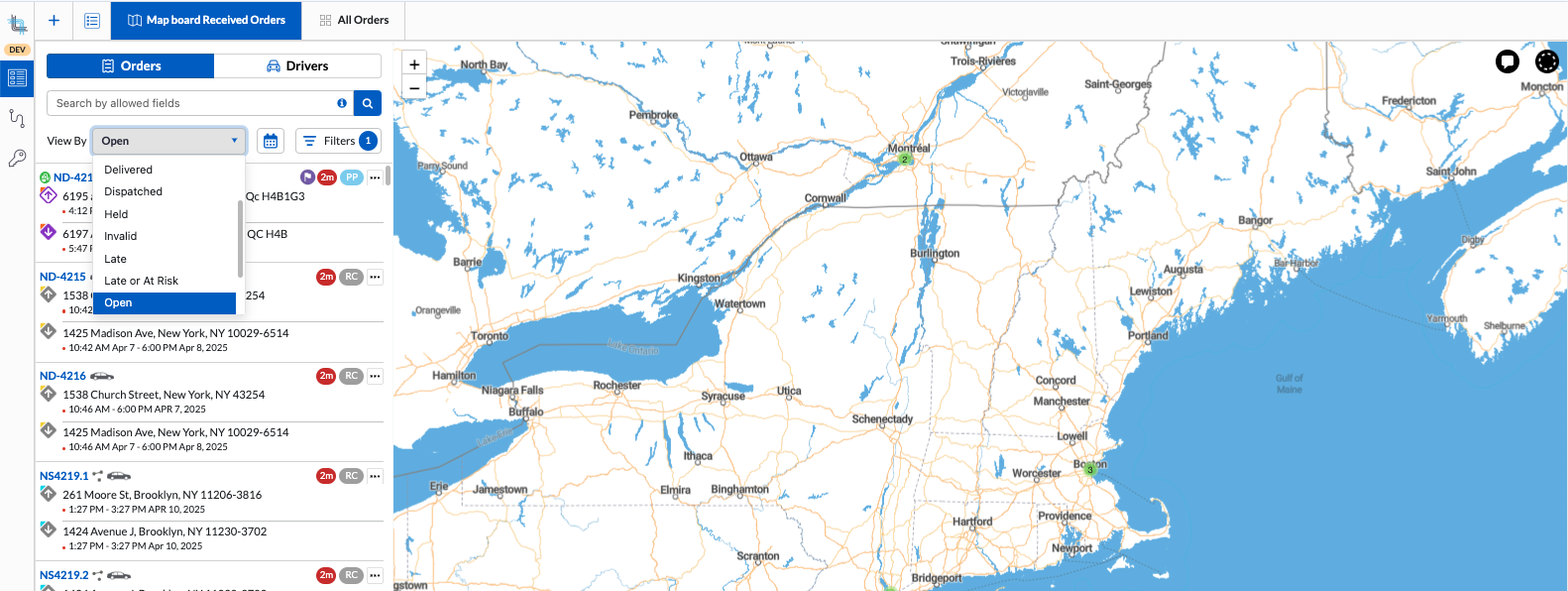
Order Life Cycle and Status Layers
To see all orders regardless of their status, select All in the View by. For more information how this list is impacted by the date, please see calendar below.
An order progresses through the following life cycle statuses:
Received: Order is created and pending dispatch.
Dispatched: Order is sent to a driver but not yet accepted.
Unassigned: Order is in received, dispatched or picked up status and has no assigned driver.
Assigned: Driver has accepted the order.
Picked Up: Order has been picked up.
Delivered: Order has been delivered.
Cancelled: Order was cancelled and will not proceed.
Status Layers
In addition to the core life cycle statuses, there are status layers that can temporarily or additionally describe the state of the order:
Held: The order is paused. The original life cycle status remains in the background and is restored when the hold is released. Only orders that are not delivered nor cancelled can be placed on hold.
At Risk / Late: Highlights orders, in status other than delivered and cancelled, that may miss their time windows or are already late, in any status other than delivered and cancelled.
Invalid: Indicates the order has an issue, such as invalid pricing or unrecognized pickup/delivery addresses due to failed geocoding, an invalid vehicle or service level when imported, etc.
These layers provide dispatchers with enhanced visibility and control over the operational state of each order.
The overall All will display orders in all statuses for the date selected.
Calendar
You can change from today to different dates or date range by clicking on the calendar and making a selection:
- Yesterday (
 ): Shortcut to Custom,yesterday's date
 - Today (
 )
) - Tomorrow (
 ): Shortcut to Custom tomorrow's date
 - Today + 2 days showing as a date:Shortcut to Custom indicated date.
- Today + 3 days showing as a date: Shortcut to Custom indicated date.
- Specific day either from the selection (
 ) or using Custom Date ( in the past:
  in the future:
  )
) - Custom Date Range (
 ): allows to see orders that are schedule for today or in the future.
- The date range automatically excludes past days as time progresses.
- Each day, the start of the range moves forward by one day, ensuring that only today and upcoming orders remain visible.
- This provides a dynamic and continuously updated view without requiring manual adjustment.
- It keeps the orders list relevant by focusing only on current and future activity.
Depending on the date selection, different orders according to their statues will be displayed.
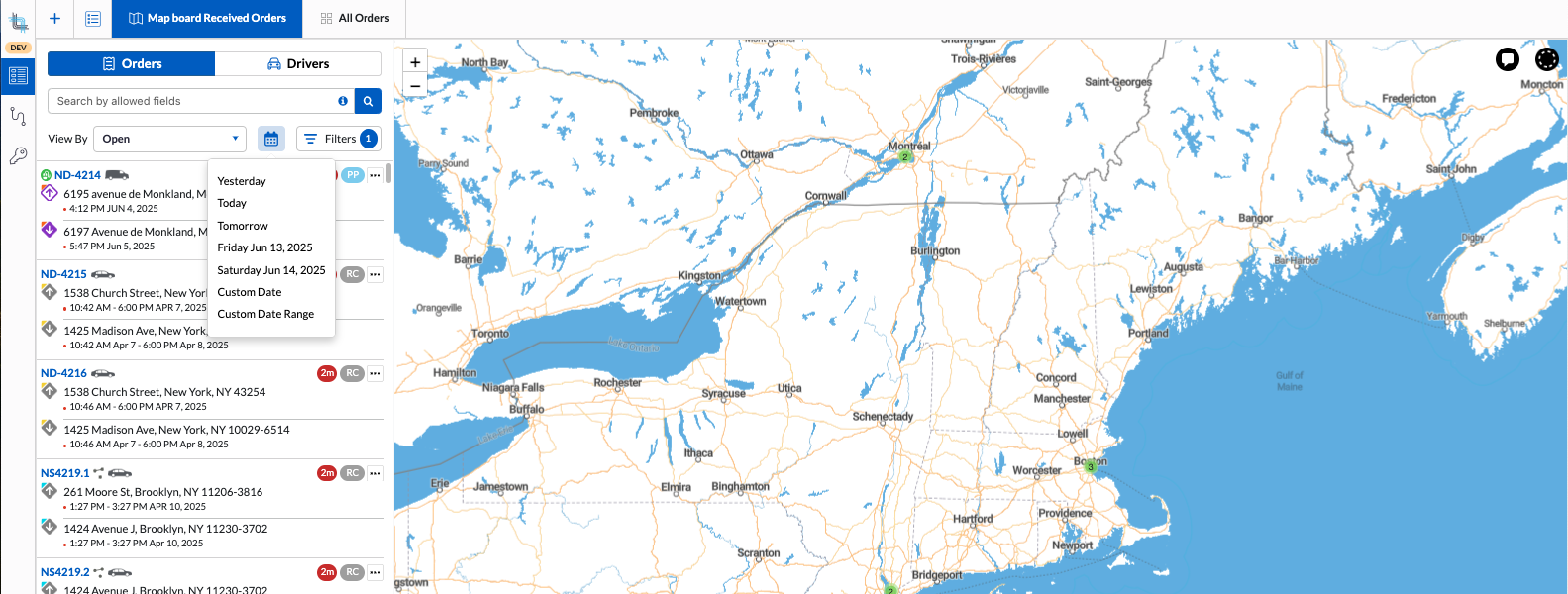
Depending on the View by selection, the date filter will act differently:
- All
- Today will show:
- Orders that have not yet been picked up and are in Received or Assigned status, where at least one of the following time windows falls before the end of today:
- Pickup From
- Delivery From
- Delivery To
- This includes overdue orders from previous days, as there is no lower date limit.
- Orders in Picked Up status where the order was actually picked up today.
- Orders in Delivered status where the order was delivered today.
- Orders in Cancelled status where the order was cancelled today
- Orders that have not yet been picked up and are in Received or Assigned status, where at least one of the following time windows falls before the end of today:
- Today will show:
- Open
- Today will show orders where the Pickup or Delivery window from or to or Picked up date <= today and order status Received, Dispatched, Assigned or Picked up.
- Dates in the future and past will show orders where the Pickup or Delivery window from or to or Picked up date = selected date and order status Received, Dispatched, Assigned or Picked up.
- Received
- Today will show orders where the Pickup or Delivery window from or to <= today and order status is Received.
- Dates in the future and past will show orders where the Pickup time or Delivery window from or to = selected date and order status is Received.
- Dispatched
- Today will show orders where the Pickup or Delivery window from or to <= today and order status Dispatched.
- Dates in the future and past will show orders where the Pickup time or Delivery window from or to = selected date and order status Dispatched.
- Assigned
- Today will show orders where the Pickup or Delivery window from or to <= today and order status Assigned.
- Dates in the future and past will show orders where the Pickup time or Delivery window from or to = selected date and order status Assigned.
- Picked Up
- Today will show orders where the Picked up date or the Pickup or Delivery window from or to <=today and order status Picked up.
- Dates in the past will show orders where the Picked up date = selected date or Pickup or Delivery window = selected date and order status Picked up.
- Delivered
- Today will show orders where the Delivery date is today.
- Dates in the past will show orders where the Delivery date = selected date.
- Late or At Risk
- Today will show all orders not yet delivered or cancelled which are past the delivery window as of now or are not yet past the delivery window but considered they may not make it on time according to the optimization.
- Dates in the past will show orders not yet delivered or cancelled today which have a Pickup time or Delivery window = selected date and are past the delivery window to time as of now.
- Held
- Today will show all orders which are on hold.
- Dates in the past will show orders which are on hold with a Pickup or Delivery window from or to = selected date.
- Cancelled
- Today will show all orders cancelled today.
- Dates in the past or future will show cancelled orders where the Pickup time or Delivery window from or to = selected date.
- Invalid
- Today will show all orders that are invalid with a Pickup or Delivery window rom or to <= today.
- Dates in the past or future will show invalid orders where the Pickup or Delivery window from or to = selected date.
Customize Columns on Grid Board
Each user can tailor the list to highlight the data most relevant to them by showing and hiding columns, modifying the width, filter and sort.
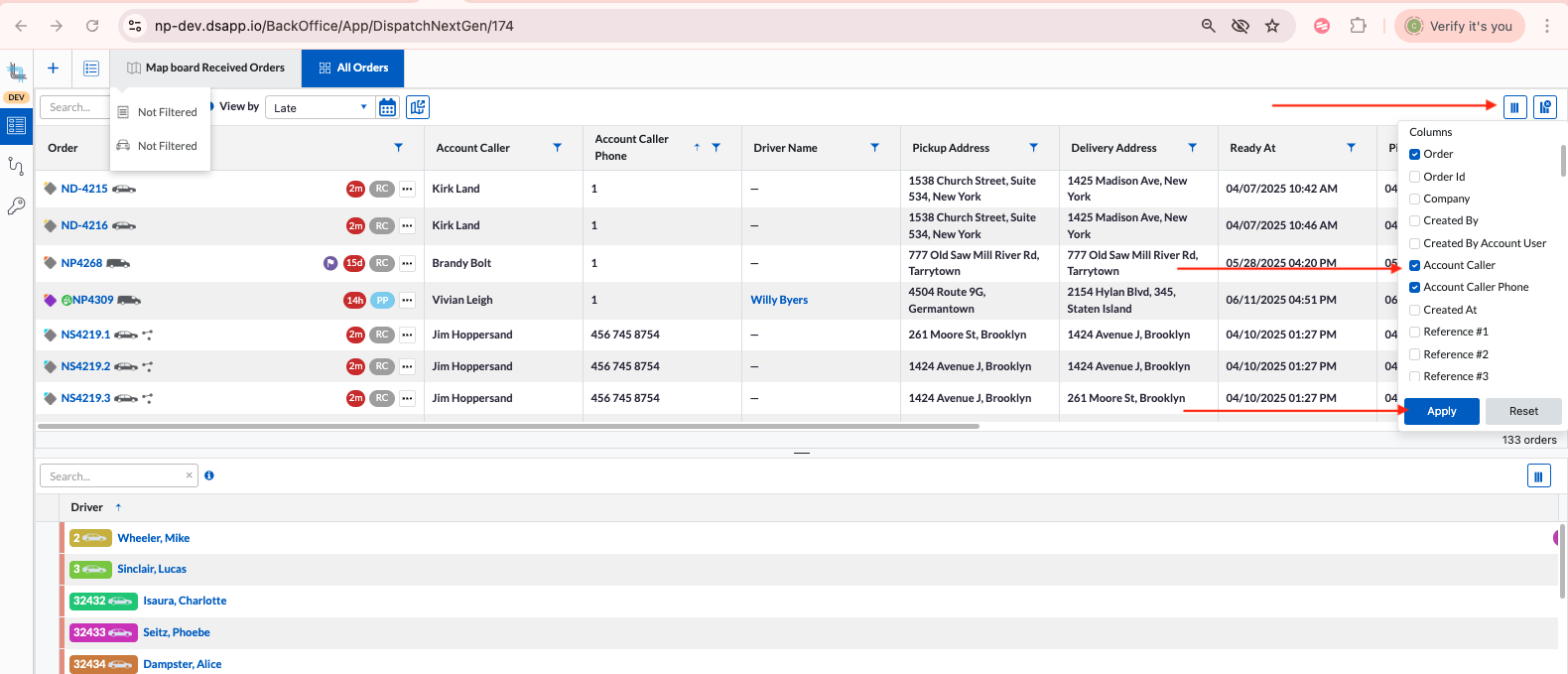
Show/Hide Columns
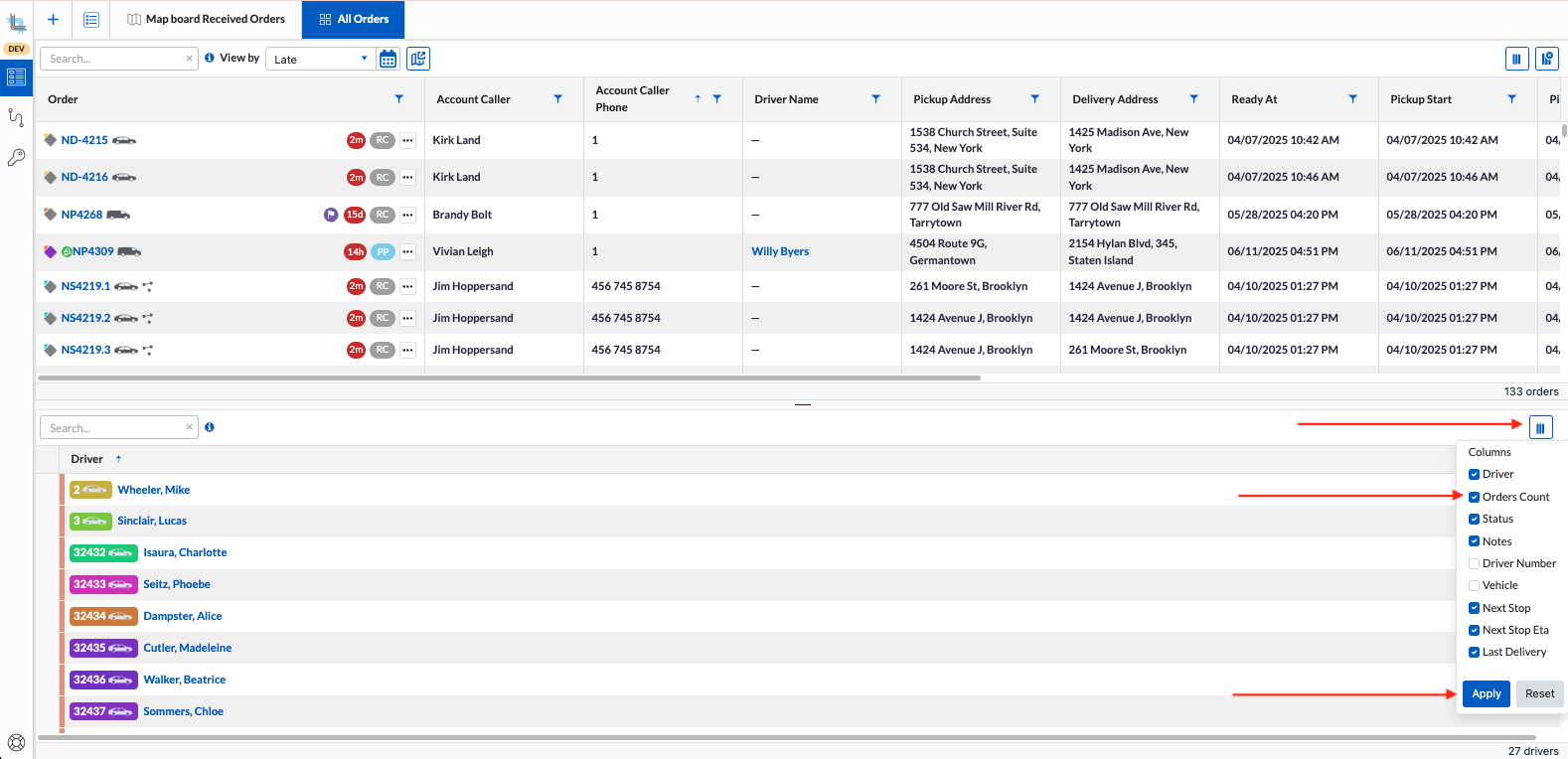
To control which columns appear in the Order or Driver list:
1) Click the customize button ( ) above the list.
2) A list of available columns will appear.
3) Check the columns to display, uncheck columns to hide.
4) Click Apply to save your preferences.
Resize Columns
Column width can be adjusted and will be saved for future sessions. This allows you to optimize your view based on screen size or data priority.
1) Move your cursor to the edge of the column header.
2) The resize icon (  ) appears, click and drag the edge to your preferred width.
3) Release the mouse button to set the new width.
Bring your cursor in the list header at the edge of the column and the cursor will change to a two arrow icon. Click on and hold then drag to the desired width.
Reorder Columns
Columns can easily be reordered to prioritize the information that matters most. The new column order will be saved automatically, allowing for a personalized and efficient workspace.
1) Click and hold the header of the column to move.
2) Drag the column to its new position.
2) Release the mouse button to drop it into place.
Sort a Column
By default, Orders are sorted by Order Id in ascending order and Drivers are sorted by Driver number in ascending order. You can easily change the sort order by interacting with any column header. This allows you to quickly organize your data by the field most relevant to your workflow (delivery to date, driver, status).
1) Click once on a column header to sort the list in ascending order.  appears to show the column is sorted in ascending order.
2) Click again on the same header to sort in descending order.  appears to show the column is sorted in descending order.
Filter a Column
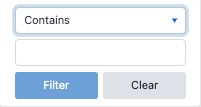
The Grid Board Column filter now automatically selects the optimal default operator based on the column's data type and uses a single input for filtering in most of the columns:
- Text columns default to Contain operator:
- Order (filter is on Order Id)
- Order Id
- Created By
- Account Name
- Account Number
- Account Caller
- Account Caller Phone
- Reference #1
- Reference #2
- Reference #3
- Hold Reason
- Driver Number
- Driver Name
- Pickup Address
- Pickup Company
- Pickup Name
- Pickup Phone
- Pricing Pickup Zone
- Address Pickup Zone
- Pickup Notes
- Delivery Address
- Delivery Company
- Delivery Name
- Delivery Phone
- Pricing Delivery Zone
- Address Delivery Zone
- Delivery Notes
- Received From
- Received By
- Customer Notes
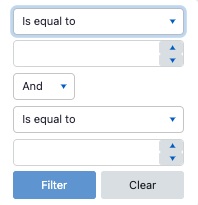
- Numeric columns default to is equal to but also has is not equal to, is greater than, is greater than and equal to, is less than and is less than or equal to:
- Distance
- Number of pieces
- Weight
- Volume
- COD (Pickup)
- COD Collected (Pickup)
- COD (Delivery)
- COD Collected (Delivery)
- Drop-down type columns display a list of values as multi-select checkboxes, also showing the total for each selection:
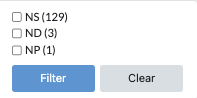
- Company
- Status
- Service Level
- Vehicle
- ID Type (Pickup)
- ID Type (Delivery)
- Yes/No or True/False columns are displayed as radio buttons, allowing a single selection:
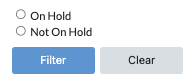
- Created By Account User
- Held
- ID Verified (Pickup)
- ID Verified (Delivery)
- Ready to Invoice
- Ready to Settle
- Is Late or at Risk
- Routed
For date and numeric columns, a dual-operator search allows users to define a range for more precise filtering. This same two-operator filter is also available for searching ZIP/Postal codesThe following columns use 2 inputs for filtering:
- Date columns uses the is after as default and allows to use is before and is equal:
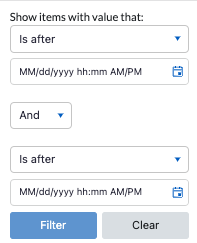
- Created At
- Held Date
- Ready At
- Pickup Start
- Pickup End
- Pickup ETA
- Picked Up
- Delivery Start
- Delivery End
- Delivery ETA
- Delivered
- Assigned
- Dispatched
- Text columns with two operators use Contain as default:
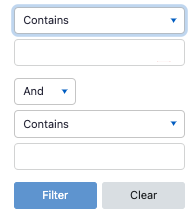
- Pickup Zipcode
- Delivery Zipcode
- Numeric columns default to is equal to but also has is not equal to, is greater than, is greater than and equal to, is less than and is less than or equal to:
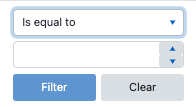
- Number of pieces
- Weight
- Volume
- COD (Pickup)
- COD Collected (Pickup)
- COD (Delivery)
- COD Collected (Delivery)
Some columns are for display purposes only and cannot be used for filtering or sorting:
- Hold Notes
- Signature (Pickup)
- Signature (Delivery)
- Account Notes
- Internal Notes
You can filter data in any of the columns with filter to narrow down your list based on specific criteria.
Apply a column filter
1) Click on the filter icon ( ) in the column header.
2) In the filter panel:
- Choose the operator (contains, equals, greater than depending on the column type)
- Enter the filter value
- If a second condition is available, select AND or OR, then defined the second criteria.
3) Click Filter button to apply the filter.
Once active, the filter icon (  ) will visually indicate the column is filtered.
You can filter multiple columns at once - filters across different columns are combined using AND logic.Clear a column filter
1) Click on the filter icon ( ).
).
2) In the filter panel, click on Clear button.
Order and Driver Quick View
The Order and Driver Quick View can be enabled or disabled from the board settings using the “Display Order and Driver Quick View” option. When enabled, a quick view is displayed when hovering over an order or driver on the Grid and Map boards.
The Order Quick View is also available when clicking on a stop from the Map board or from the linked map on a Grid board.
Order Quick View
When hovering over an order in the Map or Grid board or clicking on a stop in the map board or on the grid board linked map, a compact Order Quick View is displayed.
- This Quick View will provide a short summary of key order details without needing to open the order sliding panel.
- The visibility of fields depends on the data available for the specific order - fields with no values will not appear.
- Using the dispatch icon (
 ), you can easily dispatch the order from the order Quick View.
 - Using the order detail icon (
 ), you can navigate to the order details in the Back Office.
The Order Quick View improves user efficiency by making relevant order information accessible at a glance.
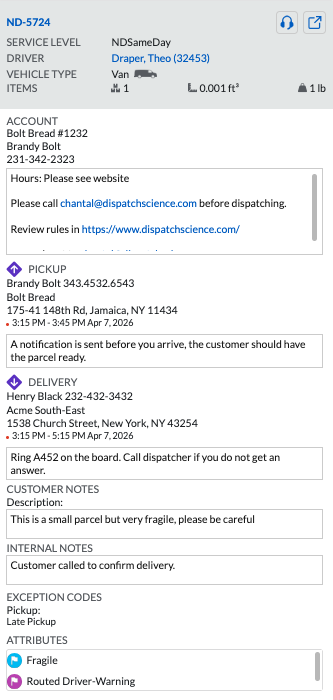
Information
- Order Id: Shows as a link. Clicking on the link opens the order sliding panel.
- Service Level
- Driver: Only display if a driver is dispatched or assigned to the order and it shows as a link that opens the driver sliding panel.
- Vehicle Type
- Items: Shows number of items, volume and weight.
- Account name and account number
- Account contact
- Account contact phone number
- Account notes
- Pickup information: Contact, contact phone number, company, address, pickup window and note
- Delivery information: Contact, contact phone number, company, address, delivery window and note
- Customer notes: if any on the order
- Internal note:s if any on the order
- Exception codes: if any on the order
- Attributes: if any on the order
Driver Quick View
When hovering over a driver in the Map or Grid board, a compact Driver Quick View is now displayed.
- This Quick View will provide a summary of key driver information without needing to open the driver sliding panel or the driver details from the Back Office.
- The visibility of fields depends on the data available for the specific drivers - fields with no values will not appear.
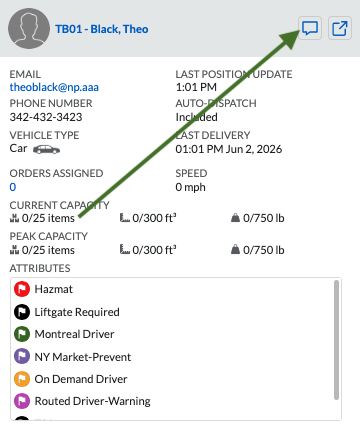
- Using the chat icon (
 ), you can easily open a chat to the driver.
 - Using the driver detail icon (), you can navigate to the driver details in the Back Office.
The Driver Quick View improves user efficiency by making relevant order information accessible at a glance.
This compact view helps dispatchers quickly access essential driver information without navigating away from the main interface.
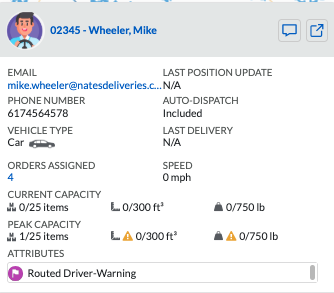
Information
- Driver picture: Shows if setup
- Driver number: Shows as a link. Clicking on the link opens the driver's sliding panel
- Last name, first name: Shows as a link. Clicking on the link opens the driver's sliding panel
- Email address: Shows as a link. Clicking on the link opens your default email app and copied the email in the To field
- Phone number
- Vehicle type
- Number of order assigned: Shows as a link. Clicking on the link opens the driver's sliding panel
- Current Capacity: This is the capacity at the moment according to the orders that are picked up and the driver's vehicle capacity
- Peak Capacity: This is the peak capacity according to the route optimization and the orders that are dispatched to the driver
- Attributes: List of attributes assigned to the driver if setup.
- Last position update: Last position recorded for the driver .
- Auto-Dispatch: Shows if the driver is part of the drivers for auto-dispatch.
- Last Delivery: Last delivery recorded by the driver.
- Speed: Current speed of driver
Order Sliding Panel
The Order sliding panel provides detailed information about an order beyond what is shown in the Quick View view. It can be easily accessed directly from the Map and Grid boards for quick visibility into order details.
The sliding panel opens on the right hand side of the board when clicking in the following areas:
- Grid Board Order List:
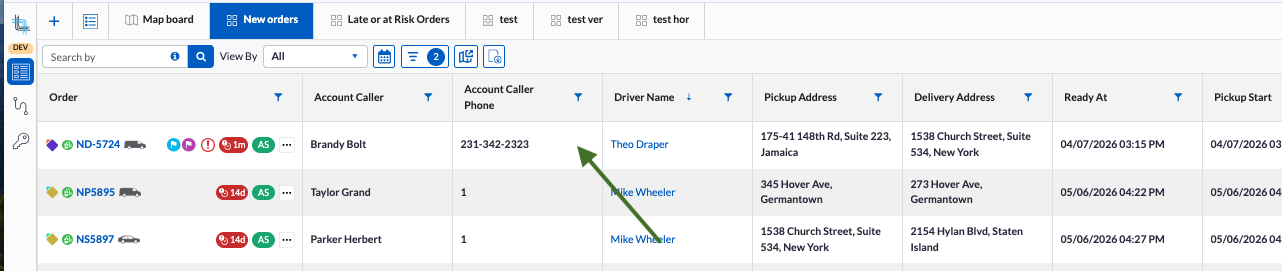 Click anywhere on order row, except on cells with links like Driver Name or the Order Id. Clicking on the Order Id will open the order details in the Back Office.
 - Map Board Order tab:
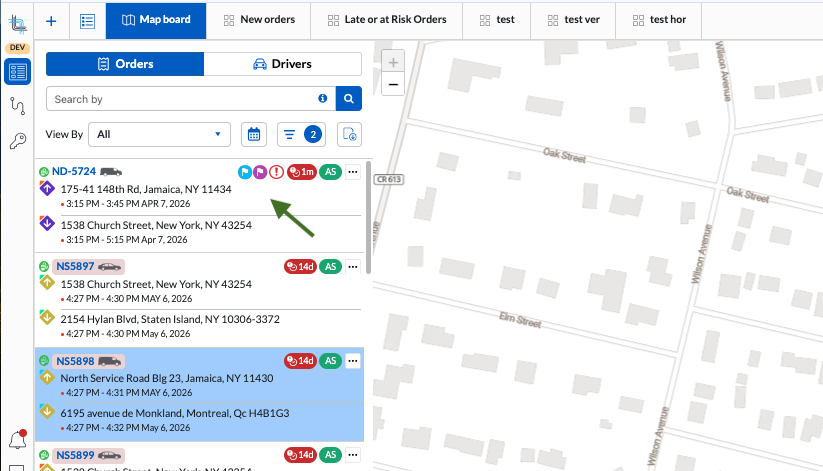 Click anywhere on the order cell, except on the Order Id. Clicking on the Order Id will open the order details in the Back Office.
 - Order Quick View on hover on Grid Board Order list and Map Board Order tab:
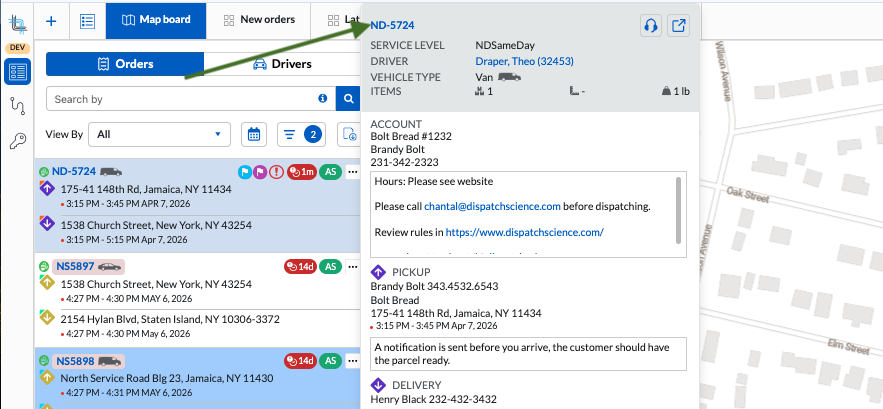 Click on Order Id.
 - Order Quick View on Grid Board linked map stop or Map Board stop:
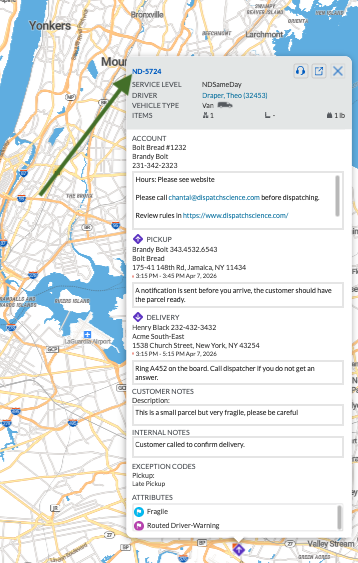 Click on Order Id.
 - Driver Sliding Panel on Grid and Map Board order cell in Order List and in Stop List:
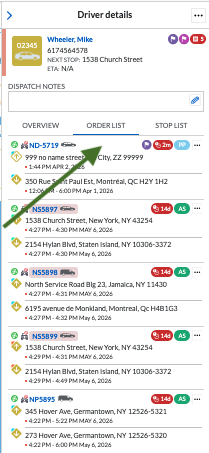
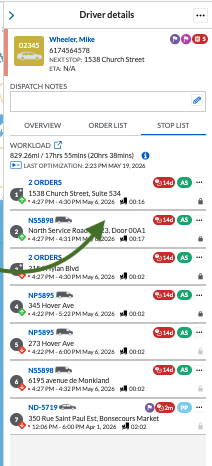
Click anywhere in order cell or stop cell except Order Id. Clicking on the Order Id will open the order details in the Back Office.
The sliding panel offers a streamlined view and quick access for order details with the following information:
- Displays more detailed information than the Order Quick View.
- Provides access to the full Order History.
- Allows dispatcher to edit notes directly from the panel.
- Allows dispatchers to take action on the order.
- Includes shortcut links to specific tabs in the Back Office order details for quick navigation.
- If the order is dispatched or assigned to a driver, clicking anywhere in the driver section at the bottom of the general tab in the order panel other than the driver name opens the Driver sliding panel.
- Clicking on the driver name will continue to open the full Driver Details in the Back Office in a new tab.
This panel improves operational efficiency by allowing users to quickly view and update key information—without navigating away from the current screen.
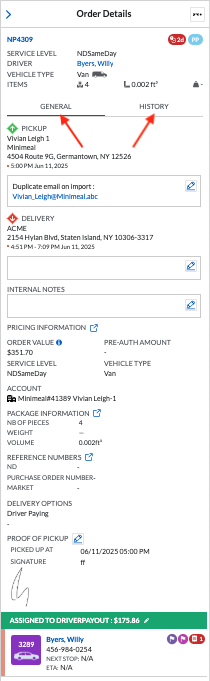
Information
- ... menu: The ... menu will have different actions depending if the order is routed, on demand, a multi-segment or where it is in its lifecycle. Once a multi-segment or order is invoiced, it can no longer be edited.
- Dispatch: On demand orders and segments can be dispatched.
- Move to Route: On demand orders, segments, routed order can be moved to an existing route.
- Set Picked Up: Multi-segments and on demand or routed orders, segments in received, dispatched or assigned status can be manually picked up.
- Set Delivered: Multi-segments and on demand or routed orders, segments in received, dispatched, assigned or picked up status an be delivered.
- Set at Checkpoint: Multi-segments and on demand or routed orders, segments in any status other than cancelled can be set at checkpoint.
- Attributes: Attributes can be added or removed from any multi-segment, segment or order ind any status.
- Add Exception Codes: Multi-segments and on demand or routed orders, segments in any status can have exception codes added.
- Reports: If this is not visible, there are no reports available. You can contact support to have reports associated to this menu.
- Hold Order: Multi-segment and segment orders, on demand orders, routed orders in status other than held, delivered or cancelled can be put on hold.
- Release: Held orders can be released.
- Cancel Order: Multi-segment and segment orders, on demand orders, routed orders in status other than cancelled or delivered can be cancelled.
- Reactivate: Multi-segment and segment orders, on demand orders, routed orders in delivered or cancelled status can be reactivated. This will set the order back to received status.
- Order Id: Clicking on the order Id opens the Back Office order details in a new tab if one was not already opened. If one was opened, it will refresh the tab with the selected order.
- Service Level
- Driver: Name (number) of driver dispatched or assigned to the order. Clicking on the driver or its number will open the sliding driver panel.
- Vehicle Type
- Items on orders: Shows number of items, volume and total weight.
- Pickup information: Contact, phone number, Company, address, pickup time window.
- Pickup Notes: the note can be updated from the sliding panel by clicking on the pencil icon. Click
 to save the changes, X to cancel and
  to clear the note.
 - Delivery information: ontact, phone number, Company, address, delivery time window.
- Delivery Notes: the note can be updated from the sliding panel by clicking on the pencil icon. Click to save the changes, X to cancel and to clear the note.
- Account Notes: note saved on the account general information. This is not editable.
- Driver Notes: Order notes. This is not editable.
- Internal Notes: This note is not visible to self-serve users and may be visible to driver depending on the settings in the driver profile. This note can be updated from the sliding panel by clicking on the pencil icon. Click to save the changes, X to cancel and to clear the note.
- Pricing Information: Clicking on the
 will open the order details in the Back Office on the summary tab.
If the pricing information header shows in a red caption, the delivery price is invalid. - Order Value: Total price of the order. Hovering on the
 shows the price breakdown.
 - Pre-Auth Amount: If a pre-authorization amount has been requested, it will show in this area.
- Service Level
- Vehicle Type
- Account: Shows account name, account number, account order creator, account order phone number
- Package Information: Clicking on the will open the order details in the Back Office on the summary tab.
Below Package Information you will have the number of pieces, total weight and total volume. - Reference Numbers:Clicking on the will open the order details in the Back Office on the additional info tab.
Below Reference Numbers, up to 3 reference fields using the configured name will be displayed depending on settings. - Pickup Options: COD, COD Collected, Pickup date, name and signature when available.
- Delivery Options: COD, COD Collected, Delivery date, name and signature when available.
- Attributes: Lists all attributes on order.
- Driver Information: If order is at least assigned to a driver, the driver will show at the bottom with his driver payout. Clicking on the will open the order details in the Back Office on the driver tab. Clicking on the driver information (other than the name showing as a link), will open the Driver
Driver Sliding Panel
The Driver sliding panel is available for quick access to detailed driver information, their orders and workload.
The sliding panel opens on the right hand side of the board when clicking in the following areas:
- Grid Board Driver List:
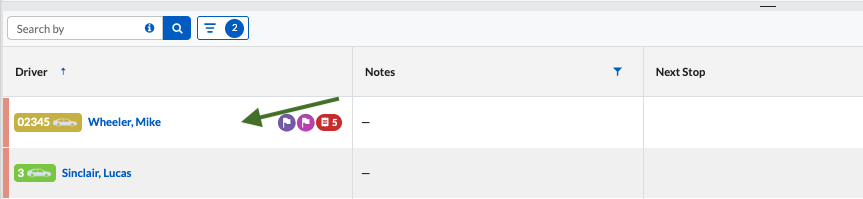 Click anywhere on order row, except on cells with links like Driver Name or the Order Id. Clicking on the Order Id will open the order details in the Back Office.
 - Map Board Driver tab:
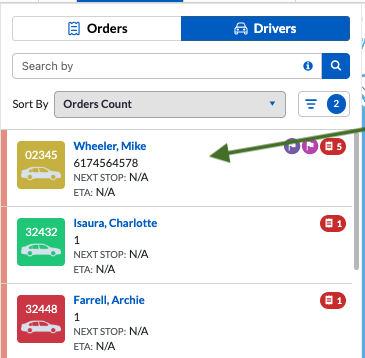 Click anywhere on the order cell, except on the Order Id. Clicking on the Order Id will open the order details in the Back Office.
 - Order Quick View on hover on Grid Board Order list and Map Board Order tab on orders that are at least dispatched:
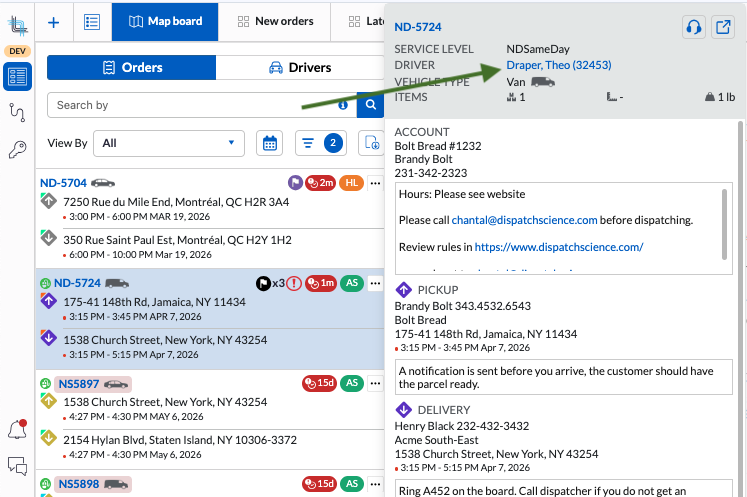 Click on Driver name or number.
 - Driver Quick View on hover on Grid Board Driver List and Map Board Driver tab:
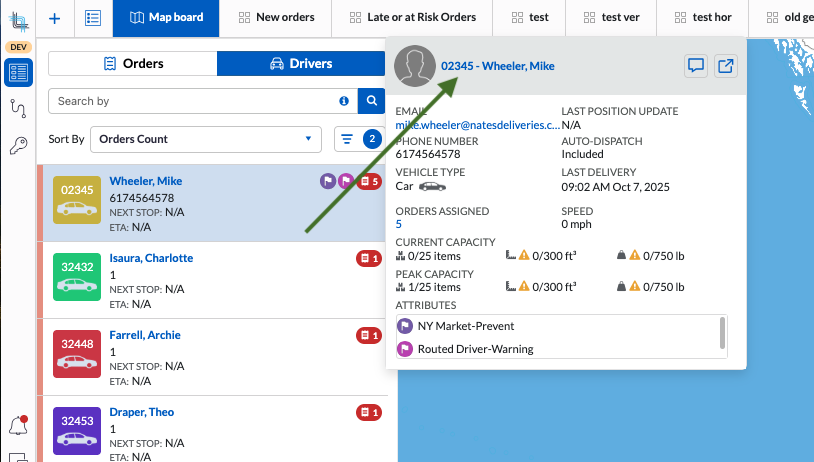 Click on Driver name or number.
 - Order Quick View on Grid Board linked map stop or Map Board stop on orders that are at least dispatched:
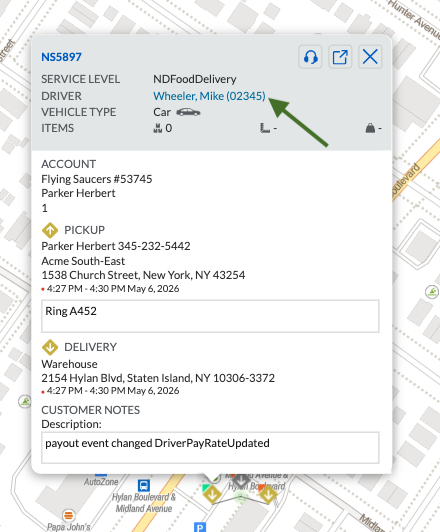 Click on Driver name or number.
 - Order Sliding Panel on Grid and Map Board order cell in Order List on orders that are at least dispatched:
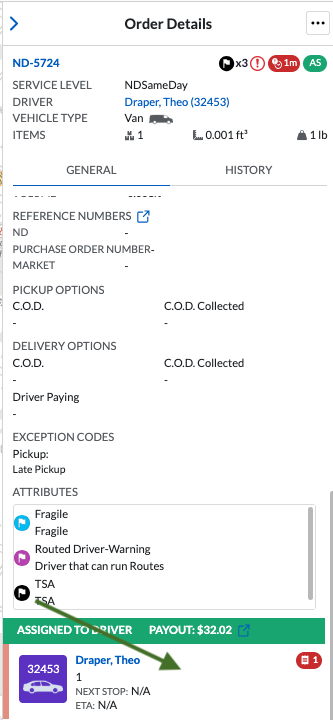 Scroll down to the bottom of the order sliding panel to the driver section. Click anywhere in the driver cell except on the Driver name which will open the driver details in Back Office.
The driver sliding panel offers dispatchers a more efficient and centralized way to manage drivers without leaving their current workflow. It offers detailed driver information and commissions along with visibility into all associated orders, improving both operational efficiency and the overall user experience.
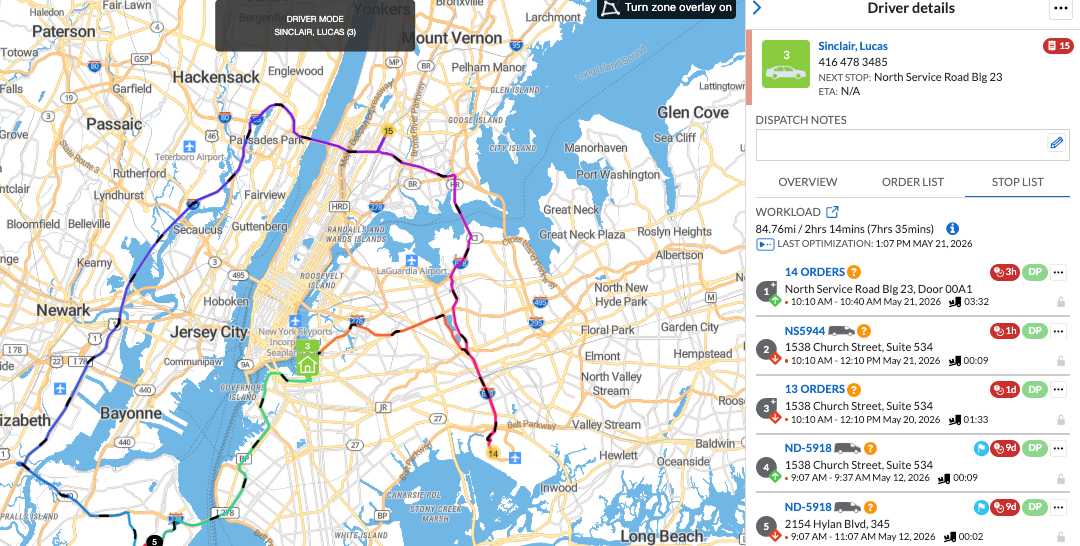
The Driver sliding panel is split in 3 tabs with a shared header and a shared menu:
- Shared ... menu:
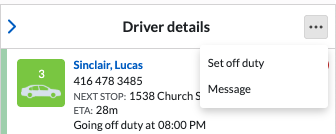
- Shared header:
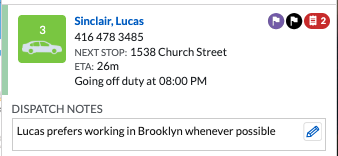
- Overview tab
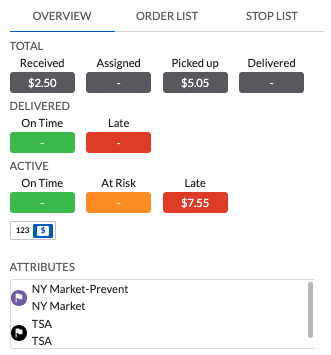
- Order List tab
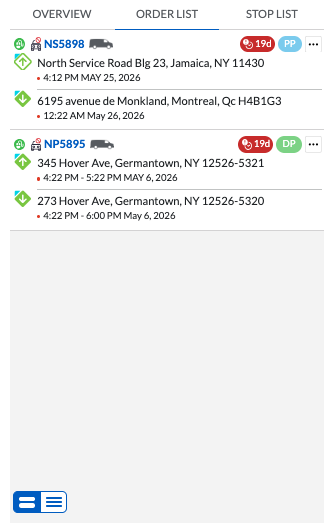
- Stop List tab
Information
- ... Menu:
- Set off duty: Set an on duty or going off duty or away driver off duty.
- Message: Send a chat to the driver. Driver will receive the message in the Driver App Chat module.
- Header:

Driver vehicle and color with driver number Driver name as a link: this opens the driver details in the Back OfficeDriver phone number
Next Stop: If the driver is online and on duty with orders, this will show the next stop on the workload otherwise it will show as a -
ETA: Next stop ETA and if no ETA is available it will show as a -
Going off duty: available if planned end of day or setup in profile Attributes if setup on the driver
Number of orders in the driver workload. Shows red if at least one order is late, shows orange is at least one order is at risk of being late, shows blue if all orders are on time Editable Driver Notes
Click on the pencil to edit the text, click on to save changes, click on
  to discard the changes, click on
  to delete the note
- Overview tab
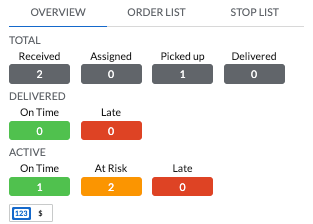
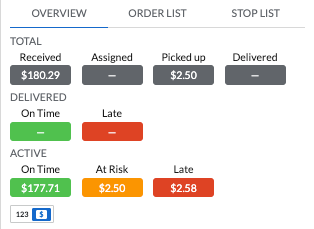
- On Overview tab, dispatcher can see the Driver performance at a glance as number of Orders or as commission earned by selecting number of order (
 ) or commission (
 )
)
- Driver Attributes
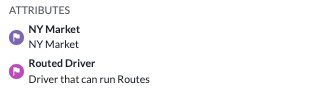 Shows the attributes assigned to the driver with their description.
- On Overview tab, dispatcher can see the Driver performance at a glance as number of Orders or as commission earned by selecting number of order (
- Order List tab
The Order list tab shows the list of orders dispatched to the driver with their status and due time. It shows in order of due time. A menu is available and differs according to the order status.- There are 2 views available:
Switch to expanded view by clicking on and to condensed view by clicking on
  .
.- Expanded: Shows both pickup and delivery address with time windows
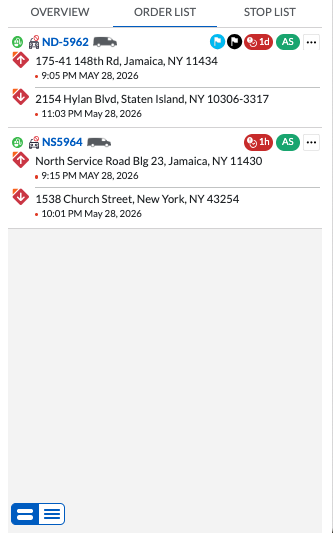
- Condensed: Shows one stop per order:
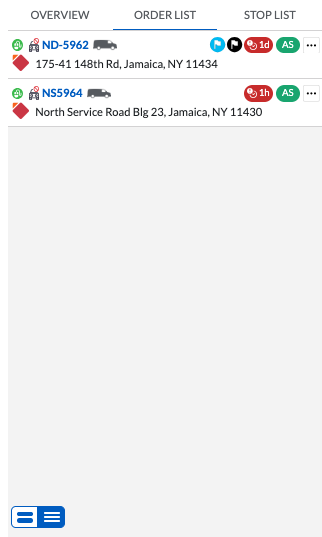
- If order is dispatched or assigned, pickup stop is displayed
- If order is picked up, pickup stop is displayed and icon shows empty (
 )
) - if order is delivered, pickup stop is displayed and icon shows empty ()
- Expanded: Shows both pickup and delivery address with time windows
- Order Information:
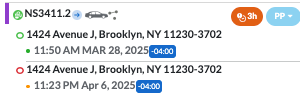
- In both views:
- Dispatch type:
 : manually dispatched
 : auto-dispatched
- Dispatch type:
- Order Number with vehicle type and
 to open Order details in Back Office
  : Order is a segment or multi-segment
- Address with time window
- If user is in a different time zone than the address, the time displays in the time zone of the address
- If driver is on duty and list is optimized, a colored pill displays
- If due date is in the future, pill is blue with the number of minutes, hours, days until due date-time
- If due date is in the future but is at risk of being late, pill is orange with the number of minutes, hours, days until due date-time
- If due date is in the past, the pill shows red with the number of minutes, hours, days since its due date-time
- Color-coded order status menu:
 Order is dispatched and not yet accepted by the driver
 Order is assigned, it has been accepted by the driver
 Order has been picked up by the driver
 is on Hold
- From the menu, the Order:
- Can be dispatched to another driver
- Can be moved to a route
- Can be set picked up when it is in status of dispatched and assigned
- Can be set delivered up when it is in status of dispatched, assigned and picked up
- Can be set at checkpoint
- Can have attributes added or removed
- Can be set with Order exception codes
- Can be cancelled
- In both views:
- There are 2 views available:
- Stop List tab
- Stop List shows the optimized list of stops if the Driver is online and on duty, sharing its location:
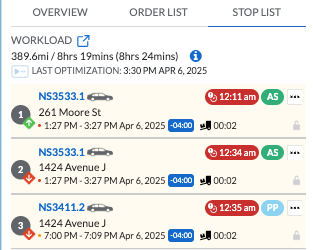
- Workload icon will open the Driver history with the latest workload displayed
- The total number of miles and driving time (total number of hours to deliver all orders)
- Last optimization date and time. The optimization icon allows user to re-optimize a driver workload.
- List of Orders:
- Stop sort order with pickup(green arrow up) or delivery icon (red arrow down)
- Stop address
- Pickup/Delivery Window in the address time zone
- Color coded pill with ETA
- Color coded pill with order status
- ... menu from which the Order:
- Can be dispatched to another driver
- Can be moved to a route
- Can be set picked up when it is in status of dispatched and assigned
- Can be set delivered up when it is in status of dispatched, assigned and picked up
- Can be set at checkpoint
- Can have attributes added or removed
- Can be set with Order exception codes
- Can be cancelled
- Stops can also be locked here by clicking on the lock and stops can be moved within the locked stops
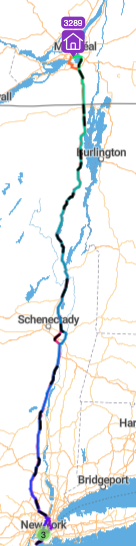
- When opened from the map board, the map will display the home location of the driver if setup in its profile

- The map will display the rainbow road if the stop list is optimized.
- Stop List shows the optimized list of stops if the Driver is online and on duty, sharing its location:
Actions on Orders
Dispatch Orders
Orders can be dispatched from Grid Boards, Map Boards, Linked Map, Order sliding panel, Order Quick View, Driver sliding panel order list and stop list.
Routed orders cannot be dispatched to drivers from the grid or map, they must first be converted to on demand order.
Dispatch One Order
- From grid board, click on the ... menu beside the order and select Dispatch
From the map board, click on the ... in the order cell and select Dispatch
From quick view card, click on the dispatch icon ( )
)
From order sliding panel, click on the ... menu and select Dispatch
From the driver sliding panel, in the Order List or in the Stop List, click on the ... menu and select Dispatch - Follow the steps in Dispatch Dialog Box.
Dispatch in Grid Board with Drag and Drop
On the Dispatch Grid Board, you can select one or more orders and drag and drop the orders to a driver in the Driver list.
- Select first order by clicking on the order row (not the order id).
- Hold SHIFT key while clicking on the last consecutive order
or
Hold CTRL key while clicking on the orders to select. - Click and hold and drag from one of the selected orders, all the orders to a driver name in the driver list.
or
Click on the batch menu ... above the order grid and select Dispatch then follow the steps in Dispatch Dialog Box.
Dispatching Multiple Orders From Map Board or Linked Map Using Lasso Tool
The lasso tool ( ) is available in the popup map from the Horizontal, Vertical and Orders Grid Boards, in the map in the Vertical grid with Map and in the Map Board.
- Click on the Lasso tool in the upper right corner of the map.
The order box appears in the top right of the window under the lasso tool: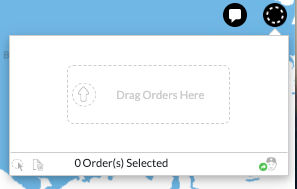
- The pins on the map will show in gray when they are not already dispatched to a driver and show in the driver color when they are dispatched:
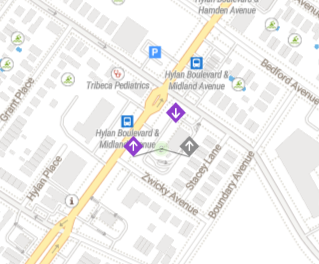
- Hover over a delivery pin to its pickup and vice-versa.
- There are two ways to select orders directly from the map:
- Drag and drop
Click and drag a pickup or delivery pin into the selection box to add it - Lasso Selection
Click the lasso tool ( )to enable it, it will turn green (
 )
)
Draw a circle around the desired pins on the map: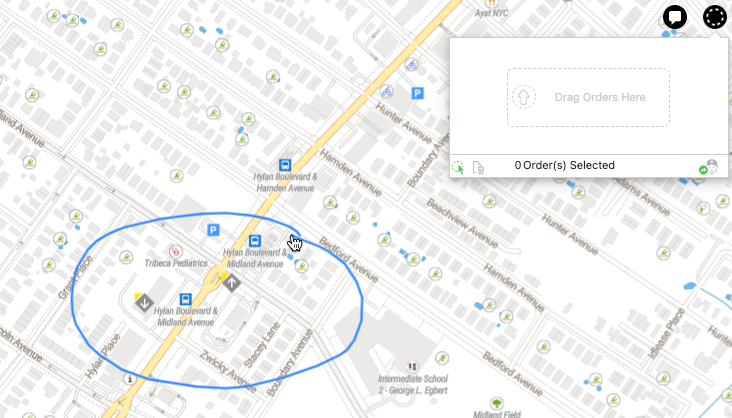
Release the mouse to complete the selection - the corresponding orders will appear in the selection box.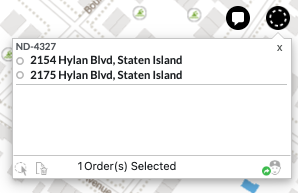
- If you have added an incorrect order, you can click on the x to remove it or click on the Clear All to remove all
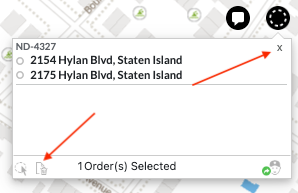
- If you have added an incorrect order, you can click on the x to remove it or click on the Clear All to remove all
- Drag and drop
- Once the orders are selected, click on the dispatch icon
 then follow the steps in the Dispatch Dialog Box.
Dispatch Dialog Box
- Dialog box appears:
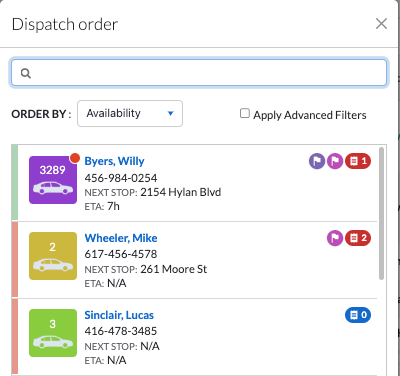
- Search for a driver:
- You can apply the advanced filters already set on your driver list by checking the Apply Advanced Filters checkbox.
- You can use the quick search and type the driver first name, last name or driver number.
- You can sort by Availability or by Order Count.
- Click on the Driver to dispatch the orders.
- Click on Dispatch to dispatch or on Cancel to cancel the dispatching:
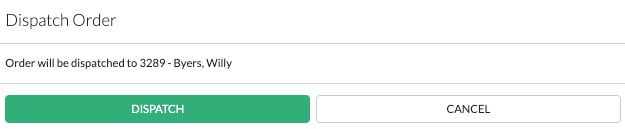
- If the driver has an expired document or certification that prevents dispatching, an error will be displayed and the orders will not be dispatched.
- if the driver does not have a required attribute, the orders associated to the missing attribute will not be dispatched.
- If the order was already dispatched to another driver, you will need to confirm the new dispatch.
Move Order to Route
On demand or routed orders can be moved to routes.
You can select multiple orders from the Grid board and use the batch ... menu or you can move a single order to a route by using the ... from the order.
- Once the Move to route has been selected from the ... menu, a Move to route dialog box will open:
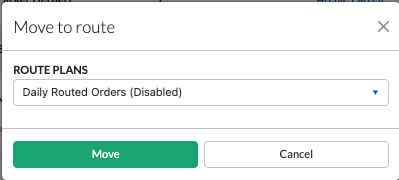 In the Route Plans drop-down field, the disabled route plans will show with a (Disabled suffix).
If the disabled route plan only has closed containers, you will not be able to move the order to the route and an error message will be displayed.
If the Route Plan is disabled but has a container that is in planning or waiting to be dispatched or a container that is in progress or dispatched (this will be indicated on the route container) and the Route Plan option Allow Moving Orders to Dispatched Route has been checked, you will be able to move the order to a route. If the route is dispatched and Route Plan option Allow Moving Orders to Dispatched Route has been checked, you will be able to move the order to this route. - Select the Route Plan
- Select the Route Containers:
Use Configuration: this will use the configuration on the route plan to move the order to right route container according to the settings on the route plan. Go to step 5.
You can also select a Route container. - Select the route.
Use Configuration: this will use the configuration on the route plan to move the order to right route according to the settings on the route plan.
You can also select a Route. - Click on Move.
Move Routed Order to Next Route
Routed orders can be moved to the next route.
- Once the Move to next route has been selected from the ... menu, a Move to next route dialog box will open:
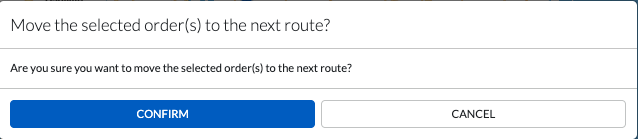
- Click on Confirm to move to next route or cancel to cancel the move.
If the Route plan of the order is disabled, the order will not be able to be moved and an error message will show.
Convert a Routed Order to On Demand
A routed order can be converted to an on demand order. If the routed order is already dispatched to a driver, the order will remain dispatched to the same driver.
- Once the Convert to On-Demand has been selected from the ... menu, a Convert routed order to On-Demand dialog box will be displayed:
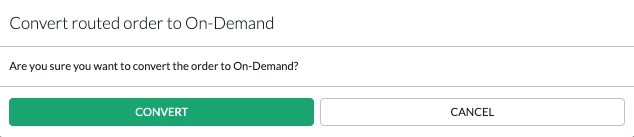
- Click on Convert to convert the order and it will be removed from the route or click on Cancel to leave the order on the route.
Set Order Picked Up
A received, dispatched or assigned order can be set as picked up by the dispatcher.
- Once the Set Picked Up has been selected from the ... menu, a Proof of Pickup dialog box opens:
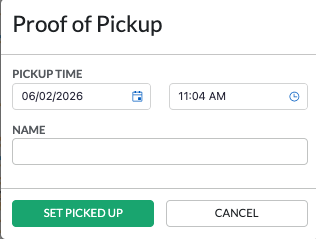
- Set the Pickup date and time.
- Enter an optional name.
- Click on Set Picked Up to set the order as picked up or click on Cancel to return without setting the order as picked up.
If more than one order was selected and the orders do not share the same pickup address time zone, you will not be able to set the orders as picked up.Set Order Delivered
A received, dispatched, assigned, picked up order can be set as delivered by the dispatcher.
- Once the Set Delivered has been selected from the ... menu, a Proof of Delivery dialog box opens:
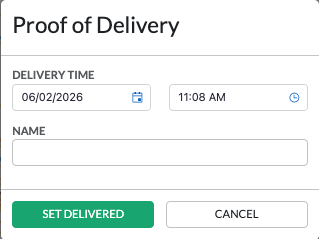
- Set the Delivery date and time.
- Enter an optional name.
- Click on Set Delivered to set the order as delivered or click on Cancel to return without setting the order as delivered.
If more than one order was selected and the orders do not share the same delivery address time zone, you will not be able to set the orders as delivered.Set at Checkpoint
A received, dispatched, assigned, picked up, on hold order can be set at checkpoint. This will add the checkpoint on the order and be visible in the history.
If checkpoint has option to display checkpoint on the customer tracking page, it will also show there.
- Once the Set at Checkpoint has been selected from the ... menu, a Checkpoint dialog box opens:
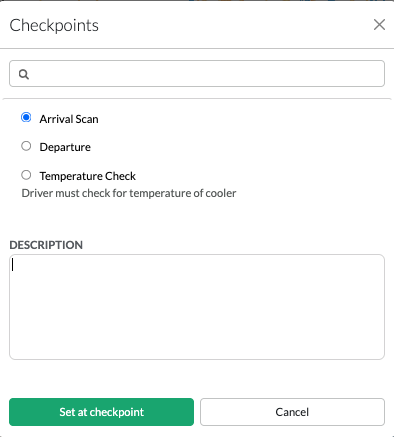
- You can search for a checkpoint by typing its name.
- Click on the checkpoint to select it.
- Enter an optional description. This note will appear on the customer tracking page if the checkpoint option Visible on Tracking Page is checked.
- Click on Set at Checkpoint to set the order checked at checkpoint or click on Cancel to return without setting it.
Add/Remove Attributes on an Order
Attributes can be added or removed to individual orders from the Dispatch Board.
- Once the Attributest has been selected from the ... menu, an Attribute dialog box opens:
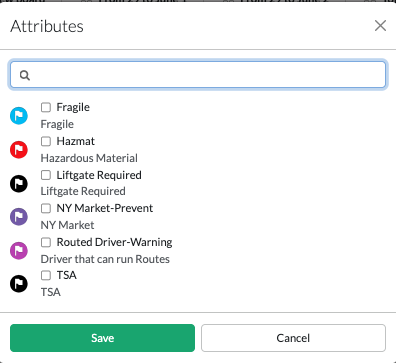 If any attributes were already selected on the order, they will show checked.
 - You can search for an attribute by typing its name.
- Click on the attribute-s to add and uncheck to remove.
- Click on Save to add and/or removed the attributes or click on Cancel to return without making a change.
Add Exception Codes to Orders
Exception codes can be added to orders in any status. To remove order exception codes, open the order in the back office.
To add or remove item exception codes, open the order in the back office.
- Once the Exception codes has been selected from the ... menu, an Exception Code dialog box opens:
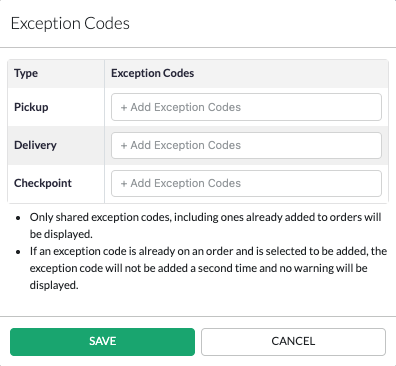 Only exception codes shared by all selected orders will be displayed in the drop-down fields.
 - Click on the drop-down to assign the exception code.
- Check the exception codes to add to the order.
- Click on Save to assign the exception code-s or click on Cancel to return without making a change.
Set an Order on Hold
Orders can be set on hold with a held exception code. Only orders in received, dispatched, assigned or picked up status can be put on hold.
- Once the Hold Order has been selected from the ... menu, an Hold Order dialog box opens
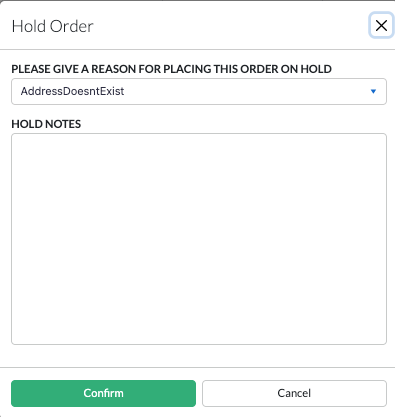
- Select the Hold reason from the drop-down field.
- Enter an optional hold note.
- Click on Confirm to put the order on hold or Cancel to return without change.
Release a Held Order
Held orders can be released with or without additional charges.
- When clicking on the ... menu, hover over Release Order and select the option:
- No Surcharge: No fee will be added to the order and the order will be released.
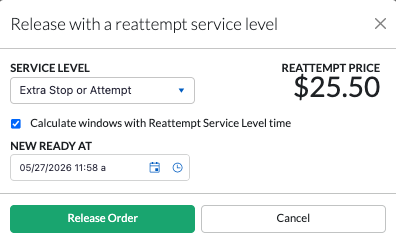
- Reattempt: The reattempt service levels with prices from the order price list will be displayed once the dialog box open and will show with the calculated value. This will be added as a delivery charge on the order.
- Custom: An amount can be manually entered. This will be added as a delivery charge on the order.
- When No surcharge is selected, the order will be released immediately without further input.
or
When Reattempt has been selected, a Release with a reattempt service level dialog box will open. The reattempt service level can be selected and this will recalculate the reattempt price.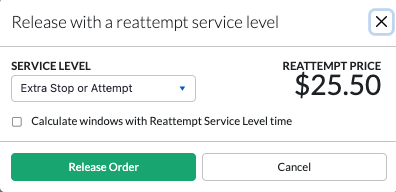 To recalculate the window on the order, check the Calculate windows with Reattempt Service Level time. This will open a new Ready At date and time. It will display the order Ready at but it can be changed.
 or
or
When Custom is selected, a Release with custom reattempt dialog box will open with a $0 charge.
Enter the amount for the reattempt.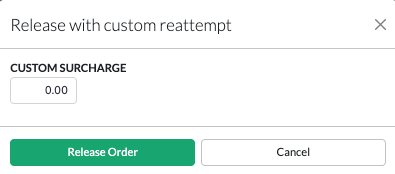
- Click on Release Order from the dialog box to release the order and add the delivery charge or click on Cancel to return without making a change.
Cancel Order
Orders can be cancelled except if they are already delivered or cancelled.
- Once the Cancel Order has been selected from the ... menu, a Cancel Order dialog box opens
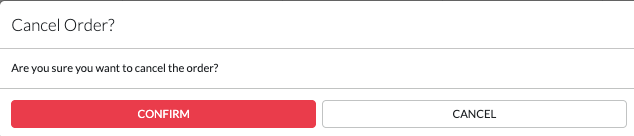
- Click on Confirm to cancel the order-s or click on cancel to return without cancelling.
Reactivate an Order
A cancelled or delivered order can be reactivated. Driver will be moved to Other Drivers section and commission reset to $0. Order will go back to Received Status.
- Once the Reactivate Order has been selected from the ... menu, a Reactivate Order dialog box opens
- Click on Confirm to reactivate the order or click on cancel to return without reactivating.
Generate a Report
A report can be generated for a single order or for a selection of orders.
When clicking on the mass update ... menu and clicking on Reports then on a selected report, the orders that are selected will be used in the report.
When clicking on an order ... menu and clicking on Reports then on a selected report, the order will be used in the report.
When clicking on the  icon above the grid or map board, the filter from the board will be used to only use those orders in the report.
Lock Stops on Driver Stop List
Stops can be locked on the driver stop list to ensure specific stops will be closed in a certain order. On Optimization, the locked stops will remain in the same order and the rest of the stops will be optimized.
- Open the Driver sliding panel and click on Stop List
- In the stop list, you will notice beside each stop a lock icon (
 ).
).
If you do not see the lock icon, make sure the driver stop list is optimized and not showing on the stops.
 - Click on the lock in the position where you wish to have locked stops.
For instance, if you click on the 4th stop lock, the first 4 stops will be locked. - The locks will now show black instead of gray.
- In the stop list, click and select a stop and drag it to a position within the locked stops.
Make sure that if you are moving a delivery stop, its pickup stop is before the position where you drop the delivery stop. - Repeat for each stop you need to order.
When the driver closes the stops, the lock of each stop will be removed.
If you started with 4 locked stops and the driver closes the first stop, 3 locked stops will remain.
You can change the position of the stop at any time and lock additional stops when needed.
Unlock Stops on Driver Stop List
If stops have been locked but you wish the optimizer to reoptimize the entire stop list, you can unlock the driver stops.
- Open the Driver sliding panel and click on Stop List
- In the stop list, you will see the locked stops in black.
- Click on the stop position at which position no more stops will be locked.
To remove all locked stops, click on the first lock in the list.
Set a Driver Off Duty
On duty drivers can be set to off duty by the dispatcher.
- Open the driver sliding panel.
- In the ... menu at the top of the driver panel, click on Set off duty.
- The driver will be set off duty.
Chat with Drivers
You can communicate with drivers in two ways:
- Individual Chat: Start a one-on-one conversation with a specific driver.
- Channel Chat: Use a shared channel to send messages to multiple assigned drivers at once.
- When an internal user or driver has the Can Respond set to Yes, the chats will show within the main chat channel.
- When an internal user or driver has the Can Respond set to No, a new sub-channel will be created within the channel. For drivers, other drivers will not be able to see the responses.
This flexibility improves communication efficiency, whether you're reaching out to a single driver or coordinating with a team on the road.
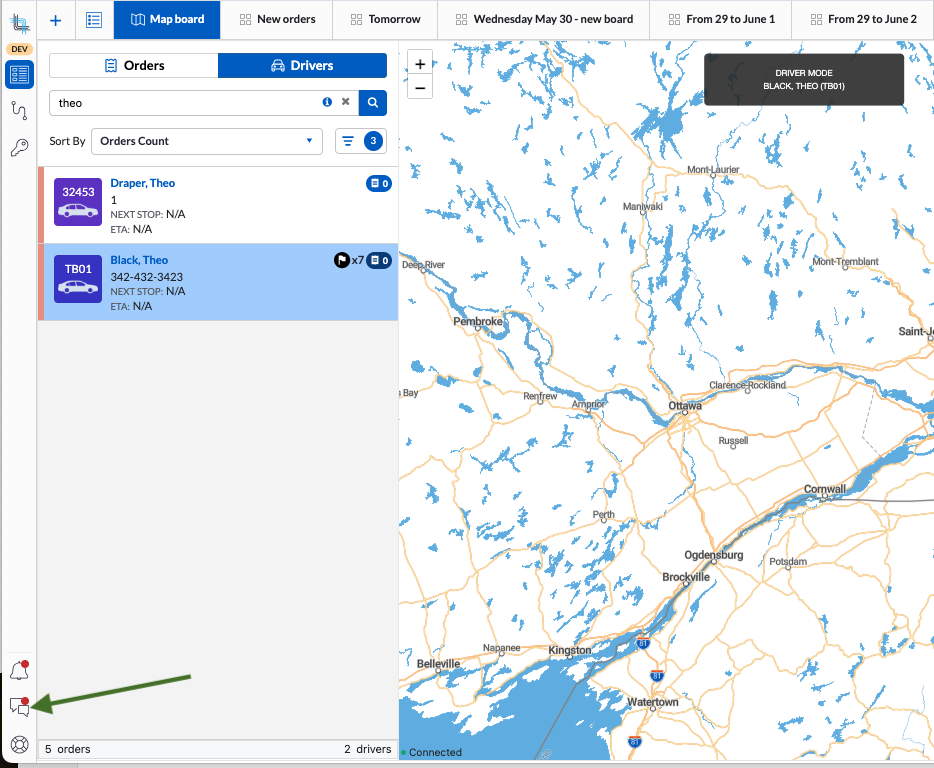
The Driver Chat icon  is located on the vertical menu located on the left of the dispatch board.
You can also open the chat to a specific driver in the following areas:
- Driver Quick View Card:
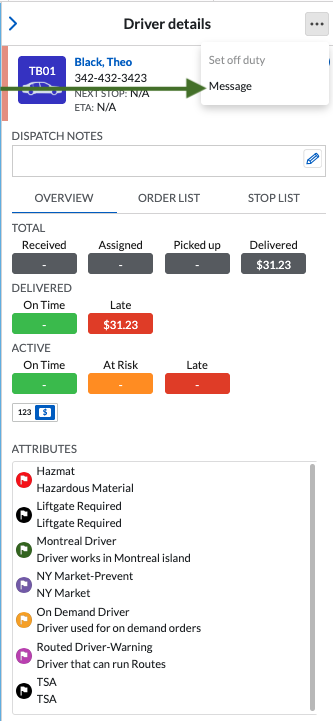
- Driver Sliding Panel using the ... menu:
Start a Chat with a Specific Driver
There are several ways to start a chat with a specific driver:
- Click on a driver to open the sliding panel, click on the ... menu then click on Message.
- Click on
 in a driver quick view.
 - Click on
 . This will bring you to the chat window. Click on
  to open the driver search and start typing the driver name. Once you see the driver in the list, click on it and the driver chat will open.
- Once the driver chat is open, it will display all your previous chats if you chatted previously or show a blank chat:
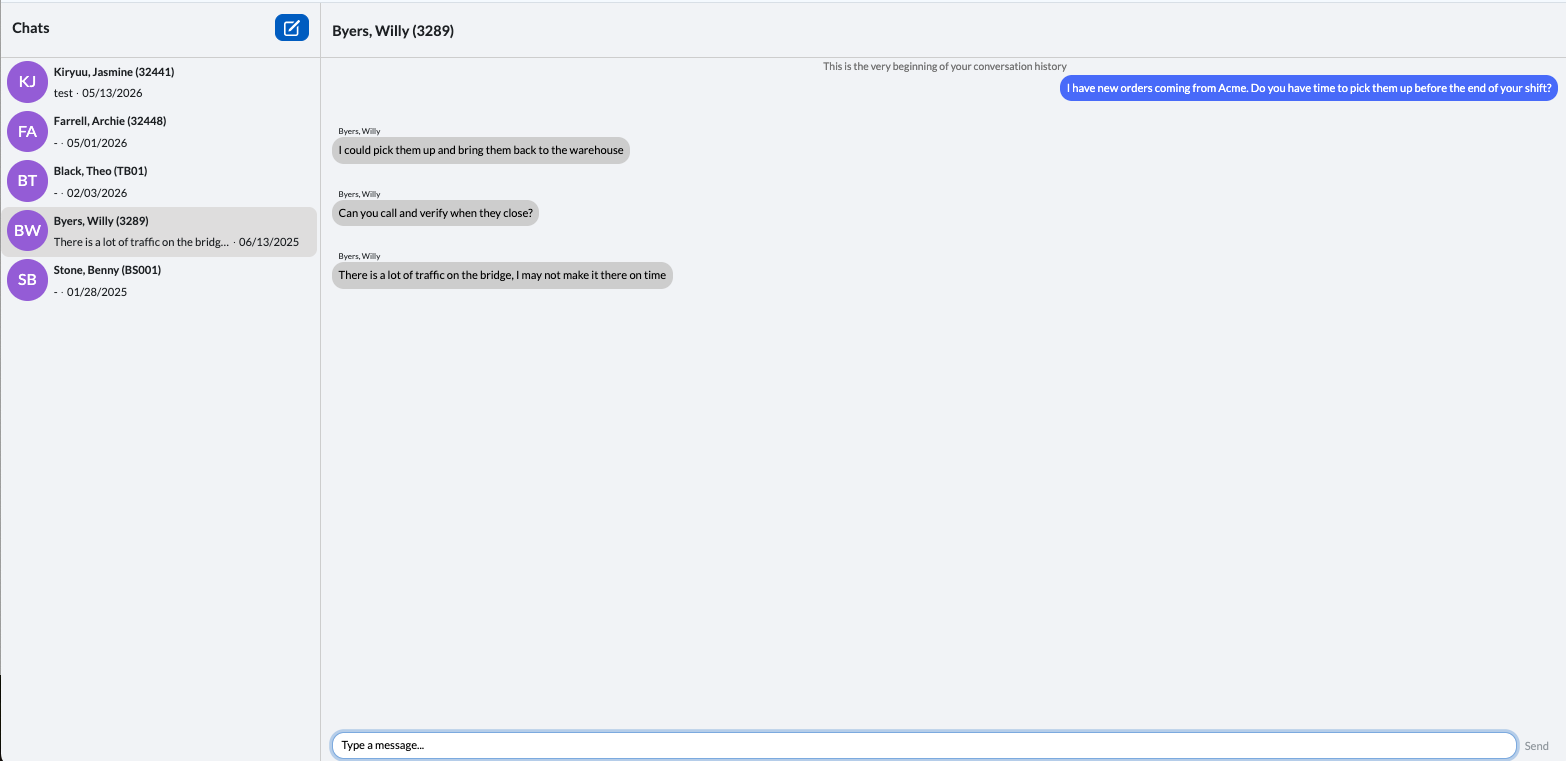
- In the Type a message... bar, start typing the message you want to send and press Enter or click Send.
- If the driver is online and on duty, he will get the message and be able to respond.
- A red dot will appear on the chat icon to indicate you have new chats available:
- Click on the chat icon, a blue dot will show beside the drivers with new messages:
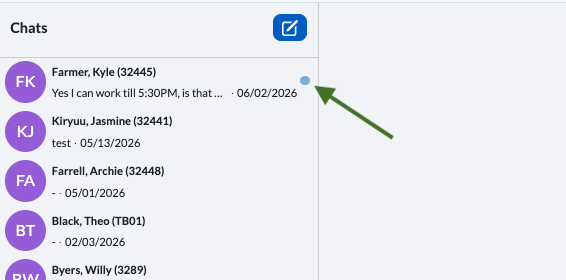
- Click on the driver to read and answer the message.
Start a Chat in a Channel
- Click on . This will bring you to the chat window. Click on to open the driver search and start typing the channel name unless you can spot it in the list. Once you see the channel in the list, click on it and the chat will open.
- Start typing then press Enter or click on Send.
Auto Dispatch Suggestions
When a driver has auto-dispatch suggestions, a red dot will show on the driver:
 A red dot will appear on the Driver when suggestions are available.
- On the Map, a checkbox will show beside Auto Dispatch Suggestions, checking the box will show the suggested Orders with the rainbow road and will show the list of suggested orders on the driver stop list
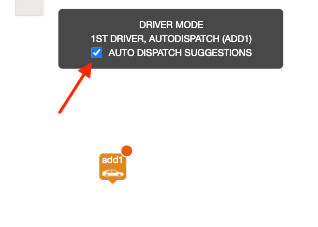
- On the Map, a checkbox will show beside Auto Dispatch Suggestions, checking the box will show the suggested Orders with the rainbow road and will show the list of suggested orders on the driver stop list
- In the driver sliding panel, the driver will also show with the red dot and the View Auto-Dispatch checkbox and the Accept All button enabled. To dispatch all suggestions, click on Accept All.
To only dispatch one or more orders, click on the ... menu beside the order and click on dispatch. The suggested driver will show first.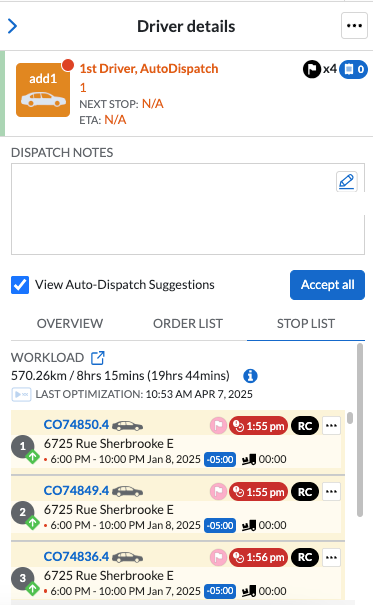
Board Elements Glossary
The Grid and Map boards share the same icons and menus, creating a consistent user experience across both views. This standardized interface makes the boards easier to learn and allows users to switch between views more efficiently with minimal additional training.
Unless specified, the below elements are used in both board types and are located either above the order grid in a grid board, at the top of the orders tab in the map board.
 : Menu of actions.This is found in multiple places on the dispatch board:
 : Quick Search Bar: . Quickly searches for an order or a driver
 :Filter by status: . Filter orders by their status. This works in conjunction with the date selector
 : Advanced filter Filter orders and drivers by zones, vehicle, etc.
 : Linked Map . Only available on the Grid board. Opens a linked map associated to the current board. Orders and drivers displayed will use the grid board filter
-
 : Generate Reports . If reports are available, this icon will be displayed
  : Customize grid . Only available on the Grid board. Used to configure the grid columns
 : Reset grid . Only available on the Grid board. Used to reset the grid columns
- On the grids:
 Column ascending sort order
  Column descending sort order
 Column filter
 order shows gray if not dispatched to a driver otherwise, it uses the driver color (
 ) and when order is cancelled, only contour has a color (
 ). If service level is setup with a color, the color shows in the upper left corner.
 : Order was manually dispatched
 : Order was auto-dispatched
 : Verify order before settlement. Once delivered, order needs to be verified before it can be settled.
 : Verify order before invoicing. Once delivered, order needs to be verified before it can be invoiced.
 : Vehicle type if setup on the vehicle.
 : Order is a multi-segment.
 :Order is routed.
 or
or  : and if showing with a number, there are more than 2.
 : Exception code is assigned on the order/items.
 : Time before the end of the delivery window
- Blue: On Time
- Orange: At Risk
- Red: Late - how many minutes, hours, days, months it is past the delivery end.
 : Order status
- RC: Received
- DP: Dispatched
- AS: Assigned
- PP: Picked up
- DD: Delivered
- HL: On Hold
- CX: Cancelled.
 : Regular (2 lines) or Condensed View (3 lines). The icon with the blue background represents the view that is selected.This is found on the map board order list and the order sliding panel order list.
- On the grid board driver list
 orMap board driver tab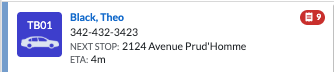
- Vertical line to the left of the driver: Driver status
- Orange : Off duty
- Light Orange: Going off duty
- Blue : Away
- Green : On duty
- Driver icon in driver grid in grid board: Background is driver color, text or number is driver number and vehicle icon.
 Driver icon in driver tab in map board: Background is driver color, text or number is driver number and vehicle icon
 or
or  : Attributes assigned to driver and if showing with a number, there are more than 2 attributes on the driver
 : Number of orders dispatched to the driver
- Blue: Orders are on time
- Orange: At least one order is at risk of being late
- Red: At least one order is late
- Vertical line to the left of the driver: Driver status
- On the map in Map Board, in grid board vertical map and in grid board's associated linked map
The name of the grid board will show on the associated linked map (top center) : Zoom in (+) and Zoom out (-)
 : Lasso tool
 : If there is an advanced filter on order zones, this will turn on the zone overlay to view each zones selected in the order filter
 or
or  :Zoomed out, this is the total number of stops in an area. Green circle means less than 10, 10 and above it shows in a yellow circle. As you start to zoom in, you will still see the circles if you have multiple stops at the same address otherwise, the stops will show as losange with up
 (pickup) and down
  (delivery) arrows with a color triangle in upper left area indicating the service level color if setup:
 Order is not yet dispatched to a driver
 Order is not dispatched to a driver but it is picked up
 Order is not dispatched to a driver but it is delivered
 Order is dispatched or assigned to a driver but not yet picked up
 Order is assigned to a driver and picked up
 Order is assigned to a driver and delivered
 Online and on duty driver show on the map in a square shape with their driver number and vehicle
 Map icon in driver color with the driver number will show on the map if setup on the driver when the driver sliding panel is open and stop list tab is selected
- With the driver sliding panel open and drier stop list tab selected, the rainbow road will display the optimized workload for the driver if the stop list has been optimized.
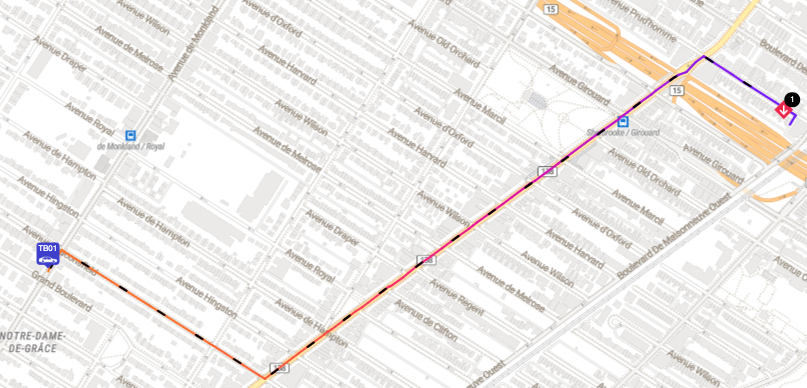
 : Opens the dispatch to driver dialog box.
 : Opens details in Back Office
 : Opens the driver chat
 : Number of items
 : Volume
 : Weight
 : Warning - to see the warning, hover over the icon
 : Indicates a textbox that can be updated
 : Optimize the driver workload
 : Disabled lock - stop is not locked in its position
 : Enabled lock - stop is locked in this position
 : Load/unload time at stop
 : Time zone - the order or stop is in a different time zone that the logged in user
 : Notification bell - an order was put on hold, an order is invalid
- : Driver Chat - this opens the driver chat

Was this article helpful?
That’s Great!
Thank you for your feedback
Sorry! We couldn't be helpful
Thank you for your feedback
Feedback sent
We appreciate your effort and will try to fix the article