- Open the notification template you wish to embed the images into
- Open the source code (Tools > Source Code) in the Body textarea.
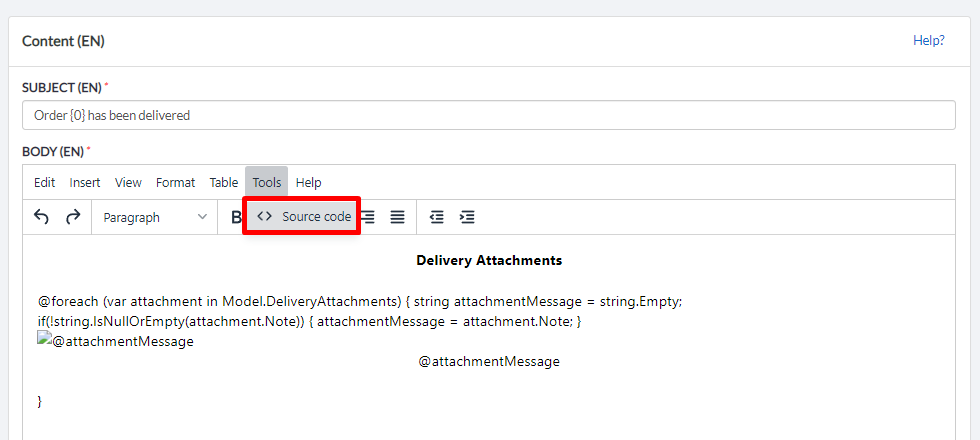
- Paste the code below:
@if (Model.DeliveryAttachments != null && Model.DeliveryAttachments.Length > 0) { <br /><br />
<div style="text-align: center;"><strong>Delivery Attachments</strong></div>
<br />@foreach (var attachment in Model.DeliveryAttachments) { string attachmentMessage = string.Empty; if(!string.IsNullOrEmpty(attachment.Note)) { attachmentMessage = attachment.Note; } <img style="display: block; margin-left: auto; margin-right: auto;" src="@attachment.ImageURL" alt="@attachmentMessage" />
<div style="text-align: center;">@attachmentMessage</div>
<br />} <br /><br />}
For another language, simply copy-paste the English version and change "<strong>Delivery Attachments:</strong>" to the translated equivalent, such as "<strong>Pièces jointes de livraison:</strong>" for French.
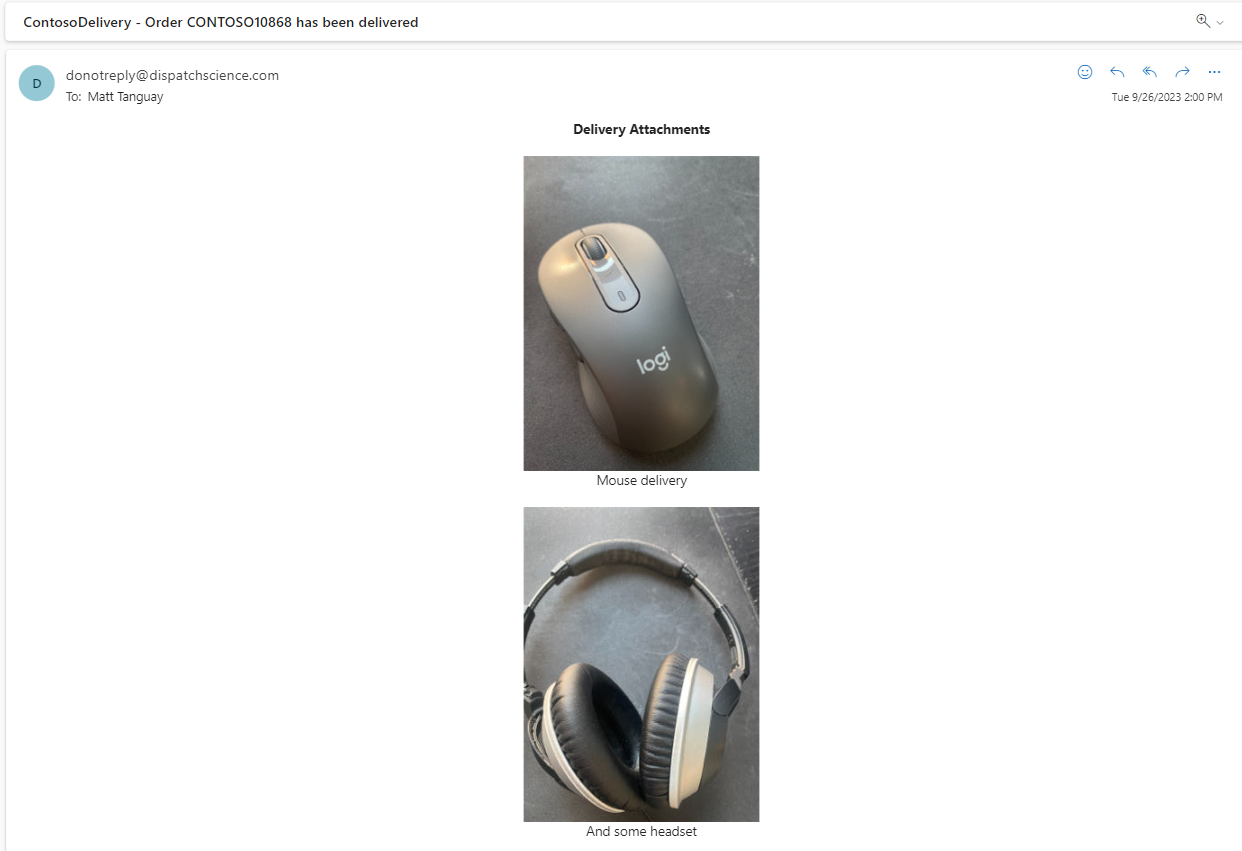
This will insert a section with a list of DeliveryAttachment images, with the note below each. For example:
Was this article helpful?
That’s Great!
Thank you for your feedback
Sorry! We couldn't be helpful
Thank you for your feedback
Feedback sent
We appreciate your effort and will try to fix the article