Order Profiles
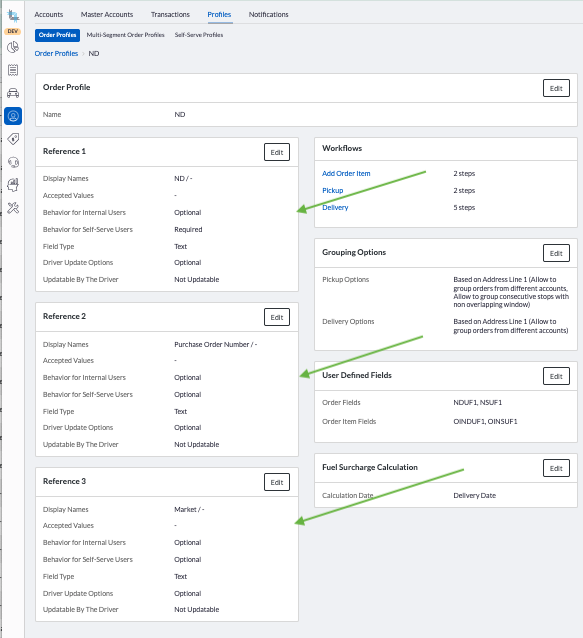
Order profiles are used to setup the reference fields, workflows, grouping, user fields and fuel surcharge calculation. They are located under Accounts, Profiles, Order Profile.
The Order profile is associated to the Account and multiple accounts can share the same Order profile.
Reference Fields
Up to 3 reference fields can be setup:
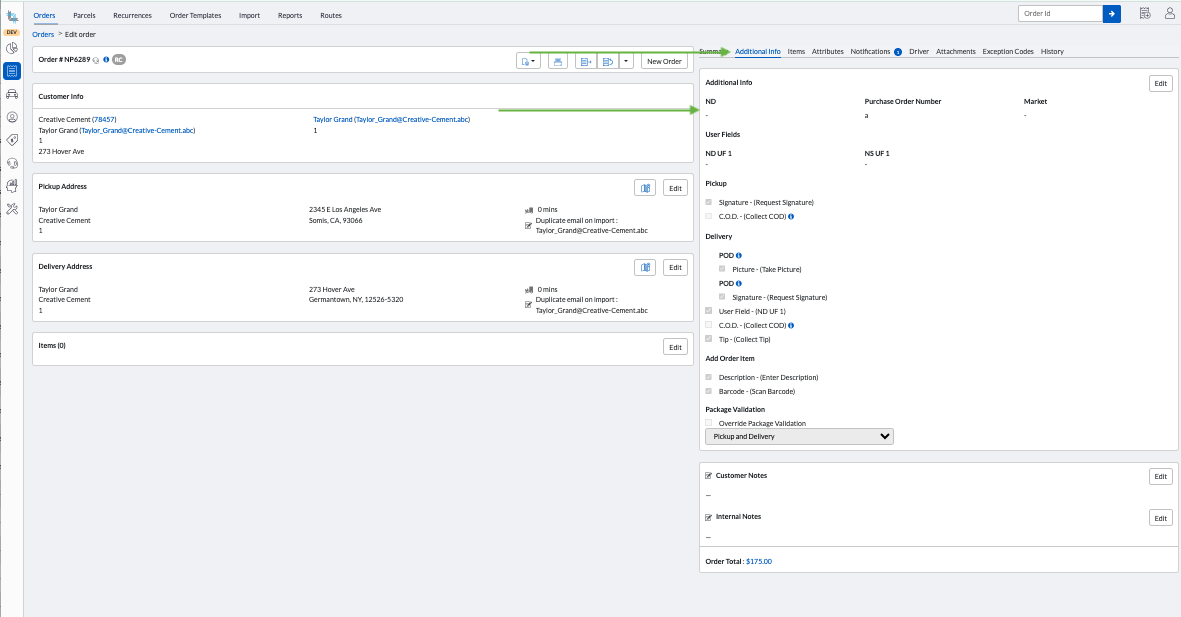
The reference fields show in the Orders' Additional Info tab:
The Reference fields can also be made visible on the Order list in the Back Office and on the Dispatch Board.
Display a User Field
- Click Edit button on the reference field section.
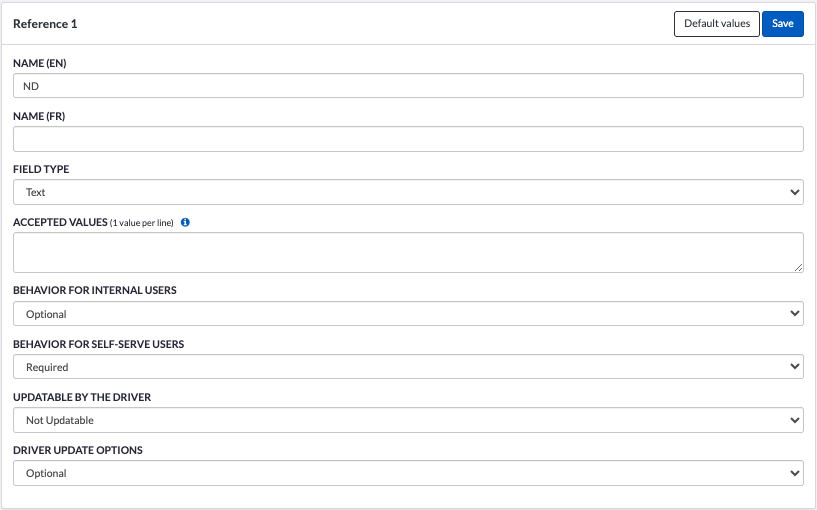
- Enter its name in the first language (Name (EN))
- Enter an optional translation in the second Name field.
- Select the field type:
Text, Dropdown, Whole Number, Decimal - Enter the Accepted Values by typing each value followed by ENTER key.
- If the Type is set to Dropdown, the values entered in Accepted Values will be displayed as the selectable options in the reference field.
- If the Type is set to Text, Whole Number, or Decimal, the values entered in Accepted Values will not appear in a dropdown. Instead, users can type a value, but it must match one of the values defined in Accepted Values.
- Behavior for Internal Users:
Select Hidden, Optional, Required.
Select Hidden if you do not which the internal users to see the content of the field.
Select Optional if you wish the internal users to see the content of the field but the field can be left blank.
Select Required if you wish the internal users to see the content of the field and the order cannot be saved if it is not filled in.
If you require a PO number on the order, this would be a good place to add it. - Behavior for Self-Serve Users:
Select Hidden, Optional, Required.
Select Hidden if you do not which the self-serve or account users to see the content of the field.
Select Optional if you wish the self-serve or account users to see the content of the field but the field can be left blank.
Select Required if you wish the self-serve or account users to see the content of the field and the order cannot be saved if it is not filled in. - Updatable by the Driver:
The reference field can be updatable by the driver on the Driver App in the Stop details.
Select Not Updatable, Scanned, Free text
Select Not Updatable if the field should be read-only in the Driver App.
Select Scanned if you want the driver to scan a barcode in the reference field in the Driver App.
Select Free text if you want the driver to type in a value in the reference field in the Driver App. - Select the Driver Update Options:
Optional, Required for Pickup, Required for Delivery, Required for Pickup and Delivery.
Select Optional if the driver does not have to fill in the reference field.
Select Required for Pickup if the field must be filled in before picking up an order. The driver will not be able to pickup the order if the field was left blank.
Select Required for Delivery if the field must be filled in before delivering up an order. The driver will not be able to deliver the order if the field was left blank.
Select Required for Pickup and Delivery if the field must be filled in before picking up and delivering an order. The driver will not be able to pickup or deliver the order if the field was left blank. - Click on Save to save your changes.
Click on Default Value to blank all the fields.
Workflows
Workflows can be setup for accounts in the Order Profile.
For more information about workflows, please review the different types of workflows available on the order profile:
Pickup workflow, Delivery workflow, Add Item workflow.
Grouping Options
In the Account Profile, there is the possibility to group stops dispatched to a driver by address line 1, address line 1 and line 2, and by geolocation or to have them ungrouped.
You can group pickup and/or delivery stops however the time windows must overlap unless you check the Allow to group consecutive stops with non overlapping window option.
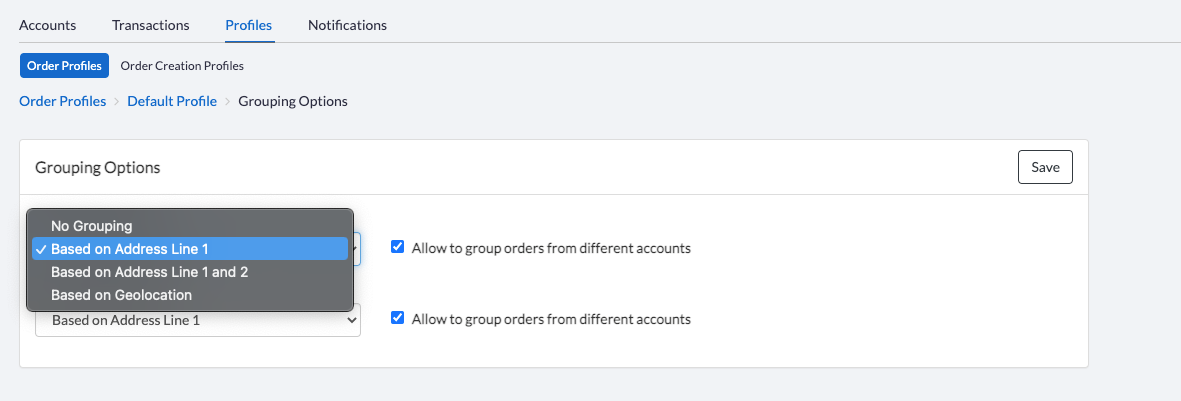
No Grouping
Stops will not be grouped even if they are at the same location. Driver will have to close each stop individually on the Driver App.
Based on Address Line 1
Stops can be grouped using Address Line 1 as long as address line 1 is exactly the same on the orders.
Based on Address Line 1 and 2
Stops can be grouped using Address Line 1 as long as address line 1 and 2 are exactly the same on the orders.
Based on Geolocation
Grouping by geolocation will allow orders to be grouped by their latitude and longitude instead of using the syntax of Address Line 1 and/or Line 1 and 2 Geolocation will use the first latitude and longitude up to 4 decimals to group the stops, allowing some tolerances to the geolocation.
Allow to group orders from different accounts
Checking this option will allow orders from different accounts to be grouped together. This works great if you are picking up or delivering from a common address such as a warehouse.
Allow to group consecutive stops with non overlapping window
Checking this option will allow orders to be grouped together even if their windows do not overlap as long as they are one after the other according to the optimization.
User Defined Fields
Order user fields and order item user fields can be setup in the order profile. The order user fields show in the Order additional info tab below the reference fields. The order items user fields show in the Order item details in the Items tab.
For more information please review User Deifned Fields.
Fuel Surcharge Calculation
Coming in version 1.78
Was this article helpful?
That’s Great!
Thank you for your feedback
Sorry! We couldn't be helpful
Thank you for your feedback
Feedback sent
We appreciate your effort and will try to fix the article