The Customer Portal can show account users the Exception Codes recorded on their orders, at order level and on each item. Account users can consult these codes but cannot add, change or remove them.
Table of Contents
- Give Self-Serve Users Access to Exception Codes
- Show Exception Codes in My Orders
- See Exception Codes from the Order Header
- View an Order's Exception Codes Tab
- See Exception Codes on Order Items
Give Self-Serve Users Access to Exception Codes
Account users see Exception Codes in the Customer Portal only once the Exception Codes permission is selected on their Self-Serve role. This permission is not selected on any role by default. It is listed only on Self-Serve role types, in the Orders row of the permissions grid.
- In the Back Office, navigate to Settings > Configurations > System > Roles.
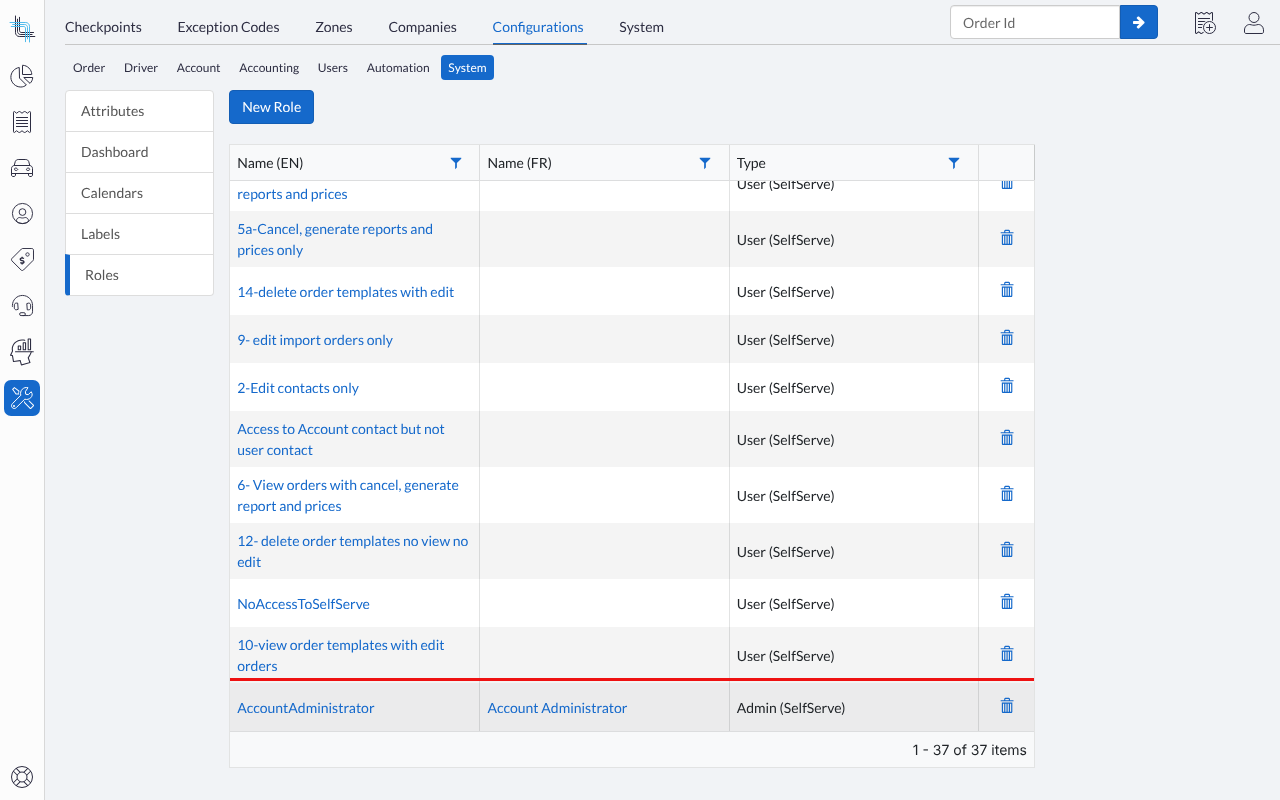
- Click the name of the Self-Serve role to update.
- To create a role instead, click New Role and select a Self-Serve type in the Type dropdown.
- In the permissions grid, find the row with Orders in the Name column and Exception Codes in the Permission column.
- Type in the Search... field to find the row faster.
- Select the radio button in the Access column of that row.
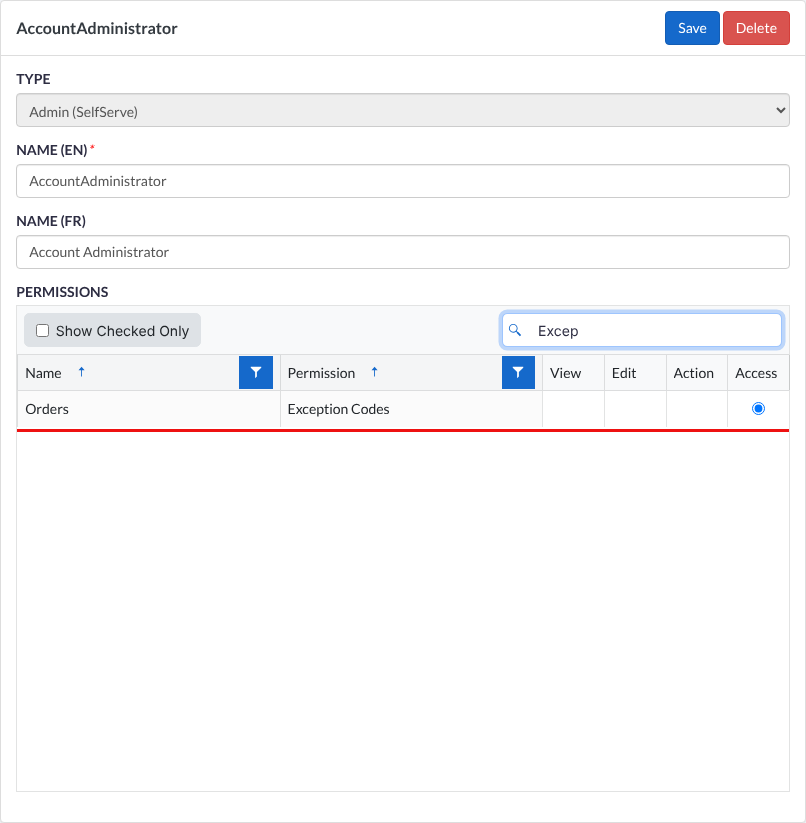
- Click Save.
- A success message appears and the Roles list is displayed.
Users assigned to the role see the change after they reload the Customer Portal. Without this permission, account users do not see the Exception Codes column, its filter or its export column in My Orders. They also do not see the exception code icons or the Exception Codes tab in the order details.
To remove the access, click the selected radio button in the Access column again to clear it, then click Save.
Show Exception Codes in My Orders
In the Customer Portal, My Orders can show the Exception Codes of each order in a dedicated column, filter orders by Exception Code, and include the codes in exports. The Exception Codes permission must be selected on the user's role (see Give Self-Serve Users Access to Exception Codes).
Add the Exception Codes Column
The Exception Codes column is hidden by default. Once you add it, your choice to show or hide it is kept.
- In the side menu, click My Orders.
- Click the gear icon, then point to Columns.
- Check Exception Codes.
- The Exception Codes column appears in the list. Each cell shows up to 5 code names, separated by commas.
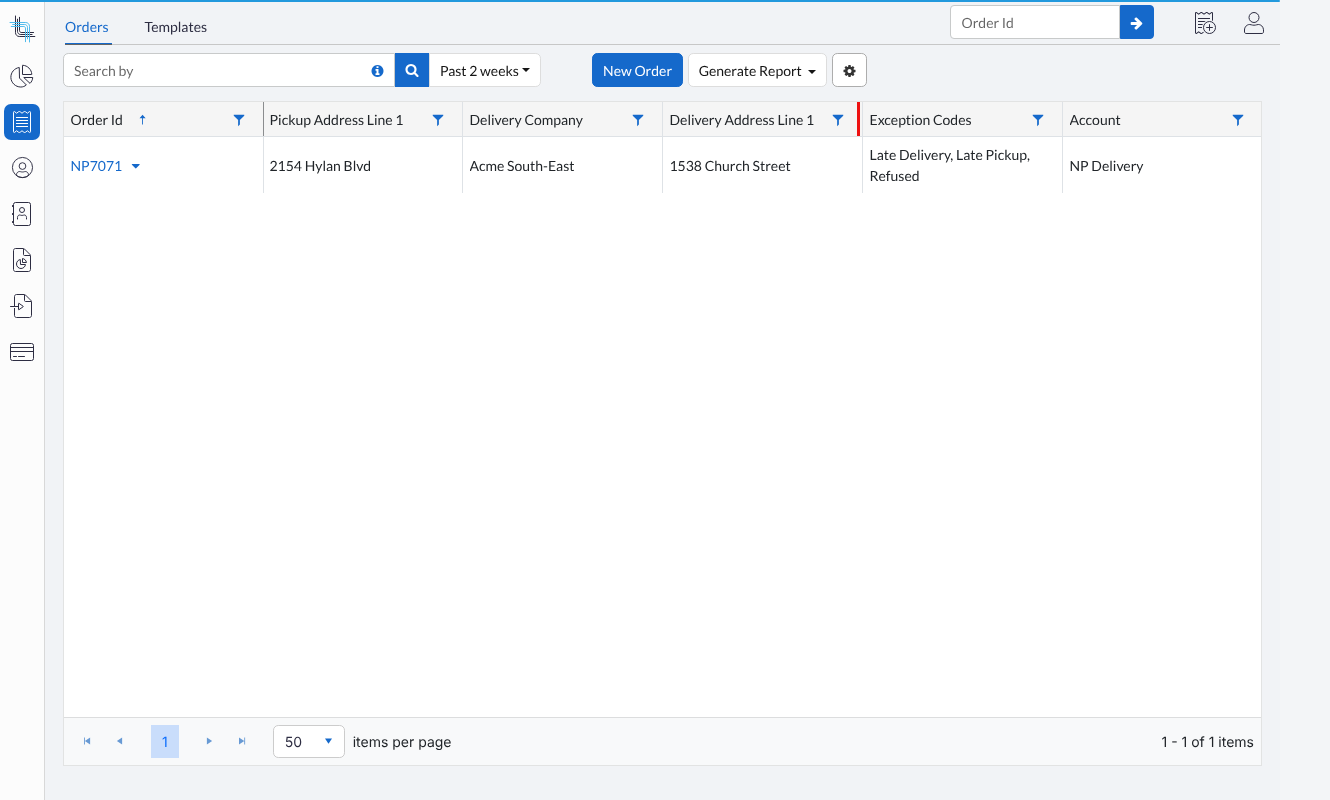
- The Exception Codes column appears in the list. Each cell shows up to 5 code names, separated by commas.
The Exception Codes column cannot be sorted: clicking its header does not change the order of the list. Orders with more than 5 Exception Codes show only the first 5 in the cell.
Filter by Exception Code
- Show the Exception Codes column, as described above.
- Open the filter menu of the Exception Codes column.
- The menu lists the Exception Codes present in your orders, with a Select All option.
- Check one or more Exception Codes, or check Select All.
- Only the orders that carry at least one of the selected codes remain in the list.
- Click Clear All Filters to show all orders again.
Export with Exception Codes
- In My Orders, click the gear icon.
- Click Export Data.
- The Orders.xlsx file includes an Exception Codes column, with the codes of each order separated by commas.
The export includes the Exception Codes column even when the column is hidden in the list.
See Exception Codes from the Order Header
In the Customer Portal, an exception code icon next to the order number gives a summary of all the Exception Codes of the order and its items. The Exception Codes permission must be selected on the user's role.
- In My Orders, click an order number.
- The order details open.
- Point to the exception code icon next to the order number.
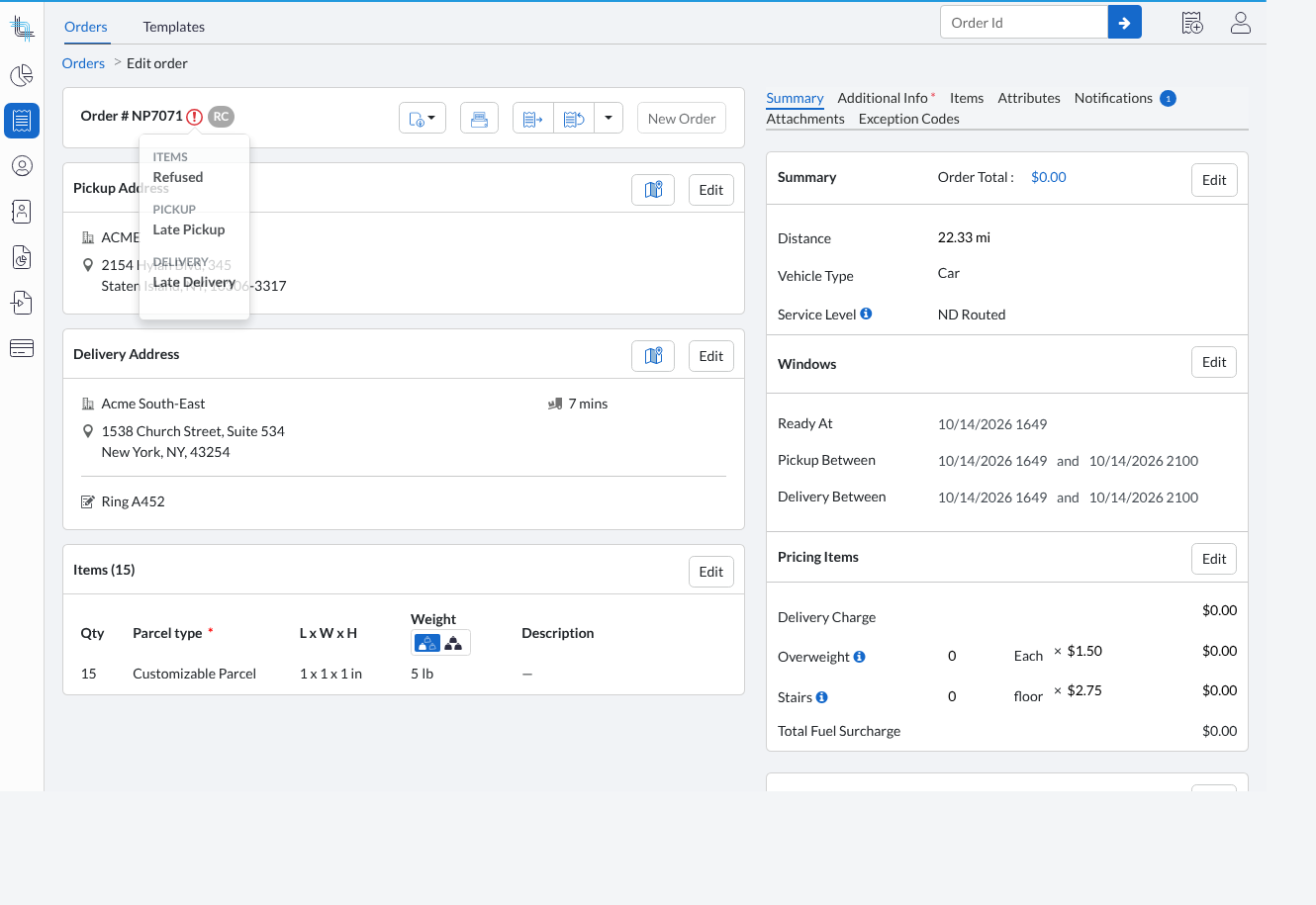
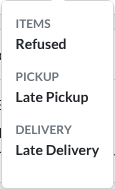
- Read the codes, grouped under Checkpoints, Items, Pickup and Delivery.
The icon appears only when the order or one of its items has Exception Codes. Groups without codes are not shown, and an item code name used on several items is listed once.
View an Order's Exception Codes Tab
In the Customer Portal, the Exception Codes tab of an order lists its order-level Exception Codes by Pickup, Delivery and Checkpoint. The Exception Codes permission must be selected on the user's role.
- In My Orders, click an order number.
- Click the Exception Codes tab.
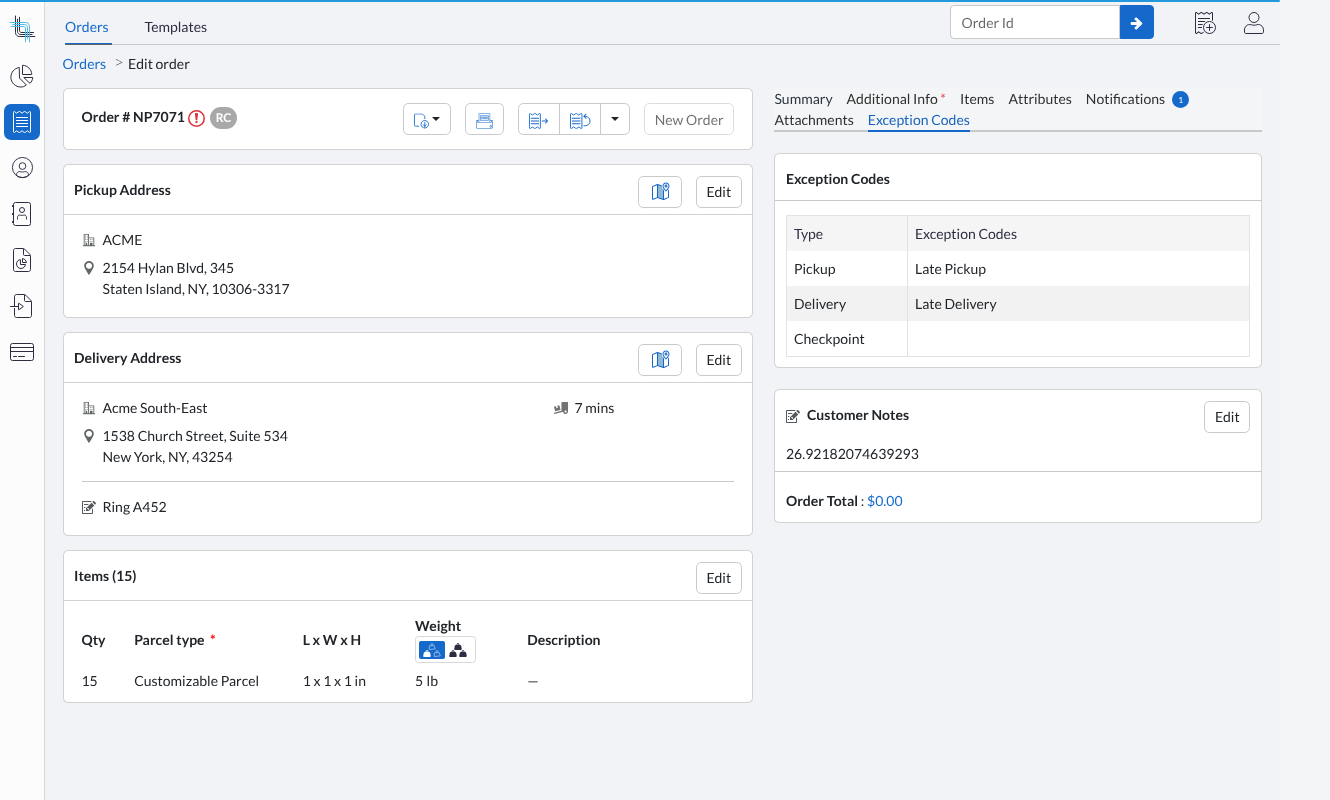
- Read the codes in the Exception Codes column, separated by commas, for each Type: Pickup, Delivery and Checkpoint.
The tab is read-only for account users: it offers no Edit, Save or Cancel button. It is available on existing orders only, not while creating an order or on an Order Template. The tab is shown even when the order has no Exception Codes; the rows are then empty.
See Exception Codes on Order Items
In the Customer Portal, an exception code icon next to an item's Parcel Type shows the Exception Codes of that item. The Exception Codes permission must be selected on the user's role.
- In the order details, click the Items tab.
- Point to the exception code icon next to the item's Parcel Type.
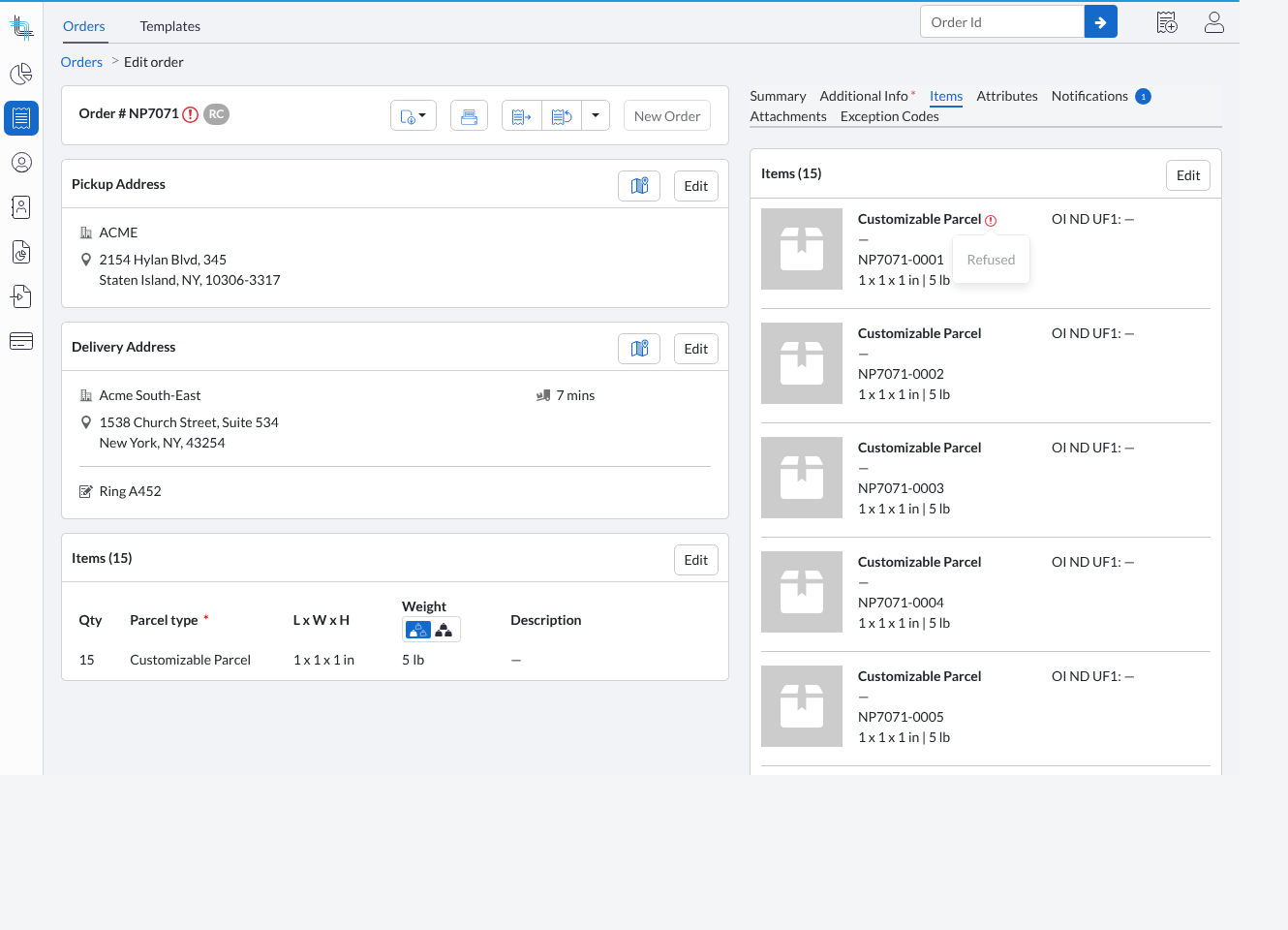

- Read the item's Exception Code names.
The icon appears only when the item has Exception Codes.
Multi-Segment Orders
Exception Codes added to a segment order, at order level or on an item, are also added to its multi-segment order. Codes removed from a segment order are also removed from the multi-segment order. The multi-segment order therefore shows its segments' codes under the order header icon, in the Exception Codes tab and on the item icons.
Was this article helpful?
That’s Great!
Thank you for your feedback
Sorry! We couldn't be helpful
Thank you for your feedback
Feedback sent
We appreciate your effort and will try to fix the article