A default Multi-Segment Order Profile has been created to streamline status updates across segmented orders. This feature improves consistency, reduces manual updates, and makes managing multi-segment orders more efficient. It allows for configuring how to propagate the ready at time and the segment statuses.
Key Details
A single default Multi-Segment Order Profile is available.
It is automatically created and assigned to all accounts.
To configure
Here is how to get to the multi-segment profile:
- Go to BackOffice > Account > Profiles > Multi-Segment Order Profiles.
- Open the multi-segment order profile.
- Configure each sub-section as desired, then save.
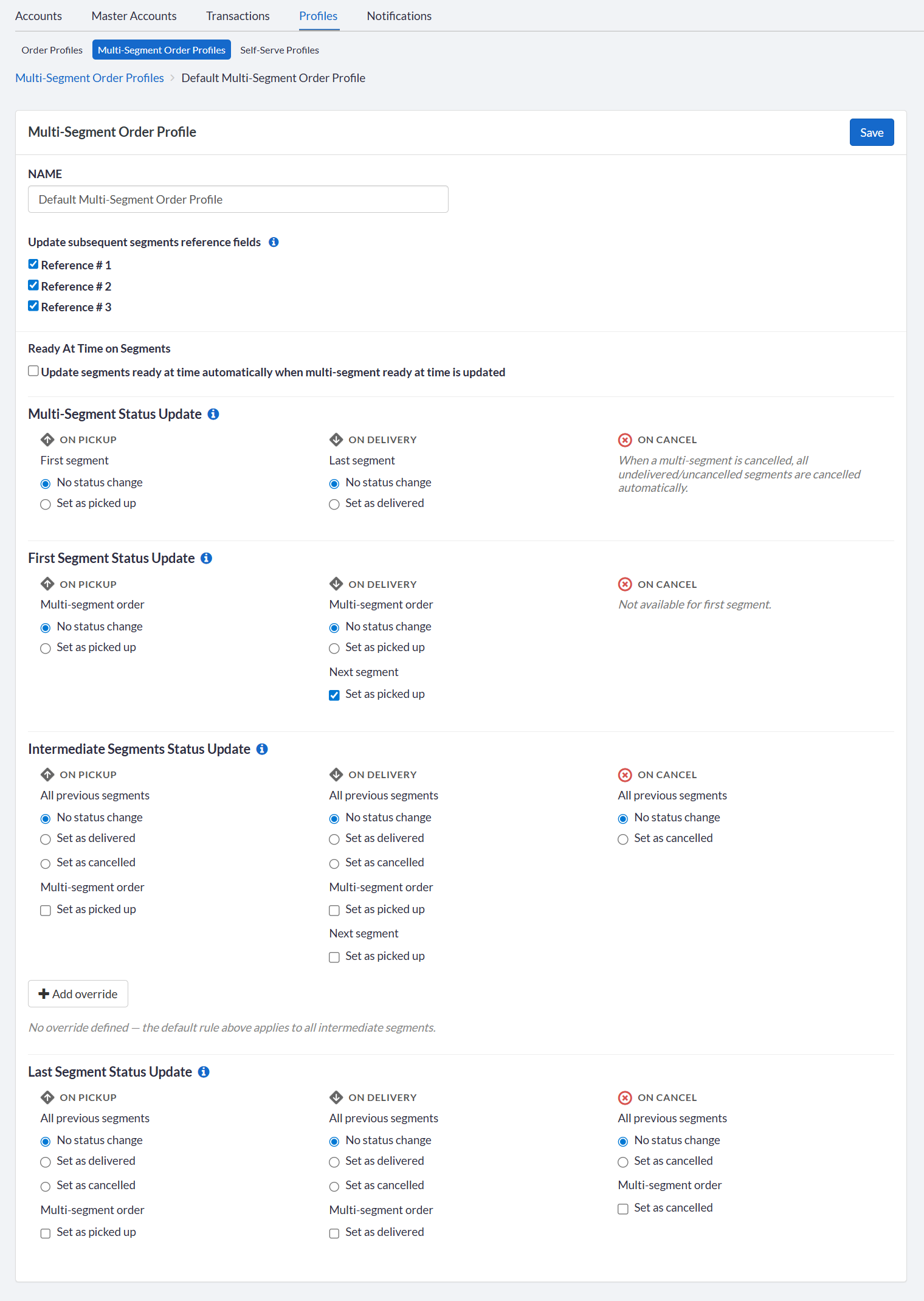
Ready At Time propagation
A new checkbox — Update segments' Ready At time automatically when the multi-segment Ready At time is updated — controls whether updating the Ready At time on a multi-segment order automatically updates the Ready At time on all open (not delivered or cancelled) segments. When checked, the segment times are recalculated based on the service level, as they would be if the change were made manually on each segment. This checkbox is unchecked by default for all profiles after deployment.
Segment status propagation rules
Status propagation can be configured independently for each segment position and event type. The configuration is organized into four sub-sections: Multi-Segment, First Segment, Intermediate Segments, and Last Segment. A Specific Segment override can also be defined for a particular segment number (2 or above); that override takes priority over the Intermediate Segments configuration for that position.
The Last Segment configuration always has the highest priority over Intermediate and Specific segment configurations.
For each sub-section, the following events can be configured:
| Sub-section | On Pickup | On Delivery | On Cancel |
|---|---|---|---|
| Multi-Segment | Set first segment as: No change / Picked up | Set last segment as: No change / Delivered | All non-delivered/cancelled segments are cancelled automatically (fixed rule, not configurable) |
| First Segment | Set multi-segment as: No change/ Picked up | Set multi-segment as: No change / Picked up; optionally set next segment as Picked up | Not configurable for first segment |
| Intermediate & Specific Segments | Set all previous segments as: No change / Delivered / Cancelled; Set multi-segment as: No change / Picked up | Set all previous segments as: No change / Delivered / Cancelled; optionally set next segment as Picked up; Set multi-segment as: No change / Picked up | Set all previous segments as: No change / Cancelled |
| Last Segment | Set all previous segments as: No change / Delivered / Cancelled; optionally set multi-segment as Picked up | Set all previous segments as: No change / Delivered / Cancelled; optionally set multi-segment as Delivered | Set all previous segments as: No change / Cancelled; optionally set multi-segment as Cancelled |
When Set as Delivered is selected for previous segments, an additional option allows removing the driver from those segments before delivering them. When Set next segment as Picked Up is selected, a similar remove-driver option is available.
The following behaviors related to Hold, Reactivate, and Release from Hold apply regardless of profile configuration:
- On Hold (segment): All non-delivered/cancelled segments and the multi-segment are put on hold automatically.
- On Release from Hold (segment): All on-hold segments are released automatically with no surcharge; the multi-segment is released with the same surcharge applied.
- On Reactivate (segment): All delivered/cancelled segments and the multi-segment are reactivated automatically.
- On Hold (multi-segment): All non-delivered/cancelled segments are put on hold automatically.
- On Release from Hold (multi-segment): All on-hold segments are released automatically with no surcharge.
- On Reactivate (multi-segment): All delivered/cancelled segments are reactivated automatically.
Migration of existing configurations
Existing multi-segment profile is automatically migrated based on the previous checkbox state:
- Checkbox was unchecked: Last segment On Pickup and On Delivery are configured to set the multi-segment as Picked up / Delivered respectively. First and Intermediate segments On Pickup and On Delivery are configured to set the multi-segment as Picked up. All other options default to No status change.
- Checkbox was checked: Last segment On Pickup sets all previous segments as Delivered and sets the multi-segment as Picked up. Last segment On Delivery sets all previous segments as Delivered and sets the multi-segment as Delivered. Last segment On Cancel sets all previous segments as Cancelled and sets the multi-segment as Cancelled. First and Intermediate segments On Pickup and On Delivery set the multi-segment as Picked up. All other options default to No status change.
Was this article helpful?
That’s Great!
Thank you for your feedback
Sorry! We couldn't be helpful
Thank you for your feedback
Feedback sent
We appreciate your effort and will try to fix the article