Fuel surcharges can be manually recalculated at any time. This allows you to fix an incorrect fuel surcharge or intentionally change the fuel price applied to an order.
In some cases, fuel surcharges may need to be recalculated based on the actual delivery date rather than the original pickup date. This is especially useful for exceptions such as orders that were delivered after an extended hold.
This article explains how to manually recalculate fuel surcharges on an order that has already been picked up.
When to Use This Feature
Use manual fuel surcharge recalculation when:
An order was placed on hold for an extended period
The delivery date falls under a different fuel surcharge rate
The applied fuel surcharge is incorrect
You need to adjust or override the fuel price for a specific order
How to Manually Recalculate Fuel Surcharges
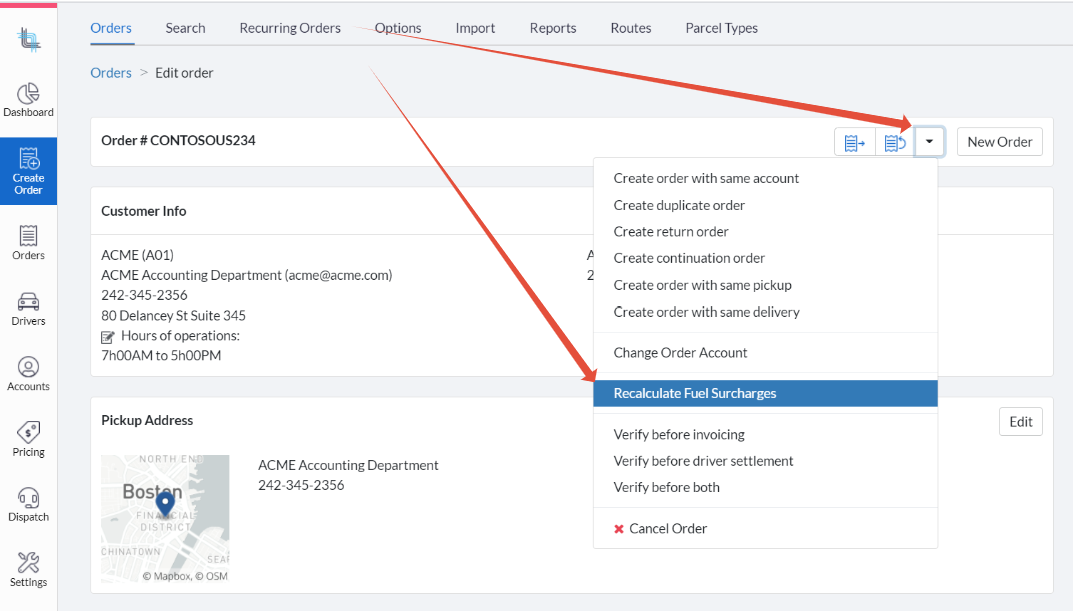
Navigate to Orders.
Open the order and click Edit Order.
Click the Shortcut dropdown menu.
Select Recalculate Fuel Surcharges.
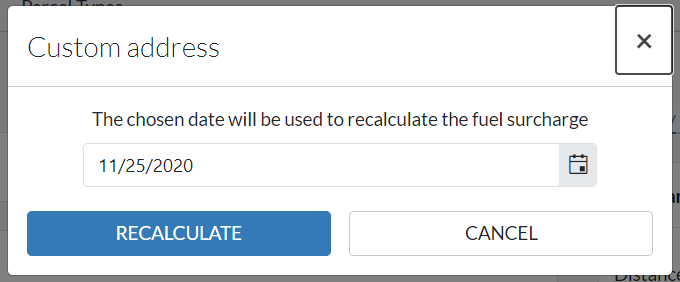
Select a Date and Recalculate
A popup window will appear prompting you to select a date.
Choose the date you want the fuel surcharge to be based on.
Click RECALCULATE to apply the updated rate.
Click CANCEL to exit without making changes.
What Happens Next
The fuel surcharge rate configured under Pricing > Fuel Surcharges for the selected date will be applied.
The order’s total price will automatically update to reflect the recalculated fuel surcharge.
Notes
Fuel surcharge recalculations can be performed at any time, even after pickup or delivery.
This action only updates the fuel surcharge; all other pricing components remain unchanged.
Ensure fuel surcharge rates are correctly configured for the selected date before recalculating.
Was this article helpful?
That’s Great!
Thank you for your feedback
Sorry! We couldn't be helpful
Thank you for your feedback
Feedback sent
We appreciate your effort and will try to fix the article